

You try to visit your website, only to see the “This site can’t be reached” error staring back at you. It’s a frustrating moment that can leave you feeling stuck. But before you worry about a complete site crash, rest assured, it’s not that serious.
This issue momentarily blocks access, but your site’s content and structure remain intact. Although it might feel like a hurdle, overcoming it is simpler than you think. We’ve tackled this problem many times and have gathered easy steps to guide you through resolving it.
The “This site can’t be reached” error happens when your browser fails to connect to a website. Regular backups using a reliable backup plugin and updates are crucial to protect data and keep your site accessible.
Understanding the “This site can’t be reached” error

You’ve likely encountered this message while using browsers like Chrome, Firefox, or Edge. It appears when your browser can’t establish a connection to the website you’re trying to visit.
Though the main error message is quite generic, there’s typically an extra note or code that hints at what may have gone wrong, helping you kickstart the troubleshooting process.
Common causes of this error
Here are some reasons why this error might occur:
Internet issues: Sometimes, your internet connection might be unstable. This can happen if there’s a temporary issue with your Wi-Fi or network.
DNS issues: Think of DNS as the internet’s locator service. If there’s a problem with it, your browser may struggle to find the right address for the website.
Server downtime: Occasionally, the website’s server might be down for maintenance or experiencing technical difficulties, preventing access.
Security settings: Security settings on your computer or network might block access to certain sites for protection, sometimes too much so.
Cache and cookies: Browsers store some data from websites to help them load faster next time. If this data is outdated or corrupted, it might lead to errors.
How to fix the “This site can’t be reached” error
Running into the “This site can’t be reached” error can be a bit of a roadblock, but you’ve got several ways to tackle it. Here are some steps to get you back online smoothly:
1. Check internet connection
First things first, make sure your device is connected to the internet. Try visiting other websites to see if they load. If your connection seems off, give your router or modem a quick restart to refresh things.
2. Verify website URL
Double-check the URL you’re trying to visit. Even a small typo can lead you astray. If you’re unsure, try accessing the site through a different link or bookmark.
3. Use a different browser
Sometimes, a browser might be having its own hiccups. Try opening the site in another browser to see if that solves the issue.
4. Clear browser cache and cookies
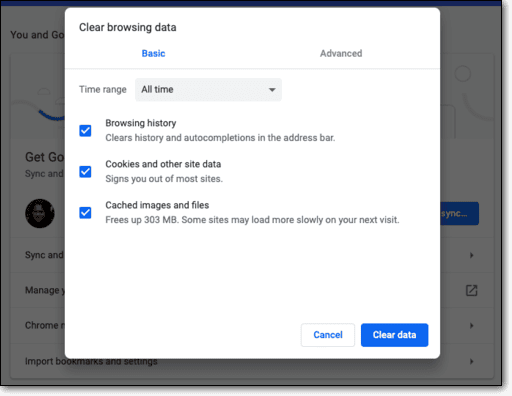
Old data stored in your browser might be causing trouble. Clearing all cache and cookies, restart your browser, and give the site another try.
5. Check for server accessibility

Use online tools like Is It Down Right Now to see if the website is down for everyone or just for you. If it’s a widespread issue, contacting the website’s hosting provider could give you more insight.
6. Adjust DNS settings
Switching your DNS to a public server like Google’s DNS (8.8.8.8) or Cloudflare’s DNS (1.1.1.1) can sometimes clear up connection problems. You can do this in your computer’s network settings.
7. Disable firewall or security software temporarily
Sometimes, your WordPress firewall or security software might block access to websites. Temporarily turn off your firewall or security program to see if this is the case. Don’t forget to turn it back on afterward for safety.
8. Flush DNS cache
Clearing the DNS cache can solve connectivity issues too. On Windows, open Command Prompt and type the following:
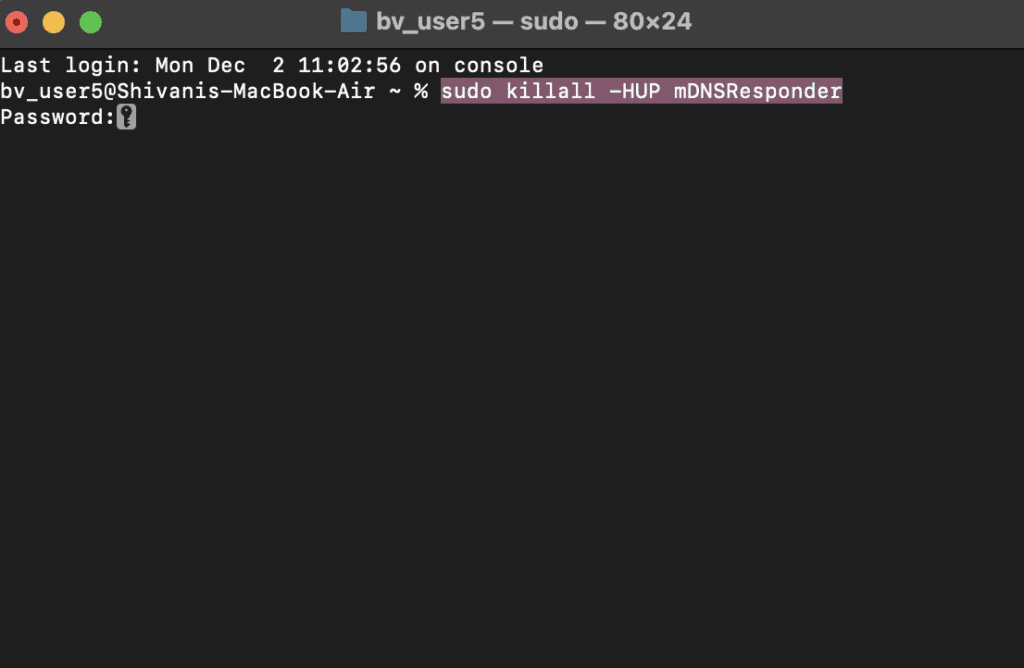
ipconfig /flushdns. On a Mac, open Terminal and type the following:
sudo killall -HUP mDNSResponder.9. Scan for malware

Run a malware scan using a reliable plugin to make sure no sneaky software is causing connectivity issues. This can be done with security plugins or software.
10. Contact ISP or website administrator
If the problem persists, reaching out to your internet provider. They can help solve network-related issues. If you’re the site owner, contact your website’s hosting support or IT team for further assistance.
Best practices to prevent the error
To keep your website running smoothly and avoid those pesky “This site can’t be reached” errors, here are some simple yet effective practices you can follow:
Regularly monitor server uptime: Use tools to check that it’s working properly all the time. Set up alerts so if your site goes down, you know right away and can fix it fast.

Maintain updated DNS records: DNS records are like your website’s address book. Make sure they’re up-to-date and accurate. Regularly check these settings with your hosting provider to avoid any hiccups in connectivity.
Choose a good hosting: Pick a reliable hosting provider known for keeping websites up and running. You might also want to explore hosting options that can handle sudden visitor spikes, so your site doesn’t crash.
Regularly clear cache and cookies: Clearing of cache and cookies from time to time to can prevent loading issues. Implement smart caching strategies that help your site load faster without causing problems.
Monitor and adjust security settings: Review your WordPress firewall and security settings to make sure they’re not too strict, accidentally blocking visitors. Use trusted security software to keep out malware while allowing legitimate access.
Provide clear communication for downtime: If downtime is necessary, for when you put your site into maintenance mode, have a maintenance page to inform visitors what’s happening. Let them know when you expect the website to be back up, so they aren’t left in the dark.
Regular backups and updates: Take regular backups of your site to save your data just in case there are server issues. Additionally, keep your website and its plugins up-to-date. This helps reduce vulnerabilities that might cause accessibility problems.
Parting thoughts
By applying these strategies, you can easily prevent “This site can’t be reached” errors and ensure your website operates smoothly. Routine checks and updates help maintain consistent uptime, providing a better experience for your visitors. With a bit of regular maintenance, your site will stay functional and accessible.
FAQs
How do I fix a website that can’t be reached?
To fix this, first check your internet connection to ensure everything is working properly. If that’s not the issue, clear your browser’s cache and cookies or try using a different browser to access the site. Often, these steps solve the problem.
Why is my Google saying this site can’t be reached?
This happens because the website’s server might be down or your internet connection is unstable. Security settings or an outdated cache can also cause this error, so refresh your connection and ensure other sites are accessible.
Why is every site unreachable?
When no websites load, the issue is likely with your internet connection. Double-check and restart your Wi-Fi or modem, and look for any widespread internet outages in your area.
How do I clear my Google cache?
In Google Chrome, go to settings, select “Privacy and Security,” then click on “Clear Browsing Data.” Choose “Cached images and files” and confirm the action to refresh how websites load.
Why do I keep getting this site can’t be reached?
Frequent errors might mean a persistent internet issue or that your browser and DNS settings need updating. Regularly restart your router and keep software current to help avoid these errors.

Shivani enjoys crafting guides that make every aspect of using WordPress simple and easy to follow. When she's not glued to her laptop, you can find her buried in a good book or occasionally, painting.


