

WordPress sites are vital for countless online presences, relying heavily on databases to run efficiently. Sometimes, you might encounter the “WordPress database error deadlock found when trying to get lock” error, which can slow down your site and frustrate visitors.
It’s important to tackle this issue quickly to maintain a smooth user experience. If you’re dealing with this problem, you’re not alone—many WordPress users have also faced it.
To assist you, we’ve prepared a simple guide with steps to troubleshoot and fix the error, ensuring your site returns to optimal performance swiftly.
The “WordPress database error deadlock found when trying to get lock” occurs when your site’s components clash over data access, causing slowdowns. To safeguard your site, invest in a backup plugin to easily restore your site if issues arise.
What is the error all about?
A database deadlock happens when two parts of your WordPress site try to access the same data simultaneously. This causes them to block each other. This can occur when plugins, themes, or custom code make conflicting requests to your database.
As a result, your site may experience slowdowns or temporary disruptions, but it won’t crash entirely.
Common causes of this error
Plugin or theme conflicts: Different elements may make simultaneous requests, leading to clashes and conflicts caused by plugins or themes.
Inefficient database queries: Some queries take too long because they aren’t optimized, causing delays.
High traffic spikes: When a lot of people visit your site at once, it can put a strain on your database.
Large or complex transactions: Big or complicated requests can slow things down.
Outdated software or plugins: Old versions might have bugs that cause problems.
Insufficient server resources: A server without enough resources struggles to handle database requests effectively.
How to fix the WordPress deadlock found when trying to get lock
Tackling the deadlock found when trying to get lock error on your WordPress site is super easy with some simple steps. Here’s how to go about it:
1. Identify recent changes
Check plugins and themes: Review any recent installations or updates you’ve made.
Inspect code changes: Examine any custom code or settings changes.
Revert changes: Temporarily undo these updates to see if the error resolves.
2. Analyze server logs
Access server logs: Log into your hosting provider’s dashboard or use an FTP client to explore your server files.
Find logs: Look for a folder named logs or something similar.
Search for deadlocks: Open the logs and search for entries that mention deadlock to find details on what’s causing the issue.
3. Isolate and disable plugins
Deactivate all plugins: On your WordPress dashboard, go to the plugins section and deactivate all plugins.

Test for error: Check if the error is gone.
Reactivate one by one: Turn plugins back on one at a time, testing the site each time to see when the error returns.
Identify the culprit: If a particular plugin causes the error, contact the developer for assistance.
4. Optimize the database
Access phpMyAdmin: Log into your hosting control panel and find phpMyAdmin.

Repair and optimize: Select your database, then choose the check all option, and click repair table and optimize table. Optimize your database by removing unused data like old revisions and transient options.

5. Adjust PHP settings
Find wp-config: Navigate to your WordPress installation directory and locate the wp-config.php file.

Increase memory: Add the following line of code towards the end of your file right before the line that says, “That’s all, stop editing.”:
define('WP_MEMORY_LIMIT', '256M'); This helps to boost memory allocation.
Extend execution time: Edit your php.ini or .htaccess file and add:
max_execution_time = 300 This allows scripts more time to run.
After making changes, test your site’s functionality to ensure everything is working smoothly. Use performance tools like Airlift to check for improvements. Make sure that you don’t forget to document what you’ve changed.
6. Increase server resources
Check resource usage: Analyze your current server resource usage via your hosting dashboard.
Upgrade plan: If your site needs more resources, consider upgrading to a hosting plan with more capabilities.
7. Seek professional assistance
If the error persists despite your best efforts, it might be time to consult a WordPress expert with database management experience. They can provide specialized help and set up a maintenance plan for ongoing site optimization.
Best practices to avoid this error
To keep your WordPress site running smoothly and avoid errors like deadlock found when trying to get lock, here are some simple practices you can follow:
Keep everything updated: Make sure you regularly update WordPress, along with any themes and plugins you use. New updates often fix bugs and prevent conflicts.
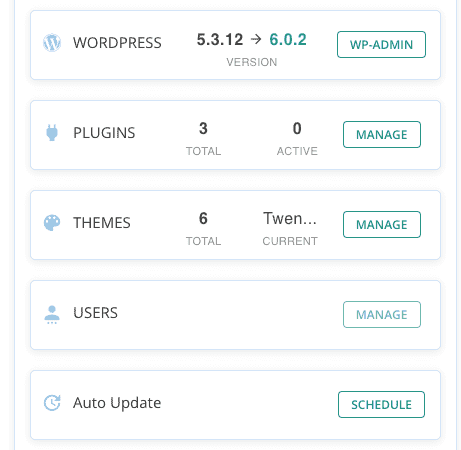
Choose reliable plugins: When adding plugins, pick ones that are well-coded and have good reviews. Reliable plugins mean fewer technical issues.

Optimize your database: Over time, your database can get cluttered. Cleaning it up now and then helps it run efficiently, like tidying your room so you can find things easier.
Limit active plugins: Only keep the plugins you really need active. Fewer plugins mean fewer chances for conflicts to happen.
Keep an eye on performance: Regularly check how fast your site is running. If things start to slow down, you can catch issues early before they become big problems.
Use caching solutions: Caching helps reduce the load on your server by storing copies of your site content. This makes things faster for your visitors and less work for your server.
Schedule regular backups: Always have backups of your site. If something goes wrong, you can easily restore everything without losing important data.

Wrapping up
Keeping your WordPress site in good shape is crucial. By addressing deadlock errors and following troubleshooting steps, you ensure it runs smoothly.
Don’t forget that regular maintenance and monitoring help catch issues early, preventing bigger problems down the line. And if things get tricky, professional help is always available.
FAQs
How to solve a database error?
To solve a database error in WordPress, first identify the specific error message displayed. Check your database credentials in the wp-config.php file. Ensure they match the settings provided by your hosting provider. Additionally, verify that your database server is functioning correctly and accessible.
How to fix error establishing a database connection in WordPress?
The error establishing a database connection error can be fixed by verifying that the database name, username, password, and host in your wp-config.php file are correct. Ensure your database server is operational and accessible by confirming with your hosting provider. Repairing the database through cPanel or phpMyAdmin may also resolve the issue.
How to clean my WordPress database?
To clean your WordPress database, by removing unnecessary data such as post revisions, spam comments, and old metadata. Regularly cleaning up your database enhances performance and reduces load times. Always backup your database before performing any cleanup operations.
How can I monitor my server load?
You can monitor your server load using tools provided by your hosting service, like cPanel’s resource usage feature. Regular monitoring helps you identify performance bottlenecks and address them before they impact your site’s functionality.
WordPress database not connecting
If your WordPress database is not connecting, check the database credentials in the wp-config.php file for accuracy. Ensure that the database server is running and accessible, and consult your hosting provider for any potential server issues. Additionally, check for any firewall or security settings that might be blocking the connection.

Shivani enjoys crafting guides that make every aspect of using WordPress simple and easy to follow. When she's not glued to her laptop, you can find her buried in a good book or occasionally, painting.


