

Connecting your WordPress database can be challenging, especially if you’re new to WordPress. Mistakes in the WordPress database connection process can crash your site or create security risks, frustrating visitors and damaging credibility.
The good news is that these issues are preventable. We’ve spent years in the WordPress world, understanding every twist of database connections.
This article guides you through tips to master the database connection process. We’ll teach you everything you need to know to keep your site secure, fast, and running smoothly.
Understanding your WordPress database connection is key to a smooth and secure site. Regularly backup your site using a backup plugin to protect your content and prevent potential issues.
1) What is a WordPress database?

Your WordPress database is the heart of your website, storing all your data. This includes posts, pages, and comments. Without it, your site would be empty.
It also holds theme settings, plugin configurations, and user information. When someone visits, WordPress retrieves this data to display your site.
Information is neatly organized into tables—posts in one, users in another, settings elsewhere. This organization helps WordPress quickly find what it needs.
WordPress uses SQL for database interactions, storing and retrieving your content seamlessly. When you publish a post, it uses SQL to save it in the database.
Without a working database connection, your WordPress site can’t function or display content to visitors.
2) How WordPress connects to a database
To connect to a database, WordPress needs to locate and access it using information from the wp-config.php file. This file contains four essential details: database name, username, password, and host address.

Database name: Identifies which database belongs to your site. Without it, WordPress won’t know where to find your content.
Username and password: This allows WordPress access, just like keys to a door. These must match the credentials from your hosting provider.
Host address: Indicates where the database server is. Often it’s localhost, but it may vary based on your hosting company.
With these details correct, WordPress can connect to your database to save, load, and manage your content. Without a proper connection, your site can’t display content to visitors.
3) How to connect database to WordPress
Connecting your database to WordPress requires two main tasks that you can complete through your hosting account. Follow these steps to establish a working connection between WordPress and your database.
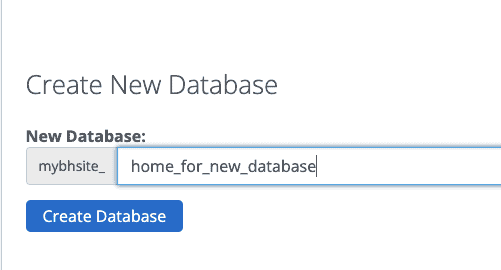
Create your database: Log into your hosting control panel and find the databases or MySQL databases section. Create a new database and give it a clear name to identify which website it belongs to.
In the same control panel section, create a new database user with a strong password. Ensure this user has full permissions to access and modify the database.
Find your wp-config.php file: Locate the wp-config.php file in the root directory of your WordPress installation, usually where all your WordPress files are uploaded.

Edit the database connection details: Open the wp-config.php file using your hosting file manager or a text editor. Fill in your database name, username, password, and host address.
Enter the host address: Set the host address to localhost unless your hosting provider specifies a different one. This tells WordPress where to find your database server.
Save and test: Save the wp-config.php file after entering all your details. Ensure everything matches what you created in your hosting control panel; even small typos can break the connection.
4) Common issues you may encounter
An error establishing a database connection happens to everyone, but they usually come from a few predictable causes. Knowing what to look for helps you fix them faster.
Wrong credentials: This is the biggest culprit. If your database name, username, or password in wp-config.php doesn’t match what’s in your hosting account, WordPress can’t connect. Make sure you check these details carefully.
Incorrect host address: Most sites use localhost but some hosts require a different address. If you’re getting connection errors, verify the correct host address with your hosting provider.
Corrupted database: Your database files got damaged, usually from server crashes or plugin conflicts. You’ll need to restore from a backup or use your hosting panel’s repair tools.
Missing user permissions: You created a database user but forgot to give them permission to actually use the database. Go back to your hosting control panel and make sure your user has full access to your database.
Server problems: Sometimes your host’s database servers go down. There’s nothing you can do except wait for them to fix it. Check your hosting provider’s status page for outages.
Plugin conflicts: A plugin might be causing conflicts with your database connection. Try turning off recently installed plugins to see if that fixes the problem.
Outdated software: Old WordPress versions or plugins can cause connection issues. Keep everything updated to avoid compatibility problems.
5) Best practices for managing your WordPress database
Managing your WordPress database properly prevents most connection problems and keeps your site running fast. These simple habits will save you from headaches later.
Backup your site regularly: Set up backups of your site. When problems happen, you can restore everything quickly instead of losing your content.
Clean up regularly: Your database fills up with spam comments, old drafts, and unused content. Clean this out monthly by deleting spam, removing old post revisions, and getting rid of plugins you don’t use anymore.
Optimize your tables: Database tables get messy over time, which slows down your site. Use your hosting panel’s optimization tools or a database plugin to reorganize everything. This simple step makes your site load faster.
Monitor performance: Check how much database space you’re using and watch for slow loading times. If your database gets too big or your site feels sluggish, it’s time to clean up or upgrade your hosting.
Use strong passwords: Create strong passwords for your database users and change them regularly. Never share these credentials with anyone, and avoid obvious passwords.
Keep software updated: Update WordPress, themes, and plugins regularly. Outdated software causes connection problems and security issues.
Limit plugins: Only install plugins you actually need. Each plugin slows down your database, so remove anything you’re not using.
Wrapping up
These five sections cover everything you need to know about a WordPress database connection. With this understanding, you’ll confidently tackle any database issue that comes your way.
Remember, a solid database connection is your site’s backbone, enabling seamless management and maintenance for smooth, efficient operation.
FAQs
How do I clean my WordPress database?
You can clean your WordPress database using plugins like WP-Optimize or Advanced Database Cleaner. These tools help you remove unnecessary data like post revisions, spam comments, and transient options. Regular cleaning improves database performance and site speed.
How to fix database connection error in WordPress?
Check your database credentials in the wp-config.php file for accuracy. Ensure your database server is running and all details match your hosting setup. If issues persist, contact your hosting provider for support.
Why is my database not connecting?
Incorrect credentials, server issues, or firewall restrictions can prevent connection. Check that the database name, username, password, and host address are correct. Verify with your host that the database server is operational.
How many tables are there in WordPress?
By default, WordPress creates 12 tables to organize site data. These include tables for posts, users, comments, and options. Additional tables may be added by plugins or custom configurations.
How to repair a WordPress database?
To repair a WordPress database, use the WordPress repair tool by adding define(‘WP_ALLOW_REPAIR’, true); to wp-config.php and navigating to yoursite.com/wp-admin/maint/repair.php. Choose a repair option and remember to remove the code afterward for security.

Shivani enjoys crafting guides that make every aspect of using WordPress simple and easy to follow. When she's not glued to her laptop, you can find her buried in a good book or occasionally, painting.


