

Setting up your first WordPress site can feel overwhelming, especially when you reach the part about connecting to a database. You might be wondering what a database is or why your website needs one to function properly.
Here’s what you need to know. Every WordPress site requires a database connection to store your content, and without it, your site simply won’t load.
In this article, we’re going to walk you through exactly how to make this connection work, step by step, so you can get your site up and running quickly.
To connect WordPress to your database, use the database name, username, password, and host in the wp-config.php file. Remember to backup your site regularly with a backup plugin to safeguard your data.
The basics of connecting to a WordPress database
Your WordPress database is the core of your website, storing posts, pages, and user information. When visitors view your site, WordPress pulls this data to display your content.
For a WordPress database connection, you’ll need details from your hosting provider: the database name, username, password, and host address. These go into the wp-config.php file, which instructs WordPress on accessing the database.
1) Preparing to connect WordPress to database
Here’s what you need to do before connecting WordPress to your database:
Find your database information: Log into your web hosting control panel and look for Databases or MySQL Databases. Write down your database name, username, and password exactly as shown.
Locate your database host: Check your hosting documentation or control panel for the database host address. Most hosts use localhost, but some have different addresses.
Access your wp-config.php file: Find the wp-config.php file in your WordPress root folder. You can access this through your hosting control panel’s file manager or an FTP program.

Keep your login details ready: Have your hosting account username and password handy incase you need to verify any information during setup.
2) How to connect WordPress to a database
Now that you have all your information ready, it’s time to make the actual connection. This process involves editing one file and entering the database details you gathered earlier.
Before you proceed, ensure you backup your WordPress website. This acts as a safety net in case of any human errors.
Open your wp-config.php file: Navigate to your WordPress root folder through your hosting file manager or FTP program. Find the wp-config.php file and click to edit it.
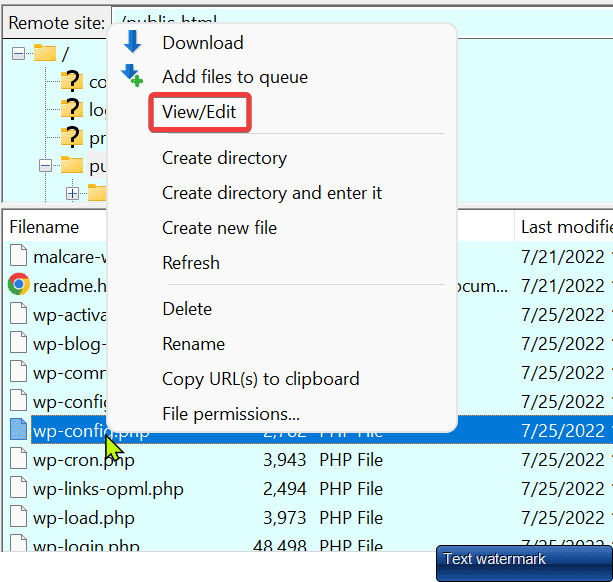
Enter your database information: Look for lines that start with define(‘DB_NAME’ and similar entries. Replace the placeholder text between the quotes with your actual database name, username, and password. Make sure you don’t delete the quotes or semicolons.

Set your database host: Find the line for DB_HOST and enter the host address your web host provided. If you’re unsure, localhost works for most hosting providers.
Save and test the connection: Save your changes to the wp-config.php file and upload it back to your server if you edited it locally. Visit your website to see if it loads properly without any database connection errors.
If your site loads normally, you’ve successfully connected WordPress to your database.
3) Troubleshooting common errors
Even when you follow the steps correctly, you might run into issues connecting WordPress to your database. Here are the most common problems and how to fix them.
Error establishing database connection

The error establishing database connection is the most frequent error you’ll encounter. Start by checking your wp-config.php file for any typos in your database name, username, or password.
Even one wrong character will cause this error. Contact your web host to confirm your database server is running properly, as server downtime can also trigger this message.
White screen of death
When your site shows a blank white page, you need to find out what’s causing the problem. Add this line to your wp-config.php file:
define('WP_DEBUG', true); This will show you specific error messages instead of a blank screen. Check your hosting control panel’s error logs section for more detailed information about what went wrong.
Connection timed out
This error usually means your server doesn’t have enough resources to handle the database connection. Ask your web host about increasing your PHP memory limits or upgrading your hosting plan.
You can also use phpMyAdmin in your hosting control panel to optimize your database, which can improve performance.
Plugin or theme conflict
Sometimes a plugin or theme interferes with your database connection. Deactivate all your plugins through your hosting file manager by renaming the plugins folder. If your site works, reactivate plugins one by one until you find the problematic one.
Do the same with themes by switching to a default WordPress theme.
Other common issues
Clear your site cache if you’ve made changes but don’t see them on your site. If nothing else works, restore your site from a recent backup. Before you launch your site, double-check that all your database credentials are correct and test your site thoroughly to make sure everything works properly.
4) Best practices for managing WordPress database efficiently
Now that your WordPress site is connected to its database, you need to keep it running well. Here’s how to maintain your database so your site stays fast and reliable.
Back up your site regularly: Set up automatic backups through your hosting provider or a backup plugin. Schedule backups weekly or daily if you update your site often.

Clean out unnecessary data: Your database collects spam comments, old post drafts, and deleted content over time. Use an optimization plugin to remove this junk automatically. A clean database loads faster and takes up less space.
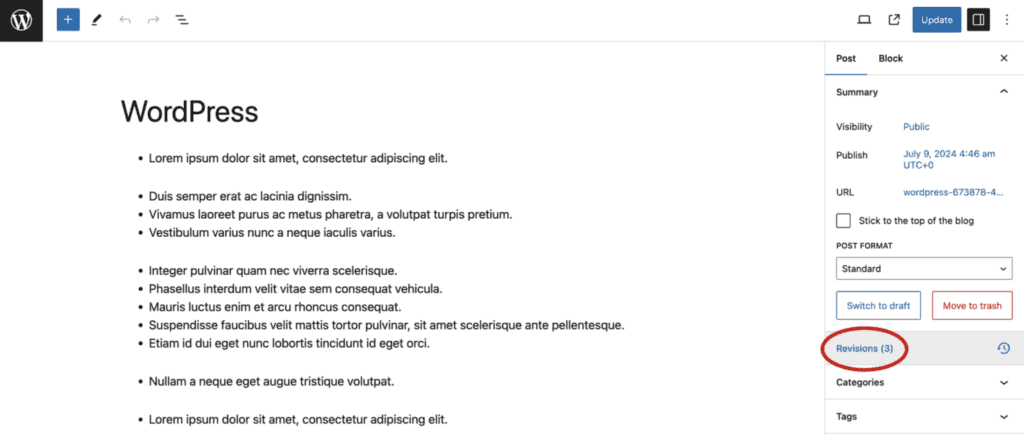
Limit post revisions: WordPress saves every version of your posts, which fills up your database quickly. You will have to edit your wp-config.php file to limit your post revisions.
This ensures only your most recent drafts are saved, reducing database clutter.
Watch your database performance: Check your hosting control panel for database size and speed issues. If your site starts loading slowly, your database probably needs cleaning. Most hosts provide tools to monitor this for you.
Use strong security: Create strong passwords for your database and change them regularly. Keep WordPress updated to protect against security problems that could damage your database.
Wrapping up
Connecting WordPress to your database is essential for your website to work. Follow the steps we covered, double-check your credentials, and test everything before going live. When issues come up, fix them quickly to keep your site running smoothly.
Regular backups and site maintenance, including the database, will save you headaches later.
FAQs
Can I connect a WordPress website to a database?
Yes, WordPress connects to a database using credentials in the wp-config.php file. This connection is crucial for the site to function.
How to access database in WordPress?
You can access your database through tools like phpMyAdmin via your hosting control panel. There, you can manage tables and data directly.
How many tables are in WordPress?
By default, WordPress uses 12 tables to organize site data. These store content, settings, and user information.
Where is my WordPress database?
Your WordPress database is hosted on your web server. You can locate it using your hosting provider’s control panel.
Does WordPress use PHP?
Yes, WordPress primarily uses PHP for its backend operations and dynamic content management.

Shivani enjoys crafting guides that make every aspect of using WordPress simple and easy to follow. When she's not glued to her laptop, you can find her buried in a good book or occasionally, painting.


