You’re all set to upload some images for your latest blog post, but suddenly, they’re not appearing in the media library!
Panic kicks in as you fear the worst: what if all the images on your site have disappeared? You quickly start checking things, but everything seems confusing and unclear.
Dealing with your WordPress media library not showing images can be a real headache. It’s a pretty common problem and can arise for various reasons. Maybe there’s been a recent WordPress update, or a new plugin is acting up. Sometimes, even your browser cache can mess things up by holding onto outdated information.
Before diving into complex solutions, try refreshing the page. It might seem too easy, but a simple refresh could solve the problem.
If your images are still missing after that, don’t worry. Just follow the steps outlined below, and you’ll have everything back in working order soon enough.
If your WordPress media library isn’t displaying images, there could be a few reasons why. Start by clearing your cache. Also, check if you made any recent changes to your plugins or themes. If those steps don’t fix the issue, you might need to try a few more adjustments. Always make sure to backup your site before making any changes to protect your important data.
1. Clear cache and cookies
When fixing the WordPress media library not showing images issue, start with the basics. Clearing your cache and cookies is a simple action that often fixes the problem. Old cache and cookies can stop images from appearing.
First, clear your browser cache. This gets rid of outdated data your browser might be holding onto. Sometimes, this old data blocks new content from showing up properly.

Next, clear the caches for any caching plugins you have on WordPress. If you use a CDN (Content Delivery Network), clear its cache too. This makes sure all parts of your site are up-to-date and loading right.
Also, remember to clear your browser cookies. Cookies hold small pieces of data from websites you visit. Over time, they can cause problems like WordPress media library not showing images. After you’ve cleared everything, check to see if your images load correctly now.
2. Check your plugins
Plugins can sometimes mess with your media library. If you added a new plugin and then noticed the WordPress media library not showing images, that plugin might be causing the problem. Try deactivating it to see if the images appear again.
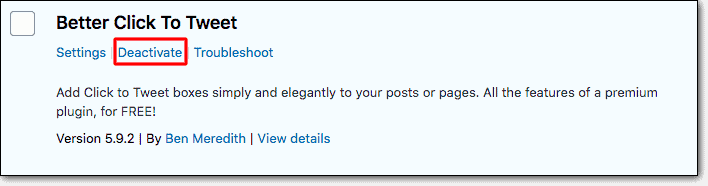
Have you updated your plugins recently? Updates can sometimes lead to plugin conflicts. To find out if this is the issue, deactivate all your plugins for a while. Then, check if your media library starts working right. This helps figure out if a plugin conflict is the cause.
Lastly, think about any changes you’ve made to settings in site caching or image processing plugins. If you’ve changed these settings, try going back to earlier or default settings. This might fix the problem and get your images to show correctly again.
3. Switch to a default theme
Themes can sometimes affect how your media library works. If you recently got a new theme or updated your current one, it might be causing the WordPress media library not loading images issue.
To check if your theme is the problem, switch to a default WordPress theme like TwentyTwentyTwo. These themes are more stable and less likely to cause issues.
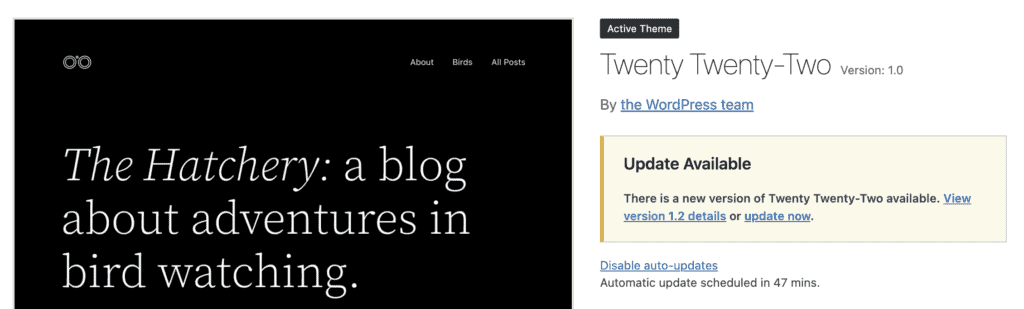
Once you’ve switched, see if your media library images appear. If they do, your theme might be the issue. You can choose to reach out to the theme developer for help or find a different theme that works better with your site.
4. Update your site
Ensure your site is up-to-date to help fix the WordPress media library not showing images issue.
First, see if there’s a WordPress core update available. Updates often fix bugs and could resolve your problem.
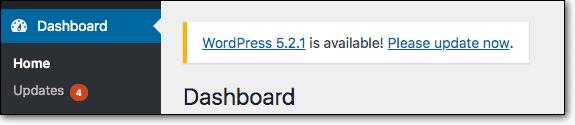
Next, check for updates to your plugins and themes. New updates can fix issues and help your site run smoothly.

Keeping everything updated can help get your media library back to normal. You can then focus on adding and using images without any hassle.
5. Check your error logs
Your error logs can help you solve the WordPress media library not showing images issue.
Start by checking your debug logs or error logs. These logs track issues on your site and can give you clues about what’s wrong. They might also reveal the exact problem.

First, make sure debug logs are enabled on your site. Once they’re on, look for entries related to your image problem. This information can guide you to a solution and help you fix the issue more quickly.
6. Increase PHP memory limit
If your site runs out of PHP memory, it might face the WordPress media library not loading images issue. Increasing the PHP memory limit can help fix this.
Here’s how to increase the PHP memory limit:
1. Access your site’s files using an FTP client or your hosting control panel.

2. Find the wp-config.php file in the root folder of your WordPress site. This is usually named www or public_html.
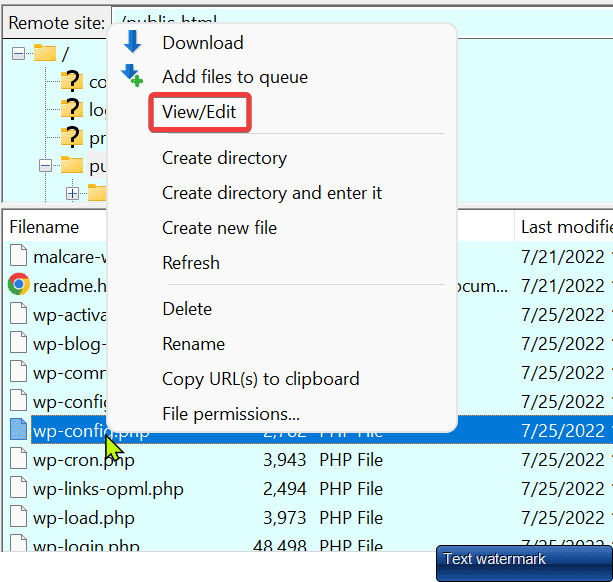
3. Edit the file and add this line of code before the line that says That's all, stop editing!:
define('WP_MEMORY_LIMIT', '256M');This code boosts your site’s PHP memory limit to 256MB. This can provide more resources for WordPress to run smoothly. Save the changes and check if your media library now shows images.
7. Disable mod_security
mod_security is an open-source firewall used by many web hosts. While it protects your site, it might sometimes cause the WordPress media library not showing images issue if it detects a security risk.
To fix this, you can disable mod_security:
1. Access your site’s files using an FTP client or your hosting control panel.
2. Find the .htaccess file in your site’s root directory.

3. Edit the .htaccess file and add this code:
<IfModule mod_security.c>
SecFilterEngine Off
SecFilterScanPOST Off
</IfModule>
4. Save your changes.
Or, if your web host offers a cPanel, you can disable mod_security there. Log in to cPanel, go to ModSecurity settings, and turn off mod_security for your domain.

After these changes, check if your images appear in the media library. If mod_security was the problem, this should help fix it.
8. Disable CDN
Using a CDN (Content Delivery Network) can sometimes interfere with your media library. CDNs might cause issues like WordPress media library not showing images by caching outdated files or blocking content.
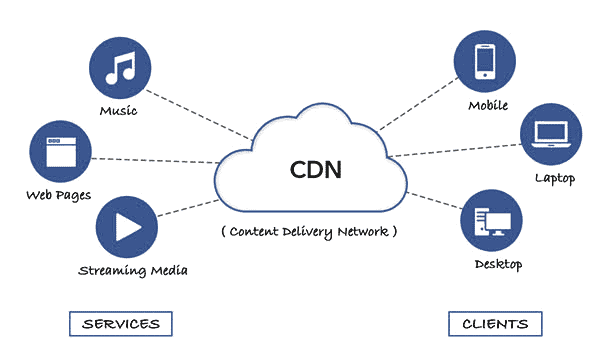
To see if this is the problem, try turning off your CDN. Log in to your CDN’s dashboard and find a setting to temporarily disable it. Turn it off and wait a few minutes.
After disabling the CDN, check your site to see if the media library works properly. If the images load, the CDN might be the issue. You can contact the CDN’s support for help or adjust settings to ensure everything runs smoothly.
9. Disable image hotlinking
Hotlinking lets other websites use images directly from your site. If too many do this at once, it can overload your media library and cause the WordPress media library not showing images issue.
To fix this, disable image hotlinking from your web host’s admin panel. If you have cPanel, go to Security > Hotlink Protection and enable it if it’s off.

This prevents other sites from using your images directly. It reduces the load on your media library. After enabling it, check if your images start showing up correctly again.
10. Contact your web hosting provider
If you’ve tried everything and still face the WordPress media library not showing images issue, it might be time to contact your web hosting provider. They have access to settings and tools you can’t reach.

Your host likely has WordPress experts who can help. They can identify the problem and offer solutions to fix it. They can also help with other challenges on your site.
Reaching out to your web host can save you time and frustration and get your media library back to normal faster.
Final thoughts
Fixing the WordPress media library not showing images issue can be tricky. Thankfully, most problems like this have simple solutions. Clear caches, check plugins, and review themes. This step-by-step approach often works.
Remember, regular backups are crucial for your site. BlogVault is a tool that helps with this. It makes automatic backups and stores them securely off-site. This keeps your data safe without slowing down your site. It also has an emergency connector to recover your site if it crashes. With BlogVault, you can feel confident that your site is always protected.
FAQs
How to fix WordPress media library not showing images?
To fix the WordPress media library not showing images issue, start by clearing your browser cache and cookies, and the caches of plugins or CDNs. Check for new or updated plugins that might be causing conflicts by deactivating them, and try switching to a default theme. Ensure your WordPress, plugins, and themes are updated, and check error logs for clues. Increase the PHP memory limit if needed, disable mod_security and CDNs temporarily, and stop image hotlinking. If nothing works, contact your web hosting provider for more help.
Why won’t my images show up in WordPress?
Images might not show up in WordPress for several reasons. You could be dealing with outdated cache and cookies, or there might be conflicts with plugins or themes, especially if you installed new ones or updated existing ones. There could also be issues with your PHP memory limit or settings in your site’s CDN or mod_security. Sometimes, enabled image hotlinking can cause problems by putting too much load on your site. Checking these areas should help you pinpoint the issue.
How do I fix blank thumbnails in WordPress media library?
To fix blank thumbnails, start by regenerating your thumbnails using a plugin like Regenerate Thumbnails. Check if there are any issues with your theme’s settings affecting image sizes. Clear your cache and cookies, as well as the caches of any plugins or CDNs you use. Ensure your media settings are correct under Settings > Media, and update WordPress, plugins, and themes. Also, check for plugin or theme conflicts by deactivating them one at a time. If the problem persists, consider increasing the PHP memory limit or contacting your web host for help.

Anurag traded algorithms for adverbs when he switched from being a software engineer to being a writer. Editor by day, he chases F1 by night!