

If you suspect a hack, it’s important to know how to change WordPress admin password.
Maybe, you’re trying to log in, and the password you know is correct fails. Maybe you’ve just recovered from a hack and need to change your passwords to lock the bad guys out.
For comprehensive WordPress security, you need to change your passwords. You need quick solutions to regain control and prevent further damage. We’ll show you different methods to change your password. Irrespective of how much access you have (or don’t), we’ve got you.
The easiest way is to change it on the admin panel at Users > Your Profile.
If you suspect a hack and you’re completely locked out, use the emergency password reset script.
Your admin password is your first line of defense. If you suspect it’s been compromised, it is also a non-negotiable security action to change your password immediately.
Fortunately, WordPress provides multiple ways to secure your account, ensuring you can regain control no matter the situation. Each method is useful depending on how much access you have.
- If you can still log into your WordPress dashboard, change password in the user profile.
- If you are locked out but have access to your admin email address. use the “Lost your password?” link on the login page.
- If the email reset fails, but you can access your control panel, use the phpMyAdmin method to edit the database directly.
- If you have SSH access and WP-CLI is installed on your server, use the WP-CLI command.
- If you can upload files (via FTP or File Manager) use the Emergency Password Reset Script.
1. Change the admin password using the dashboard
If you can still log in to your WordPress dashboard, this is by far the easiest way to change your admin password. It requires no technical steps, emails, or access to your hosting account. You’re just a few clicks away from updating your credentials.
- In the left-hand menu of your dashboard, click Users.
- Hover over your account and click Edit Prodile.
- Scroll down to the Account Management section and click the Set New Password button.

- WordPress will automatically generate a strong password for you. You can either use this one or type your own custom password into the field.

- Click the Update Profile button at the bottom of the page to save your new password.
2. Reset Your Password Using the Email Link
Locked out of your WordPress dashboard? The “Lost Password” link is the easiest way, You just need access to a functioning email ID that is linked to your account.
- Navigate to your WordPress login page, typically found at yourwebsite.com/wp-login.php.
- Click on the “Lost your password?” link located just below the login form.

- Enter the username or email address associated with your administrator account and click the Get New Password button.
- Check your email inbox for a message from WordPress containing a password reset link (remember to check your spam folder if it doesn’t arrive).
- Click the link in the email. You will be taken to a page where you can enter a new password.
- Type your new, strong password into the field and click Reset Password.
- You can now return to the login page and access your dashboard with your new credentials.
3. Change Admin Password with database access
Use this advanced method only if you are locked out and the email reset option fails. It involves editing your site’s database directly through phpMyAdmin or whatever database manager you use. For this tutorial, we’re using Cloudways’ database manager because that’s the web host we use.
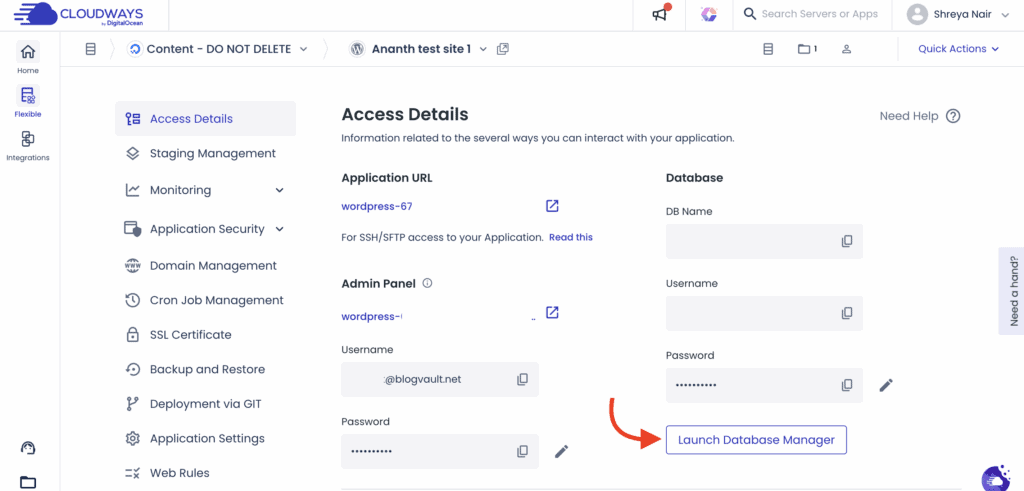
- Log in to your Cloudways Platform and navigate to the Applications tab.
- Select the specific WordPress application you need to manage.
- In the Application Management menu, go to the Access Details tab and click the Launch Database Manager button.
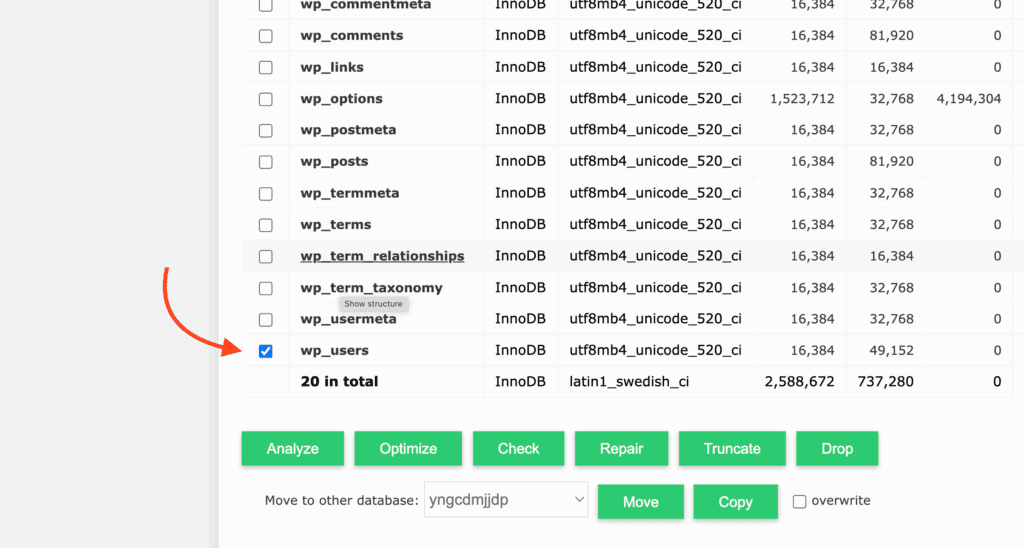
- In the list of tables on the left, find and click on your wp_users table (note: the wp_ prefix may be different).
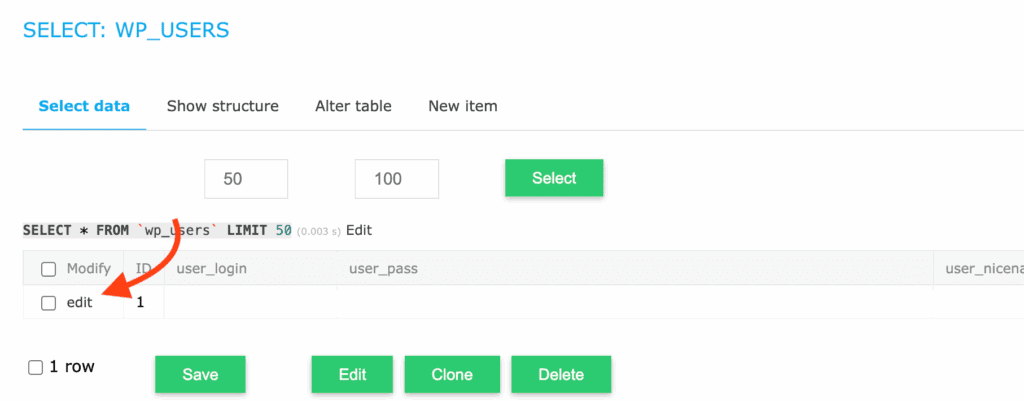
- Click the “Select data” tab,
- Locate the row with your administrator username in the user_login column and click the Edit link for that row.
- Find the user_pass row annd open the dropdown for that row. Select MD5.

- In the Value column, delete the long, encrypted string and type your new desired password in plain text.
- Click the Go button at the bottom of the page to save the changes. Your password is now reset.
4. Change Admin Password with WP-CLI
For developers and server administrators that understand SSH and how to use it, this method is for you.
Use WP-CLI to change a password instantly without needing a graphical interface.
- Connect to your server using SSH.
- Navigate to the root directory of your WordPress installation (e.g., cd /var/www/html).
- (Optional) To confirm the user ID or username, run the command wp user list.
- Execute the following command, replacing 1 with the target user ID and newpassword with the actual password you want to set.
wp user update 1 --user_pass="newpassword"Note: For better security, use the –prompt flag. This will ask you to type the password separately so it isn’t saved in your command history: wp user update 1 –prompt=user_pass
5. Using MySQL Command Line to change WordPress admin password
If you have SSH access to your server but do not have WP-CLI installed, you can change the password by interacting directly with the MySQL database from the command line. This is an advanced method and requires running precise SQL queries.
- Connect to your server via SSH and log into the MySQL shell with the following command, then enter your database password when prompted.
mysql -u root -p- Select the correct WordPress database by running USE, replacing your_database_name with the actual name.
USE your_database_name;- Execute the UPDATE query below to set the new password. Remember to replace wp_users (if your prefix is different), your_new_password, and your_username.
UPDATE wp_users SET user_pass = MD5('your_new_password') WHERE user_login = 'your_username';- Type exit and press Enter to leave the MySQL shell.
6. Reset Your Password with an Emergency Script
When you’re completely locked out, this emergency script is your last option. This method involves creating a special PHP file, uploading it to your server to reset the password, and then deleting it immediately.
- a new file named emergency.php on your computer.
- Copy and paste the code below into the file:
<?php

require './wp-blog-header.php';

function meh()

{

    global $wpdb;

    if (isset($_POST['update']))

    {

        $user_login = (empty($_POST['e-name']) ? '' : sanitize_user($_POST['e-name']));

        $user_pass = (empty($_POST['e-pass']) ? '' : $_POST['e-pass']);

        $answer = (empty($user_login) ? '<div id="message" class="updated fade"><p><strong>The user name field is empty.</strong></p></div>' : '');

        $answer .= (empty($user_pass) ? '<div id="message" class="updated fade"><p><strong>The password field is empty.</strong></p></div>' : '');

        if ($user_login != $wpdb->get_var("SELECT user_login FROM $wpdb->users WHERE ID = '1' LIMIT 1"))

        {

            $answer .= "<div id='message' class='updated fade'><p><strong>That is not the correct administrator username.</strong></p></div>";

        }

        if (empty($answer))

        {

            $wpdb->query("UPDATE $wpdb->users SET user_pass = MD5('$user_pass'), user_activation_key = '' WHERE user_login = '$user_login'");

            $plaintext_pass = $user_pass;

            $message = __('Someone, hopefully you, has reset the Administrator password for your WordPress blog. Details follow:') . "\r\n";

            $message .= sprintf(__('Username: %s') , $user_login) . "\r\n";

            $message .= sprintf(__('Password: %s') , $plaintext_pass) . "\r\n";

            @wp_mail(get_option('admin_email') , sprintf(__('[%s] Your WordPress administrator password has been changed!') , get_option('blogname')) , $message);

            $answer = "<div id='message' class='updated fade'><p><strong>Your password has been successfully changed</strong></p><p><strong>An e-mail with this information has been dispatched to the WordPress blog administrator</strong></p><p><strong>You should now delete this file off your server. DO NOT LEAVE IT UP FOR SOMEONE ELSE TO FIND!</strong></p></div>";

        }

    }

    return empty($answer) ? false : $answer;

}

$answer = meh(); ?> <!DOCTYPE html PUBLIC "-//W3C//DTD XHTML 1.0 Transitional//EN" "http://www.w3.org/TR/xhtml1/DTD/xhtml1-transitional.dtd"> <html xmlns="http://www.w3.org/1999/xhtml"> <head> <title>WordPress Emergency PassWord Reset</title> <meta http-equiv="Content-Type" content="<?php bloginfo('html_type'); ?>; charset=<?php bloginfo('charset'); ?>" /> <link rel="stylesheet" rel="noopener" target="_blank" href="<?php bloginfo('wpurl'); ?>/wp-admin/wp-admin.css?version=<?php bloginfo('version'); ?>" type="text/css" /> </head> <body> <div class="wrap"> <form method="post" action=""> <h2>WordPress Emergency PassWord Reset</h2> <p><strong>Your use of this script is at your sole risk. All code is provided "as -is", without any warranty, whether express or implied, of its accuracy, completeness. Further, I shall not be liable for any damages you may sustain by using this script, whether direct, indirect, special, incidental or consequential.</strong></p> <p>This script is intended to be used as <strong>a last resort</strong> by WordPress administrators that are unable to access the database. Usage of this script requires that you know the Administrator's user name for the WordPress install. (For most installs, that is going to be "admin" without the quotes.)</p> <?php echo $answer; ?> <p class="submit"><input type="submit" name="update" value="Update Options" /></p> <fieldset class="options"> <legend>WordPress Administrator</legend> <label><?php _e('Enter Username:') ?><br /> <input type="text" name="e-name" id="e-name" class="input" value="<?php echo attribute_escape(stripslashes($_POST['e-name'])); ?>" size="20" tabindex="10" /></label> </fieldset> <fieldset class="options"> <legend>Password</legend> <label><?php _e('Enter New Password:') ?><br /> <input type="text" name="e-pass" id="e-pass" class="input" value="<?php echo attribute_escape(stripslashes($_POST['e-pass'])); ?>" size="25" tabindex="20" /></label> </fieldset> <p class="submit"><input type="submit" name="update" value="Update Options" /></p> </form> </div> </body> </html> <?php exit; ?>- Upload this file to your WordPress root directory using an FTP client or a File Manager.
- Run the script by visiting yourwebsite.com/emergency.php in your browser.
- Add the correct admin username and the new password. Then, click Update Options.
- Log in to your WordPress site with the new password and test that it worked out.
- Immediately delete the emergency.php file from your server to secure your site.
Best Practices for WordPress Security
A strong password is your site’s front door lock, but true security involves fortifying the entire house. Adopting a few fundamental habits can transform your WordPress site from an easy target into a secure, resilient asset. These practices protect you from common attacks, data loss, and the stress of a compromised website.
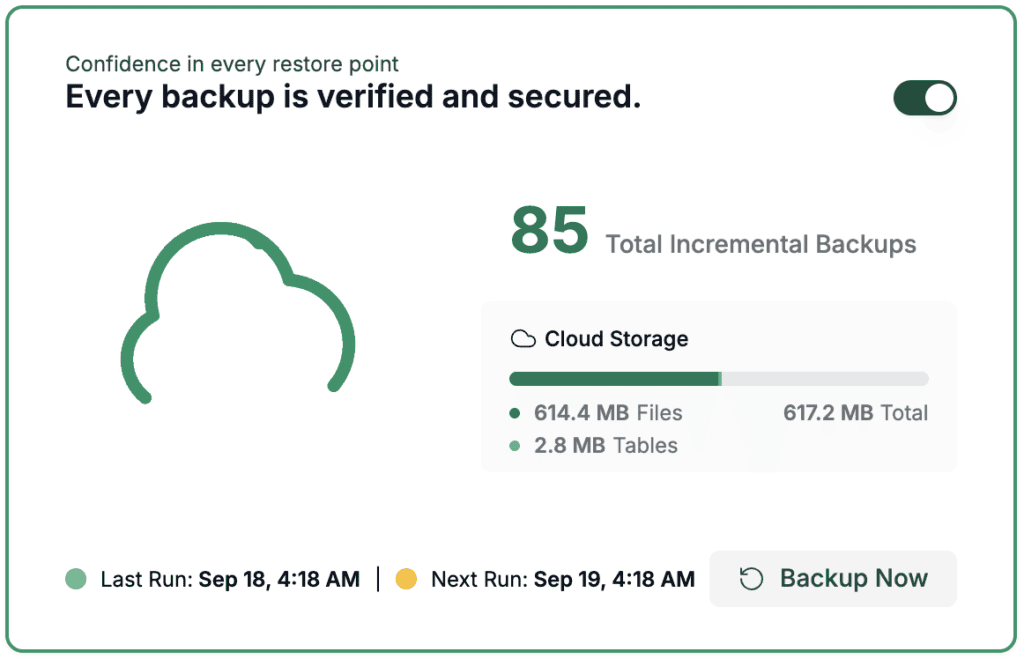
- Maintain Regular, Automated Backups: A reliable WordPress backup is your ultimate safety net. If your site is ever hacked, infected with malware, or broken by a bad update, a recent backup allows you to restore a clean, working version in minutes.
- Keep Everything Updated: Safely update your WordPress site. Outdated software is the single most common entry point for hackers. This includes WordPress core, your plugins, and your themes.
- Install a Comprehensive Security Plugin: A good security plugin like MalCare provides multiple layers of protection, including a Web Application Firewall (WAF). This can help you block malicious traffic before it reaches your site.

- Manage User Roles Wisely: Not every user needs the keys to the kingdom. WordPress has built-in user roles (Administrator, Editor, Author, etc.) for a reason. Practice the “principle of least privilege”: only give users the minimum level of access they need to do their job.
- Enable SSL/HTTPS to Encrypt Data: The padlock icon in your browser’s address bar signifies that your site is using SSL/HTTPS. This encrypts all data transferred between your visitors’ browsers and your server, including login credentials and personal information submitted through forms. It protects against eavesdropping attacks, builds visitor trust, and is a known ranking factor for Google.
- Choose a Secure Hosting Provider Your website’s security starts with its foundation: your web host. A reputable hosting provider implements server-level security measures, including firewalls, malware scanning, and protection against common threats. While cheap hosting can be tempting, investing in a quality host that prioritizes security provides a much safer environment for your site to operate in.
Final Thoughts
If you’re locked out and need to regain access, this can be scary. A weak or compromised password can lead to defacement, data theft, and irreversible damage to your brand.
Plugins like BlogVault could help you restore your site to the last clean version and regain access. You would then be able to clean the site and prevent the hack from causing further damage.
FAQs
How do I change my admin account password?
The easiest way is from your WordPress dashboard. Navigate to Users > Your Profile, scroll down to the “Account Management” section, and click the Set New Password button. If you are locked out, use the “Lost your password?” link on the login page to receive a reset link via email.
Where can I find my WordPress admin password?
For security reasons, WordPress does not store your password in a readable format, so you cannot “find” it. If you have forgotten your password, you must reset it. You can do this using the email reset link on the login page or by directly editing the password in the database via phpMyAdmin as described in this article.
How do I change the admin on WordPress?
To change the primary administrator, you need to create a brand-new user (Users > Add New) and assign it the “Administrator” role. Once created, log out and log back in with the new admin account. You can then navigate to the Users screen and safely delete the old administrator account, making sure to attribute all of its content to your new user when prompted.
How to change WP admin login?
This can refer to two things. To change your admin username, you must follow the same process as changing the admin: create a new user with your desired username and an Administrator role, then delete the old one. To change the login URL (e.g., from yoursite.com/wp-admin to something custom), you will need a security plugin to obscure the default login page, making it harder for bots to find.

Shreya has been a writer for as long as she can remember. Now, she writes articles that help WordPress users manage the sites that they're proud of, with little to no coding


