Is WordPress not sending emails to admins? Are your readers not receiving your emails? I’ve been there.
I didn’t realise I was facing this WordPress issue until I was testing a passwordless login plugin on my website. I found myself waiting for an email that never came. I was now locked out of my admin panel and had to disable the plugin to log back in.
Whether it’s password reset emails disappearing into the ether or contact form submissions never reaching your inbox, email deliverability issues can undermine your website’s functionality. You run the risk of damaging customer relationships or getting locked out like me.
In this article, we’ll explore exactly how to diagnose and fix these email delivery problems before they impact your readers.
Use a staging plugin to creae a quick test site, Then, try to fix WordPress website emails not being sent on that staging site. Set up an SMTP plugin and make sure there are no server level issues prohibiting the site from sending them. Avoid letting emails go to spam.
Why is WordPress not sending emails?
Understanding the error is usually the first step to fixing an error like this. I went down a rabbit hole to understand what was happening to my site. Based on my research, here is what I found:
- WordPress Uses a Primitive Mail System: WordPress relies on PHP’s basic mail() function by default. It’s a bare-bones method that has no authentication, no encryption, and no built-in delivery verification. This function was designed in an era when email security wasn’t a primary concern, and it simply hands off your email to the server with the hope that it gets delivered.
- Most Web Hosts Block or Restrict Email Functions: The irony is that most web hosting providers have recognized how problematic the mail() function can be. To prevent their servers from being used for spam, many hosts either disable the mail() function entirely or severely restrict outgoing mail ports. Shared hosting providers are particularly aggressive about these restrictions because one compromised site could get their entire server blacklisted by major email providers.
- Modern Email Security Standards Are Required: Email providers like Gmail, Outlook, and Yahoo now require sophisticated authentication protocols that WordPress’s default system simply cannot provide. These include SPF records that verify which servers are authorized to send email from your domain, DKIM authentication that cryptographically signs your emails to prove they’re legitimate, and DMARC policies that tell receiving servers what to do with emails that fail authentication checks. Without these security measures, your emails are immediately flagged as suspicious or outright rejected.
- Generic “From” Addresses Create Red Flags: WordPress often sends emails from generic addresses like wordpress@yoursite.com or noreply@yoursite.com—addresses that typically don’t exist or aren’t properly configured with mailboxes. When receiving mail servers try to verify these sender addresses and find they’re not real, they treat the emails as potential spam or fraud attempts. It’s like trying to send a letter from a fake return address; modern postal systems would be suspicious, and email systems are even more vigilant.
How to fix WordPress not sending emails?
If you are annoyed by this, you’re not alone. It was pretty frustrating to realise that WordPress wasn’t equipped to handle emails, out of the box. But, I had to find a solution quickly. I couldn’t afford to get locked out of my admin panel again.
So, here’s everything I did to fix the problem:
1. Test your WordPress email
Before diving into the troubleshooting why WordPress is not sending emails, check to see if your website can send emails at all? Many site owners spend hours tweaking contact forms, adjusting email headers, or configuring complex authentication records—only to discover their server can’t send a single email.
We’ll use the WP Test Email plugin because it provides clear, immediate feedback about your WordPress email system’s status. It’s a free plugin that you can quickly install and activate. Send a test email by going to Tools → WP Test Email. Whip up a test email and send it to yourself.
If you haven’t gotten the email in your primary inbox or the spam, then you know that there is a server level issue. If you notice that it’s in the spam inbox, then you have to make changes to your emails so they don’t get flagged by spam filters.
2. Check if your server has been blacklisted
Is your WordPress site sending spam emails? That’s also a possible reason for why your emails aren’t going through.
Server blacklisting is one of the most common yet overlooked causes of email delivery failure. Your hosting provider’s IP address might have been compromised by previous users, spam campaigns, or security issues. When your server is blacklisted, email providers like Gmail, Outlook, and Yahoo automatically reject your emails without any notification to you or the recipient. This creates the illusion that emails are being sent successfully when they’re actually being silently discarded at the server level.
We use MXToolbox. Just add your IP address in the right field and initiate the search. It will even give you a list of fixes to get off the blacklist. It servees as a good starting point for your troubleshooting.

3. Check WordPress General Settings
If your website isn’t even sending emails, check your WordPress General Settings in your WordPress admin panel.
Navigate to your WordPress dashboard and go to Settings > General. Look for the Administration Email Address field. This is the email address WordPress uses for all administrative notifications, including password resets, user registrations, and security alerts. If this email address is wrong, outdated, or belongs to a domain that’s no longer active, you won’t receive any of these critical emails.
While you’re in the General Settings, also verify that your site title and tagline are correct, as these details often appear in email headers and can affect deliverability. Some email providers flag messages with suspicious or incomplete sender information.
After updating my admin email address, I tested it immediately by using the Lost Password button on my login page. If you receive the password reset email promptly, you’ve solved the problem. If not, you’ll need to move on to the more technical solutions, but at least you’ve eliminated the most common cause of WordPress email failures.
4. Set Up an SMTP Plugin
When you install an SMTP plugin, it serves as a bridge that connects your WordPress site to a professional email service. Instead of relying on your web server’s unreliable mail() function, an SMTP plugin routes all your WordPress emails through a dedicated email service that’s specifically designed for reliable delivery.
For this tutorial, we tried WP Mail SMTP and it was one of the best. In my research, they had a really good free version that works with most email services.
Here’s how I set it up:
- Install and activate the WP Mail SMTP Plugin
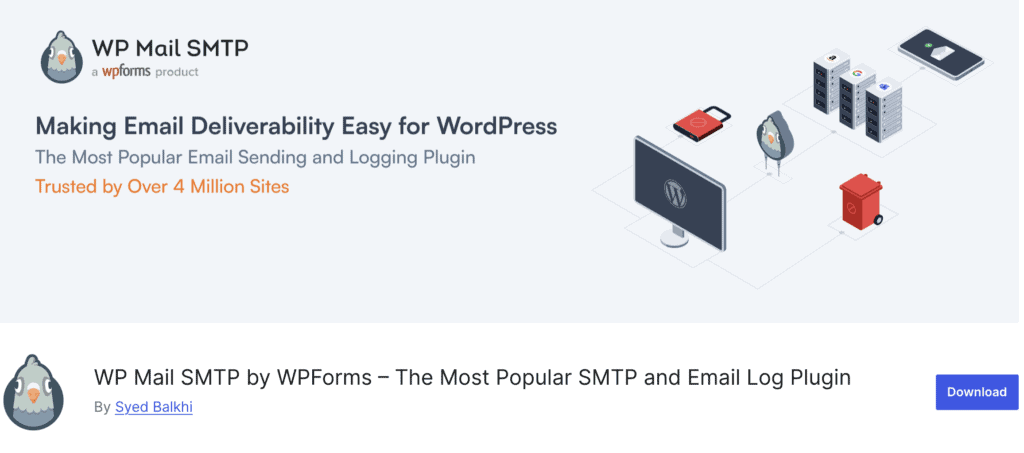
- After activation, you’ll see a notice at the top of your admin area prompting you to configure the plugin. Click Let’s Get Started.
- You’ll be prompted to choose your preferred email service. I chose Gmail /Google Workspace.
- They have a one-click setup process that you can enable. Just toggle the On switch for One-click setup. That will help you do so in a few clicks. However if you want to do it manually, continue to the following steps:
- Open the Google Cloud Console and if you haven’t already, create a new project.
- In the left menu, go to APIs & Services > Library.
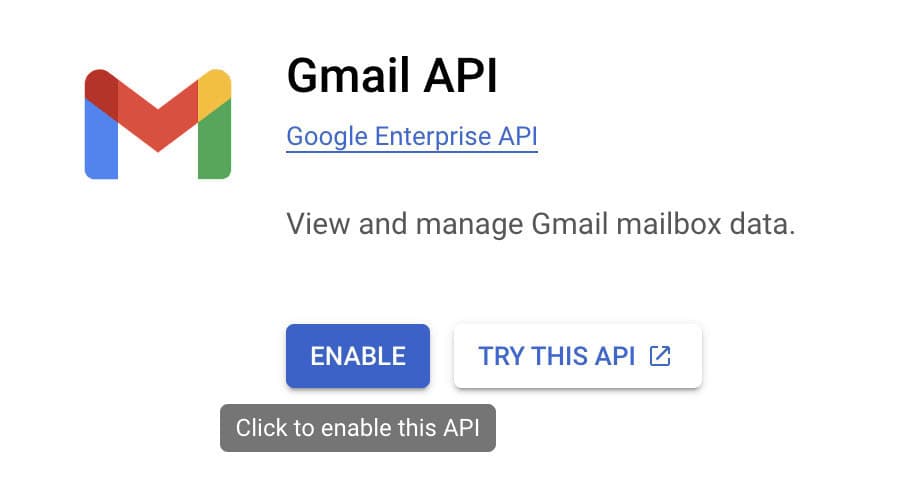
- Locate the Gmail API and enable it.
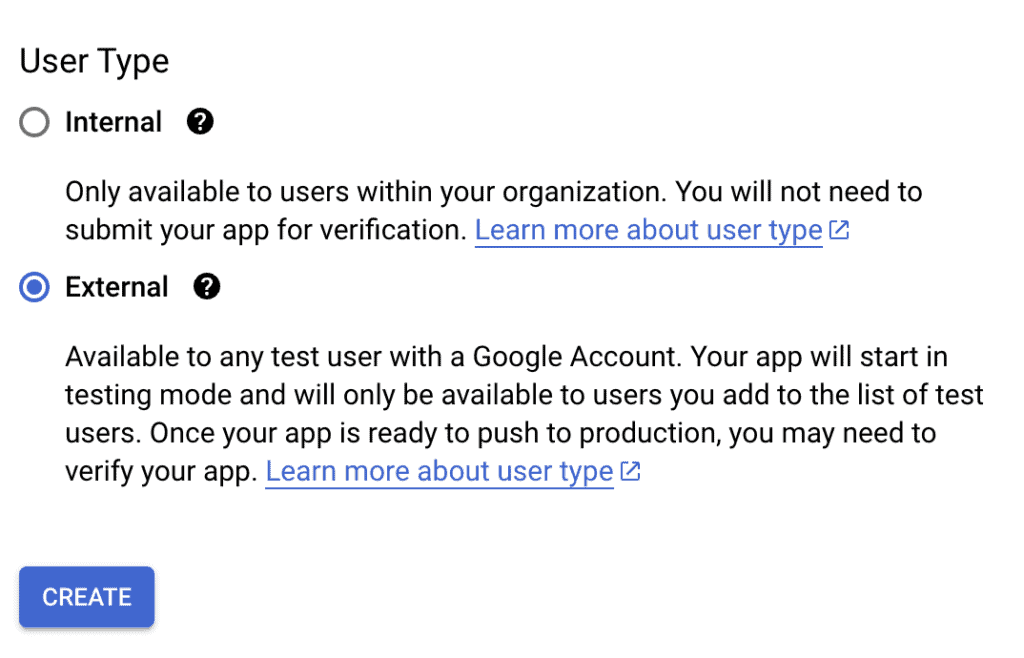
- Navigate to OAuth Consent Screen and choose the External user type.
- Fill in the required fields like App Name, Support Email, and Developer Contact Email.
- Configure scopes and test users as needed.
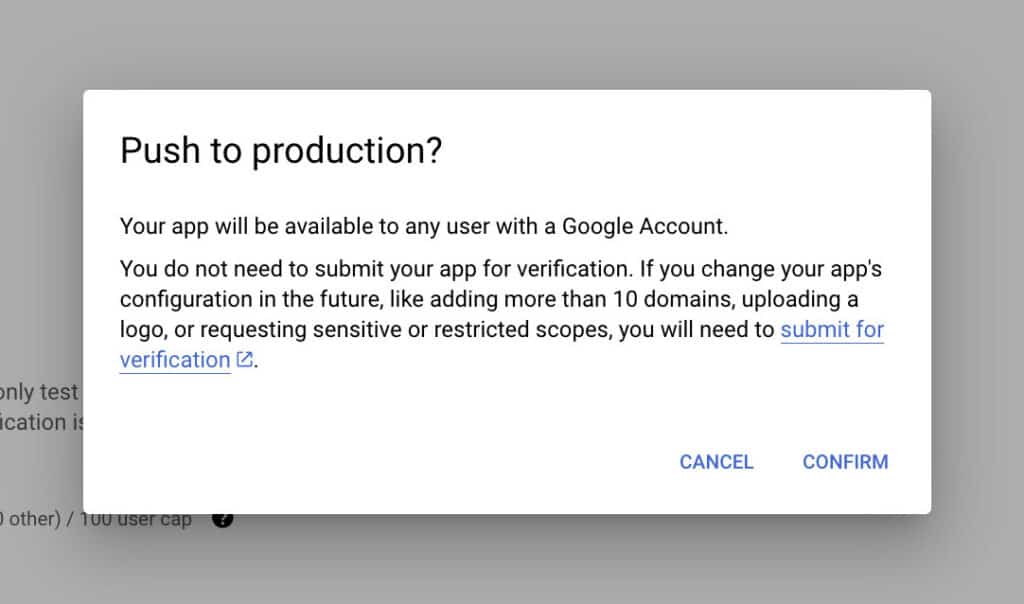
- Return to the dashboard and click Publish App, then confirm when prompted.
- In the sidebar, click on Credentials, then choose Create Credentials.
- From the dropdown, select OAuth Client ID.
- Under Application Type, choose Web Application.
- Copy the Authorized JavaScript origin and redirect URI from the plugin settings page and paste them into the relevant fields in Google Cloud.
- Click Create. Once the credentials are generated, copy the Client ID and Client Secret.
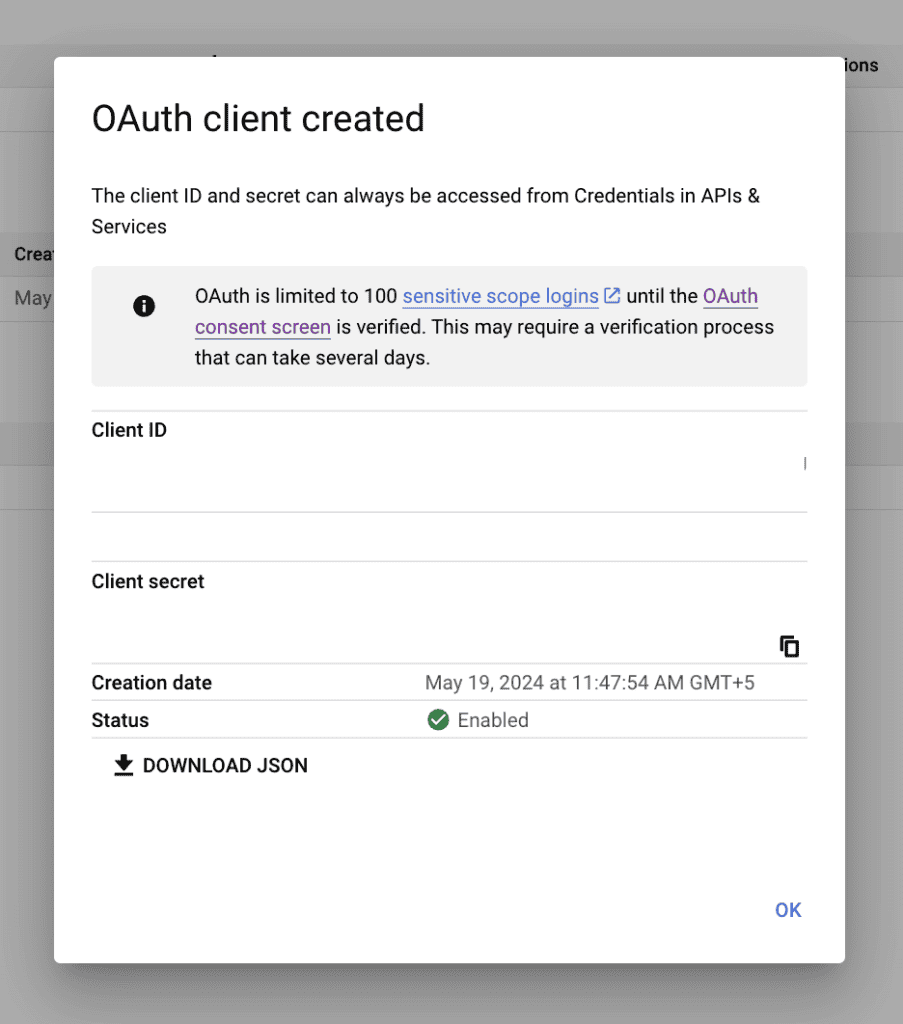
- Paste them back on your admin panel, into the corresponding fields in the WP Mail SMTP plugin settings within your WordPress dashboard.
- Save your changes and authorize the plugin to send emails using your Google account.
- Finally, send a test email to confirm the setup is working correctly.
5. Check form plugin settings
The top WordPress form plugins have their own email settings that can override your site’s default configuration. Even if your basic email test passed and you’re not blacklisted, misconfigured form settings can prevent specific emails from being sent or delivered properly.
Form plugins often use different sender addresses, SMTP settings, or email templates that conflict with your main WordPress email setup. Some forms default to generic addresses like “noreply@yoursite.com” or use the server’s hostname instead of your domain, triggering spam filters. Additionally, certain plugins cache email settings or use their own delivery methods that bypass your carefully configured SMTP setup.
For each form plugin on your site:
- Go to the plugin’s settings page (usually under Forms, Contact, or the plugin name)
- Look for Email Settings, Notifications, or SMTP sections
- Check the “From” email address – it should match your domain (admin@yoursite.com, not wordpress@hostname)
- Verify the “From Name” is professional and recognizable
- Ensure the “To” address is correct and actively monitored
- Test the form by submitting it yourself
- Check both your inbox and spam folder for the notification
6. Ensure your email content isn’t spammy
Even when everything else is going right, your emails might still end up in spam folders instead of recipients’ inboxes. Modern email providers use sophisticated algorithms that analyze sender reputation, content, authentication, and user behavior to determine whether emails are legitimate or spam. The good thing is that the SMTP plugin you setup earlier will solve a lot of the problems. What you can do on your end is to make sure the content isn’t spammy by doing the following:
Expert Advice: Look out for signs of a hacked WordPress site. If hackers compromise your WordPress site, they often use it to send spam emails, which destroys your domain’s reputation with email providers. Your domain may be blacklisted and you don’t even know it yet. This makes all your legitimate emails bounce or go to spam.
- Avoid spam trigger words in subject lines (FREE, URGENT, ACT NOW, !!!)
- Keep subject lines under 50 characters and avoid ALL CAPS
- Maintain good text-to-image ratio (more text than images)
- Limit links to 3-5 per email and avoid URL shorteners
- Use recognizable sender names and maintain consistent “From” addresses
- Include clear unsubscribe options for newsletter-type emails
7. Solve plugin conflicts
The last potential solution is to check for plugin conflicts. If your emails were fine but suddenly failing, this could be because of plugin conflicts. An update may now be incompatible with your email deliverability.
Deactivate all your plugins, one by one. After each plugin, send a test email to see if that resolved the issue. Once you find a problem plugin, solve the conflict. If there’s an update, safely update the plugin. If a failed update caused the issue, rollback the plugin and let the developers know. Wait for them to fix the bug and then update the plugin.
If all else fails, reach out to your hosting provider. They should be able to help you figure otu what’s going on.
What next?
You’ve fixed it. You’re sorted. Now, let’s talk about how to prevent this error from happening again. As a company that sends out notifications, updates and newsletters, it’s important to make sure that our emails are going through all the time. Here’s a checklist we’ve come up with to ensure email deliverability:
- Secure your WordPress site: Improve Use security plugins like MalCare, implement login security and monitor for unauthorized admin accounts. Regular security maintenance protects not just your website but also your email deliverability reputation that takes months to build but can be destroyed overnight.
- Test your emails with different providers (Gmail, Outlook, Yahoo) regularly: Each major email provider uses different spam filtering algorithms and reputation systems. An email that reaches Gmail’s inbox might end up in Outlook’s spam folder due to different filtering criteria. Gmail prioritizes sender reputation and user engagement, while Outlook focuses heavily on content analysis and authentication records. Yahoo has its own set of filters that can be particularly strict with promotional content. By testing across all three major providers monthly, you can identify provider-specific deliverability issues before they impact your entire email communication.
- Use Mail Tester or similar tools to check your spam score: Mail Tester analyzes your emails using the same criteria that actual spam filters use, providing a score out of 10 and detailed explanations of any issues. A score below 8 indicates problems that will likely trigger spam filters. The tool checks technical authentication (SPF, DKIM, DMARC), content analysis for spam trigger words, HTML formatting issues, and sender reputation factors. Running your emails through Mail Tester before sending important campaigns helps you catch and fix deliverability problems proactively. Other similar tools include GlockApps, Sender Score, and your SMTP provider’s built-in testing features.
Monitor your email delivery reports from your SMTP provider
Most SMTP services (SendGrid, Mailgun, Amazon SES) provide detailed delivery analytics including bounce rates, spam complaint rates, and delivery percentages. Hard bounce rates above 2% indicate list quality problems, while spam complaint rates above 0.1% suggest content or frequency issues. Delivery rates below 95% signal reputation problems or technical issues. These metrics help you spot trends before they become serious problems—a gradual increase in spam complaints might indicate you need to adjust your email frequency or content strategy.
Watch for sudden drops in email engagement that might indicate deliverability issues
If your contact form submissions suddenly decrease, password reset emails aren’t being received, or customers report missing order confirmations, these could be signs of deliverability problems rather than technical issues. Email providers increasingly use engagement metrics (opens, clicks, replies) to determine inbox placement—if recipients stop engaging with your emails, future emails are more likely to go to spam. Monitor your website’s email-dependent functions regularly and investigate any sudden changes in email-related user behavior or complaints about missing emails.
Final thoughts
If a WordPress site isn’t sending an email, it’s almost always because of sending failures (your site can’t send emails at all) or delivery failures (emails are sent but don’t reach inboxes). Once you determine which category your problem falls into, the solution path becomes clear.
The same pattern forms when talking about WooCommerce emails not being sent. So, if your order update emails are not reaching your customer, make sure your SMTP plugin is configured properly and that your emails pass through spam filters. The key is to make sure that your emails are valuable content that is being sent correctly.
FAQs
Why is my WordPress site not sending emails?
WordPress sites fail to send emails due to several common issues. The most frequent cause is that your hosting provider has disabled PHP’s mail() function, which WordPress uses by default. Many shared hosts block this function to prevent spam. Other causes include server-level restrictions on outbound email ports, missing SMTP configuration, plugin conflicts, or your server’s IP address being blacklisted. The best way to diagnose the issue is to install the WP Test Email plugin and run a basic sending test to see if WordPress can send emails at all.
How do I fix emails not sending?
Start by testing your email functionality with the WP Test Email plugin to confirm whether emails are being sent. If the test fails, install an SMTP plugin like WP Mail SMTP and configure it with your email provider’s settings (Gmail, Outlook, etc.). If emails send successfully but don’t arrive, check if your server is blacklisted using MXToolbox, verify your form plugin settings are correct, and ensure your emails aren’t going to spam folders. Work through these steps systematically rather than trying to fix everything at once.
Why am I not getting emails from WordPress forms?
Form emails can fail for several reasons even when your basic WordPress email functionality works. Check your form plugin’s email settings to ensure the “From” address uses your domain (not generic addresses), the “To” address is correct, and notifications are enabled. Verify that form emails aren’t going to your spam folder, and test with different email providers (Gmail, Outlook, Yahoo) as some may filter form emails more aggressively. Plugin conflicts between your form plugin and security or caching plugins can also prevent form emails from being processed properly.
Why is my WP Mail SMTP server not working?
SMTP connection failures usually stem from incorrect server settings or authentication issues. Double-check your SMTP host, port, and encryption settings with your email provider’s documentation. For Gmail, use smtp.gmail.com with port 587 (TLS) and create an App Password instead of using your regular password. Ensure your hosting provider isn’t blocking outbound SMTP ports (25, 465, 587). If you’re still having issues, contact your host to verify that SMTP connections are allowed and test with a different email provider to isolate whether the problem is with your current email service or your server configuration.

Shreya has been a writer for as long as she can remember. Now, she writes articles that help WordPress users manage the sites that they're proud of, with little to no coding