

For the sake of WordPress security, you will eventually need to update your login. Whether you’re doing a routine update or are completely locked out, you need a reliable fix.
The good news is, it’s easier than you think.
We’ll show you how to change WordPress password, covering every method from simple to advanced (even if you can’t remember your existing password)
For common situations like a routine update or a forgotten password, stick to the simple resets using the dashboard or email. When you must opt for advanced methods, using a backup plugin will safeguard your core files so you can recover if the edits cause a problem.
A) How to change WordPress password while logged in
This is the simplest way to change your password, perfect for routine security or if you just want a new login.
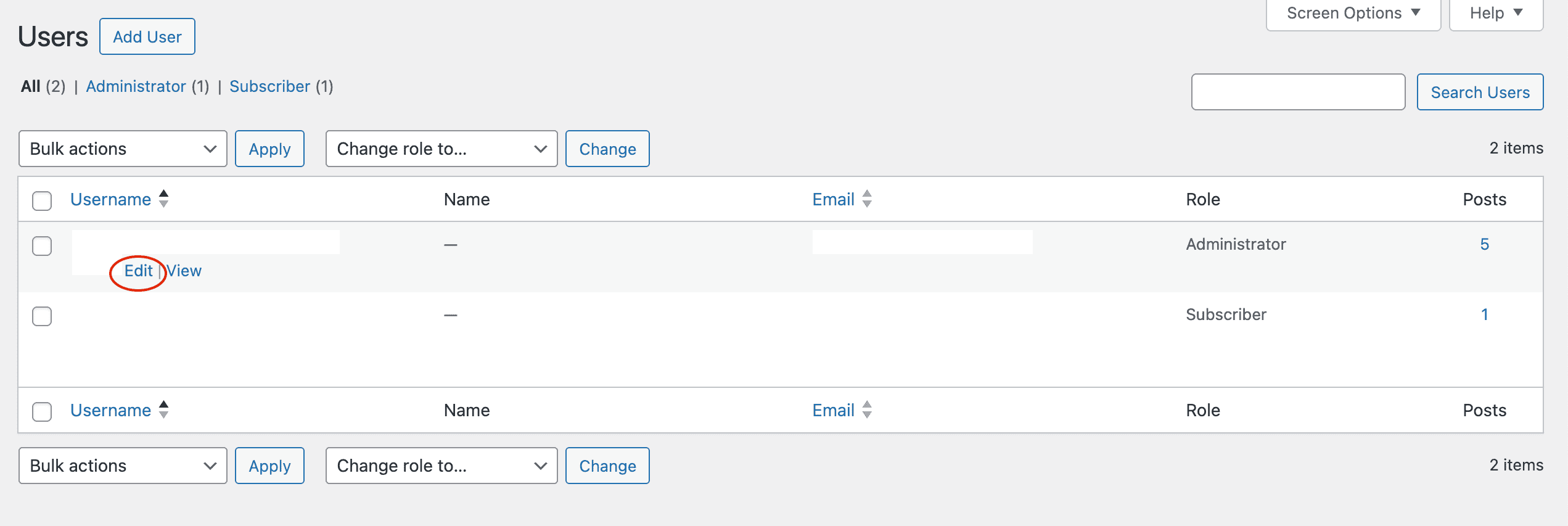
Navigate to the correct user profile. For your own password, go to Users > Profile. If you’re an administrator changing someone else’s password, you’ll go to Users > All Users, find their name, and click the Edit link.

Generate a new password. Scroll down toward the bottom of the page until you see the Account Management heading. Click the Set New Password button. WordPress will instantly create a very strong, secure password for you.
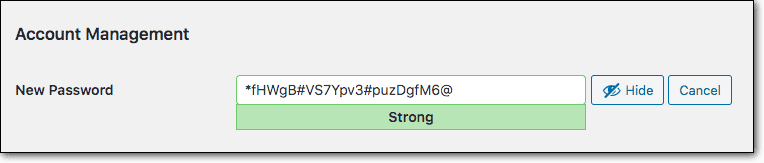
Set your preferred password. You can either accept the secure password WordPress generated (which is a good idea) or punch in a strong password yourself. Use the Password Strength Indicator to make sure your password is rated as Strong. A weak password is a significant security risk.

For your own profile, click the Update Profile button to save. You’ll also see a Log Out Everywhere box, a critical step if you suspect any unauthorized access.
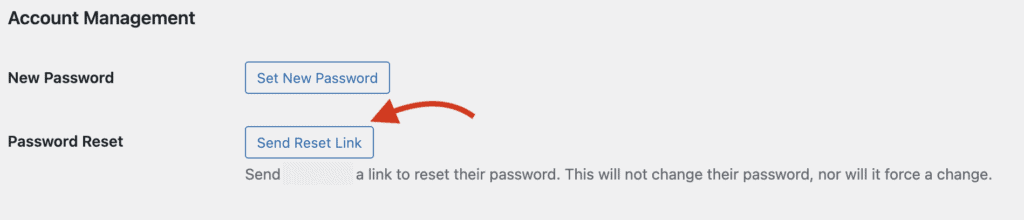
When updating another user’s profile, click the Update User button to save. Here, you will also find a Send Reset Link button, which is often the better and more secure option.
B) Using the “Lost Your Password?” Email Link
This is your first option when you’re locked out of your site but still have access to the email address connected to your account.
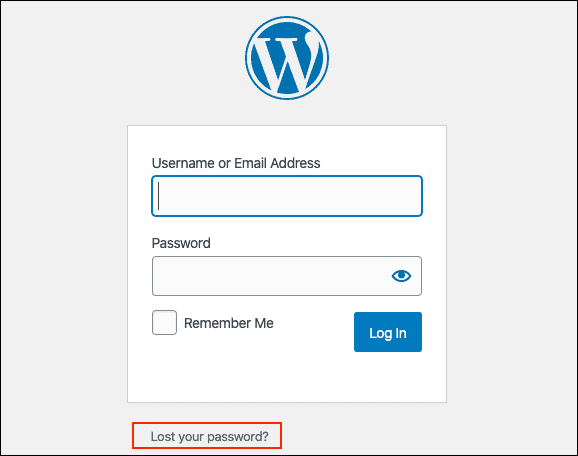
Find the reset link. Navigate to your site’s login page, which is typically yourwebsite.com/wp-login.php. Click the Lost your password? link located directly below the login form.
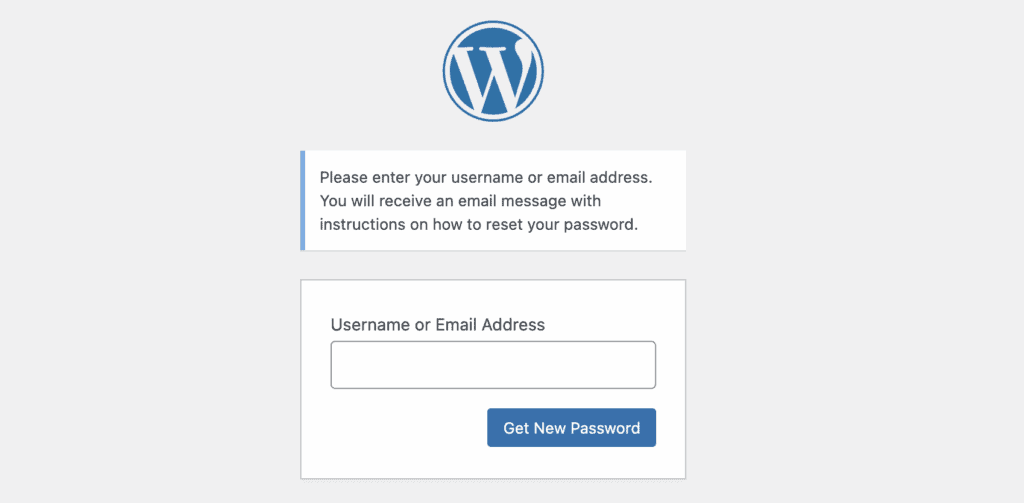
Request the reset email. On the next page, provide either your registered username or the email address for the account. Click Get New Password to have the system send a reset link to your inbox. Open the email and click the unique reset link.
Enter your new password. You will be taken to a secure page where you can set a new password. Click Reset Password to save the update. You can now log in with your new credentials.
Password reset email not arriving?
It’s a common and frustrating problem when the reset email doesn’t appear. Before moving to more advanced methods, check these things first.
- Check your spam folder. This is the most common reason the email seems to be missing. Look in your junk or spam folder carefully.
- Wait a few minutes. Sometimes, email servers have a slight delay. Give it five to ten minutes before trying again.
- Confirm your email address. Make sure you are checking the correct inbox and that there were no typos when you entered it.
- Check with your host. They can confirm if your server is blocking outgoing emails from WordPress. If so, you’ll need to reset your password directly using the phpMyAdmin method.
C) Using the Database (phpMyAdmin)
This method allows you to change your password directly in your website’s database, which is perfect when you’re locked out, and emails aren’t working.

Access your hosting control panel. Log in to your hosting account (using cPanel, Plesk, or another panel) and open the tool called phpMyAdmin.
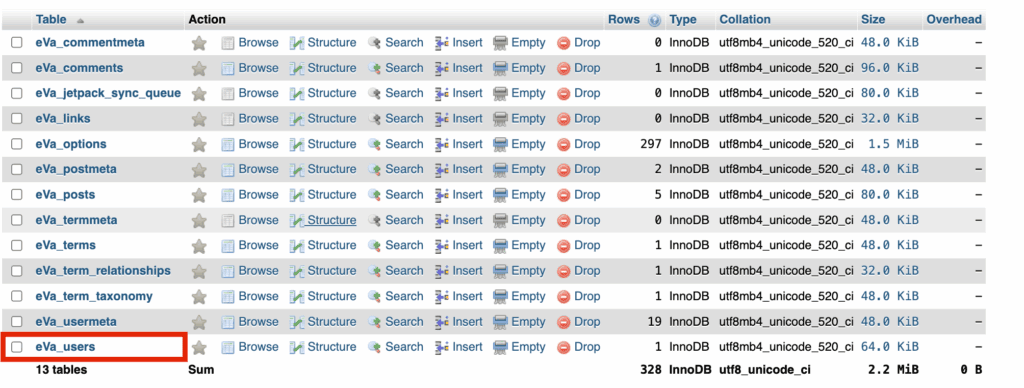
Find the users table. On the left-hand sidebar, click the name of your WordPress database. A list of database tables will appear. Find and click on the wp_users table.

Locate your user account. Find your username in the list and click the Edit link next to it.

Edit the password field. In the user_pass row, you need to do two things. First, in the Function dropdown menu for that field, you must select MD5. This is a critical step that encrypts your password correctly.
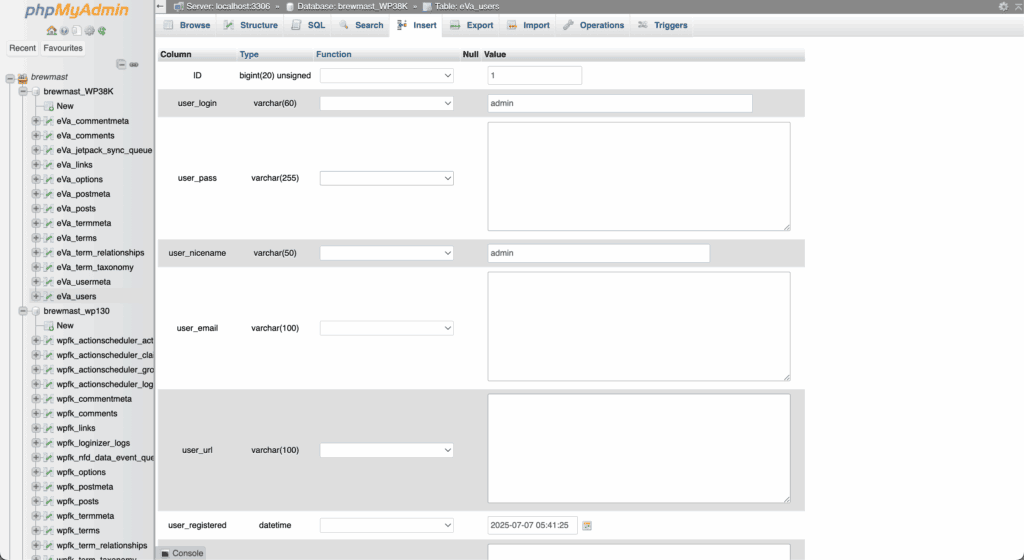
Enter your new password. In the Value box for the user_pass field, delete the existing text and type your new, desired password. Once done, scroll to the bottom and click the Go button.
You have now manually reset your password. You can head to your login page and use it to access your site.
D) Change password via FTP
This is an advanced technique for when you are locked out and have no other way in. You will need an FTP client like FileZilla and your server credentials.

Connect to your site and find the functions.php file. Use your FTP client (like FileZilla) to access your website’s files. Navigate to the /wp-content/themes/ folder and open the directory for your currently active theme to locate functions.php.
Insert and customize the reset code. Open the functions.php file for editing. Immediately after the opening <?php tag at the very top, add this exact line of code:
wp_set_password( 'newpassword', 1 ); Be sure to replace ‘newpassword’ with the strong password you want to use. The 1 represents the user ID of the account; for the first administrator, this is almost always the correct ID.
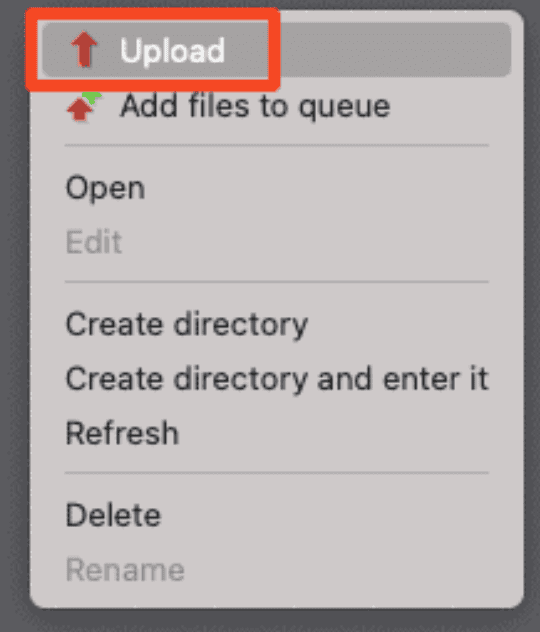
Upload the modified file and log in. Save the functions.php file and upload it back to your server, overwriting the original. The code will run automatically, so you can now go to your login page and use the new password to get in.
Post password change security checklist
After changing your password, especially if you suspect a security issue, it’s wise to run through a quick security checkup.
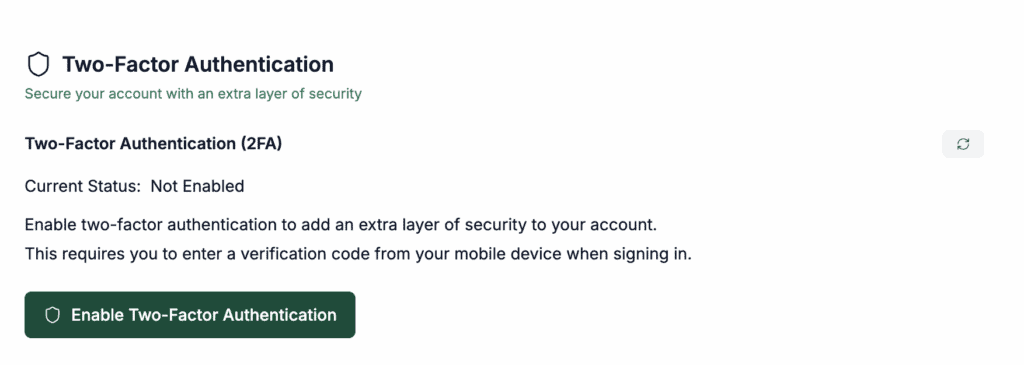
- Enable two-factor authentication (2FA). This adds an essential layer of security to your login process.
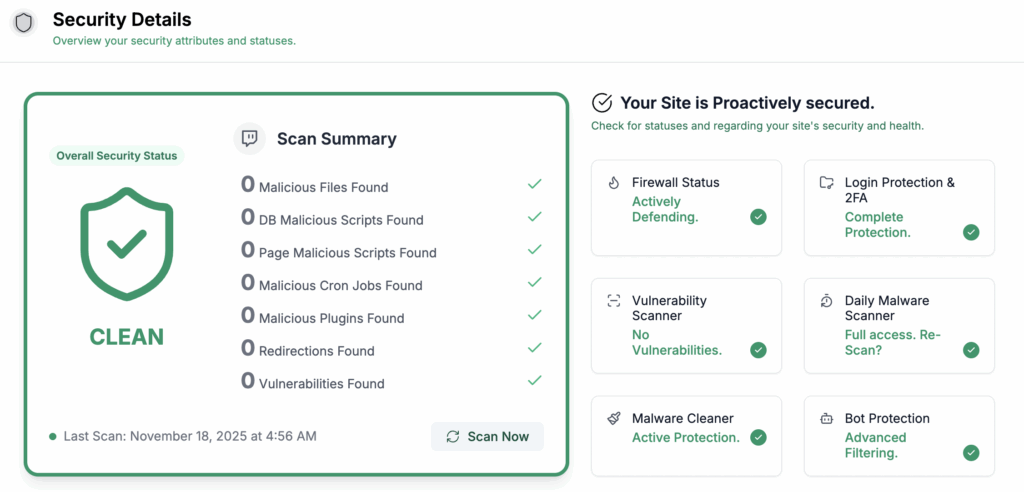
- Install a security plugin. If you don’t have one, get one now. Tools like MalCare can scan your site for malware and monitor for suspicious activity.
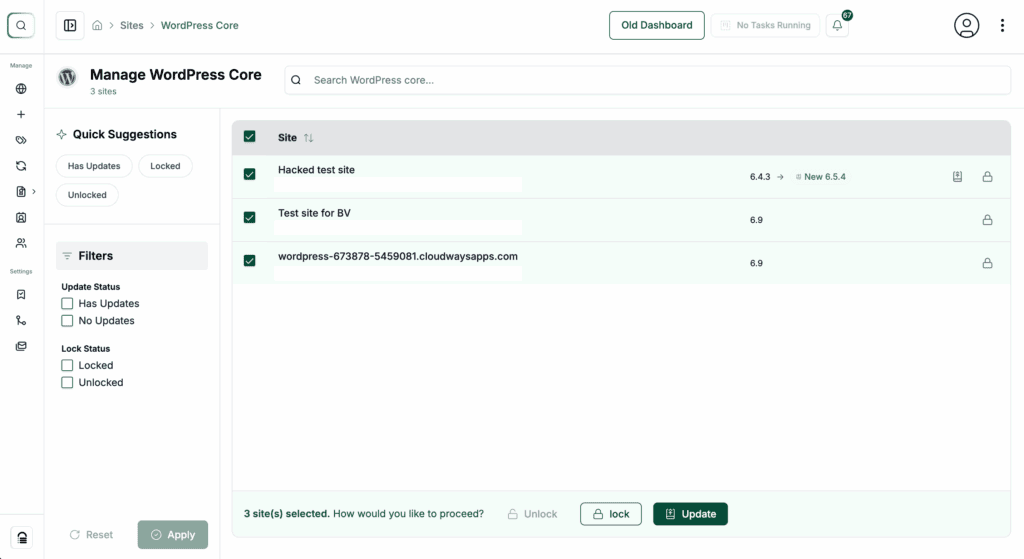
- Ensure everything is updated. Your WordPress version, plugins, and themes should all be running on their latest versions to patch any security holes.
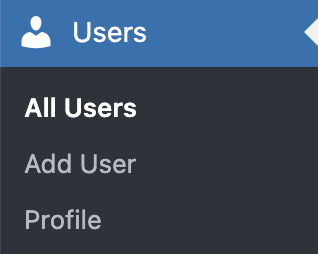
- Review all user accounts. Go through your user list and make sure you recognize every single account, especially those with administrator roles.
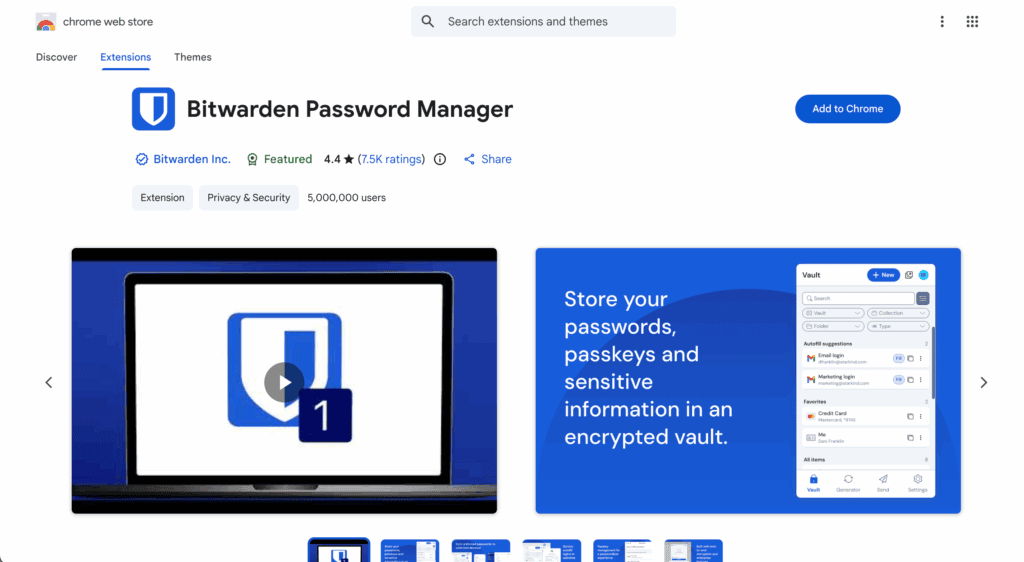
- Consider using a password manager. Tools like 1Password or Bitwarden make it easy to generate and store unique, strong passwords for all your accounts.
- Update related service passwords. For total security, consider changing the passwords for your hosting account, FTP, and any related email accounts.
Troubleshooting common issues
Even with the right steps, you might run into an issue. Here are some common problems and their solutions.

- Clear your browser cache. If your new password isn’t working, the first step is always to clear your browser’s cache and cookies.
- Try a different browser. This helps rule out whether the issue is with your browser or the site itself.
- Try logging in with your email. Sometimes using your email address instead of your username can resolve login issues.
- The ‘Invalid Key’ error. This message means your password reset link has expired or has already been used. You will need to request a new one.
- Contact your hosting provider. If you are completely stuck and suspect a server-side problem, your host’s support team should be your next call.
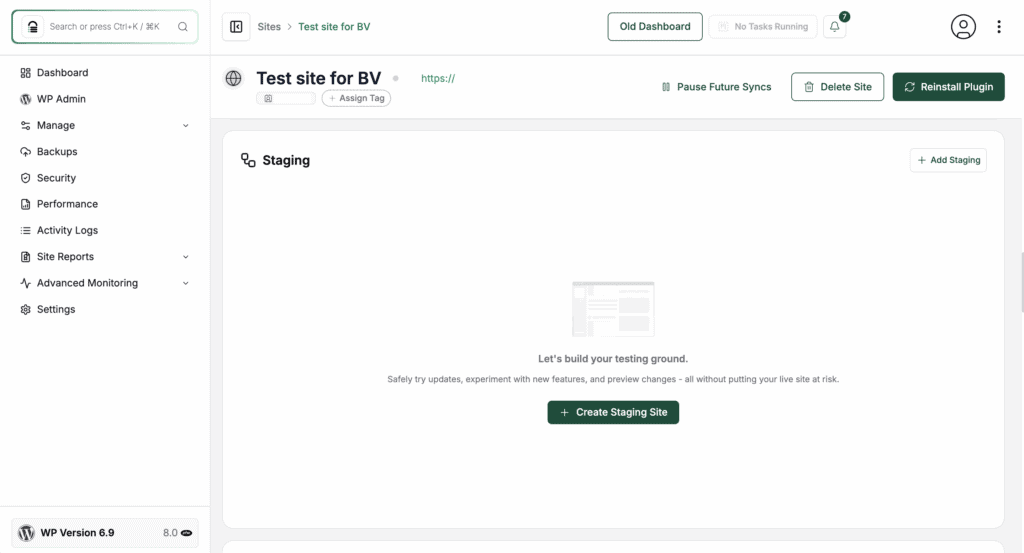
- Use a staging site for deeper testing. For issues that aren’t a simple fix, remember that the safest place to test for these issues is on a staging site. This allows you to deactivate plugins and make changes without affecting your live website.
Parting thoughts
Knowing how to manage your WordPress password is a fundamental part of website ownership. Whether you’re using the simple dashboard editor or a more advanced fix like phpMyAdmin, the key is to remember you have a clear path forward.
With a backup of your entire website as a safety net, you can act with confidence. The next time you find yourself locked out, you won’t need to panic because you’ll know exactly how to take back control.
FAQs
How do I reset my WordPress password?
You can reset your password by clicking the “Lost your password?” link on your site’s login page. After entering your username or email, you will receive a reset link in your inbox.
How do I change my WordPress admin username and password?
You can change your password from the Users > Profile section, but you cannot change your username from the dashboard. Changing a username requires either a dedicated plugin or a direct edit in the database.
How to change a WordPress password using the database (phpMyAdmin)?
You can change a password by editing the wp_users table in phpMyAdmin and finding your user row. In the user_pass field, select MD5 from the function dropdown and enter your new password in the value box.
How to reset a WordPress password on localhost?
The email reset method often fails on localhost, so the most reliable way is to use phpMyAdmin. Access your local database, find your user in the wp_users table, and manually set a new password using the MD5 function.
How do I change the WordPress login URL or page?
You can change the default login URL by using a security plugin like WPS Hide Login or Wordfence. This is a common security practice to protect your site from brute-force login attempts.

Shivani enjoys crafting guides that make every aspect of using WordPress simple and easy to follow. When she's not glued to her laptop, you can find her buried in a good book or occasionally, painting.


