

Have you ever tried to open a link on a website, only to end up on a page that doesn’t load?
Or maybe you keep getting error messages instead of the content you expected?
That’s what we call a broken link, and it can be quite annoying!
Now, think about how your visitors feel when they face the same issue on your WordPress site. Not only does it leave a bad impression, but it can also hurt your site’s ranking on search engines.
That’s why it is so important to check broken links in WordPress and fix them. But don’t worry—you don’t have to go through every page manually to find them.
In this guide, we’ll explore simple methods to discover and repair broken links on WordPress. Whether you like using plugins or prefer online tools, we’ve got you covered. Let’s get started!
Broken links can leave visitors lost on your site. This can harm your site’s reliability and search rankings. You can easily fix these issues by using WordPress plugins or online tools. It’s also a good idea to backup your WordPress site regularly. That way, if there are problems with your links, you can quickly restore everything.
What are broken links in WordPress?
Broken links are links on your WordPress site that point to pages that no longer exist. They’re like dead ends. This can happen if a page is moved, deleted, or if you change a URL and forget to update it.
Broken links are one of the most common redirect problems on WordPress sites. Thankfully, WordPress makes it easy to find and fix these broken links, even if you’re not very tech-savvy. You can use special plugins that scan your site for issues or try online tools that check your site from an outside view. These options help ensure your links work, keeping your visitors satisfied.
1. Use a plugin to check broken links in WordPress and fix them
WordPress plugins simplify the process of locating and repairing broken links. Some plugins focus solely on this, while others offer it as part of a broader range of features. These plugins are user-friendly and much faster at spotting and fixing problems than manual methods. But, remember that they can consume a lot of your site’s resources and might miss some issues. Despite these limits, let’s look at how you can use two popular plugins to check for broken links.
Broken Link Checker
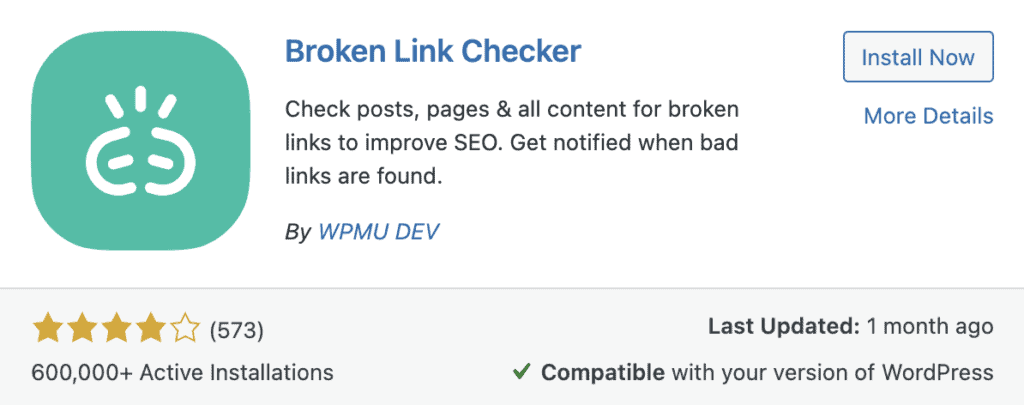
Broken Link Checker is a well-known tool for detecting and fixing broken links. Here’s how you can get started:
1. Install the plugin: Go to your WordPress dashboard and click on Plugins, then Add New. Type in “Broken Link Checker” in the search bar and click Install Now. Once installed, click Activate.
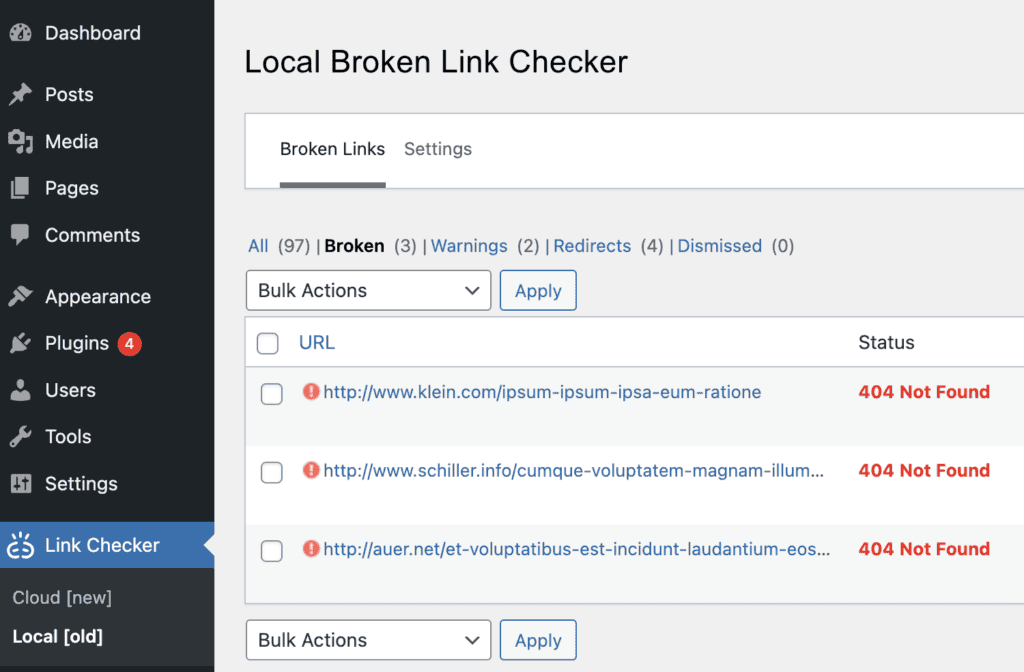
2. Find broken links: The plugin will automatically start scanning your site for any broken links. This process might take a while. You can check the progress by going to Link Checker and selecting Local [old].
3. Fix broken links: After the scan is complete, a list of broken links will appear. Click on each link to edit, remove, or mark it as not broken. You can make these changes directly on the plugin page, making it a quick process.
RankMath SEO
RankMath SEO provides a variety of tools, including the ability to check for broken links. Here’s how to get started:
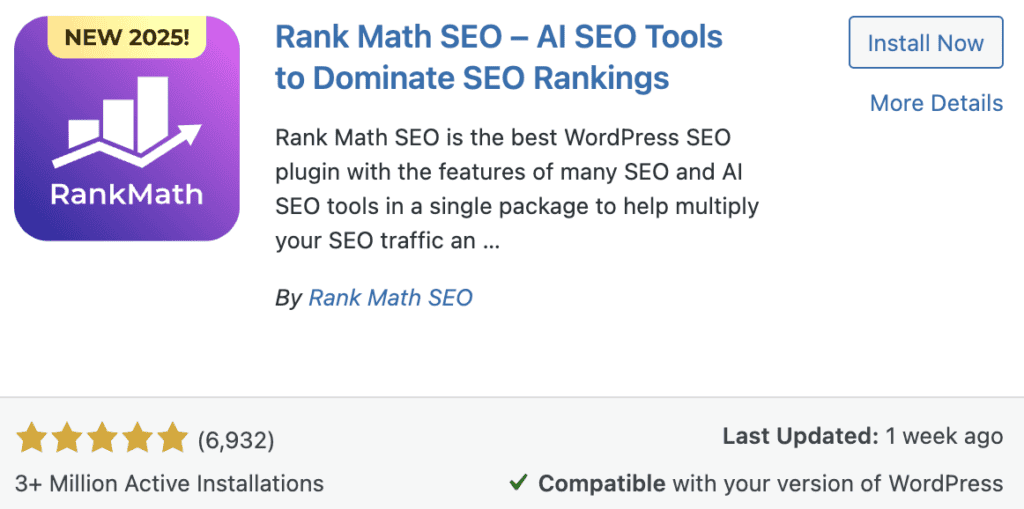
1. Install the plugin: Head to your WordPress dashboard, click on Plugins, and then Add New. Type in “RankMath SEO” in the search bar and click Install Now. Once installed, click Activate.
2. Set up for broken links: Once activated, RankMath will walk you through a setup wizard. Follow the instructions and complete the setup.
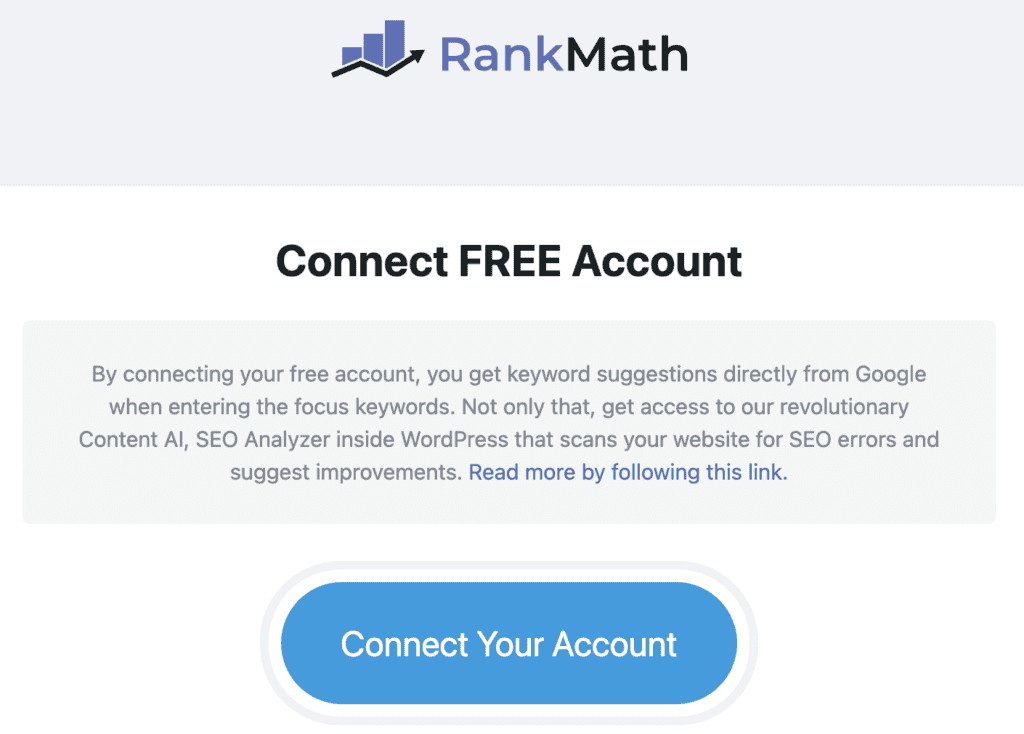
Then, in Advanced Mode, turn on the 404 Monitor module to check for broken links.
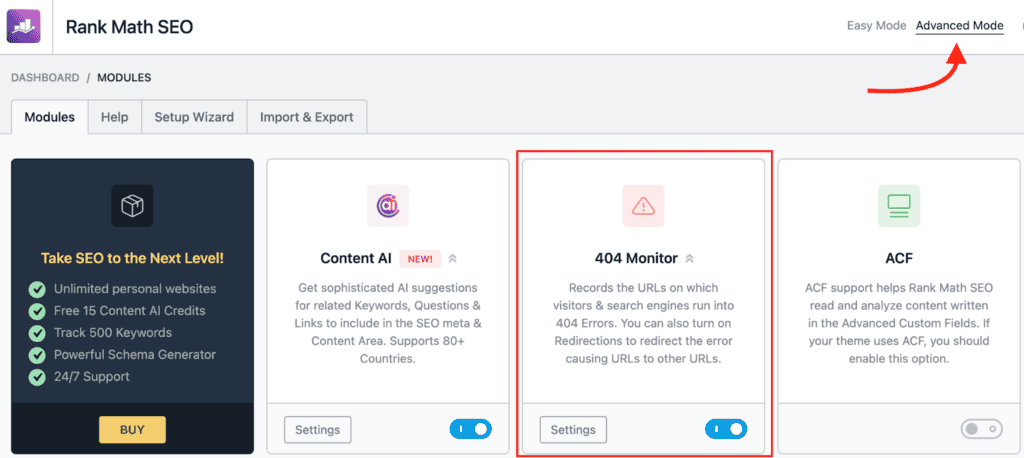
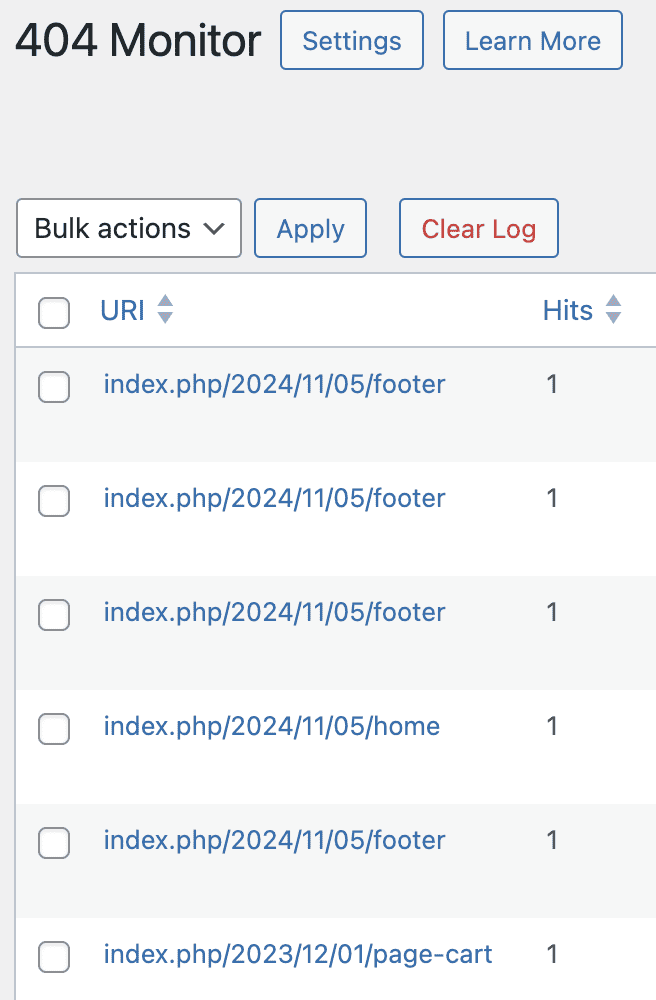
3. Find and fix links: Through the RankMath SEO menu, navigate to the broken links section. You’ll find a report listing all broken links. From this section, you can fix or remove those links as needed.
2. Use an online tool to check broken links in WordPress and fix them
Checking for broken links on your WordPress site using an online tool has several benefits. These tools offer an external view of your site, providing insights from an outsider’s perspective. This approach ensures they won’t use up your site’s resources while operating. Moreover, they are often more accurate than plugins and very convenient to use. Let’s take a look at how you can use some popular online tools:
Semrush
Semrush is a great tool for finding broken links. Here’s how you can use it:
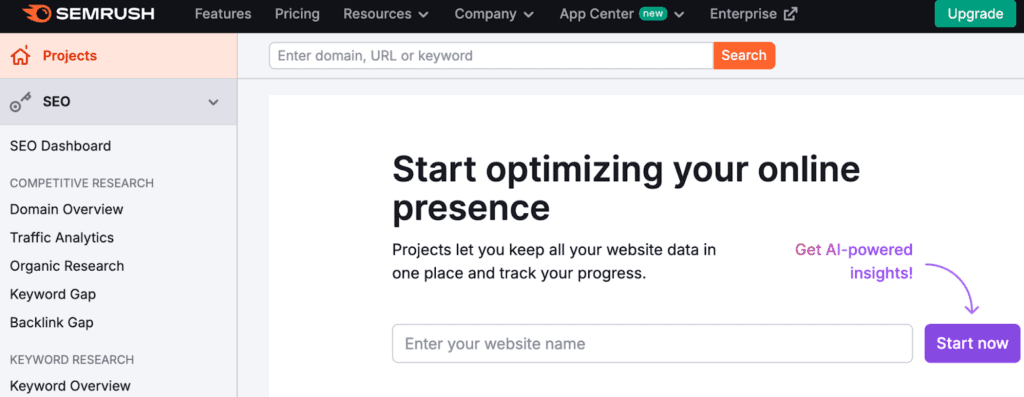
1. Set up your site: If you don’t have a Semrush account, sign up for one. Then, add your website by navigating to Projects, entering your site details, and clicking Start now.
2. Find broken links: Go to the Site Audit feature. Input your site name and click Start Audit.
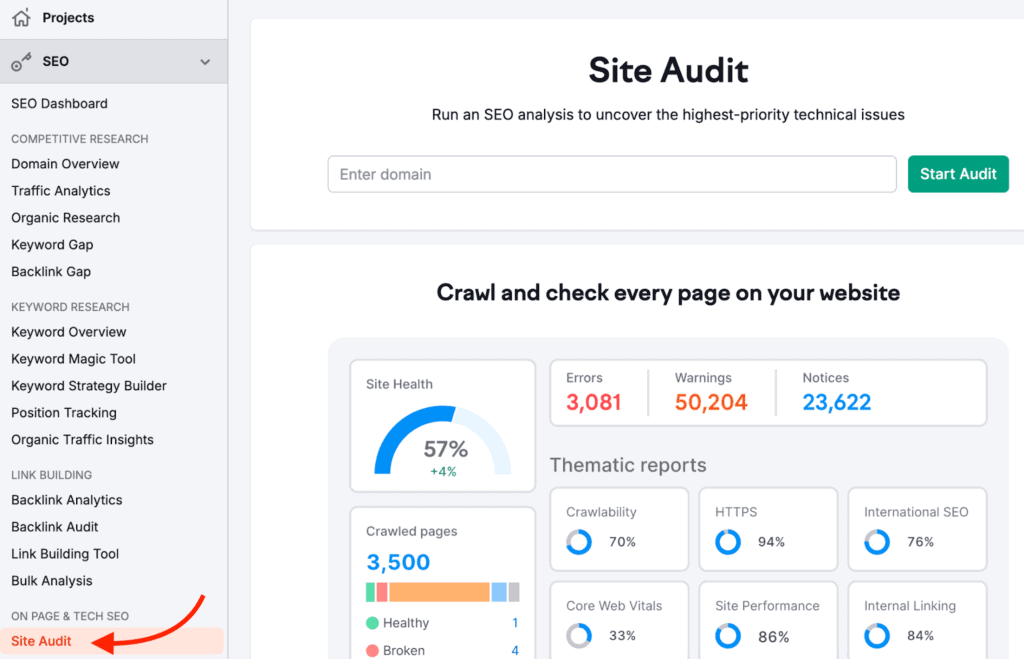
You’ll then see a customization screen for the audit. Click Start Audit Now to have it scan your site for broken links and provide a detailed report.
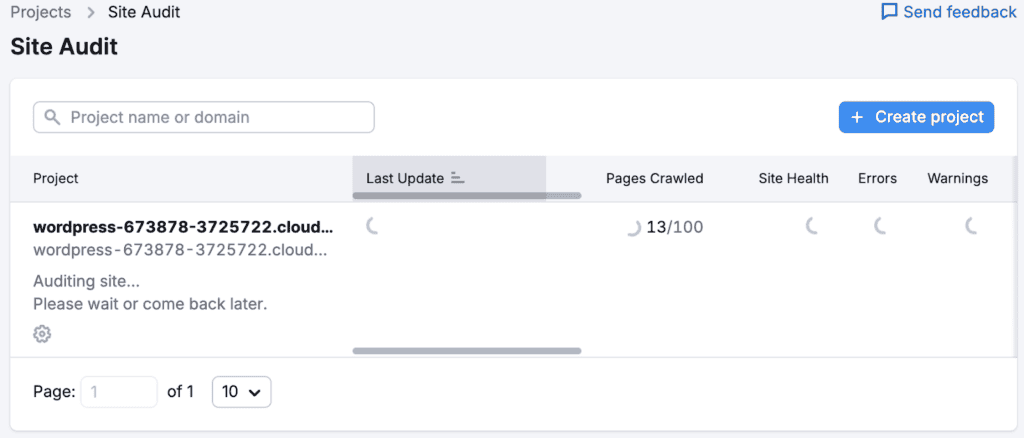
3. Fix broken links: Review the report to spot broken links.
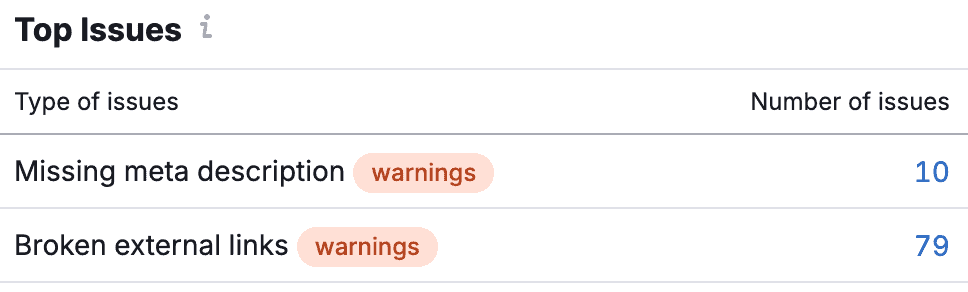
Semrush gives details on where each link starts and ends. Click on the issue count to see all the links with problems.
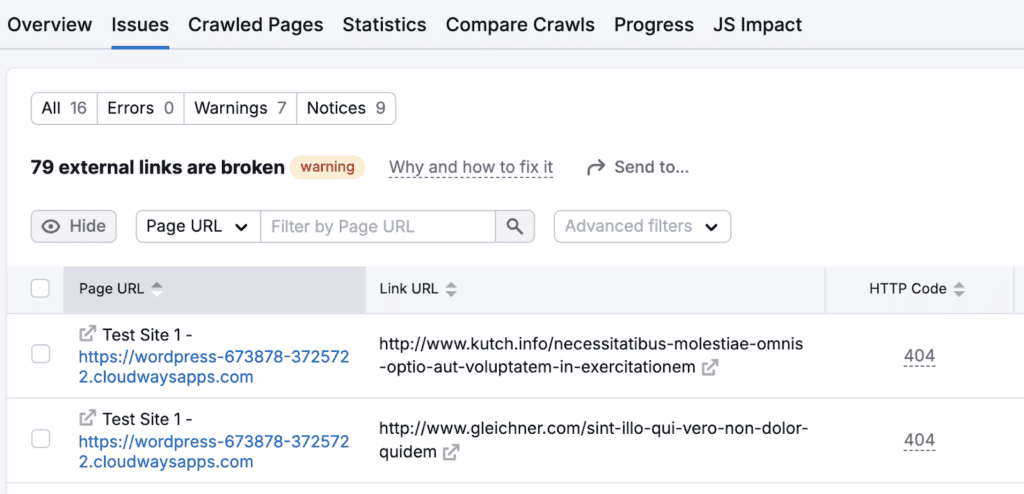
You can then edit or remove these links directly on your WordPress site to fix them.
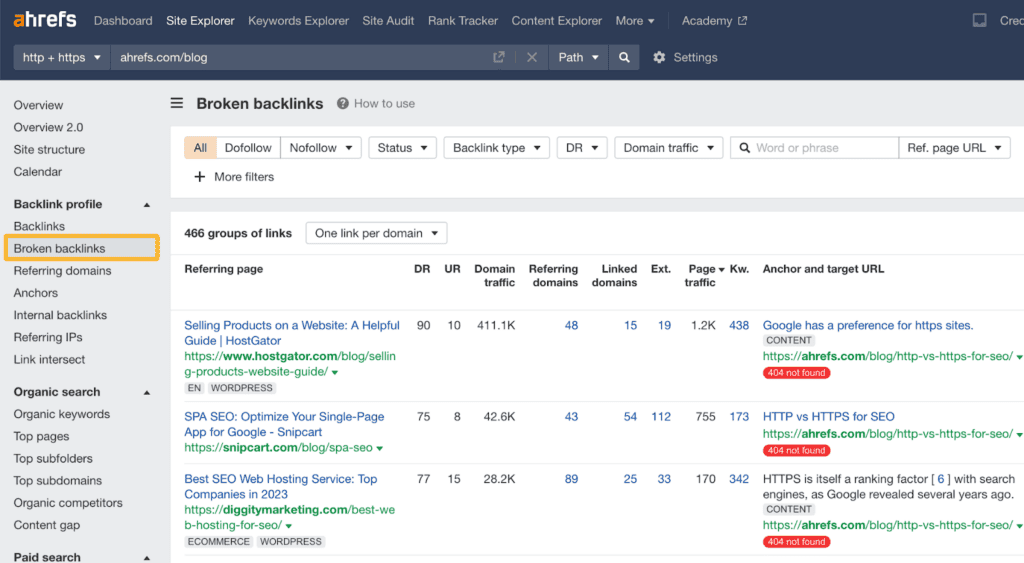
Ahrefs
Ahrefs offers a detailed analysis of your site’s link health. Here’s how to get started:
1. Prove ownership: Create an Ahrefs account if you haven’t already. To add your site, you’ll need to verify ownership, which you can do through your DNS settings, HTML file, or other methods supported by Ahrefs.
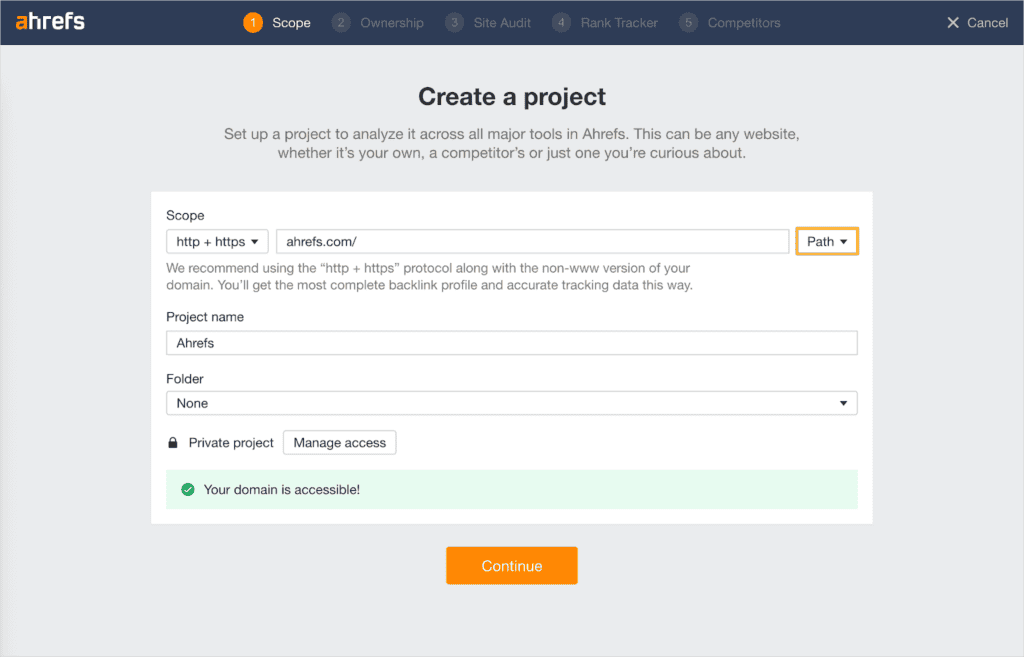
2. Find broken links: Use the Site Explorer feature to scan your site. Ahrefs will identify and list all broken outgoing and internal links.

3. Fix broken links: Review the broken link report. For each listed link, decide whether it needs updating, replacing, or removal in your WordPress dashboard.
Google Search Console
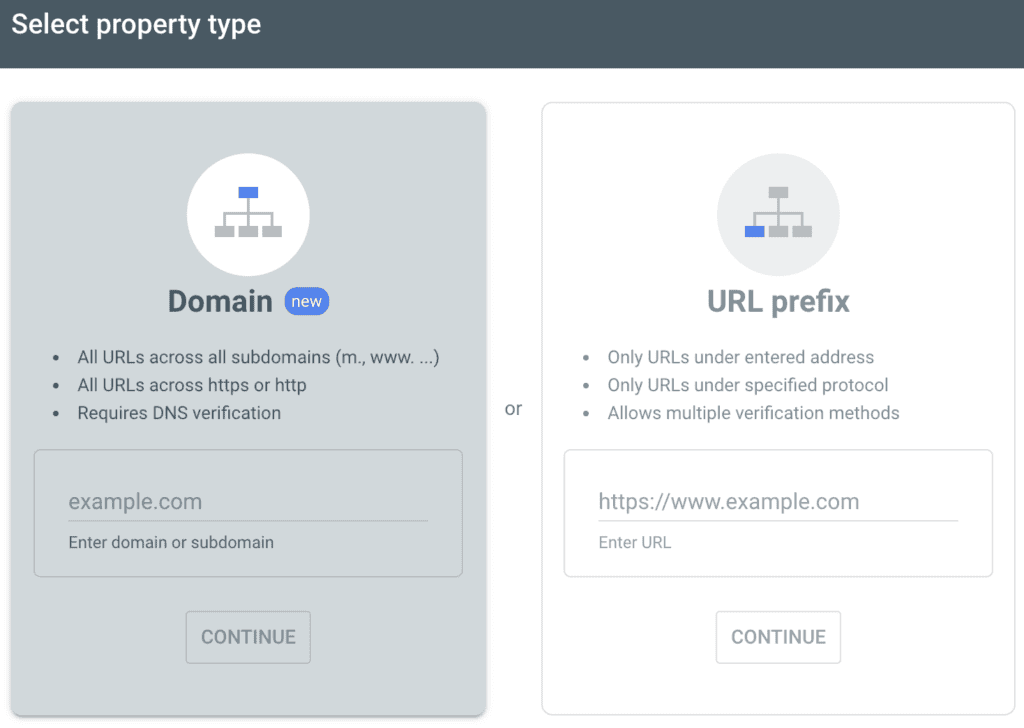
Google Search Console is a free tool from Google that monitors your site’s online presence. Here’s how to use it:
1. Set up your site: Sign up for Google Search Console if you haven’t done so yet. Add your website and verify ownership using methods such as DNS settings or an HTML file.
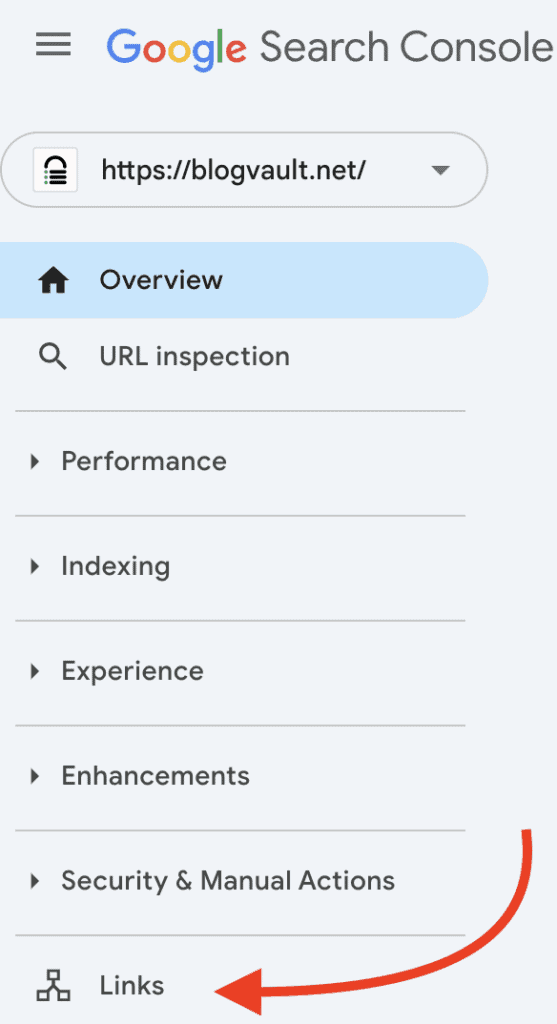
2. Find broken links: Go to the Links section. This area will highlight any pages with errors or broken links.
3. Fix broken links: Look over the provided details and make corrections on your WordPress site by updating or removing the faulty links.
Google Analytics
Google Analytics is primarily used for tracking site traffic. But, it can also help identify broken links in a roundabout way:
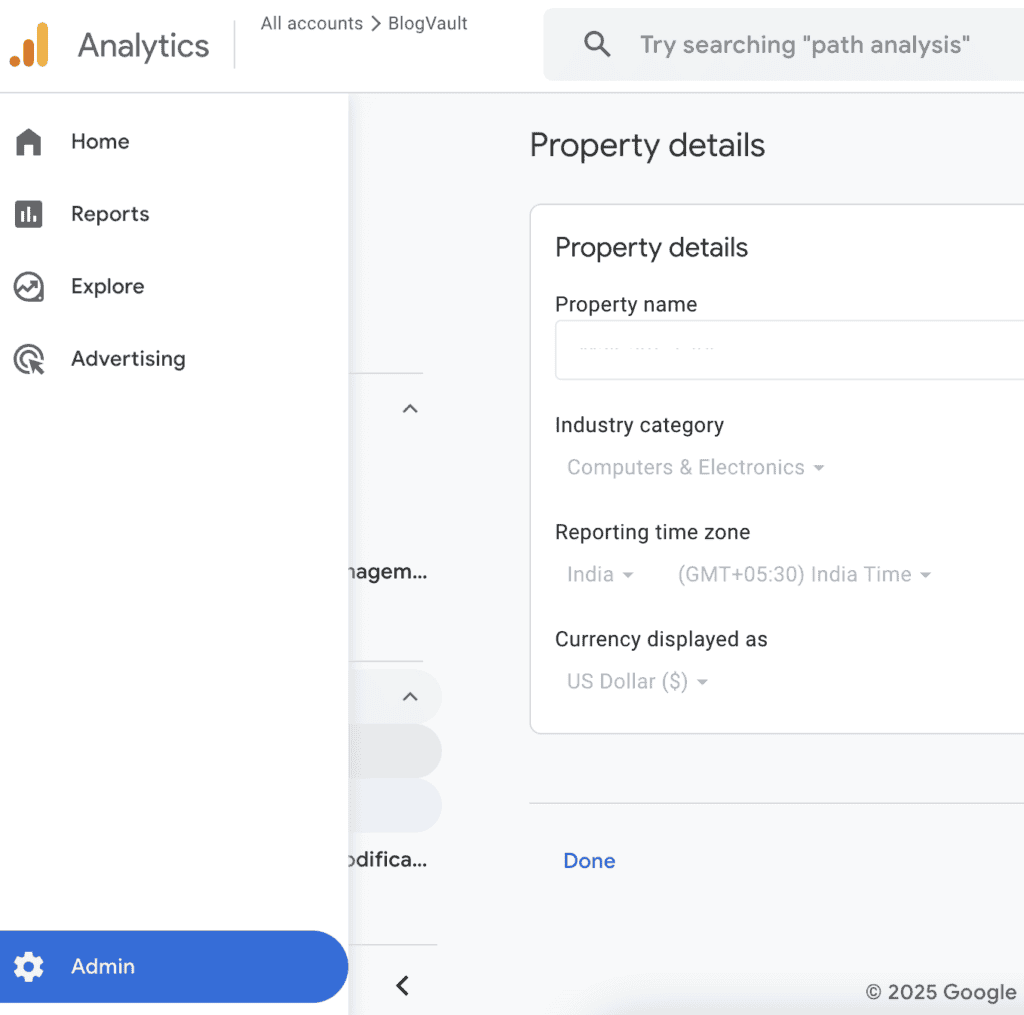
1. Set up your site: Make sure Google Analytics is properly set up on your site. If it’s not, go to the Admin area and establish a property in Property details.
2. Find broken links: Navigate to the Reports section and head to the Engagement area. Click on Pages and screens. Scroll down to view the list of pages.
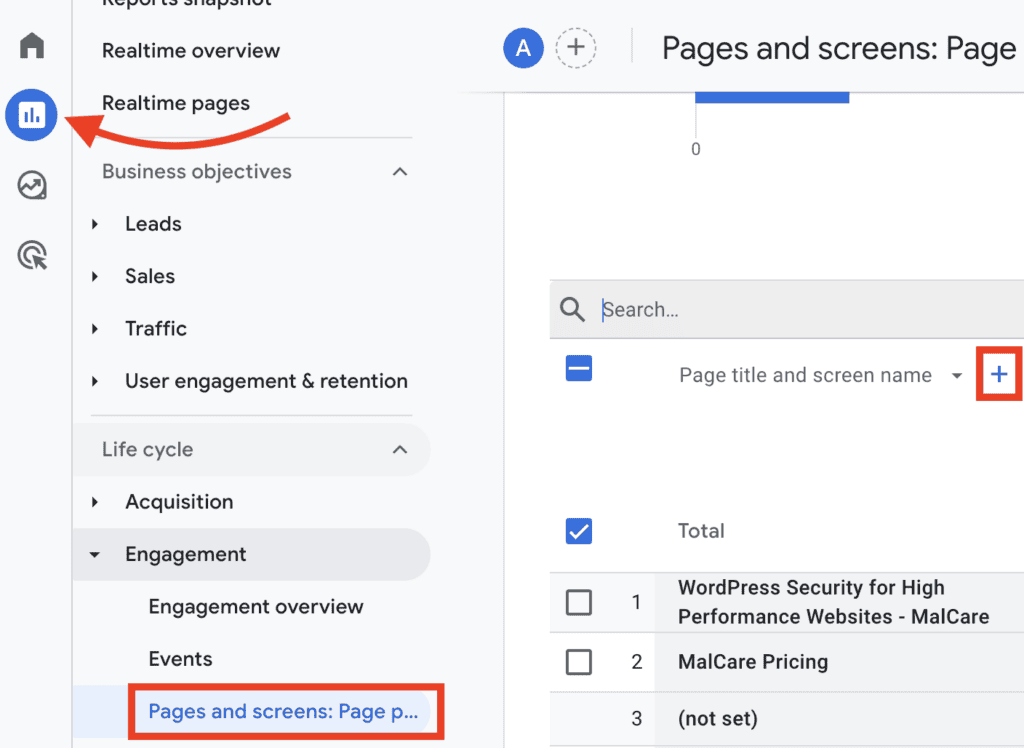
Next to the Page path and screen name dropdown, click the + and search for “Landing page + query string” and select it.

Use the search bar above the lists to look for “Not found”. This will show pages that returned a ‘Not found’ message, indicating broken links.
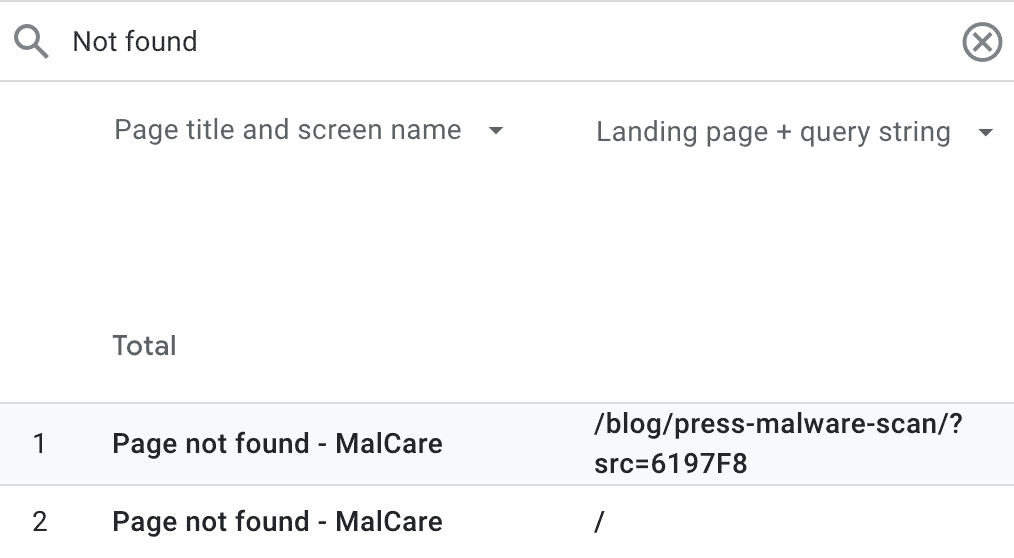
3. Fix broken links: After you’ve identified the broken links, go back to your WordPress site to update or remove the problematic links.
What causes broken links in WordPress?
Knowing what leads to broken links in WordPress can help you avoid them. Here are some common causes:
URL is misspelled or incorrect: A simple typo in the link can prevent the browser from finding the page.
Page’s URL or slug has changed: You might update a page’s URL or slug for better SEO or readability. If you don’t update links to this page, they’ll break.


Deleted or missing page: Links become broken when a linked page is deleted or moved without updating the links.
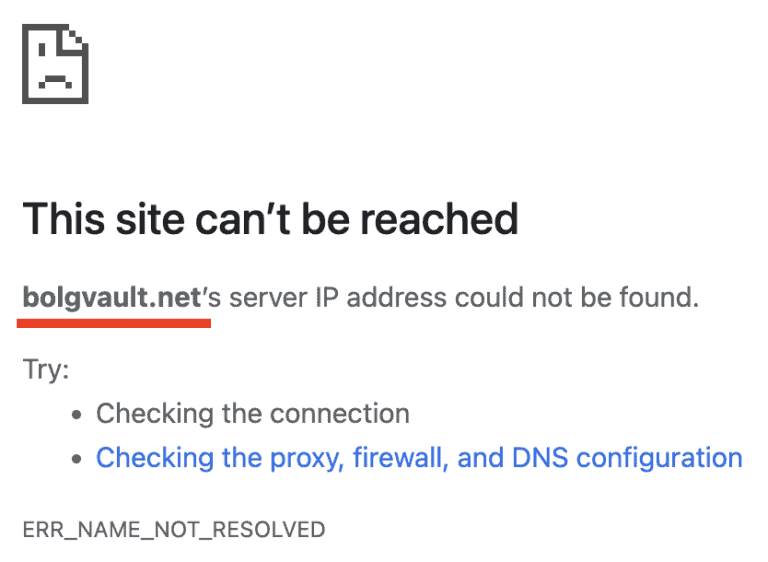
Expired or deleted domain: If a link directs to a domain that has expired or no longer exists, it will result in a broken link.
Unavailable domain: A domain might be down temporarily, causing links to that domain to not work during this period.
HTTP to HTTPS migration without redirects: Switching your site from HTTP to HTTPS improves security, but failing to set up redirects can break links. Old links may still point to the non-secure version.
Plugin conflicts: Conflicting plugins might cause incorrect URL rewriting, leading to broken links. Identifying and deactivating the conflicting plugin can resolve the issue.
Why should you fix broken links in WordPress?
Fixing broken links in WordPress is important for your site’s SEO and the experience it offers to users. Ignoring them can hurt your site’s success. Here’s why you should fix broken links quickly:
SEO impact: Broken links can harm your SEO. Google sees them as a sign that your site is not well-maintained, which can lower your search rankings. This makes your site less visible, which means fewer people find it.
User experience: When users click links that lead to error pages, they feel frustrated. They expect to find helpful content, not dead ends. Frustrated users often leave your site. This increases bounce rates, which signals to search engines that users are unhappy. This can further impact your SEO. Plus, users might start to question the quality of your site and lose trust.
Reduced traffic and sales: When users find broken links, they might not come back to your site. This will lead to reduced traffic. For businesses, this means fewer sales and conversions. Ensuring all links work keeps users engaged and builds trust. It also increases the chance of sales.
How to avoid broken links in WordPress?
Preventing broken links in WordPress requires good habits and regular check-ups. By taking the right steps, you can keep your site in top shape and make it better for visitors. Here are some tips to help you avoid broken links:
Use absolute URLs: When linking to other pages, use the full URL, like https://www.example.com/sample-page/. This way, if pages are moved, the links still work. It helps stop links from breaking when you change your site layout.
Link to quality resources: Choose links that go to high-quality and reliable sites. Good resources are more likely to stay online. Avoid using too many links just for SEO tricks. This keeps your links from becoming outdated.
Check links before publishing: Before you publish, make sure all URLs work. This helps avoid broken links from the start and gives your readers a smooth experience right away.
Regularly review links: Plan regular checks for broken links on your site. For busy sites, do this every month. If your site is less active, check every few months. Regular reviews keep your links healthy over time.
Update internal links: If you change your site’s structure or permalinks, update internal links. Tools like Better Search Replace can help make this easier. Staying on top of changes prevents links from breaking.
Keep plugins and themes up-to-date: Make sure you update your WordPress plugins and themes. Updates often fix bugs and improve link handling, helping you avoid issues from conflicts.
Regularly back up your website: Create backups of your site regularly. This way, you have restore points if you face link issues or other problems. A backup lets you return your site to working condition if needed.
We recommend using BlogVault for this. It takes automatic backups of your site that are stored off-site in an encrypted form. This ensures the safety of your data and prevents using up your site resources. Its one-click restore feature helps you recover your site without any hassle if things go wrong. If your site has crashed, its emergency connector feature can recover your site right from the BlogVault dashboard.
Final thoughts
Keeping your WordPress site free of broken links keeps visitors happy and helps maintain strong search rankings. You can easily find and fix broken links using plugins or online tools. Regularly checking for broken links should be part of your website maintenance routine. This ensures your site functions well, looks great, and maintains its reputation.
Beyond fixing links, it’s important to keep your entire site secure. A key step for doing this is to regularly back up your site. BlogVault can help with this by backing up your site data in an encrypted format off-site. This ensures that your data is safe and doesn’t slow down your site. Its one-click restore feature enables you to recover your site easily if something goes wrong. If your site crashes, the emergency connector feature allows you to restore it directly from the BlogVault dashboard. Together, all these features help ensure the safety and security of your site data.
FAQs
How to view broken links in WordPress?
To find broken links, you can use a plugin like Broken Link Checker. It looks for broken links on your site and shows them on your WordPress dashboard. This makes it easy to find and fix link issues. You can also use online tools like Semrush or Ahrefs. They check your site from outside and give you a report on broken links. This helps you manage them without slowing down your site.
How do I remove bad links in WordPress?
To remove bad links in WordPress, find bad links first using a plugin like Broken Link Checker or an online tool like Semrush. Once you have a list, go to your WordPress dashboard and edit the posts or pages with these links. You can update the link, remove it, or replace it with a link to another helpful resource. Be sure to save your changes so your site stays clean and easy to use.
How to check if a site has broken links?
To check if a site has broken links, you can use online tools like Semrush or Ahrefs. These tools examine the site and give a report on broken links. Another way is to use a browser extension or a service like W3C Link Checker. These scan the site and show any links that don’t work, helping you find broken ones without checking each by hand.

Anurag traded algorithms for adverbs when he switched from being a software engineer to being a writer. Editor by day, he chases F1 by night!


