

A WordPress plugin usually breaks at the worst possible moment. A form stops sending leads. Checkout freezes. A slider disappears. You update one plugin and suddenly wp-admin will not load.
If you have a plugin not working in WordPress, do not start by deleting it or updating everything. That can wipe out the clues and turn a small fix into a recovery job.
Use a reliable backup plugin first, then check activation, settings, cache, recent changes, conflicts, PHP or server errors, and plugin support notes. If wp-admin is broken, disable the plugin by renaming its folder through File Manager, FTP, or SFTP, then troubleshoot on staging.
The visible problem is “the plugin does not work.” The hidden problem is finding the layer that failed. It could be the plugin, another plugin, the theme, cache, JavaScript, the server, the license, or WordPress itself. Treat this like diagnosis, not guesswork.
Protect The Site First
Plugin troubleshooting is safest when every change can be undone. This matters most for checkout, forms, bookings, memberships, logins, SEO, and security.
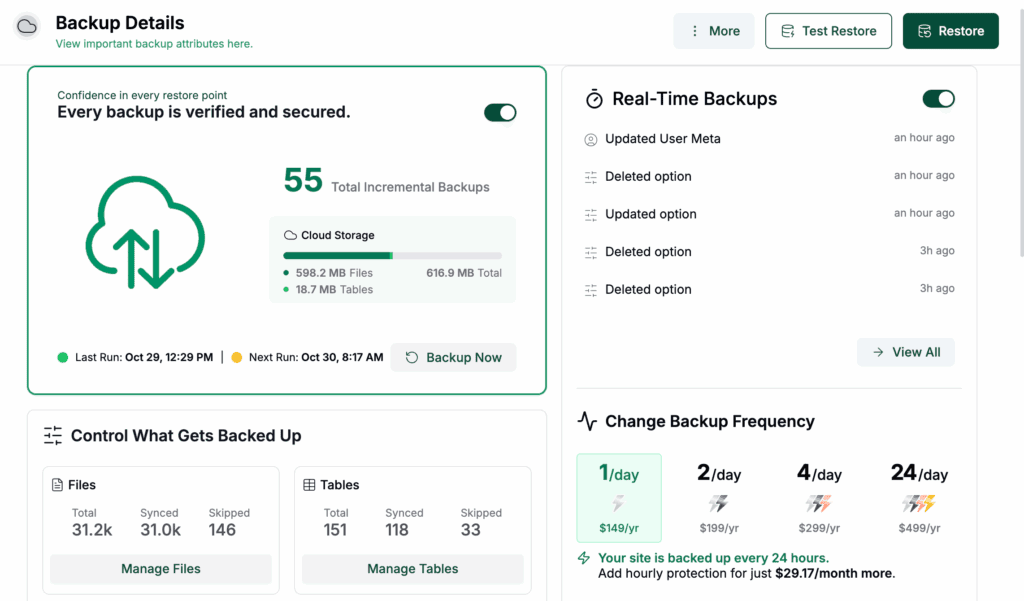
Create a full backup before changing settings, disabling plugins, switching themes, editing files, or reinstalling anything. A database export is not enough because plugin issues can involve files, uploads, settings, and stored data.
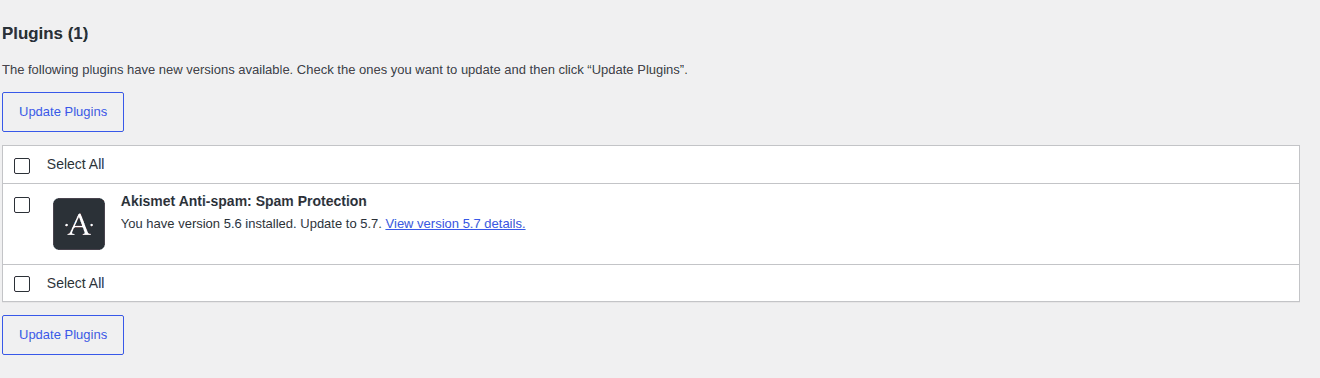
Use staging for risky tests. Staging is a private copy of your site where you can disable plugins, change themes, and test updates without touching the live site. Write down the most recent change:
- plugin, theme, WordPress, or PHP update
- hosting migration
- cache, CDN, or firewall change
- license renewal or account change
- new API key or integration setting
Change one thing at a time. If you clear cache, update three plugins, switch themes, and disable a firewall in one pass, the symptom may disappear while the cause stays unknown. This is where BlogVault fits. Use it to create a reliable backup and staging copy before testing plugin fixes. It will not repair bad plugin code, but it gives you a safer place to find the cause.
Identify The Exact Symptom
“Plugin not working” is too broad to fix. Name the failure first.
| What you see | Likely cause | First safe move |
|---|---|---|
| Plugin is installed but does nothing | Inactive plugin, unfinished setup, missing license, or missing add-on | Check activation, settings, license, and required companion plugins |
| Add Plugin button is missing | User role, multisite setup, or host restriction | Check admin access, Network Admin, and host rules |
| Plugin will not activate | Version mismatch, missing dependency, low memory, or fatal error | Read the exact error and check requirements |
| Feature is missing on the site | Wrong page setting, cache, shortcode issue, or theme conflict | Clear cache and confirm the feature is placed correctly |
| Form, checkout, slider, or settings screen freezes | JavaScript, cache, CDN, or optimization conflict | Test with optimization paused on staging |
| Site or wp-admin crashes after activation | Fatal PHP error, memory limit, or serious conflict | Disable the plugin from files to regain access |
The pattern matters. A missing Add Plugin button is not the same problem as a fatal error. A cached page is not the same problem as a broken plugin. Pick the path that matches what you see.
Try The Low-Risk Checks
Start with checks that do not remove data or change site structure.
Confirm Activation And Setup
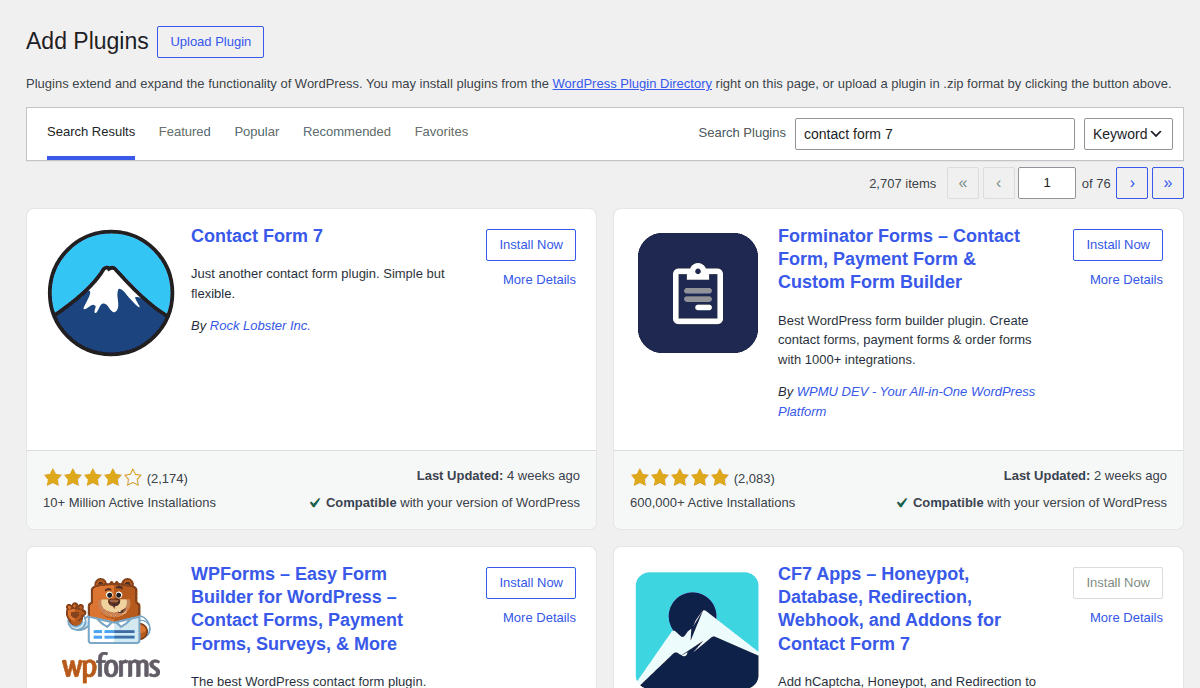
Go to Plugins > Installed Plugins. If the plugin says Activate, it is installed but not running. If it is active, open the plugin settings. Many plugins need setup before they show anything on the site. A form plugin like Contact Form 7 needs a form embedded. A backup plugin needs storage connected. A paid plugin may need a license key before premium features or updates work.
Also check dependencies. WooCommerce, Elementor, membership, and page-builder add-ons often do nothing until the main plugin is installed and active.

Clear Cache
Cache stores old page files so the site loads faster. It can also make a fixed plugin look broken. Test in a private browser window. Then clear plugin cache, host cache, CDN cache, and any page-builder CSS or layout cache. Do not stop at cache if the issue returns. Cache can hide a problem; it does not explain every problem.
Test Another User Or Browser
Check the site as an admin, a logged-out visitor, another browser, and another device. If only one user sees the issue, suspect browser cache, role permissions, blocked scripts, or user-specific settings. If everyone sees it, treat it as site-wide.
Check Access Rules
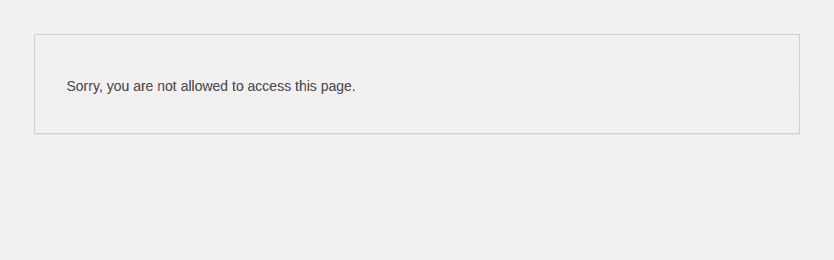
Missing plugin controls can be an access issue, not a plugin failure. On WordPress multisite, plugins may be managed from Network Admin. On managed hosting, the host may block certain plugins. If your account is not an administrator, you may not have permission to install or manage plugins.
Isolate Conflicts In wp-admin
If you can still access wp-admin, test plugin conflicts without turning the live site into a public experiment.
The safest beginner-friendly option is Health Check & Troubleshooting from WordPress.org. Troubleshooting mode lets you disable plugins and switch themes for your admin session only. Visitors keep seeing the normal site.
In our WordPress 6.9.4 test site running PHP 8.2, Health Check & Troubleshooting installed normally and exposed the expected admin workflow for Site Health checks and session-only troubleshooting.
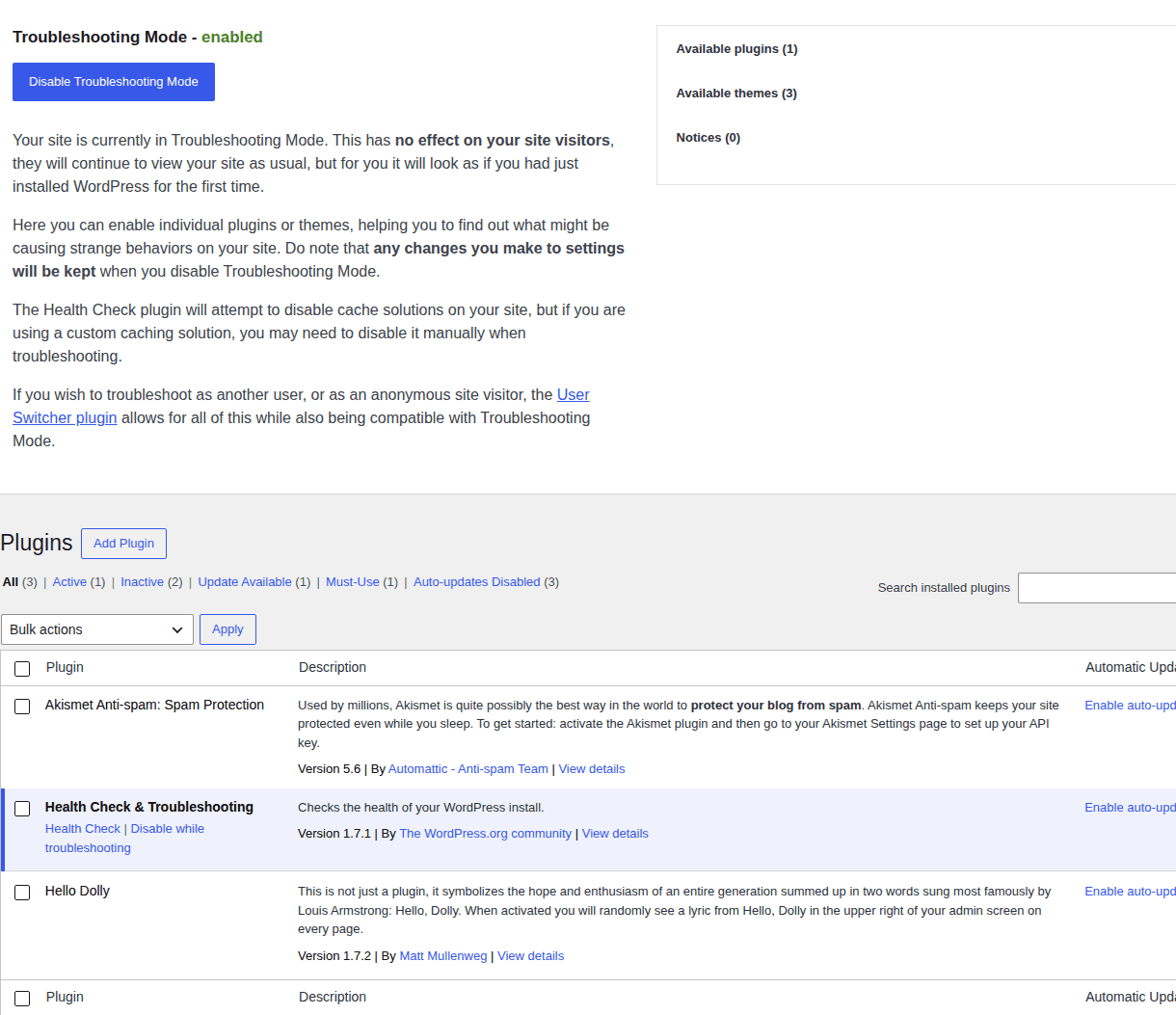
Use this sequence:
- Keep the broken plugin active while testing.
- Disable other plugins for your session.
- If the issue disappears, reactivate plugins one at a time.
- Test after each activation.
- Test cache, security, optimization, and CDN plugins late.
- Switch briefly to a default WordPress theme to check theme conflicts.
Do not assume the newest plugin is guilty. A new update can expose an old conflict in a forgotten form, slider, shortcode, or optimization plugin. The plugin you remember changing is not always the plugin that caused the break.
Restore wp-admin Access
If a plugin locked you out of wp-admin, your first job is access. Stop refreshing the broken dashboard.
Use your host’s File Manager, FTP, or SFTP. FTP and SFTP let you manage site files; SFTP is the safer encrypted option. Follow this path:
- Open the site files in your hosting account.
- Go to wp-content/plugins.
- Rename the suspected plugin folder by adding -disabled.
- Try wp-admin again.
WordPress deactivates a plugin when it cannot find the folder it expects. If you do not know which plugin caused the crash, rename the whole plugins folder to plugins-disabled, then create a new empty plugins folder. Once you regain access, restore the folder name and test plugins one at a time.
Be careful reactivating the same plugin. If it caused a fatal error once, it can lock you out again. If the site is still down after disabling plugins, the problem may be the theme, server, database, malware, .htaccess file, or a failed WordPress update. At that point, restoring a clean backup can be safer than guessing.
Fix Install And Activation Problems
Some plugin problems happen before the plugin ever runs. The error message usually tells you where to look.
Use The Right Plugin File
Upload the installable plugin ZIP from WordPress.org, the developer’s official site, or your paid account dashboard.
Do not use nulled plugins. They can contain malware, broken files, or hidden changes. If WordPress says the plugin has an invalid header, the ZIP may be wrong or nested too deeply. Download a fresh official copy instead of repairing the package by hand.
Use the official plugin source or the developer account page when you need a fresh installable copy.
Check Version Requirements
Activation errors often come from mismatches:

- WordPress version is too old
- PHP version is too old or too new for that plugin
- required companion plugin is missing
- upload failed halfway
- memory or execution time is too low
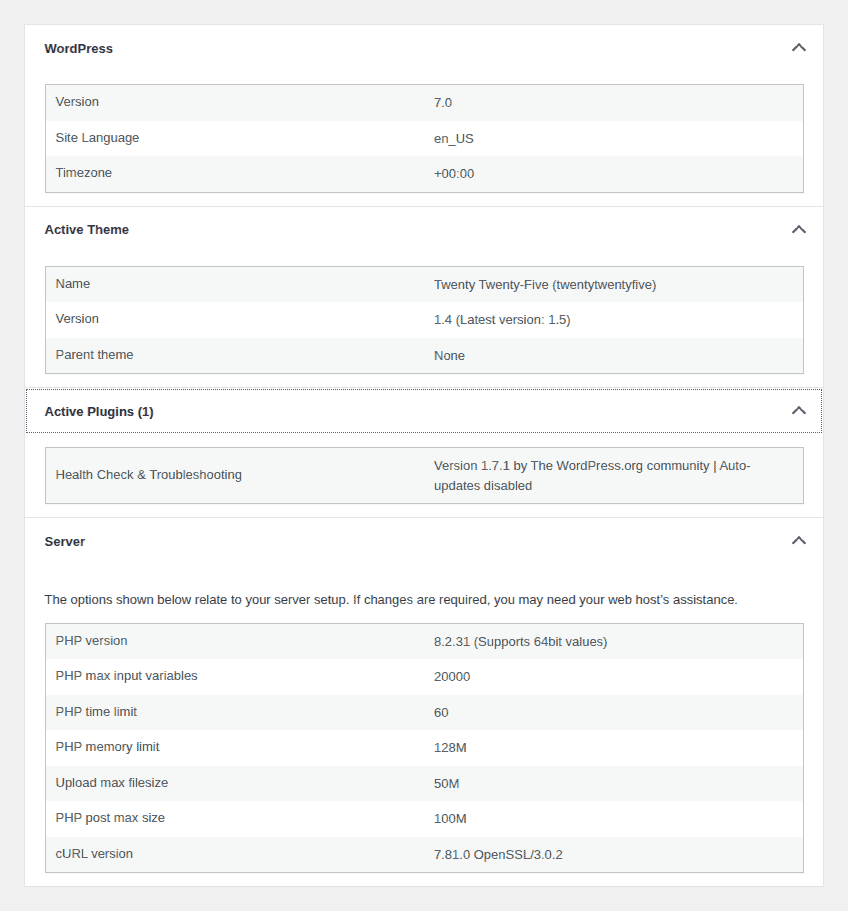
Check Tools > Site Health > Info > Server for the PHP version. In our test site, Site Health exposed server details clearly, which makes it a good first stop before contacting your host.
Avoid Permission Guessing
If a plugin was uploaded manually or restored after a migration, file ownership or permissions may be wrong. Do not set everything to 777. That makes files broadly writable and can create a security risk. Ask your host to fix ownership and permissions if you are unsure.
Read Error Logs
Logs turn “it broke” into evidence. You need the line that names the plugin, file, error, or server limit. Ask your host where to find PHP error logs. Look for:
- Fatal error
- Parse error
- Allowed memory size exhausted
- Maximum execution time exceeded
- cURL error 28
- 500, 502, 503, or 504 errors
- Permission denied
For request-level evidence, access logs can show which URL or admin action triggered the failure. If a developer enables WordPress debug logging, keep public error display off and turn debugging off after collecting useful lines. Public error display can expose file paths and private details.
When contacting support, send the plugin name and version, WordPress version, PHP version, theme name, exact error, recent changes, and steps already tried. Remove passwords, license keys, API keys, and private tokens. The log is not the fix. It is the map to the fix.
Check JavaScript, Cache, And CDN Conflicts
Some plugins are active and configured but still look broken because their browser scripts are not running.
JavaScript powers forms, sliders, popups, booking calendars, checkout buttons, media uploaders, and many plugin settings screens. If JavaScript breaks, the plugin may look dead even when WordPress loaded it correctly. Open the browser developer console and look for red errors. If you are not technical, copy the first error, the page URL, and what you clicked before the issue appeared.
On staging, temporarily pause:
- JavaScript minify, combine, defer, or delay settings
- CDN script rewriting
- security rules that block admin requests
- optimization settings on checkout, cart, login, forms, and booking pages
If the plugin works after optimization is paused, do not leave every performance setting off. Add exclusions for the sensitive page or plugin script.
Speed settings are only useful when the site still works. For broader tuning, use a WordPress performance optimization checklist after the plugin works again.
Fix License And API Problems
Premium plugins can fail even when their local files are fine. The plugin may need to contact the vendor for updates, license checks, templates, maps, payments, or API responses. Check these before reinstalling:
- license is active and assigned to the right domain
- site did not move from staging to live without updating the license
- subscription has not expired
- host is not blocking outbound HTTPS requests
- cURL, DNS, cron, firewall, or ModSecurity rules are not blocking the connection
cURL is a tool WordPress uses to talk to other websites. DNS translates domain names into server addresses. Cron runs scheduled tasks. ModSecurity is a server firewall that can block requests it thinks are suspicious.
If a vendor service is down, your plugin may fail to update or connect even though your site did nothing wrong. Check the plugin’s status page, support forum, or account dashboard. Never paste license keys or API keys into public support threads.
Reinstall, Replace, Or Restore
More troubleshooting is not always the right move. Choose the endpoint based on evidence. Reinstall the plugin when files are corrupted or an update failed. Back up first, and check whether deleting the plugin also deletes settings, tables, forms, orders, logs, or custom data.
Replace the plugin when the same issue keeps coming back. Abandoned plugins, poor support, repeated checkout conflicts, old PHP requirements, and no recent updates become operating costs. Restore the site when a known change broke something important. If checkout broke five minutes after a plugin update and you have a clean backup, restore the working version first. Then test the update on staging.
BlogVault is useful here because restore and staging belong together. Restore the live site when needed, then test the plugin safely before trying again.
Prevent Repeat Breakage
Prevention does not make plugin problems impossible. It makes them smaller and easier to undo. Use this checklist:
- Keep automatic backups you trust.
- Test major plugin, theme, WordPress updates, and PHP updates on staging.
- Update one important component at a time.
- Avoid duplicate plugins for cache, security, SEO, backup, sliders, galleries, and optimization.
- Delete unused plugins only after checking whether they store needed data.
- Avoid abandoned and nulled plugins.
- Read changelogs before updating plugins tied to checkout, forms, bookings, memberships, SEO, or security.
- Check the site after updates, not weeks later when a customer reports it.
For ongoing maintenance, BlogVault can act as the safety layer: scheduled backups, staging for update tests, and restore when a plugin change goes wrong.
Know When To Get Help
Escalate when the issue touches money, access, security, or stored data. That is good risk control.
- Contact plugin support when the error names the plugin, the issue happens with only that plugin active, or the problem remains on a default theme.
- Contact your host when logs mention memory, timeouts, cURL, permissions, server errors, file ownership, or blocked outbound requests.
- Contact a developer when the plugin is custom-built, checkout is broken, database errors appear, malware signs show up, or reactivating the plugin keeps crashing the site.
Send a clean support packet:
- WordPress version
- PHP version
- plugin name and version
- theme name and version
- exact error message
- screenshot or short screen recording
- recent changes
- steps already tried
- relevant log lines with secrets removed
Good support requests get better answers. “The plugin does not work” starts a guessing game. “It fails on activation after updating to version X on PHP 8.2, and this is the fatal error” gives support a real place to start.
FAQs
Why is my WordPress plugin not working?
The plugin may be inactive, misconfigured, cached, blocked by another plugin or theme, incompatible with your WordPress or PHP version, limited by the server, or unable to reach its license or API server.
What should I do first when a WordPress plugin breaks?
Create a backup or restore point, note what changed recently, and identify the exact symptom. Do not delete the plugin or update everything before you know what failed.
How do I fix a WordPress plugin conflict?
Use Health Check & Troubleshooting mode or a staging site. Keep the broken plugin active, disable other plugins for testing, reactivate them one at a time, and test after each change.
How do I disable a broken plugin if I cannot access wp-admin?
Open the site files through File Manager, FTP, or SFTP. Go to wp-content/plugins and rename the suspected plugin folder. WordPress will deactivate it because the folder name changed.
Will deleting a plugin remove its settings?
It depends on the plugin. Some keep settings after deletion, while others remove data during uninstall or when a cleanup setting is enabled. Check the plugin documentation before deleting anything.
Final Troubleshooting Path
When a WordPress plugin is not working, use the safest path first: back up, name the symptom, try low-risk checks, then isolate conflicts or read logs only when simple fixes fail.
If the problem affects checkout, forms, memberships, bookings, security, or wp-admin access, do not experiment on the live site without a clean restore path. Use staging, keep notes, and escalate when the issue touches revenue, data, or access.

Shivani enjoys crafting guides that make every aspect of using WordPress simple and easy to follow. When she's not glued to her laptop, you can find her buried in a good book or occasionally, painting.


