

“The editor has encountered an unexpected error” – are dreaded words that every WordPress user fears. It’s like hitting a wall in the middle of your creative flow. You’re just about to launch a new post, tweak your site’s design, or schedule that all-important newsletter, and bam! Everything has to stop.
We’ve seen our fair share of WordPress errors. The great news is, whether it’s a plugin conflict, a theme issue, or a simple cache problem, we can usually resolve it quickly. In this guide, we’ll walk you through immediate steps to troubleshoot and fix the error.
TL:DR: If you’re facing the “editor has encountered an unexpected error” in WordPress, troubleshooting may get disruptive. To avoid affecting your live site, always test fixes on a staging site first. This allows you to pinpoint issues—whether they are plugin conflicts, theme problems, or cache issues—without risking downtime or errors on your active site. Once you’re confident the problem is fixed, you can apply changes to your live site without worry.
Understanding “the editor has encountered an unexpected error”
When working with WordPress, you might come across the error message: “The editor has encountered an unexpected error.” This can be frustrating, especially when you’re deep into creating or updating your website. But what does this error mean? Simply put, it’s a warning that something isn’t working as expected in your WordPress editor.
This error often pops up during various stages of working with WordPress. It is common while editing or creating new content using the block editor, also known as Gutenberg editor. Switching between editor modes, such as moving from the code editor to the block editor, might trigger this error. After installing or updating plugins or themes, this error can appear due to compatibility issues or conflicts. Also, following a core WordPress update, you might encounter this error if your existing themes or plugins aren’t compatible with the new version. Introducing custom code snippets that don’t work well with WordPress can also lead to unexpected behaviors, resulting in this error message. Understanding these triggers helps diagnose and fix the problem more efficiently.
Knowing where and why this error shows up is half the battle. Let’s look at some reasons behind these unexpected editor errors:
- Plugin conflicts: Different plugins not working well together can cause errors.
- Theme issues: Problems with your active theme might lead to editor errors.
- Insufficient memory: If your PHP memory limit is low, it might trigger errors.
- Outdated software: Running outdated versions of WordPress, themes, or plugins can create compatibility issues.
- Server configuration: Incorrect or unusual server settings might be the culprit.
- Cache issues: Cached versions of your site can sometimes cause errors in the editor interface.
Fixing “the editor has encountered an unexpected error”
Now that we understand the potential triggers and causes of the “The editor has encountered an unexpected error” message in WordPress, it’s time to tackle the solutions. Knowing the reasons behind the error sets the stage for effective troubleshooting. In this next section, we’ll explore practical steps to fix the error.
Expert Advice: We recommend using a test site for WordPress admins, as it offers a safe environment to troubleshoot this error. It ensures your fixes work seamlessly before applying them to the live site, thus reducing risk and downtime.
1. Solving for plugin conflicts
Plugins are great. They add functionality to our site. We love them. But sometimes, they don’t get along with each other. A plugin conflict happens when two or more plugins interfere with each other’s operations. This can lead to unexpected errors, including the “The editor has encountered an unexpected error.” Each plugin has its own code, and when their tasks overlap or clash, it can disrupt the normal functioning of your site. Identifying and resolving these conflicts is crucial for maintaining a smooth editing experience.
- Navigate to Plugins > Installed Plugins. From here, you can deactivate all plugins simultaneously. Check if the error persists; if it disappears, you’ve confirmed a plugin conflict.
- To find out which plugin is causing the issue, reactivate your plugins one at a time. After each activation, check the editor for the error. Continue this process until the error appears again—the last plugin activated is likely the culprit.
- Once you identify the conflicting plugin, check if there are any updates available for it that might resolve the conflict. Reach out to the plugin developer if necessary for additional support.
- If the conflict continues despite updates and developer support, consider looking for an alternative plugin that offers the same functionality without causing issues.
2. Fix theme conflicts
Themes dictate the look and feel of your WordPress site, but sometimes they can cause unexpected issues. Theme conflicts occur when a theme’s code doesn’t mesh well with other site elements, such as plugins or core WordPress updates. This can lead to errors like “The editor has encountered an unexpected error.” This could be because you need to update a theme or because an update failed.
- Go to Appearance > Themes. Temporarily switch to a default theme like Twenty Twenty-Three. Check if the error still appears while using this theme.
- If the error disappears with the default theme, it confirms that your original theme was causing the conflict. Stay with the default theme to perform further tests if needed.
- Revert to your original theme and check if any updates are available.
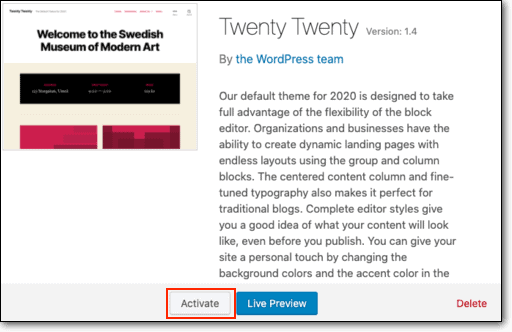
- Sometimes, developers release fixes that resolve conflicts.
- If the error persists even after updating, reach out to your theme’s support team. They might have a patch or workaround specific to your issue.
- As a last resort, consider switching to a different theme that aligns with your site needs without causing conflicts.
3. Check if there is sufficient memory
Not having enough memory is a common reason for unexpected errors like “The editor has encountered an unexpected error.” WordPress, along with its themes and plugins, requires a certain amount of PHP memory to function properly. If you exhaust the memory, it leads to errors. The server can’t handle the tasks you’re asking of it. Increasing the PHP memory limit can help prevent these problems, ensuring smoother site operation and functionality.
- You’ll need access to your WordPress site’s files. This can be done via a file manager in your hosting control panel or using an FTP client, like FileZilla.
- This important configuration file is typically located in your site’s root directory (public_html folder).
- Download the wp-config.php file and open it in a simple text editor, like Notepad or TextEdit. Add the following line of code just before the line that says */ That’s all, stop editing! Happy publishing. */**:
define('WP_MEMORY_LIMIT', '256M');This code increases your PHP memory limit to 256MB, which is usually sufficient for most WordPress sites.
- Save your changes and upload the modified wp-config.php file back to the root directory, replacing the existing file.
Return to your WordPress admin panel and verify if the error persists. If it’s resolved, the memory increase was successful. If your memory limit still appears insufficient, consult with your hosting provider. They can advise whether further adjustments are possible on your server.
4. Review outdated software
Using outdated versions of WordPress, themes, or plugins can lead to compatibility issues and trigger errors like “The editor has encountered an unexpected error.” Updates often include bug fixes, security enhancements, and performance improvements that are essential for smooth operation. When software remains outdated, it may not align with other updated site components, leading to conflicts that disrupt functionality.
Updating blindly, however, can introduce its own risks, potentially causing new issues if not done carefully. For example, Elementor updates can crash your site if not done cautiously.
Tools like BlogVault provide reliable backup solutions and a staging site. Together, they offer enough insurance to reduce the impact of a failed update.
5. Reset server configuration issues
Server settings and configurations play a crucial role in how your WordPress site operates. Incorrect configurations can lead to errors like “The editor has encountered an unexpected error.” These configurations dictate how your server processes and delivers content, so when they’re off, it can disrupt site functionality. Sometimes, the settings in your .htaccess file can be part of the problem.
- Log into your WordPress dashboard to work with settings.
- Go to Settings > Permalinks. Without changing any settings, simply click on the Save Changes button. This will regenerate your .htaccess file with default settings, often resolving configuration issues.

- After resetting the .htaccess file, check your site to see if the error persists. If it’s resolved, the issue was likely linked to the previous configuration.
- If resetting .htaccess doesn’t fix the problem, contact your web host’s support team. They can review your server settings and provide further assistance, as the issue might require a deeper dive into server configurations.
6. Clear cache
Caching is a technique used to speed up your website by storing copies of files in a temporary storage location, known as cache. This process reduces the need for your server to fetch fresh data with every request, leading to faster load times for users.
However, cached files can sometimes cause errors like “The editor has encountered an unexpected error.” This occurs because the cached version of a page might include outdated or incompatible elements, especially if you’ve just made significant changes to your site. When these old files conflict with updated WordPress elements, it can disrupt your site’s performance.
To resolve caching-related errors, it’s important to clear all types of caches. First, clear the browser cache, as users’ browsers store files to speed up reloads.
Prevent “the editor has encountered an unexpected error”
Now that we’ve delved into the common causes and solutions for “The editor has encountered an unexpected error,” it’s wise to think about prevention. Fixing issues is essential, but preventing them can save you time and frustration in the long run. By implementing a few proactive measures, you can maintain a smoother, more reliable WordPress experience.
- Regular updates: Keep WordPress core, plugins, and themes updated to their latest versions for security and performance improvements.
- Routine backups: Regularly back up your site with tools like BlogVault to ensure easy recovery from any issues.
- Use a staging site: Test new plugins, themes, and major updates in a staging environment before applying changes to your live site.
- Site monitoring: Utilize monitoring tools to get alerts for downtime or errors, allowing you to address issues swiftly.
- Manage caching: Ensure your cache settings are optimized and clear all types of caches regularly to prevent outdated data conflicts.
- Server configuration checks: Confirm that your server settings are correctly configured, collaborating with your web host as needed.
- Security and performance plugins: Use reputable security and performance optimization plugins to enhance site stability and speed.
Final thoughts
Editing a page or post is a critical aspect of managing your WordPress site. As content is constantly created and updated, encountering an error can be quite unsettling. However, understanding the potential issues and how to address them empowers you to manage your site effectively.
Regular backups are your safety net. By consistently backing up your site, you ensure that even if something does go wrong, you can restore it quickly to minimize disruption. Embracing proactive measures will help you maintain a reliable and efficient WordPress site, enabling you to focus on what you do best—creating amazing content.
FAQs
How to fix “The editor has encountered an unexpected error”?
To fix this error, start by backing up your site. Then, deactivate all plugins and reactivate them one by one to identify conflicts. Switch to a default theme to check for theme-related issues. Clear your site’s cache and increase the PHP memory limit if needed. Update WordPress, your themes, and plugins to their latest versions. If the error persists, consider consulting your hosting provider for server configuration issues.
How to fix WordPress block editor not working?
If the block editor isn’t working, clear your browser cache and cookies. Ensure that all your plugins and themes are updated. Deactivate plugins temporarily to rule out conflicts. Check your internet connection and try a different browser. If none of these steps work, disable and re-enable the Gutenberg plugin or verify that it’s activated in your settings.
How to fix WordPress visual editor is not working?
When the visual editor isn’t functioning, start by clearing your browser cache. Disable all active plugins to check for conflicts and reactivate them individually. Make sure your WordPress installation, theme, and plugins are up to date. Check the user profile settings in WordPress by visiting Users > Your Profile, and ensure that the Visual Editor option is not disabled. If problems persist, switch temporarily to a default theme to rule out theme-related issues.
How to activate Gutenberg editor in WordPress?
To activate the Gutenberg editor, ensure you’re using the latest version of WordPress, as Gutenberg is the default editor from WordPress 5.0 onward. If you’re using an older version, update WordPress. Navigate to Settings > Writing in the WordPress admin panel and confirm that the block editor (Gutenberg) is enabled. If you prefer, you can also install the Gutenberg plugin from the plugin repository for additional features and updates.

Shreya has been a writer for as long as she can remember. Now, she writes articles that help WordPress users manage the sites that they're proud of, with little to no coding


