You’ve heard about backups by hosting providers. But here’s the uncomfortable truth: most aren’t worth the servers they’re stored on.
Wondering if HostGator WordPress backup services protect your site? You’re asking the right questions. A single server crash, security breach, or botched plugin update could obliterate years of content.
Meanwhile, those “courtesy” backups? They vanish randomly without guarantees. Let’s discuss how HostGator’s backup system works, where it fails, and how to secure your site before disaster strikes.
HostGator’s backup options have serious limitations: CodeGuard costs extra and has storage caps, while manual cPanel backups risk human error and server failures. Use a backup plugin that stores copies off-site for reliable, automated protection your business can actually depend on.
Understanding HostGator’s WordPress Backups

Regularly backing up your site has never been optional. HostGator offers three backup methods, but they’re not created equal. Let me break this down.
CodeGuard is their premium solution. It runs automated daily backups with 90-day retention and stores everything off-site. You get security monitoring and one-click restores.
Here’s the catch: you have to buy it separately regardless of your hosting plan. Prices start at $1.99 per month for the basic package.
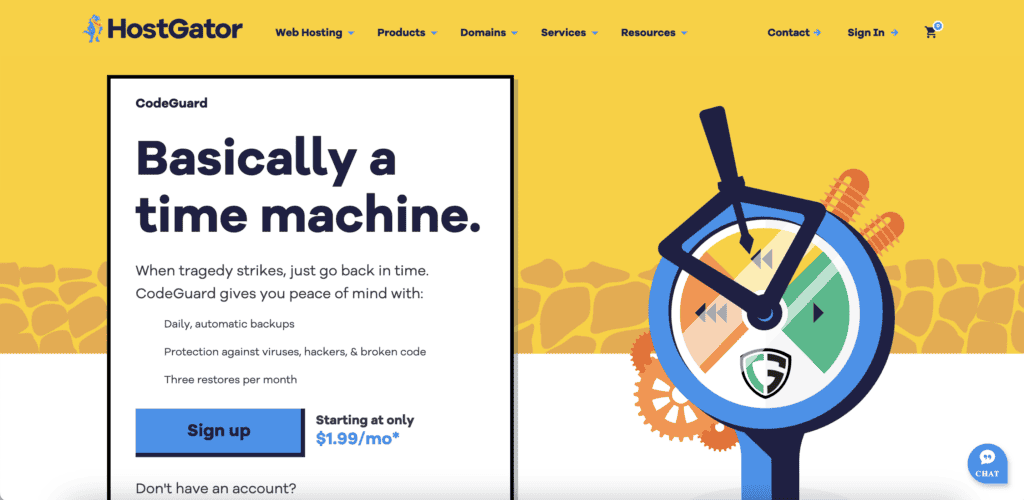
cPanel manual backups are your DIY option. You can create full or partial backups (not recommended; you need complete site copies) through the control panel at any time. But there’s a problem. These backups live on HostGator’s server, which means you need to download them immediately and store them elsewhere to avoid consuming server storage.
Then there are courtesy backups. HostGator runs random snapshots stored off-site. Sounds good, right? Wrong. Their official policy states these backups are NOT GUARANTEED, and get overwritten every seven days. You can’t access them directly, and they disappear without notice.
This means that those courtesy backups are a marketing gimmick. They exist, but you can’t rely on them when your site crashes at 2 AM on a Sunday.
HostGator WordPress backup guide
No matter which method you choose, remember the 321 golden rule of backups. Keep 3 copies of your data, on 2 different storage types, with 1 stored off-site.
Method A: CodeGuard backups (Paid)
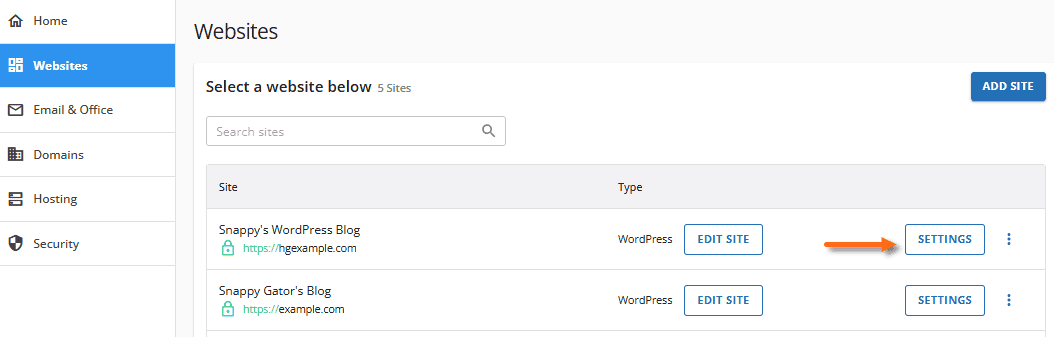
Step 1: Log into your HostGator Customer Portal and navigate to Websites. Next, click on Settings for your site. Alternatively, you can navigate to the Hosting section and select your package, click Manage, find your website, and then Settings.
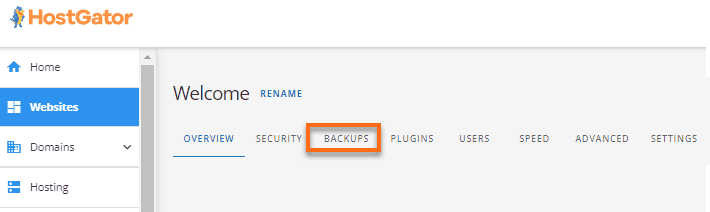
Step 2: Click the Backups tab at the top.
Step 3: Click Install CodeGuard and select your preferred plan from the pop-up window. Basic starts at $23.95/year. Check the agreement box, ensure your payment method is on file, then click Buy Now and complete the payment.
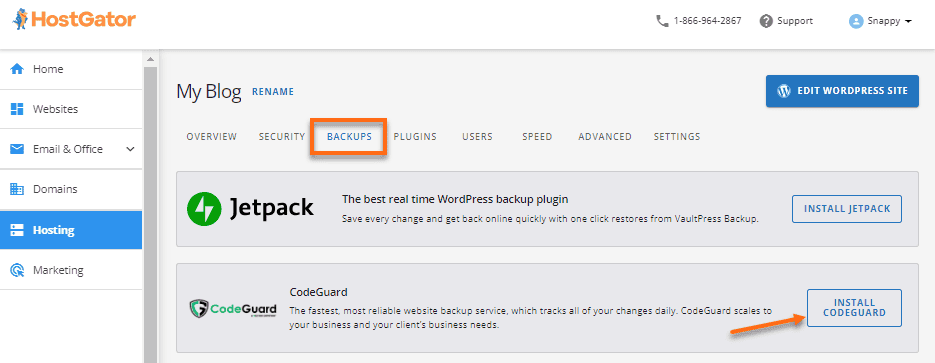
Step 4: Return to the Backups tab and click Manage CodeGuard to access the dashboard to configure and initiate your backups.
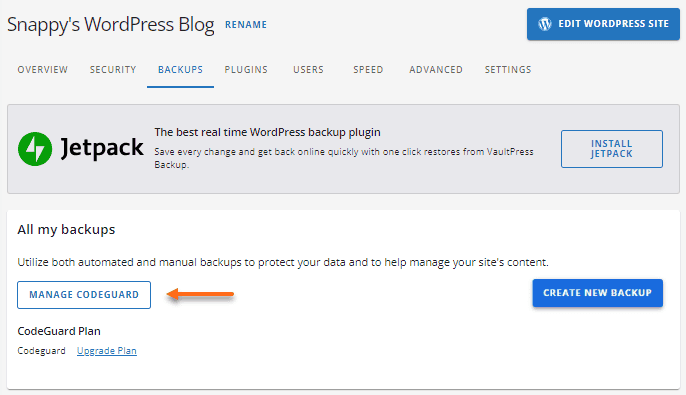
Method B: Manual cPanel backups
File backup:
Step 1: Access cPanel either directly with your login credentials or via Customer Portal, Hosting, then Launch cPanel under Quick Links.
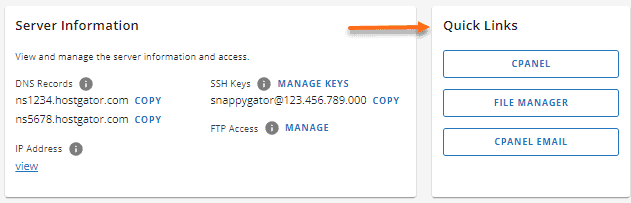
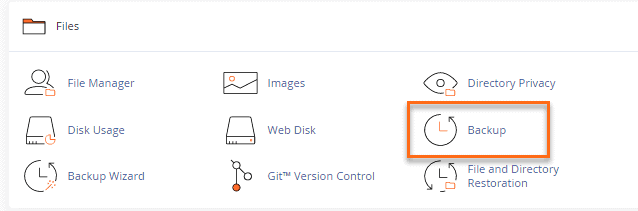
Step 2: Go to the Files section and click the Backup icon, then click Download a Full Account Backup under Full Backup.
Step 3: Select Home Directory from the Backup Destination dropdown, enter your email for notifications (optional), and click Generate Backup.

Step 4: Download the .tar.gz file immediately once generation completes via cPanel file manager, FTP, or SSH.
Database backup:
Step 1: In the Files section, click on the Backups icon.
Step 2: Under Partial Backups, look for Download a MySQL Database Backup, then click the name of the specific database you want to backup.
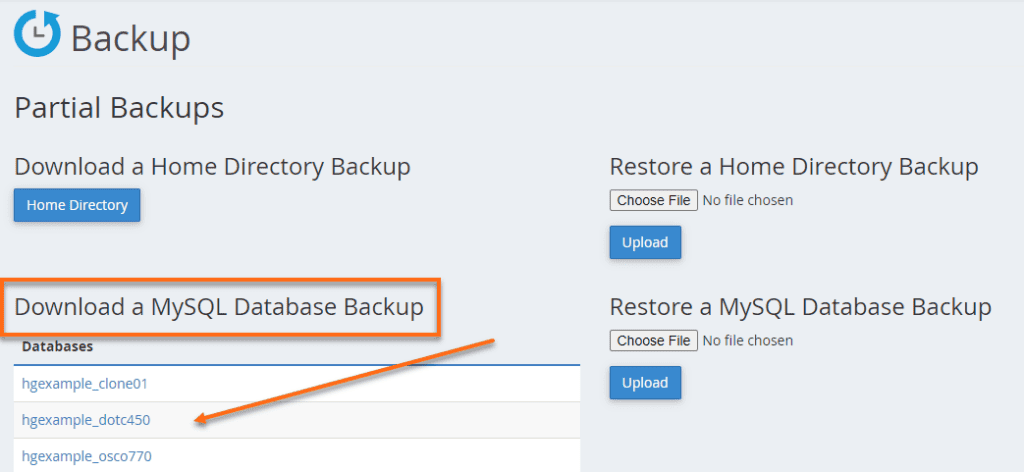
Step 3: Wait for the download to complete. The backup file will be downloaded as a .sql.gz file.
How to restore a HostGator WordPress backup
Method A: CodeGuard restoration
CodeGuard restoration is straightforward, which is exactly what you want when you’re panicking about a crashed site.
Step 1: Log into your HostGator Customer Portal and navigate to Websites, then click Settings for your site. You can also go to Hosting, select your package, click Manage, find your website, then Settings.
Step 2: Click the Backups tab at the top and click on Manage CodeGuard to access the dashboard.
Step 3: Find your domain in the backup list and click the Action button next to it. Select Restore from the dropdown menu and choose your backup date.
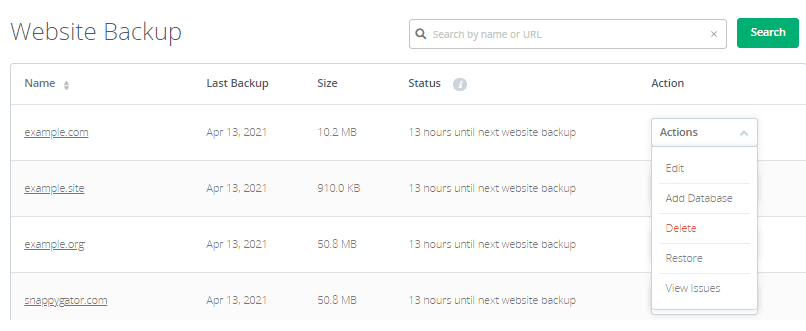
The whole process takes a few minutes depending on your site size.
Method B: cPanel restoration
cPanel restoration requires restoring files and database separately. It’s more hands-on, but you’ve got complete control.
File Restoration:
Step 1: Log into cPanel using your direct credentials or via Customer Portal, Hosting, then Launch cPanel.
Step 2: In the Files section, click the Backup icon.
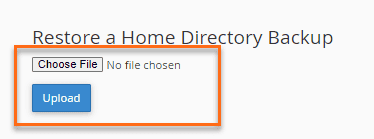
Step 3: Under Partial Backups, find Restore a Home Directory Backup and click Choose File. Navigate to your backup file location, select the file, click Open, then Upload.
Database restoration:
Step 1: Under the same Partial Backups, look for Restore a MySQL Database Backup and click Browse.
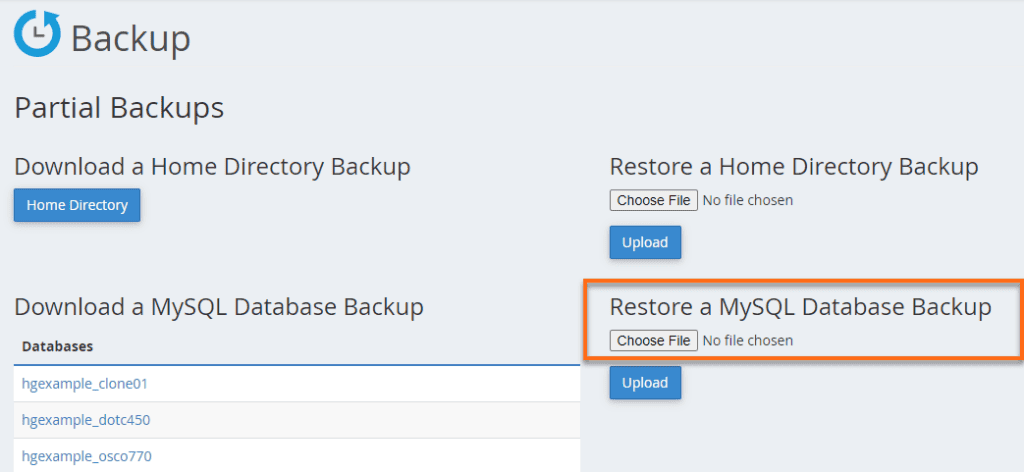
Step 2: Find your database backup file (.sql.gz), select it, click Open, then Upload. A popup confirms the database name and restore status. Close it when you’re satisfied.
Why HostGator backups are never enough
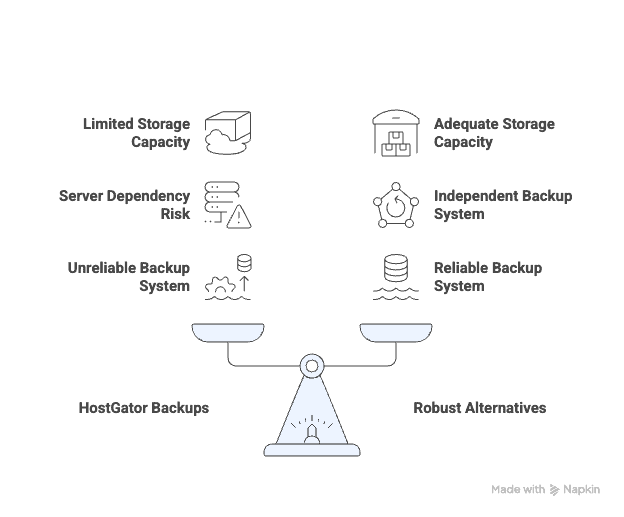
Storage limits kill you fast with CodeGuard. The basic plan gives you 1GB of storage. A typical WordPress site with images and plugins? 2-3GB easy. Add an online store or videos? You’re looking at 5-10GB.
cPanel has fatal flaws too. Everything lives on HostGator’s servers. Your live site and backups share the same hardware. Server dies? Both disappear together.
Human error is guaranteed with manual backups. You must remember to create backups regularly, download them immediately, and store them somewhere safe.
Courtesy backups are fake security. They vanish weekly. Found a problem from 10 days ago? That backup is already gone. You can’t grab these backups yourself either. You contact support and hope for help.
HostGator’s backup solutions work fine until they don’t. When they fail, you discover these gaps at the worst possible moment and that’s why you need a robust alternative.
The best HostGator WordPress backup alternative
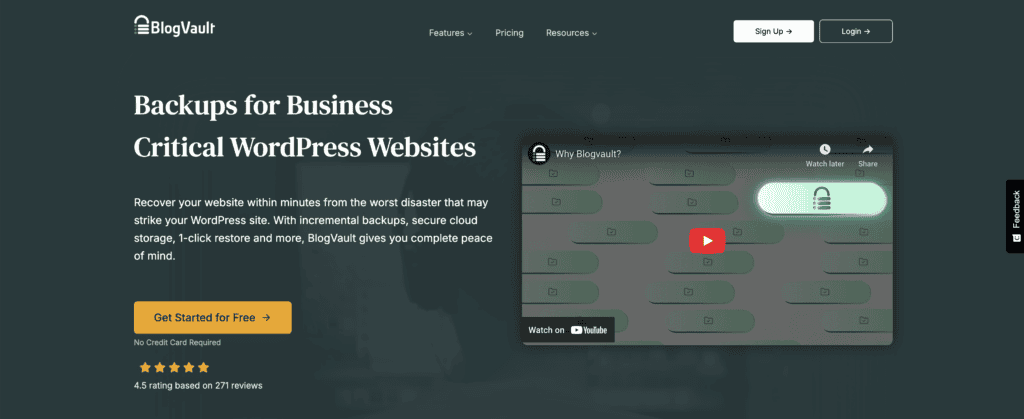
Here’s why BlogVault is the best backup solution for your WordPress site:
True off-site backups. BlogVault stores your backups on its own cloud servers, not on HostGator’s server. When something goes wrong with HostGator’s hardware, your backups remain safe elsewhere.
Reliable automation that actually works. It provides consistent daily automatic backups. You don’t have to remember manual tasks or worry about weekly overwrites.
Easy restoration. BlogVault offers one-click restores that are faster and simpler than HostGator’s manual cPanel method. No more juggling separate file and database backups.
No size limits. Unlike HostGator’s 1GB CodeGuard basic plan, BlogVault handles massive sites without breaking a sweat. Upload all the high-res photos and videos you want.
Site migration tools. BlogVault includes tools to easily move your website to a new host when you get fed up with HostGator’s limitations.
BlogVault’s key features
Daily automatic backups: Your entire site gets saved every day without you lifting a finger.

Off-site storage: Backups live securely on BlogVault’s own cloud, away from HostGator’s servers.

One-click restore: Get your site back to a previous version with a single click. No technical knowledge required.

Staging environment: Create a test copy of your site to try updates safely without affecting your live site.

Real-time backups: For high-activity sites, BlogVault can save changes as they happen.

The difference is night and day. HostGator’s solutions feel like afterthoughts. BlogVault was built from the ground up for WordPress backup and recovery. When your site’s revenue depends on uptime, that focus matters.
Parting thoughts
HostGator’s courtesy backups can be unreliable, often disappearing weekly, more of a marketing gimmick than a real solution. CodeGuard may work for small sites, but its 1GB storage limit is insufficient for most WordPress sites.
Consider switching to BlogVault for unlimited storage and real-time backups. Remember to test your backups quarterly. Untested backups can be a costly illusion of security.
FAQs
How do I backup my entire WordPress site?
You can backup your entire WordPress site using plugins like BlogVault. Alternatively, manually export your database via phpMyAdmin and download files via FTP. Regular backups are crucial for safeguarding your content.
How to backup a website on HostGator?
Backup your website on HostGator through the cPanel’s “Backup Wizard” for full account backups. Download these backups to your local computer for safekeeping. Consider using plugins for scheduled automatic backups.
Is HostGator good for WordPress?
HostGator is a decent option for WordPress, providing easy installations and decent performance. It’s a budget-friendly choice but may not offer the fastest speeds. Evaluate based on your specific requirements.
Which hosting service is best for WordPress?
Bluehost, SiteGround, and WP Engine are among the best for WordPress hosting. They provide specialized support, strong performance, and optimized features for WordPress. Choose based on performance needs and budget.
What is better than HostGator?
Bluehost, SiteGround, and WP Engine are often considered better than HostGator. They offer superior performance, support, and WordPress-specific features. These options are ideal for those seeking robust hosting solutions.

Shivani enjoys crafting guides that make every aspect of using WordPress simple and easy to follow. When she's not glued to her laptop, you can find her buried in a good book or occasionally, painting.