
Backing up your site should come first when your WordPress website is down, hacked, stuck in a redirect loop, or locked out of wp-admin. If you are searching for how to recover WordPress website, you probably need a clear path forward without risking more damage.
This guide shows you how to protect what remains, identify the issue, and restore a clean version of your site safely.
If your site is self-hosted, you will find practical steps here to recover it with confidence.
Restore WordPress from backup using a known-clean copy that includes both files and the database. No complete backup? Check your host, off-site backup dashboard, developer or local copies, cloud and CDN storage, and the Wayback Machine before rebuilding.
Stop the damage first
A site can look destroyed when only one layer is broken: a blank page may be a plugin error, missing images may mean that uploads are missing, and a deleted installation may still exist in a host backup or trash area. Before you restore anything:
- Stop deleting files or database records. A broken copy may still contain recent orders, leads, posts, media, or evidence of what happened.
- Do not reinstall WordPress over the existing site. A new installation can overwrite configuration, uploads, custom files, or the connection to the original database.
- Save a screenshot of the error, redirect, blank page, or host notice. Record the last change, such as an update, migration, URL edit, plugin installation, cleanup attempt, or deletion.
- Save the current files and export the current database if you can do so safely. This preserves newer business data even if the site is already damaged.
- Contact the host quickly if the site was deleted or suspended. Recovery and backup windows vary, and the available copy may disappear as the provider’s retention period expires.
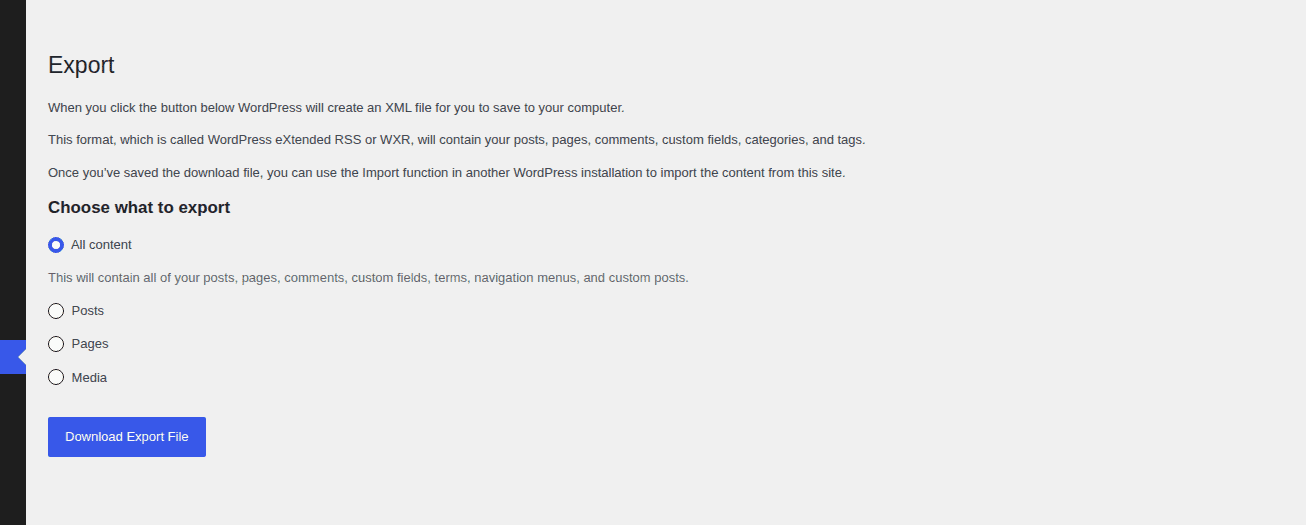
On a site that handles orders, bookings, memberships, courses, donations, or leads, slow down further. An older restore may bring the design back while quietly removing today’s transactions or submissions.
Pick the right recovery path
Match the method to what survived. The practical rule is to restore the smallest clean copy that solves the actual failure.
- Complete backup exists: Restore matching files and the database from before the failure. The newest copy may contain a bad change or malware.
- Site was deleted from hosting: Ask about trash, snapshots, application recovery, and backups. Recovery options may expire quickly.
wp-adminis unavailable: Use the host, backup dashboard, file access, or database tools. A restore can overwrite newer data.- Only a database backup exists: Restore content, users, settings, orders, and plugin data. Themes, plugins, media, and custom code are still missing.
- Only files exist: Restore core files, themes, plugins, uploads, and configuration. Posts, settings, and business records still depend on the database.
- No usable backup exists: Search private copies, then salvage public content. An exact restoration may not be possible.
- Site was hacked or suspended: Use a pre-compromise copy, then scan and secure it. A recent copy may restore the infection.
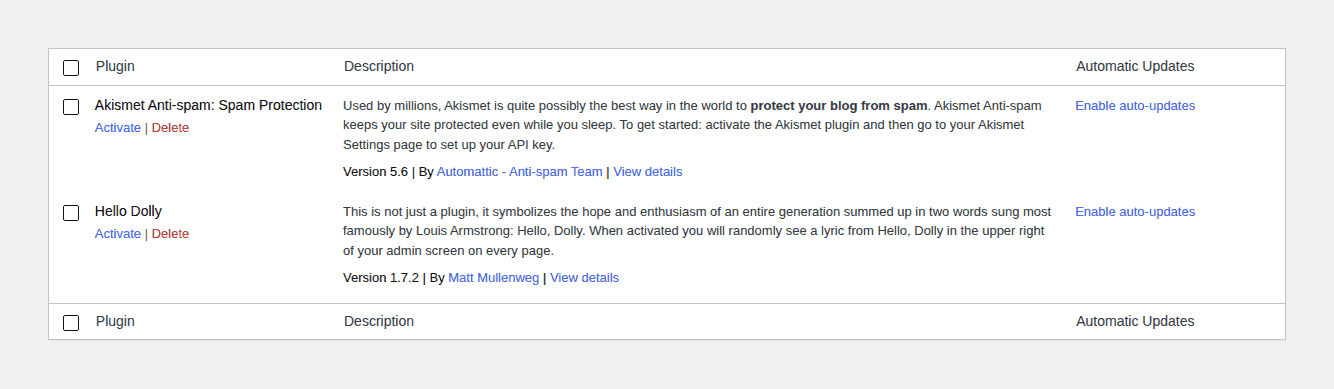
If a recent update caused the crash, you can downgrade WordPress to a previous version quickly or use a dedicated WordPress downgrade plugin instead of rolling the entire site back. Check the WordPress version history to verify which core release was stable for your setup before making changes.
Know what your WordPress site needs
WordPress has two main recovery layers: files and a database. Both are needed for a complete site restore.
- WordPress files include core software, themes, plugins, media uploads, custom code, server rules, and wp-config.php, the file that tells WordPress which database to use.
- The database stores posts, pages, comments, users, settings, URLs, and plugin data such as store orders, membership access rules, or form leads.
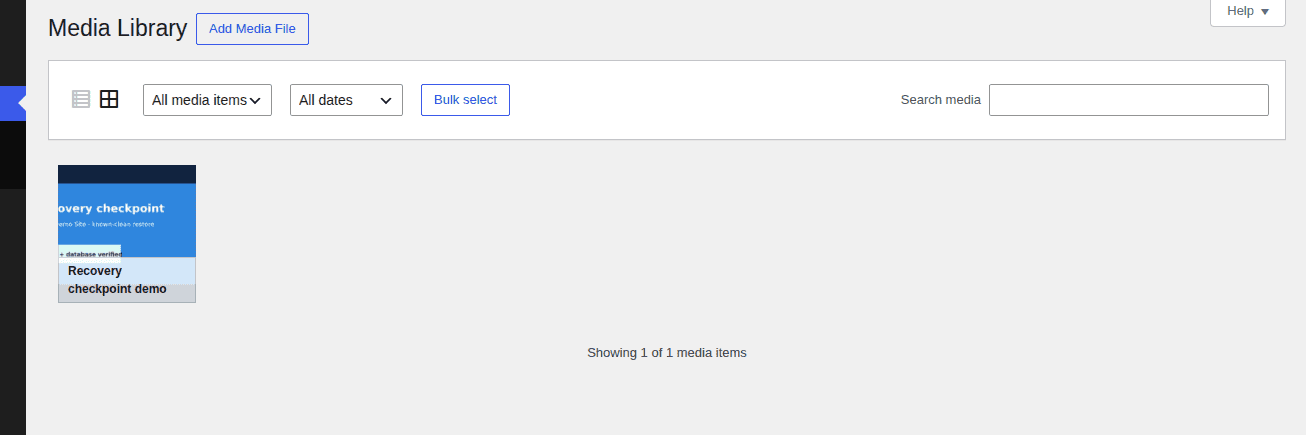
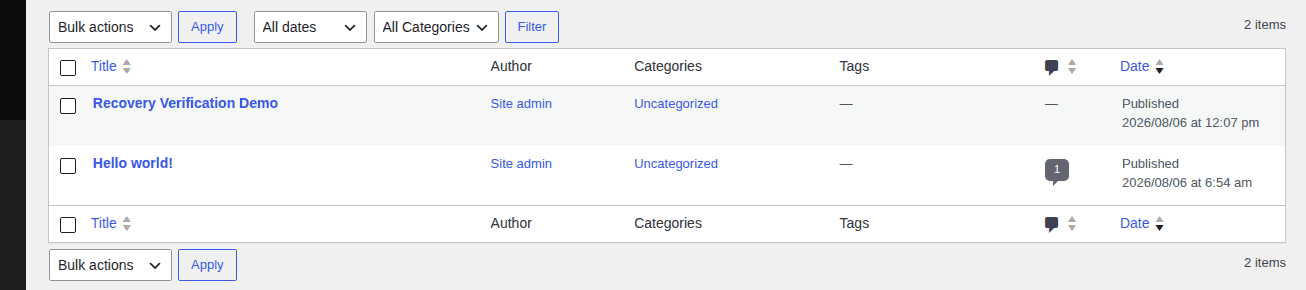
A files-only copy cannot recreate posts or orders. A database backup can preserve that data, but it cannot recreate the theme, plugins, uploads, or custom code.
You also do not need wp-admin for every recovery. A host dashboard, external backup dashboard, SFTP, File Manager, SSH, or phpMyAdmin may still be available when WordPress itself is not.
If only wp-admin is unavailable
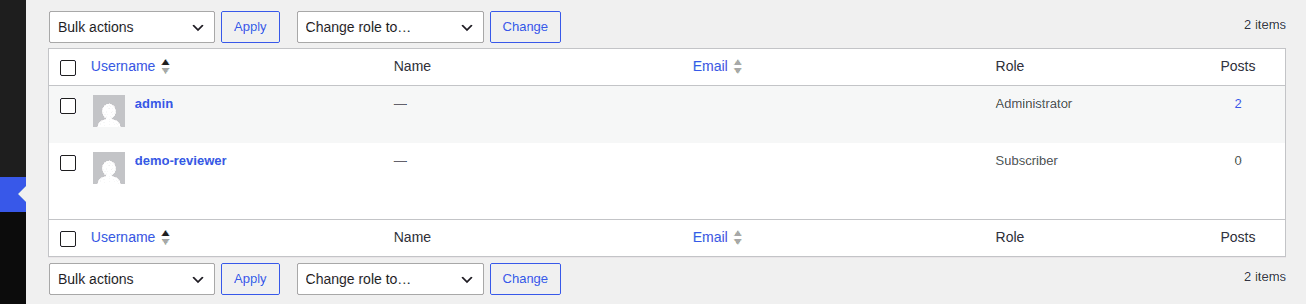
If the public site still works, do not restore the whole site just because the login screen fails. Confirm the correct login address, use the normal password-reset route, and ask the host whether a security tool or IP lockout is blocking access. If the password email does not arrive, the host or a developer can help inspect the mail route or reset the account without replacing site content.
Use database-level account changes only when you understand the account and table prefix involved. Make a database copy first, and do not disable every security control as a blind test. A lost login is an access problem until other evidence shows that the files or database are damaged.
Recover with a complete backup
Use a complete backup when it contains both files and the database and you can identify a restore point before the incident.
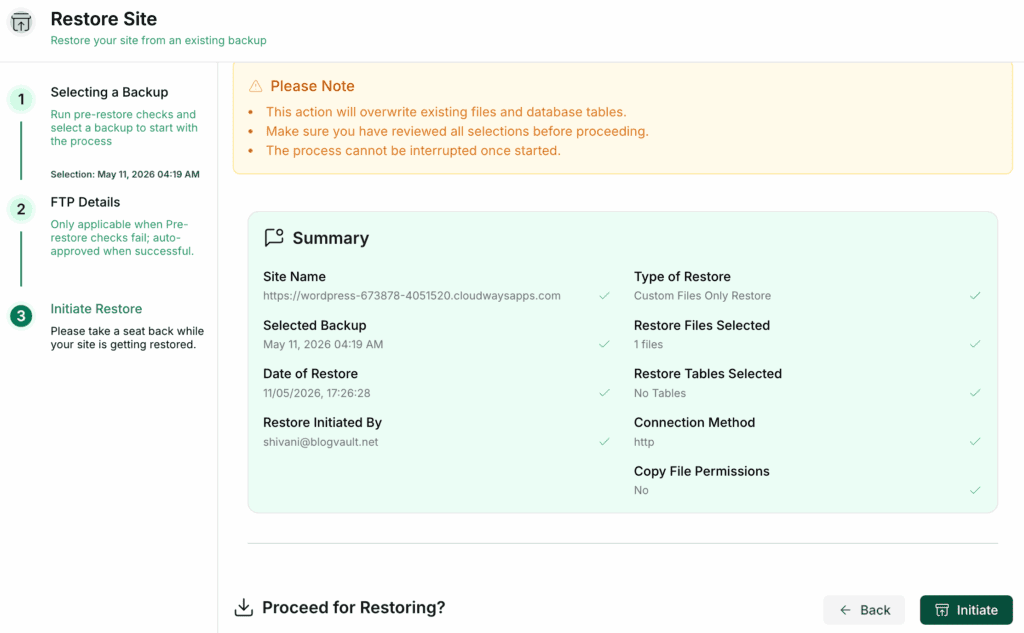
- Choose the restore point before the problem. Learn how to restore a WordPress site to a previous date from before the failed update, deletion, migration, or first sign of compromise. The newest backup is not automatically the safest one.
- Confirm the scope. Check that it includes the database backup as well as core files, themes, plugins, uploads, configuration, and custom files.
- Restore to a staging environment or a temporary location when possible. A private copy lets you inspect the result without changing the live site.
- Test the restored site. Check login, key pages, media, forms, redirects, security, and the main business workflow.
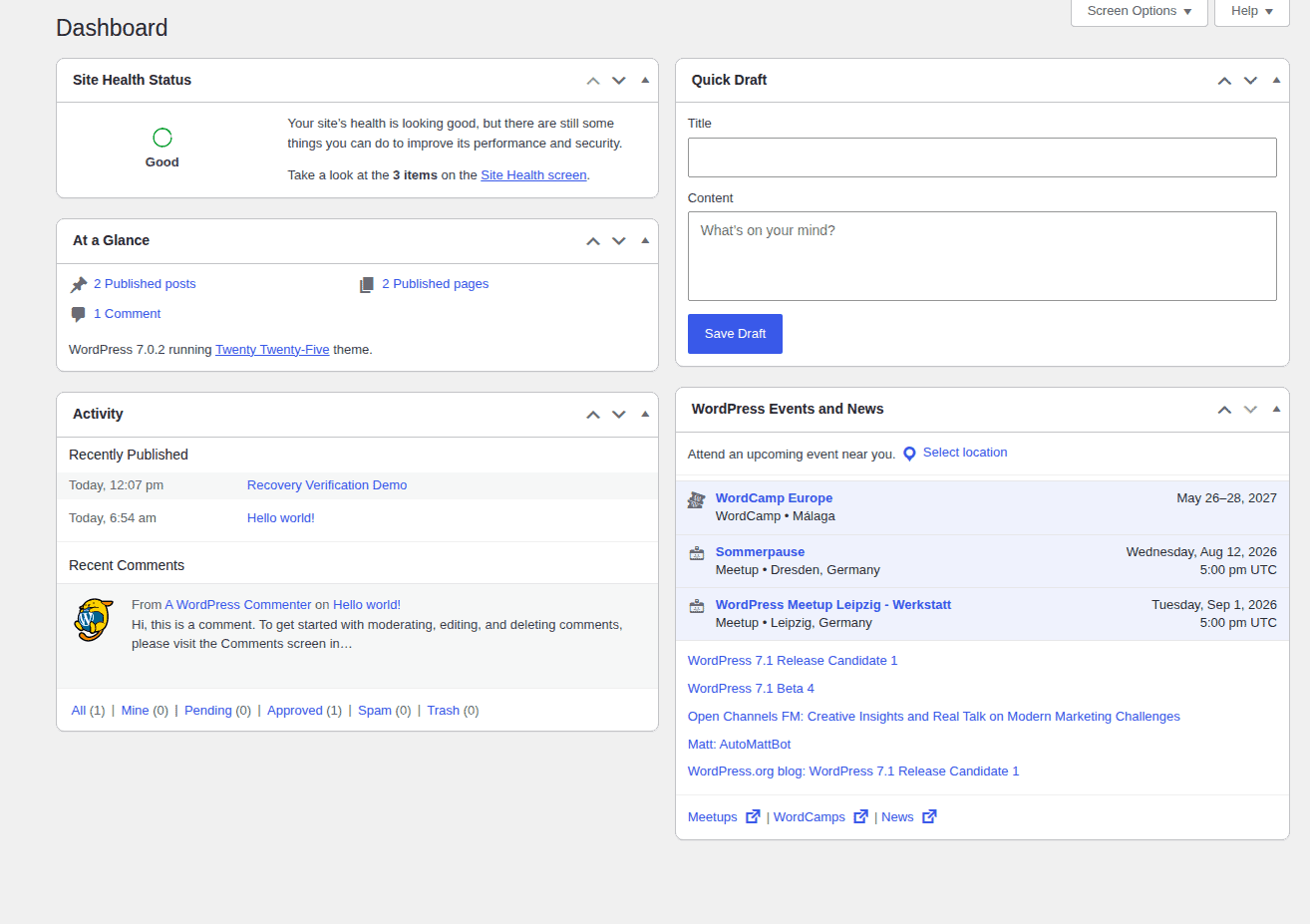
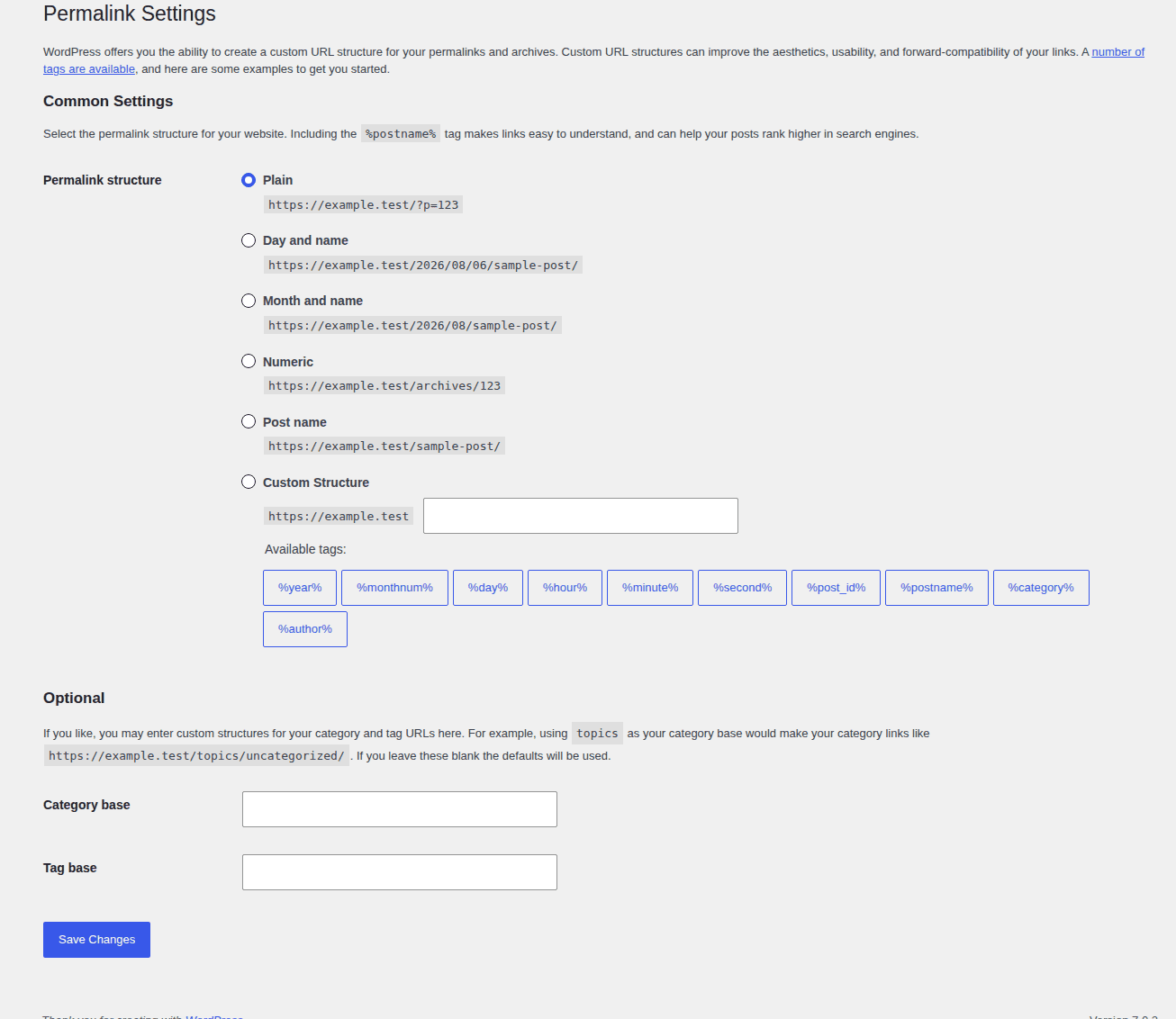
- Move the verified copy live. Clear relevant caches and save the permalink settings if links do not resolve correctly.
- Create a fresh backup. Record the restore point and checks completed.
If your backup system keeps copies outside the live server, check that dashboard before attempting a manual rebuild. BlogVault is relevant to this recovery path because it is positioned as an off-site backup and restore service. WP Remote’s restore guide is another example of a separate restore workflow; confirm the current restore workflow and access requirements for your plan before relying on it. Backup restoration does not replace malware scanning or cleanup.
Recover through your host
If you are unsure whether a backup exists, check the host for Backups, Snapshots, WordPress Toolkit, site management, Trash, deleted applications, or an application recovery tool. The labels differ by provider and plan.

Ask support whether a full backup exists for this domain, which copy predates the problem, whether they can restore only this site or restore to a temporary location, and whether the operation will affect email, subdomains, staging, other sites, or newer files.
Do not approve a full-account restore without understanding its scope. It may fix one site while replacing working email, another application, a staging site, or newer files. Host labels and retention periods vary, so use the dates shown in your account rather than assuming a universal window.
Restore manually from files and database
Manual recovery is useful when you have backup files but no working restore button, or when only one layer needs replacement.
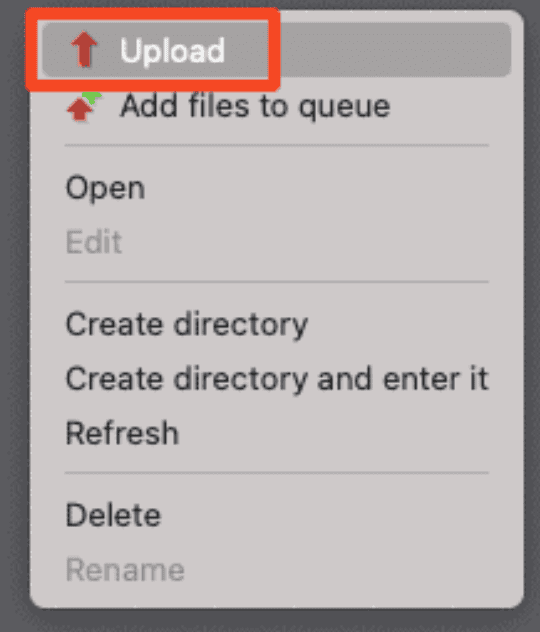
- Preserve the current broken copy. Download the current files and export the current database if the host allows it.
- Inspect the backup locally. Confirm the archive contains the expected WordPress folders and that an SQL export exists if you need a full restore.
- Choose the correct database. Confirm that it belongs to this site. Do not empty a database until the current data has been saved and you are certain which database should be replaced.
- Import the SQL file. Use phpMyAdmin or the host’s equivalent database tool.
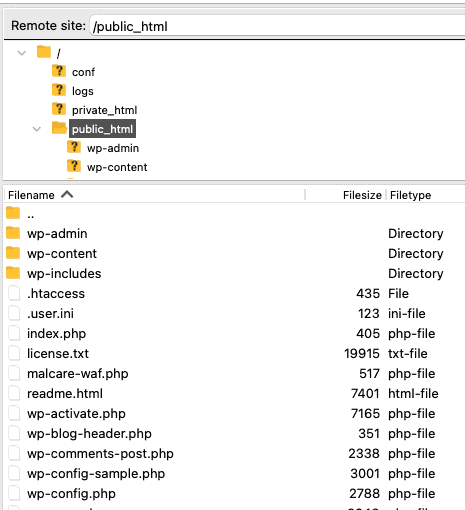
- Upload the files to the correct site folder. The folder may be
public_htmlor a domain-specific document root, but the host’s configuration determines the correct location. - Update
wp-config.php. The database name, user, password, server address, and table prefix must match the restored database. - Correct the site address if needed. If the domain or protocol changed, the stored home and site address values must point to the current domain. Save a database copy before editing values directly.
- Refresh permalinks and caches. Save the permalink settings once, then clear plugin, server, CDN, and browser caches if old routes or pages remain visible.
If WordPress shows the fresh installation screen or an empty dashboard, stop before installing anything. Check the database name, table prefix, site folder, and wp-config.php.
WordPress may be reading a different or empty database rather than losing the original content. A blank page also warrants checking the host’s error log and the latest theme or plugin change; a PHP error can break one page without requiring a full restore. A database connection error is a narrower problem to diagnose before attempting a full restore.
Recover from a partial backup
Partial backups help only when they match the loss; they cannot act like a complete site backup.
Database-only backup
A database-only backup can restore posts, pages, users, comments, settings, URLs, orders, and plugin data. It cannot restore themes, plugins, uploads, or custom code.

Import it into the correct database, point wp-config.php to it, and recover the same theme and plugins. Look for media and custom files in old hosting folders, local copies, staging, cloud storage, or archive copies. Some design and plugin behavior may still need to be reconstructed.
Files-only backup
A files-only backup can restore WordPress software, themes, plugins, uploads, configuration, and custom code when the database is still healthy. Replace only the damaged folder when possible and preserve newer uploads and custom changes.
On a store, membership site, learning site, booking site, or other data-heavy site, ask a qualified developer before replacing the database. Orders, users, access rules, and payment records may be harder to recover than visible pages.
Recover a deleted site
Deleted-site recovery is time-sensitive. Read this guide to recovering deleted websites if you need a broader recovery checklist, then search for a private copy in this order:
- Check the backup-plugin or off-site backup dashboard. A separate copy may survive after the live installation is deleted.
- Ask the host about trash, snapshots, application recovery, and account backups. Request a temporary restore when available.
- Search staging, migration exports, developer or agency archives, local computers, and cloud storage.
- If only one post or page was deleted, check WordPress Trash, revisions, database backups, or old page copies before restoring the entire site.
Ask the provider what is available now and save any recovered copy immediately. Recovery windows vary.
Recover without a backup
You can sometimes recover a WordPress site without a complete backup, but this is salvage rather than restoration. Search private copies first; public archives cannot contain private database data.

- Check developer folders, agency archives, local computers, staging sites, migration exports, and backup-plugin storage.
- Look for media in cloud storage, object storage, or CDN copies.
- Use the Wayback Machine for public pages and posts. It may recover text, page structure, and some images when those pages were captured.
- Rebuild in business order: homepage, service or product pages, contact and checkout paths, and pages that bring leads or sales before low-traffic pages.
- Set a cutoff for archive work. Archived images may not fit neatly into the Media Library, and users, orders, form entries, settings, and uncaptured files cannot be recovered from an archived page.
Browser cache may help with a recently viewed page, but it is not a dependable copy of an entire site. Do not make Google’s old cached-page feature your recovery plan. For public copies, start with the Wayback Machine.
If the site was hacked or suspended
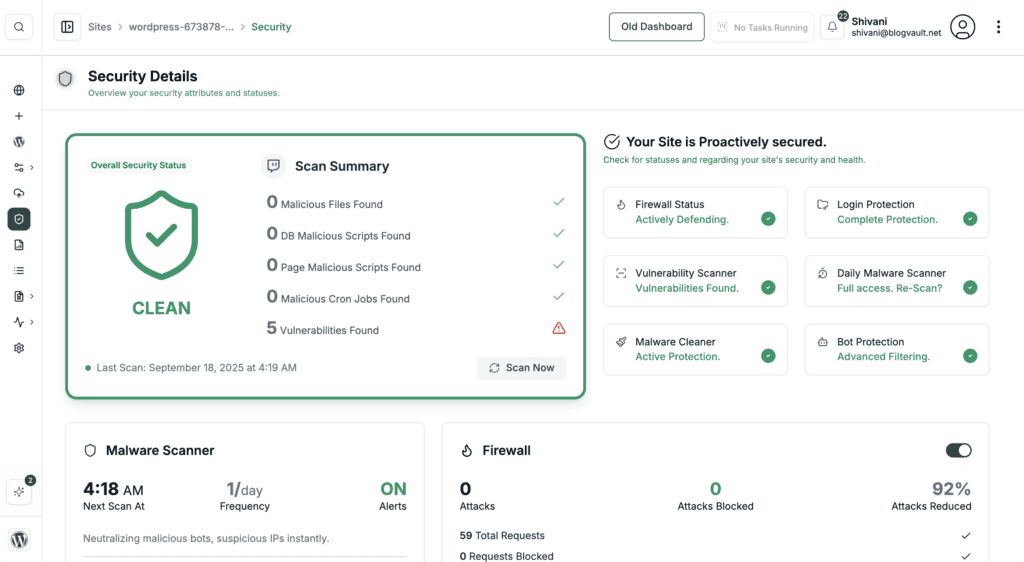
Hacked-site recovery has one extra rule: do not restore the infection. If the site redirects visitors, serves spam, or exposes harmful content, keep it offline and read MalCare’s hacked-site recovery guide while asking the host for affected files, a malware path, an abuse notice, a scan result, or an estimated compromise time. Then:
- Estimate when the compromise began.
- Select a backup from before that point, if one exists.
- Restore to a temporary or isolated location first.
- Scan and clean the restored copy before returning visitors to it.
- Remove unknown administrator accounts and suspicious files.
- Change WordPress, hosting, SFTP, database, email, and other related passwords.
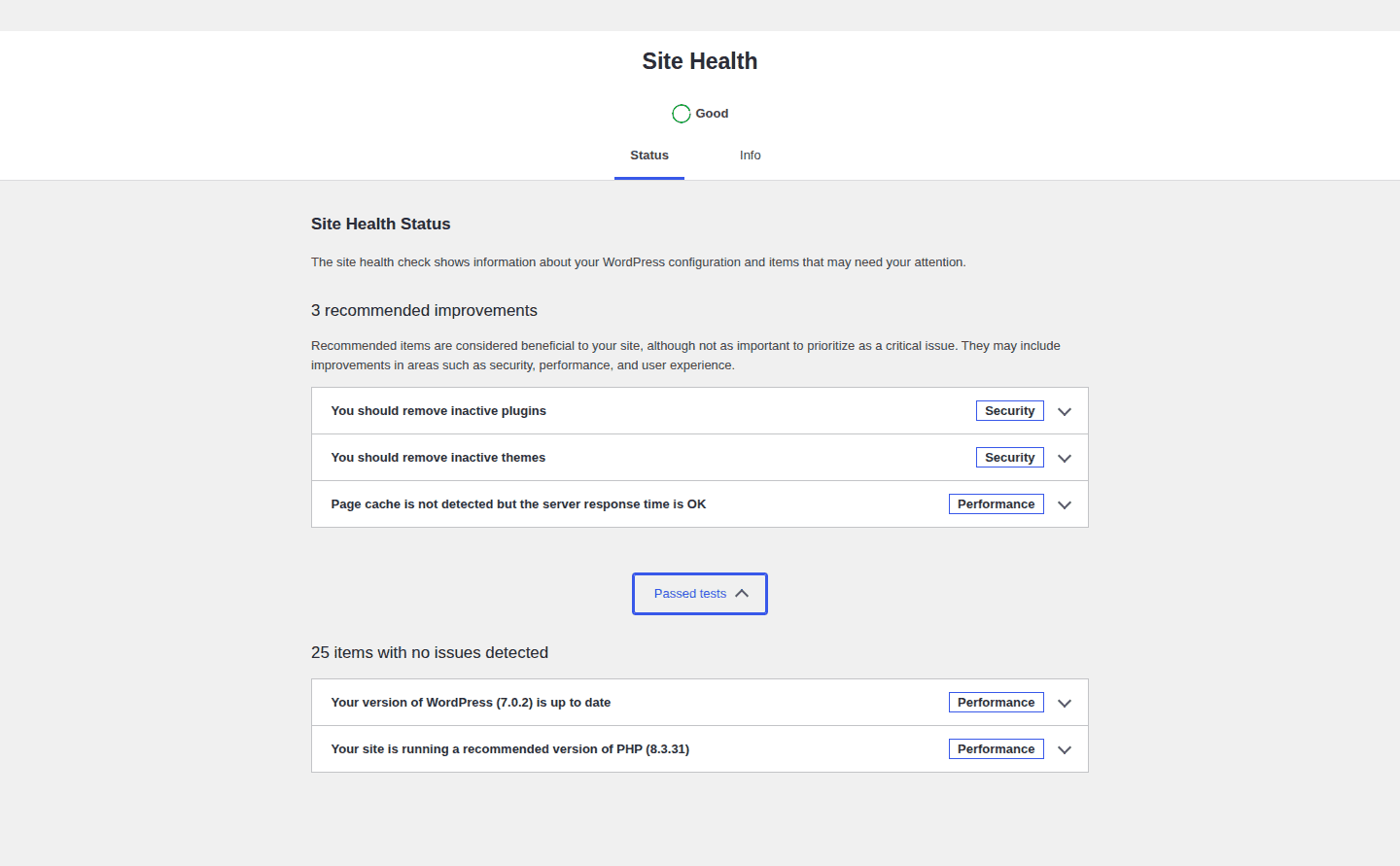
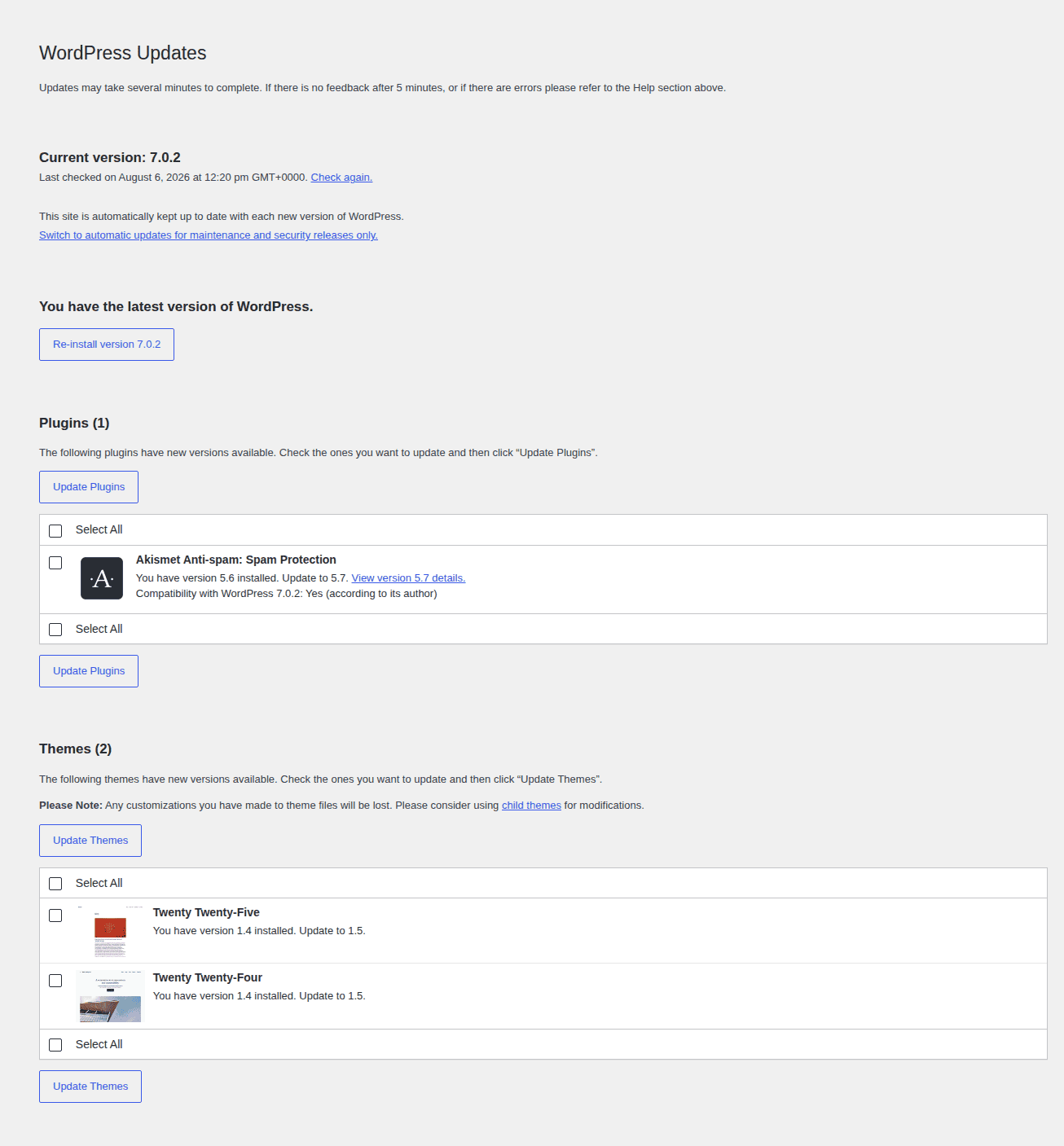
- Update WordPress, themes, and plugins. Remove abandoned plugins and unused themes.
- Scan again and verify the site before bringing it online.
MalCare fits this branch because malware scanning and removal, firewall protection, and monitoring address the security work that backup restoration does not. It is a security layer, not a substitute for a complete files-and-database backup. If the host suspended the site, follow its abuse or malware instructions first; the host may need to approve cleanup or provide details that are no longer visible in the dashboard.
Verify the recovery
The homepage loading does not prove that recovery worked. A cached page can look normal while login, media, forms, or checkout still fail.
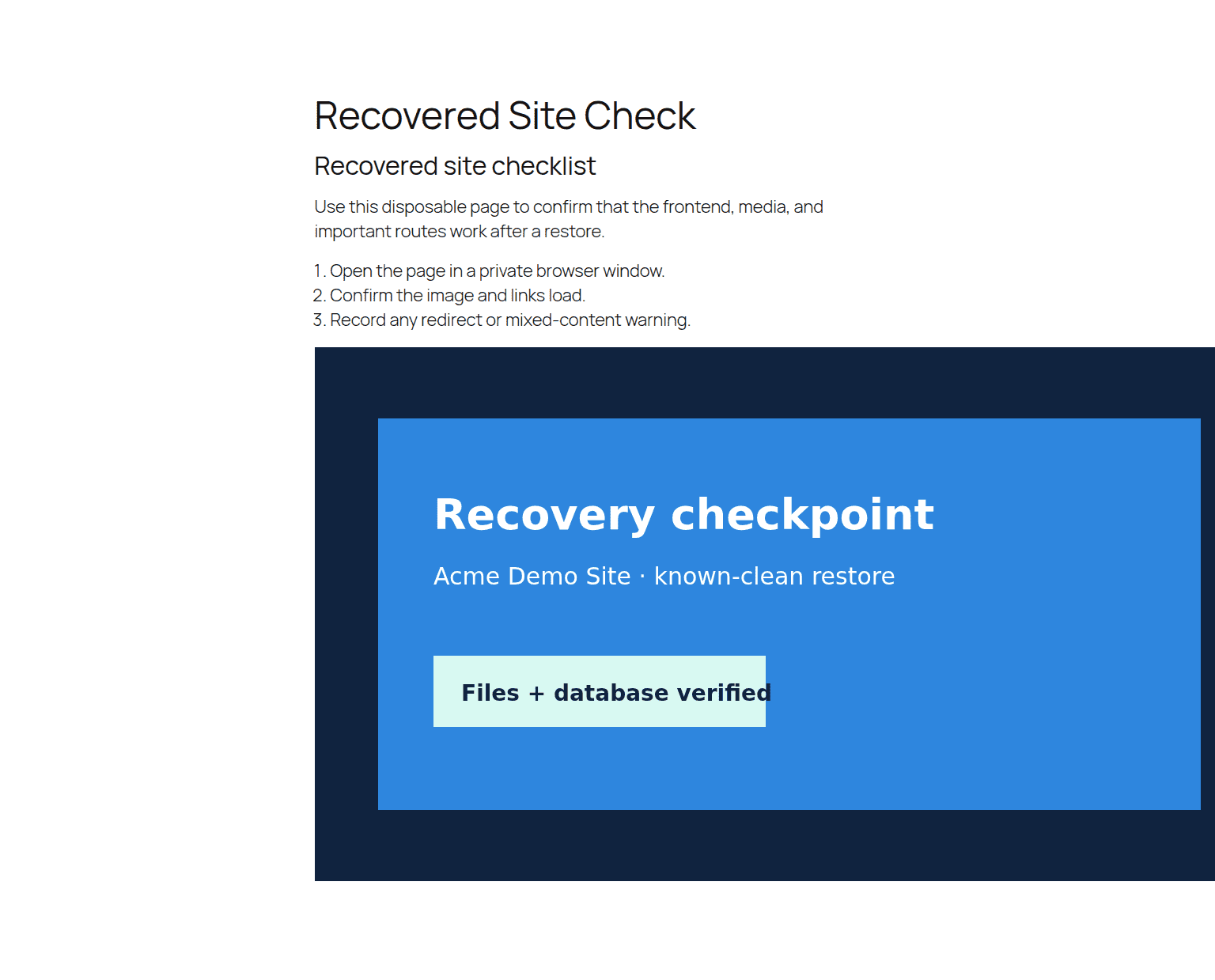
- Open key pages, menus, media, downloads, and videos on more than one device or browser.
- Test wp-admin, administrator roles, user accounts, and member-only areas.
- Submit a form and confirm both the email notification and the saved record.
- Place a test order, booking, donation, or membership login when those actions matter.
- Test links, redirects, HTTPS, and mixed-content warnings.
- Clear cache and confirm the CDN, sitemap,
robots.txt, analytics, and important search-facing URLs behave as expected. - Run a malware scan, review administrator accounts, confirm security monitoring, and create a new backup you can locate.
Recovery is complete when the workflows that matter to the site work, not when the front page merely looks familiar.
Prevent the next emergency
Once the site is stable, build the recovery system you needed today:
- Keep automated off-site backups of both files and the database, with restore points available outside wp-admin.
- Back up before updates, migrations, redesigns, and major content changes; use staging for risky updates when a change could affect important workflows.
- Test a restore on a private copy instead of assuming the backup is usable.
- Use unique passwords, two-factor authentication, current software, malware scanning, and a firewall where the site’s risk requires them. Remove abandoned plugins and themes.
- Keep host, domain, backup, and emergency contacts in a secure shared record with one recovery owner.
FAQs
Can you recover a WordPress website after it is deleted?
Often, if a host backup, deleted-site recovery option, backup plugin, staging copy, or local copy exists. Contact the host quickly.
Can you recover a WordPress site without a backup?
Sometimes, but usually only as partial salvage. Search private copies, then use the Wayback Machine for public pages. It cannot recreate users, orders, form entries, settings, or uncaptured files.
Do you need both files and the database to restore WordPress?
Yes for a complete recovery: files provide software, design, plugins, media, and custom code; the database provides content, users, settings, and plugin data.
Why does WordPress show a fresh installation after a restore?
It is commonly connected to an empty or different database, or the table prefix does not match. Check wp-config.php before installing again.
What should you do after restoring a hacked WordPress site?
Use a pre-compromise backup, scan and clean it, remove unknown users and files, rotate related passwords, update software, and verify it before going live.
Conclusion
Preserve the current state, restore the smallest known-clean copy, test the important workflows, and create a fresh manual WordPress backup stored off-site. Once the site is stable, record which restore point worked and where the next backup can be found so the process is easier to repeat under pressure.

Shivani enjoys crafting guides that make every aspect of using WordPress simple and easy to follow. When she's not glued to her laptop, you can find her buried in a good book or occasionally, painting.