Your website could disappear tomorrow. If you’re using Bluehost or considering it as your host, you need to understand how hosting backups work.
Many users are unsure whether their data is protected. Bluehost offers backup services, but users often don’t know how to access them or understand their limitations. Potential users wonder if Bluehost’s backup system is reliable enough.
This uncertainty puts your site at serious risk. Here’s your complete guide to understanding and using Bluehost backups.
Bluehost’s built-in backups have serious limitations, and their terms state you are responsible for any data loss. For reliable, automated protection,Using a dedicated backup plugin is the recommended solution.
Understanding Bluehost backups
Bluehost backups vary completely based on when you signed up and which plan you chose.
If you signed up for shared hosting after July 10, 2024, weekly automatic backups come included with your plan. Older customers may not have access to these automatic backups and need to rely on manual options or paid add-ons.
Manual backups are always free, regardless of your plan or signup date. You can create Manual backups anytime through your cPanel, though the process isn’t particularly straightforward.
Automatic backups only work for sites under 30 GB. If your site exceeds this limit, you’ll need to handle backups manually or use a third-party solution.
Bluehost offers several add-on services for better automation:
- Site Backup & Restore Tool: Daily backups with one-click restore (typically discounted the first year)
- CodeGuard: Daily monitoring, email alerts, and automatic backups (the Pro version offers easier restores)
How to create backups on Bluehost
We strongly believe that taking a backup of your WordPress site is non-negotiable.
Your Bluehost backup options depend on your plan and whether you’ve purchased any add-ons. Let us walk you through each method.
A) Manual backup (Free for everyone)
Manual backups work for all users and handle sites larger than 30 GB. The process takes time, but gives you complete control.
Part 1: Backing up your website files
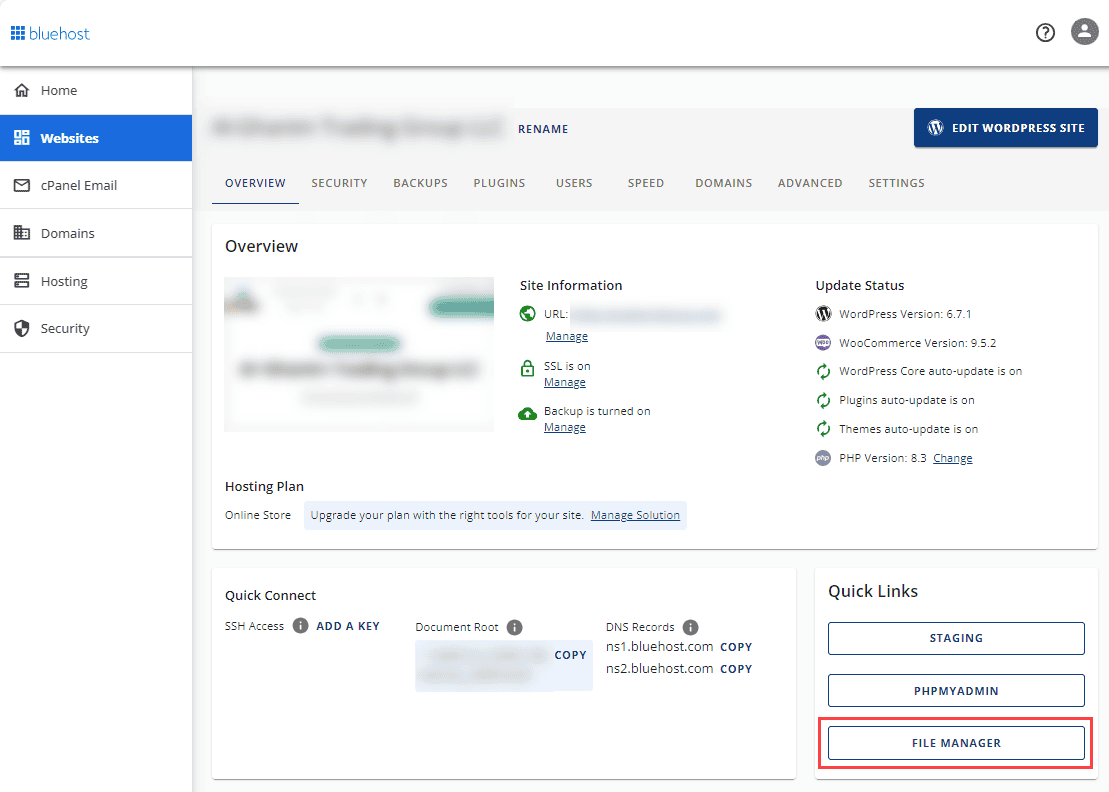
Access file manager: Log into Bluehost, navigate to Websites > Settings for your site, then select Quick Links and choose File Manager.
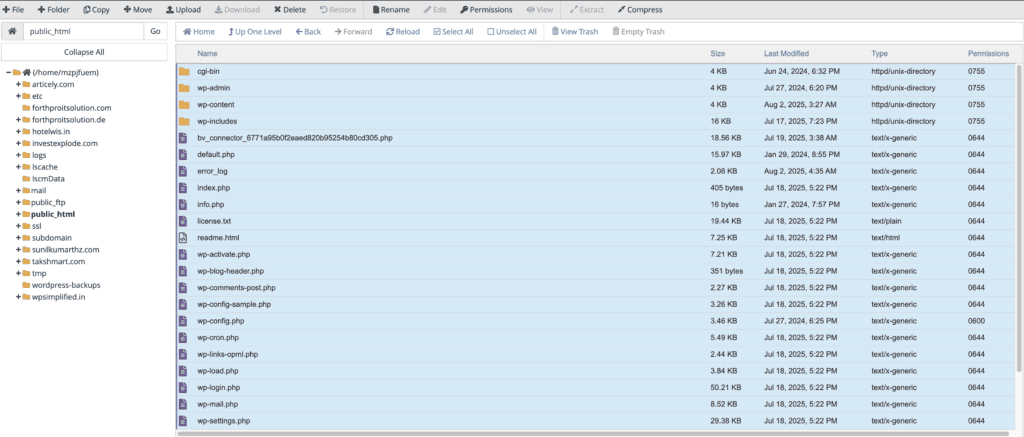
Navigate to site files: Open the public_html folder where all your website files reside.

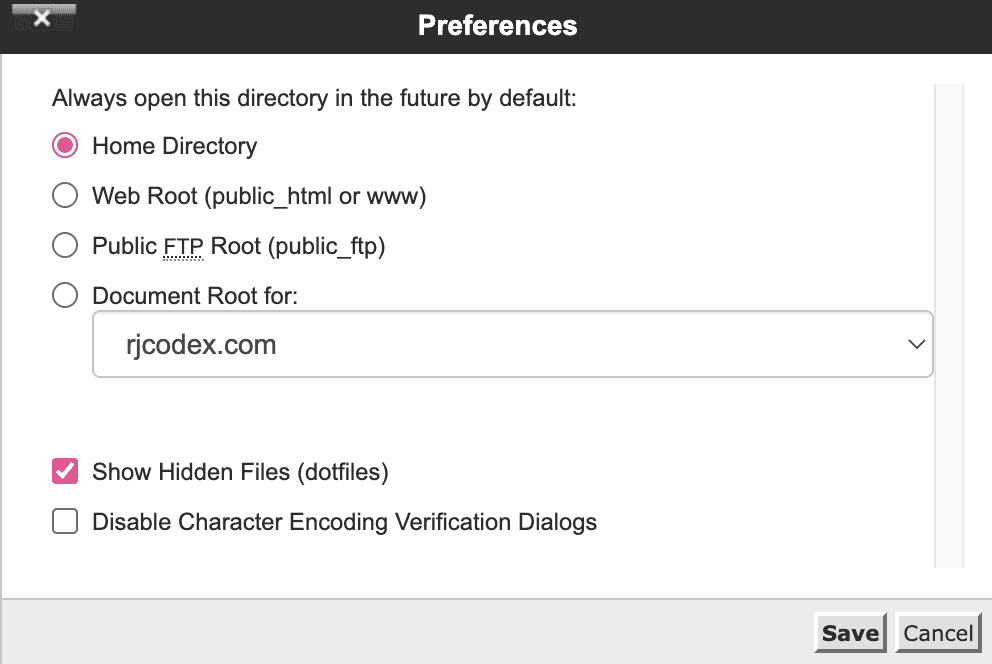
Show hidden files: Enable Show Hidden Files in file manager settings to capture everything.
Select everything: Click to select all files and folders in your site directory.
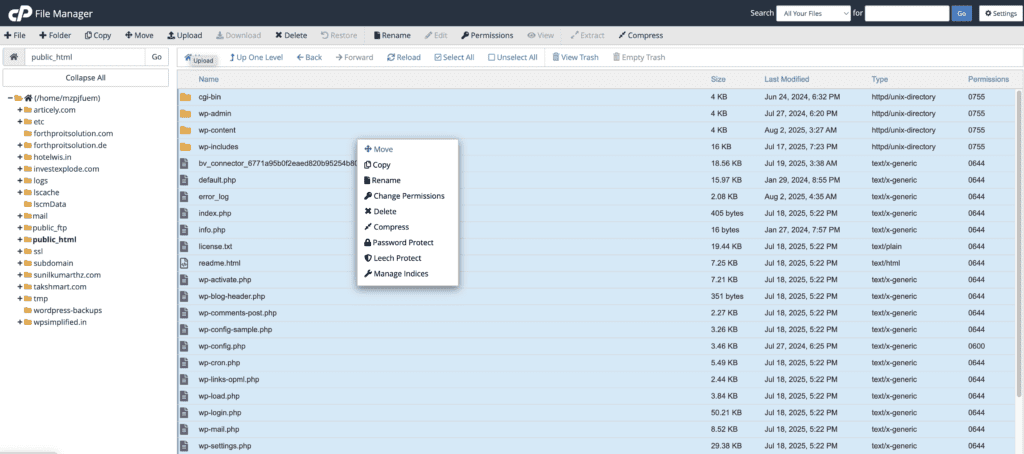
Create archive: Click compress and choose a ZIP archive to bundle everything together.
Download backup: Save the .zip file to your computer for safekeeping.
Part 2: Backing up your database
Access phpMyAdmin: From the Bluehost dashboard, go to Hosting > cPanel, and select phpMyAdmin under Databases.

Select database: Choose your website’s database from the left sidebar.

Export data: Click the Export tab at the top of the interface.

Configure export: Choose the Custom export method with SQL format for compatibility.
Download backup: Click Export to save the .sql file to your computer.
You’ll need both files for a complete backup. Use it to create an archive of your site.
B) Automatic backups
New shared hosting plans (post-July 2024): Weekly backups run automatically. You don’t need to do anything to create them.
Site Backup & Restore Tool (paid add-on): Creates daily backups automatically, accessible through your Bluehost dashboard’s Backups tab. Remember, the 30 GB site size limit applies here.
CodeGuard (paid add-on): Provides daily automatic backups with monitoring. Access and manage these backups through the Addons section in your control panel.
How to restore backups on Bluehost
When disaster strikes, you need to get your site back online fast. Bluehost offers two ways to restore your website, depending on what backup options you have available.
Planning your restore
Schedule manual restores during off-peak hours since your site will be down. If you have access to a staging environment, test the restore process there first to avoid surprises on your live site.
A) Manual restoration (When you have your site archive)
This method applies when you’ve manually created .zip and .sql backup files and stored them in a safe location.
Part 1: Restoring website files
Access file manager: Log into Bluehost, go to Websites > Settings for your site, then select Quick Links and choose File Manager.
Extract files: Right-click the .zip file on your computer and choose Extract (on Windows) or Double click (On Mac) to extract your files.
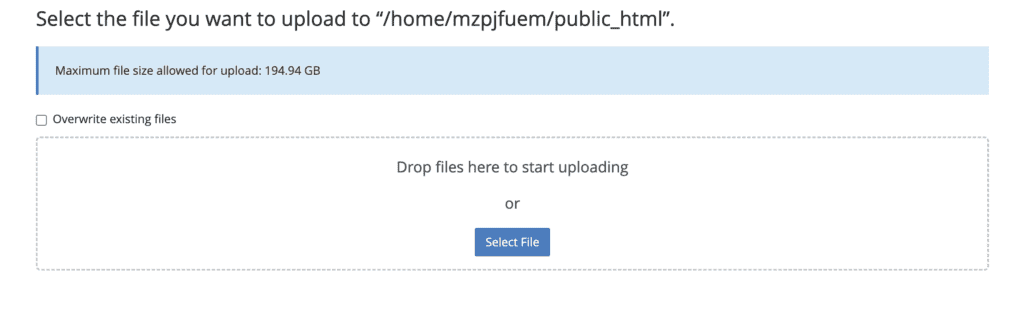
Upload backup: Use the Upload button to replace all your files. If prompted to overwrite, agree and continue.
Part 2: Restoring your database
Access phpMyAdmin: From cPanel, click phpMyAdmin under Databases.
Select database: Choose your website’s database from the left sidebar.
Clear existing data: Select all tables and choose Drop to delete them.

Import backup: Click the Import tab, choose your .sql file, and click Go.

B) Using the Bluehost dashboard
This method works if you have automatic backups from newer shared plans or paid add-ons like Site Backup & Restore or CodeGuard.
Access your backups: Log into Bluehost and go to Websites, then select your site.

Find restore options: Click the Backups tab, usually found under Settings for your site.

Choose your date: Select from the list of available backup dates.
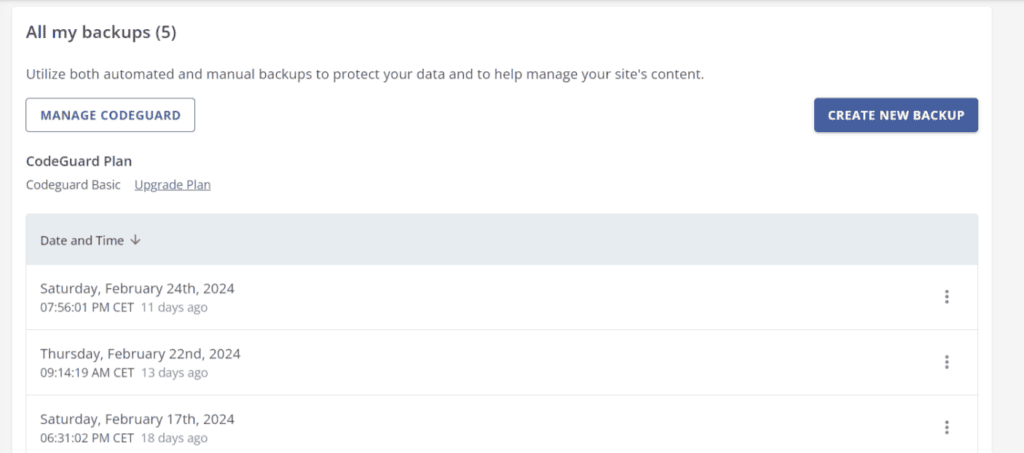
Start the restore: Click Restore and confirm your choice.
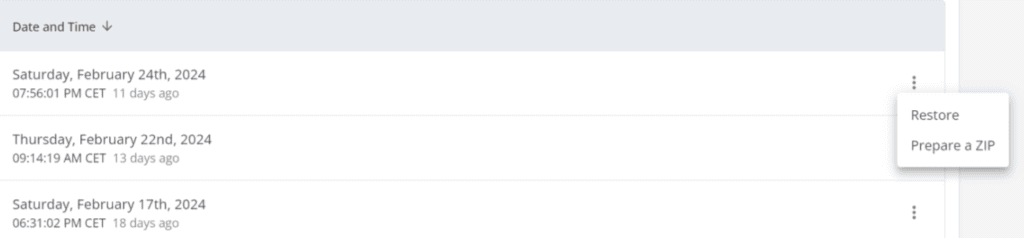
The process runs automatically and can take several minutes depending on your site’s size.
The dashboard method is obviously simpler, but manual restoration gives you complete control when automatic options aren’t available or have failed.
Why you should not rely solely on Bluehost backups
If you are convinced that Bluehost’s backup options have you covered, let me share some realities that might change your mind.

Manual processes are painfully slow.
Creating manual backups can take ages, especially for larger sites. When you’re under pressure to get a backup done quickly, waiting around for the backup to complete becomes more than just inconvenient.
Your site goes dark during manual restores.
Here’s something that catches many users off guard: manual restoration requires overwriting your current website files and database. Your site becomes completely inaccessible during this process. There’s no way around this downtime, and if you’re running a business, those offline hours can cost you customers and revenue.
Manual backups can fail silently.
Downloaded backup files sometimes end up incomplete or corrupted due to connection issues or server problems. The real kicker? You often won’t discover this until you need to restore your site. By then, it might be too late to recover your data properly. That’s why it’s crucial to test your backups before storing them for future use.
These limitations explain why many experienced users eventually move to dedicated backup plugins like BlogVault. While Bluehost’s backup options work for basic needs, they’re not exactly foolproof when things go wrong. Sometimes “good enough” just isn’t good enough.
Troubleshooting Bluehost backup errors
Bluehost backups can go wrong without any warning. Here are the most common issues and their fixes:
Corrupted or incomplete backup files
If your downloaded backup seems unusually small, it’s probably incomplete due to connection issues. Re-download with a stable internet connection and verify the file size matches your expectations.
Website goes down during manual restore
If your site breaks mid-restore, upload any working backup files you have immediately through File Manager. For database issues, restore from phpMyAdmin using your most recent .sql file. Contact support to help recover from server-level backups if available.
Upload or import failures
For failed file uploads, break large ZIP files into smaller pieces using file splitting tools. For database imports that timeout, edit the .sql file to remove large data chunks and import in sections, or
increase PHP memory limits through .htaccess.
Missing automatic backups
Log in to your account billing section and verify backup services are active and paid for. If they should be there but aren’t, open a support ticket with your account details and plan information.
Restore gets stuck
Kill the stuck process by refreshing the page, then clear any partial files from File Manager before starting over. Check cPanel for any remaining database tables and drop them manually before reimporting.
Site looks broken after restore
Check your wp-config.php file for correct database credentials. Verify your .htaccess file was restored properly. Run a search-and-replace on URLs if you’re restoring to a different domain or directory structure.
The best Bluehost backup alternative
Bluehost backups have limitations that can leave you vulnerable. Third-party services fill these gaps with more robust solutions.
BlogVault is a WordPress-specific backup service that operates independently of your hosting provider. Here’s why it beats Bluehost’s offerings:
- Off-site storage: Your backups live on BlogVault’s cloud servers, not Bluehost’s. If Bluehost’s servers fail, your backups remain safe and accessible.
- No size restrictions: Unlike Bluehost’s 30GB limit, BlogVault handles sites of any size without issues.
- Real automation: Daily backups happen automatically without the manual hassle of cPanel downloads and uploads.
- One-click restoration: Restore your entire site with a single click instead of manually uploading files and importing databases.
- Staging environments: Test changes on a copy of your site before applying them to your live website.
- Migration tools: Move your site to a different host easily when you’re ready to leave Bluehost.
The main advantage? BlogVault handles everything as one integrated solution rather than forcing you to juggle separate file and database backups like Bluehost’s manual system.
Parting thoughts
Bluehost provides backup tools, but they come with significant limitations. The same goes for most hosting providers — whether you’re on GoDaddy backup or DreamHost backups, their systems often come with restrictions on frequency and retention.
Ultimately, you are responsible for protecting your website’s data. Don’t rely solely on your host’s system. For true peace of mind, implement a reliable, off-site backup solution like BlogVault.
Test your backups regularly and act now before disaster strikes, because when your site goes down, having a solid backup strategy makes all the difference.
FAQs
Does Bluehost have backups?
Yes, Bluehost provides backup options, but their availability and frequency depend on your hosting plan. New shared hosting plans include weekly automatic backups, while older plans might require manual backups or add-ons. It’s crucial to verify your plan for specific backup features.
What is the account backup policy of Bluehost?
Bluehost’s backup policy offers weekly automatic backups for some new plans, but they’re not guaranteed. Users are responsible for maintaining their backups, as Bluehost isn’t liable for data loss. Backup services might be limited for sites larger than 30 GB.
How to restore backup in Bluehost?
To restore a backup in Bluehost, access the Backups tab in your site’s settings. Select a backup date, choose what to restore (full site, files, or database), and confirm your choice. For manual restores, files can be uploaded via File Manager, and databases restored through phpMyAdmin.
What is the best way to backup a WordPress site?
The best way to backup a WordPress site is by using a dedicated backup plugin like BlogVault. Backup plugins offer automated, reliable backups with easy restore options. Using the 3-2-1 backup rule, which includes three copies, two storage types, and one offsite, provides additional security.

Shivani enjoys crafting guides that make every aspect of using WordPress simple and easy to follow. When she's not glued to her laptop, you can find her buried in a good book or occasionally, painting.