Have you ever tried adding a new theme or plugin to your WordPress site only to encounter an annoying error message instead?
Everything seemed to be going fine, then suddenly you hit the dreaded ‘No valid plugins were found’ pop-up, didn’t you?
It’s enough to make anyone frustrated. You just want that awesome feature on your site, and now there’s an obstacle in your way.
This is the incompatible archive WordPress error. This error can really slow you down. But don’t worry, you’re not the only one dealing with this.
In this guide, we’ll explore why this error happens and how to fix it quickly. And remember, always make a backup of your site before attempting any fixes. A backup ensures you have a safe copy in case anything goes wrong.
The incompatible archive error in WordPress usually indicates that your file might not be zipped correctly. To solve this, try re-zipping the file using tools like WinZip or Terminal. You can also adjust settings in WordPress or use FTP to upload the files manually. Remember to backup your site before making any changes to protect your data.
What is the incompatible archive WordPress error?
The incompatible archive error often pops up when you attempt to upload a file that WordPress can’t handle.
WordPress requires plugins and themes to be uploaded as .zip files. But, even if your file is a .zip, the process may still encounter hiccups. With the arrival of WordPress version 6.4.3, stricter ZIP file checks were introduced. As a result, more users are experiencing problems.
This is especially true for files compressed on macOS using its built-in Compress tool. The tool adds extra data that doesn’t meet WordPress’s stricter validation criteria.

At BlogVault, we’ve observed this issue on over 300 websites in just the past month. This was particularly the case with premium themes and plugins.
1. Use a third-party tool to unzip and re-zip your plugin or theme files
As mentioned earlier, the default Compress feature on Macs may add extra data that WordPress doesn’t accept. But don’t worry, there’s a simple fix for this!
We recommend using WinZip Mac to create your archives. It offers a free 21-day trial, which is ideal if you only need it briefly. If you frequently handle WordPress files, you might consider purchasing it. The Standard version is priced at $35.34, while the Pro version costs $58.94. Both are available as one-time purchases.
Using WinZip Mac is straightforward. Here’s how to archive your folders with it:
1. Launch the app.
2. Drag and drop the folder containing your plugin or theme files into the app.
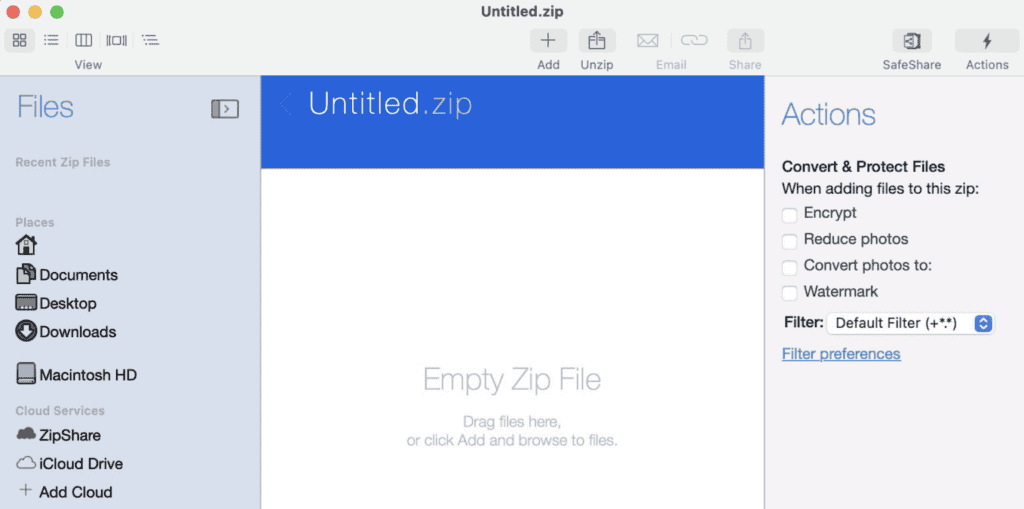
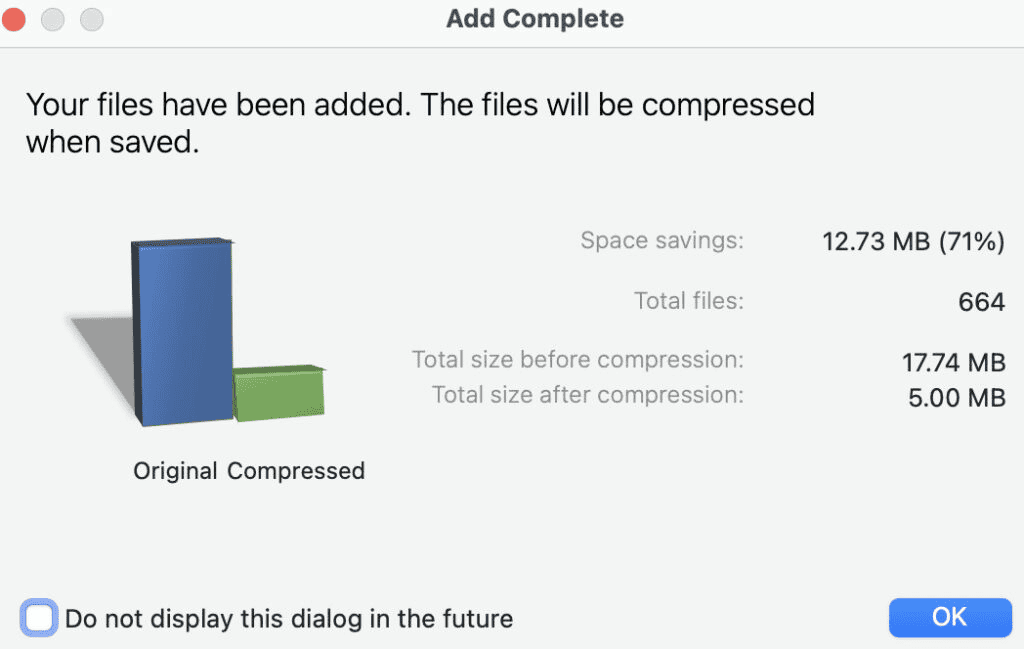
3. WinZip Mac will automatically compress the files and display the results. Click OK to proceed.
4. Select Save As > to this Mac… from the Actions menu on the right, or just press Cmd + S.
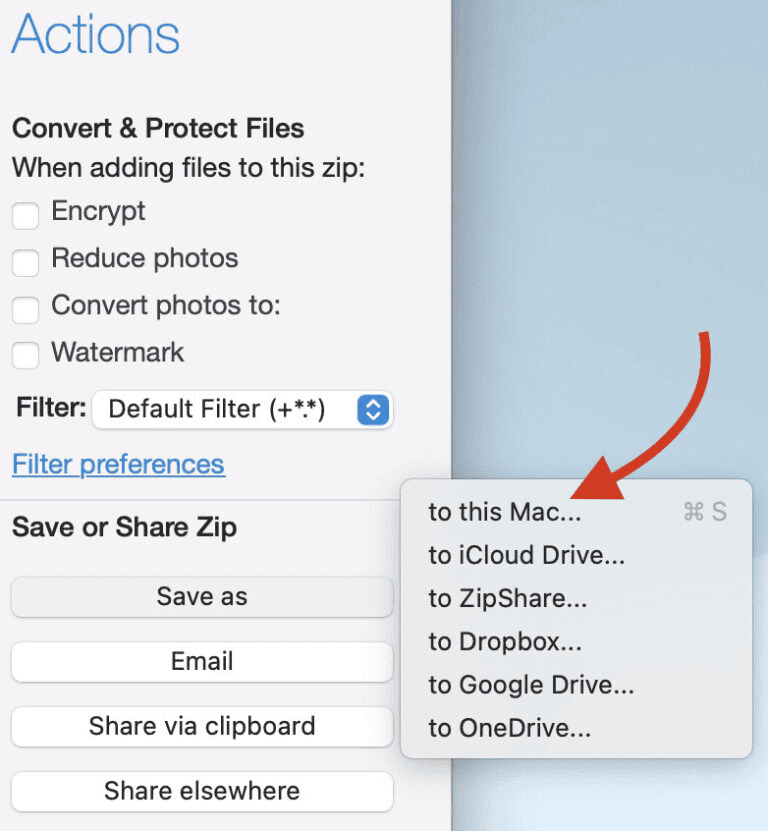
5. Choose the location where you want to save your new .zip archive.
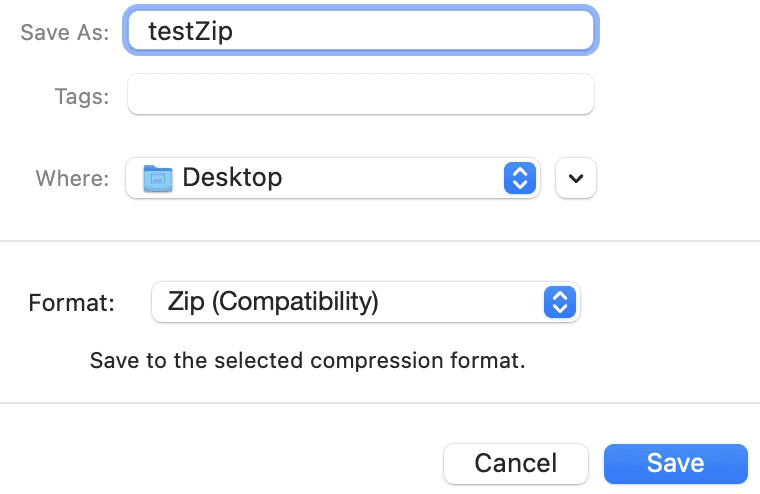
6. Ensure the Format option is set to Zip(Compatibility).
7. Click Save, and you’re all set!
Now, try uploading this new .zip file to your WordPress site. This should help you overcome that stubborn error and enjoy your new plugin or theme.
2. Use the Terminal to zip your plugin or theme files
Perhaps you prefer using built-in tools and want to avoid downloading extra apps. In that case, macOS’s Terminal is an excellent option. You can zip your files quickly with an easy command.
Here’s the command you’ll use:
zip -r my-plugin.zip my-plugin/Let’s break it down: the -r flag ensures that all folders and their contents are included in the zip file. Replace my-plugin.zip with the name you want for your compressed file, and my-plugin with the name of the folder you want to zip.
To execute this command, open a Terminal window. Go to the directory where your plugin or theme folder is located by using the cd command followed by the path to your folder. Once you’re in the right place, type the zip command and hit Enter.
This method lets you compress files without extra software. Now, try uploading the newly zipped file to your WordPress site and see if it fixes the problem.
3. Set filter on WordPress to bypass the default unzipping method
WordPress typically unzips files using the ZipArchive method. But, this might lead to problems, so switching to another method can be beneficial. By forcing WordPress to use the PclZip method, you may avoid the incompatible archive error.
To make this change, you’ll need to edit the functions.php file of your current theme. Add the following code line:
add_filter('unzip_file_use_ziparchive', '__return_false');This line instructs WordPress to skip the default unzipping method and switch to PclZip.
Always remember to backup your site before editing system files. Backups are essential for protecting your data in case something goes wrong during changes.
We recommend using BlogVault for dependable backup services. BlogVault automatically backs up your site and stores it off-site in an encrypted format. This ensures your data remains safe and doesn’t burden your site’s resources. With your site backed up, you can confidently change theme files and address the error.
4. Use FTP to upload your plugin or theme files
An alternative way to upload your plugin or theme is by using FTP (File Transfer Protocol). This allows you to copy files directly from your computer to your WordPress site. You can use an FTP client like Filezilla or the file manager feature from your web hosting provider.
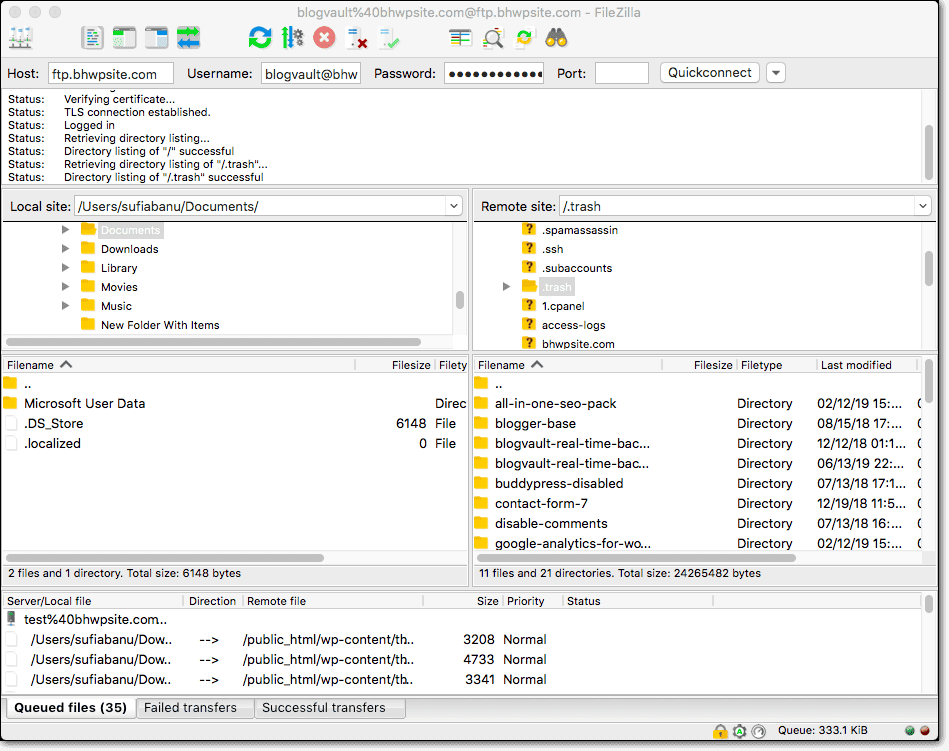
With this method, you manually put files into the correct directories. This is just like installing them via the wp-admin dashboard. You’ll need to know the WordPress file structure and have the right file permissions for this though.
Before you start, make sure you know where each file belongs on your site. This approach is best for those with technical know-how and experience with FTP and WordPress folders. If you’re confident in your skills, you can bypass the incompatible archive error by uploading your files directly.
5. Wait for an update to WordPress
The WordPress community is aware of the incompatible archive error and is working on a solution. If you can wait, it might be better to hold off on changes until a new update comes out.
Future WordPress versions may provide a fix for this issue. By waiting for the next core update, the problem might resolve on its own. Keep an eye on WordPress updates, and always back up your site before applying them. A bit of patience could save you time and effort in the end.
Final thoughts
Dealing with the incompatible archive WordPress error can be frustrating when you’re eager to add new features. Fortunately, there are solutions. Whether you use different tools for zipping files or use FTP to upload them directly, these methods can fix the issue. Keep an eye on WordPress updates, as future ones might offer a permanent fix.
While making changes, remember the importance of backups. BlogVault is an excellent option for protecting your site. It automatically backs up your site and stores it off-site in an encrypted format. This ensures your data is safe without slowing down your site. BlogVault also provides one-click restore and an emergency connector for recovering crashed sites. This keeps your website secure, allowing you to focus on running it smoothly.
FAQs
How to fix incompatible archive in WordPress?
To resolve the incompatible archive error in WordPress, try using WinZip Mac or Terminal to re-zip your files in a format that WordPress accepts. Or, add a filter to your functions.php file to change the unzipping method WordPress uses. If you understand the file structure, you can also manually upload files via FTP. If you prefer not to make any changes, you might wait for a WordPress update that could fix the issue. Always remember to back up your site before making any modifications to keep your data safe.
What does incompatible archive mean?
The incompatible archive error in WordPress means that the system can’t recognize or process the archive file you’re trying to upload. This often happens because the archive isn’t in the correct format. WordPress requires plugin and theme files to be in .zip format. Even .zip files can sometimes cause this error if created with certain tools, like macOS’s Compress function, which adds extra data that WordPress can’t handle.

Anurag traded algorithms for adverbs when he switched from being a software engineer to being a writer. Editor by day, he chases F1 by night!