You’ve just hit the Failed to Open Stream error on your WordPress site. It’s blocking access to your dashboard and making it hard to keep things running smoothly.
This disruption can lead to confusion and anxiety, putting your site’s reliability and visitor experience at risk. But don’t worry. You don’t have to be a tech expert to fix this.
Like always, we have put together some easy solutions to help you resolve the issue quickly.
The failed to open stream error blocks access to files on your WordPress site. You can resolve it by checking paths, permissions, and settings. Use a backup plugin to regularly protect your data and ensure quick recovery.
“Failed to open stream.” What does it mean?
The failed to open stream error is a common hiccup in many PHP-based content management systems.
In the context of WordPress, this error occurs when the platform can’t find or open a specific file it needs. This can cause your site to get stuck or not load properly.
The good news? This error often leaves behind clues (unlike the HTTP 500 error), making it easier to spot and fix the issue.
Common causes for the failed to open stream error
So, what causes this pesky failed to open stream error in WordPress? Let’s break it down:
File not found or path is incorrect: Sometimes, WordPress is looking for a file, but it’s either missing or the path to find it is wrong.
File exists but lacks proper permissions: The file is there, but WordPress can’t access it because the permissions are set too strictly, much like a gate that won’t open without the right key.
Corrupted WordPress core files: After a migration or an update, some core files can get corrupted, making them inaccessible.
Authentication failures: If your site tries connecting to third-party services and fails, it can affect the integration, leading to this error.
How to diagnose the “failed to open stream” error
Before you get into troubleshooting the error, you will have to identify the root cause. Here are two options you can use to do this:
Enable WordPress debugging: Turn on debugging in WordPress to get detailed error messages. It’s like having a magnifying glass to see the tiny details you might be missing.
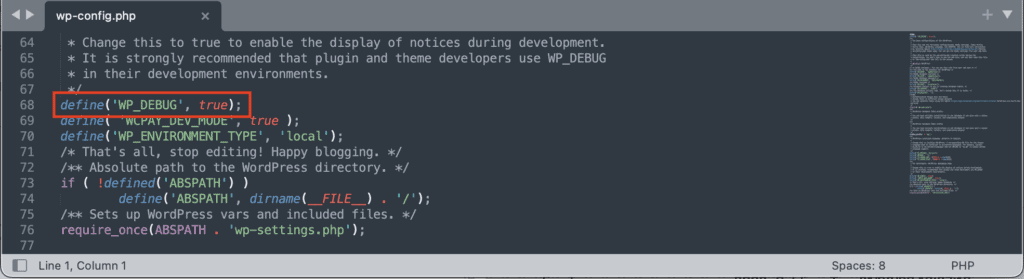
Check server error logs: Look at your server’s error logs to track down specific issues. These logs are like clues that can lead you to the problem.

File not found or path is incorrect
Review error messages: Carefully read any error messages to find where the path might be wrong. They can point you in the right direction.
Check file paths with FTP: Access your site’s files using FTP and make sure there are no spelling mistakes in file names. Be sure to watch out for case sensitivity—files named “File.txt” and “file.txt” are different!

Corrupted core file alert: If correcting the paths doesn’t resolve the error, core file corruption may be the cause.
Your files are corrupted
Find the corrupted file: Use error messages or logs to identify which file is causing trouble.
Replace with backup: Swap out the corrupted file with a fresh version from your backup.

Download fresh core files: If you don’t have a backup, downloading a clean copy of WordPress core files and replacing the affected ones does the trick.

Permissions are incorrect
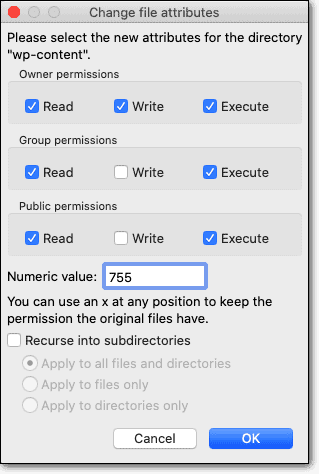
Repair permissions via FTP: Access your site’s files through FTP and fix the file permissions.
Set correct permissions: Make sure directories and files have the right permissions (755 for directories, 644 for files). It’s all about letting the right people in.
Address API-related issues
Check credentials: Double-check your third-party service credentials and authentication settings.
Review API configurations: Make sure everything’s set up correctly, especially after moving your site or making updates.
Additional fixes
Increase PHP memory limits: If uploads are failing, try increasing the PHP memory limit.
Check SSL certificates: Make sure your SSL certificates are installed and configured properly.
Best practices to prevent the error
Keeping your WordPress site running smoothly is like taking care of a garden—it needs regular attention and a little bit of know-how. Here are some best practices to help prevent the “failed to open stream” error:
Regularly backup your site: Always have a backup of your site, just in case something goes wrong. It’s like having an umbrella ready for a rainy day.

Keep everything updated: Make sure WordPress, your themes, and plugins are always up to date. WordPress Updates often come with fixes that can prevent errors.

Use secure and verified plugins and themes: Choose plugins and themes that are trusted and verified to be safe. It’s like making sure your friends are reliable before inviting them over.
Set correct file permissions: Ensure that your file permissions are set correctly to 755 for directories, 644 for files for security and access.
Double-check file paths: Whenever you make changes, double-check the file paths to ensure they’re correct.
Limit plugins and themes: Stick to essential and trusted plugins and themes to avoid unnecessary complications.
Regularly monitor your site: Keep an eye on your site for any errors or strange behavior. It’s like checking your plants for pests.
Verify API credentials: Make sure your API credentials are correct for all the services you use.
Ensure proper API authentication: Double-check that the methods you’re using to authenticate APIs are set up correctly.
Test API connections: After any site migrations or changes, test your these connections to ensure they’re still working properly.
Wrapping up
It’s important to address the “failed to open stream” error quickly. By identifying the issue and fixing it, you can restore your site to working order in no time. Regular maintenance is like giving your site a tune-up, helping to prevent this error from coming back.
Don’t forget to keep your backups updated. This ensures your data is protected if anything goes wrong. By taking these simple steps, you ensure your site runs smoothly and provides a great experience for your visitors.
FAQs
How do I fix stream error?
To fix a stream error, check file paths and permissions to ensure everything is correct. Update or replace missing and corrupted files as needed. Enabling debugging can also provide helpful error details.
How to solve a PHP error?
Solve a PHP error by reviewing error messages to pinpoint the problem. Check your code for syntax errors and update any outdated scripts. Debugging tools can help trace and resolve complex issues.
How do I change my memory limit?
Change your memory limit by editing the wp-config.php file and adding define(‘WP_MEMORY_LIMIT’, ‘256M’);. You may also need to adjust settings in your hosting control panel if required.
What is WordPress PHP?
WordPress PHP refers to the PHP programming language used to build and run WordPress sites. It powers the site’s core functions, themes, and plugins, enabling dynamic content management.
How to fix a plugin causing conflict?
Fix a plugin conflict by deactivating all plugins and then reactivating them one at a time. Identify which plugin causes the issue, and seek updates or alternatives. Always ensure compatibility with your WordPress version.

Shivani enjoys crafting guides that make every aspect of using WordPress simple and easy to follow. When she's not glued to her laptop, you can find her buried in a good book or occasionally, painting.