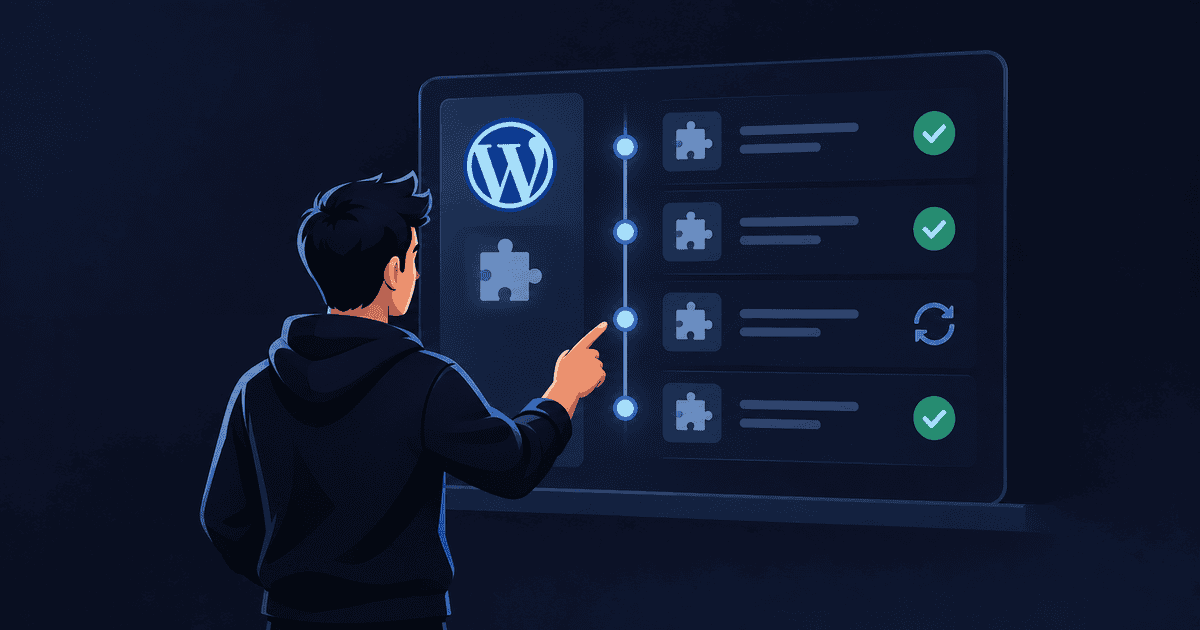
You’ve just attempted to update your WordPress site, only to encounter the bewildering message: “Another update is currently in progress.”
This notification pops up when WordPress locks the database to prevent overlapping core updates, ensuring that your site remains stable and secure. While the wait might feel inconvenient, it’s your site’s way of safeguarding itself from potential glitches during updates.
We’ll show you how to solve the WordPress error and manually resolve this hiccup. You’ll have your website running smoothly in no time, without breaking a sweat.
When dealing with “Another update is currently in progress” on WordPress, modifications to core files might be required. To avoid risks, we recommend testing solutions on a staging site first. This ensures your live website remains secure and glitch-free.
Why is “ Another update is currently in progress”
The “Another update is currently in progress” error in WordPress usually appears during an update process (core, plugin, or theme). Here’s why this happens:
When a WordPress update starts, it sets a temporary lock in the database. This lock ensures that no other updates can run at the same time. The reason? To protect your site from overlapping actions that might corrupt important files or even the database itself.
Under normal circumstances, this lock disappears once the update finishes. But sometimes, things don’t go as planned. Connection timeouts or server issues might occur. These problems can leave the lock in place longer than it should be.
How to fix the “Another update is currently in progress” error?
Now that you understand why the “Another update is currently in progress” error happens, let’s focus on fixing it. Addressing this issue can be straightforward once you know the steps to take. We’ll begin with easy fixes that anyone can try. If those don’t solve the problem, we’ll explore more hands-on solutions.
1.Wait it out
Sometimes, addressing the “Another update is currently in progress” error is as simple as waiting it out. When WordPress applies a plugin update, it usually locks the database for only a short time. This lock should automatically clear once the update process finishes.
If you encounter this error, consider taking a break and returning after 15 or 20 minutes. Often, the update process can take a bit longer due to server load or temporary connection issues.
2. Check server stability
Ensuring server stability is key to preventing the “Another update is currently in progress” error from happening again. Login to your hosting account and you’ll be able to find all the information you need.
Start by checking your server’s CPU, memory, and disk usage. Insufficient disk space, for example,can lead to timeouts or interruptions during updates.

Next, verify your server’s connectivity by ensuring a stable and fast internet connection. You can also contact your hosting provider to inquire about possible network issues or downtimes.
By keeping your server resources ample and your connection stable, you’ll minimize the risk of encountering unexpected errors during updates.
3. Remove the lock manually
When all else fails, you can manually remove the lock from the database. This process involves directly accessing the database to delete the temporary lock that WordPress set during the update.
You can try removing the database lock using phpMyAdmin. To get started, access phpMyAdmin through your web hosting dashboard, often found in the cPanel or hosting control panel.
- In phpMyAdmin, locate the list of databases. Click on the database that corresponds to your WordPress site
- In the left sidebar, you’ll see a list of tables within your database. Look for and click on the wp_options table.
- Inside the wp_options table, you’ll find various rows. Look for the option with the name core_updater.lock. This is the entry setting the update lock.
- Once you find the core_updater.lock row, click on the Delete button for that row. Confirm the delete action if prompted.
- After deleting the lock, check to ensure the row is gone. This action removes the lock from your database.
- Try accessing your WordPress site again. The error message should be gone, allowing you to proceed with any new updates.
How to prevent the “another update is currently in progress” error?
Now that we’ve fixed it, let’s talk about how to avoid it in the future. Preventing the “Another update is currently in progress” error involves a combination of best practices. You’re trying to ensure smooth updates and minimize disruptions. Here’s how:
- Regular Updates: Schedule consistent updates for your WordPress core, plugins, and themes. By maintaining regular updates, you reduce the need for multiple updates at once, which can increase error risks.
Note: We recognise that updates can cause a lot of trouble, Use tools like UpdateLens to reduce the impact.
- Upgrade Plugins/Themes Individually: Avoid bulk updates. Instead, update plugins and themes one by one. This reduces the likelihood of overlapping processes and helps isolate any issues that may arise during an update.
- Stable Internet Connection: When performing updates, a reliable internet connection is essential. A weak connection can lead to interruptions, resulting in incomplete updates. Ensure your connection is stable before you begin.
- Monitor Server Resources: Keep an eye on your server’s performance. If your server struggles with high loads leading to timeouts, consider upgrading your hosting plan. Adequate resources can prevent incomplete processes during updates.
- Use a Staging Environment: Create a test site to use before applying them to your live site. This practice allows you to spot potential issues without affecting your operational site.
- Automatic Backups: Implement a backup plugin like BlogVault or another reliable service. Regular backups ensure that you can quickly restore your site if an update issue occurs.
- Regular Maintenance: Conduct routine maintenance checks on your site. Regularly scan for underlying issues that might lead to update errors, keeping your site healthy and mitigating risk.
Final thoughts
The “Another update is currently in progress” error is a common hurdle for WordPress users, but it can certainly disrupt your workflow and the accessibility of your site. While it serves as a safeguarding measure, an unexpected interruption can lead to frustration or downtime.
To minimize the impact on your live site, adopting a proactive approach is key. Taking regular backups ensures you have a clean slate to revert to, should anything go awry during an update. Reliable services like BlogVault can automate this process, letting you focus on other tasks with peace of mind.
Testing updates on a staging site further reduces risks. This practice allows you to catch and address potential issues before they affect your live site. By implementing a staging environment, you gain the freedom to experiment and update fearlessly.
Implementing these strategies will help keep your site running smoothly while easing any anxiety about updates. With a proactive mindset, you can turn potential disruptions into manageable tasks, maintaining a seamless and secure WordPress experience.
FAQs
How do you safely update a plugin?
To safely update a plugin, start by backing up your site using a reliable service like BlogVault. Next, if possible, test the update on a staging site to ensure everything works as expected. On your live site, go to Plugins in your WordPress dashboard. Find the plugin you wish to update and click on Update Now. Finally, review your site to ensure the update hasn’t affected its functionality.
What causes delays in a plugin update?
Delays in plugin updates can occur due to server overload, slow internet connection, or conflicts with other plugins or themes. A busy server might process updates slowly, causing potential delays or timeouts. Similarly, a poor internet connection can interrupt the update, while compatibility issues might further hinder a smooth update process.
How do you prevent issues with plugin updates?
Prevent plugin update issues by maintaining regular backups and testing updates on a staging environment first. Stay informed about plugin compatibility with your WordPress version. Also, avoid updating multiple plugins at once to reduce the chances of conflicts. Regular maintenance checks can help detect any underlying problems in advance.
Does the delay affect your live site?
A delay in plugin updates might not directly affect your live site’s immediate performance. However, prolonged delays can lead to out-of-date software, making your site vulnerable to security risks or malfunctions. It’s important to address any update delays promptly to maintain site health and security.
Why does the error happen?
The “Another update is currently in progress” error occurs because WordPress sets a temporary lock in the database to prevent simultaneous updates. This lock ensures files or databases don’t get corrupted during concurrent update processes. Normally, the lock is removed after the update concludes, but interruptions like server timeouts might leave it in place longer. Resolving it often involves waiting or manually removing the lock.

Shreya has been a writer for as long as she can remember. Now, she writes articles that help WordPress users manage the sites that they're proud of, with little to no coding