

When talking about security for websites, a common piece of advice is to change table prefix from the default wp_. You’ve been told that hiding the default wp_ prefix makes it harder for bots to target your database.
As a side note, we do not recommend doing this for security. It’s a lot of delicate work that can easily break your site. More importantly, it does nothing for security. However, if you want to change the prefix because of a WordPress error or a botched migration, we’ve got you. We’ll walk you through the steps to change your database table prefix.
The easiest way to change the database prefix is to use the plugin Brozzme DB PREFIX. Just install it, add the new prefix and click Change DB Prefix.
I recommend that you install a security plugin instead. That is less risky and more effective.
We recognise that there’s a lot of advice on changing the prefix. But, it is outdated advice. In fact, it is very risky because one mistake and you can take your entire site offline. A single typo, a forgotten table, or a missed internal reference will break the connection between WordPress and its data.
Expert Advice: Take a reliable backup before you get started.
Make sure you’re backing up your entire site – files and database tables. This is non-negotiable. Ideally, use a plugin like Blogvault that can help you restore your website even if it has crashed. BlogVault has an offsite dashboard and you can restore it in one-click.
Method 1: Change Prefix with a Plugin (Recommended for Beginners)
Using a plugin is the safest and most recommended method because it automates a complex, high-risk task. It eliminates the need for manual database editing, which can easily take your entire site offline if a single step is missed. The plugin handles everything.
For this tutorial, we will use the free Brozzme DB Prefix & Tools Addons, though other popular plugins like iThemes Security offer similar functionality.
- From your WordPress dashboard, navigate to Plugins > Add New and search for Brozzme DB Prefix & Tools Addons.
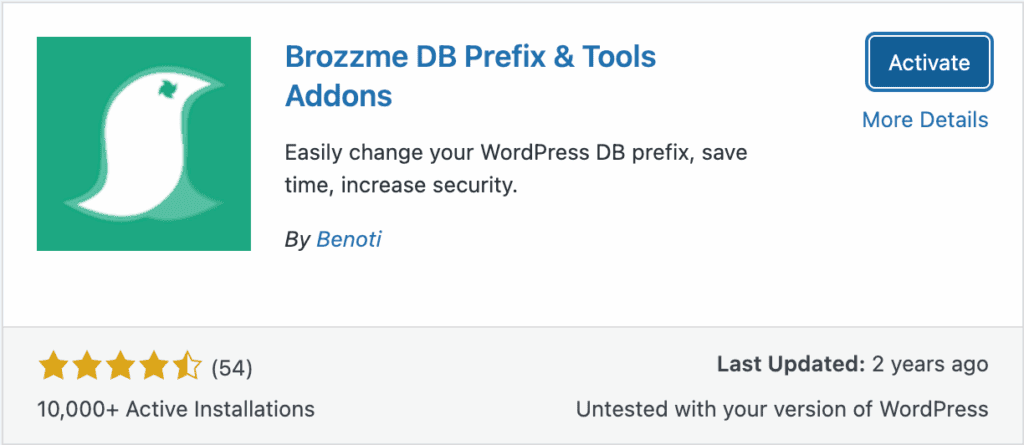
- Click Install Now and then Activate the plugin.
- Go to Tools > DB Prefix from the left-hand admin menu.
- In the New Prefix field, enter your desired prefix, making sure it is random and ends with an underscore (e.g., site_a5b4c_).
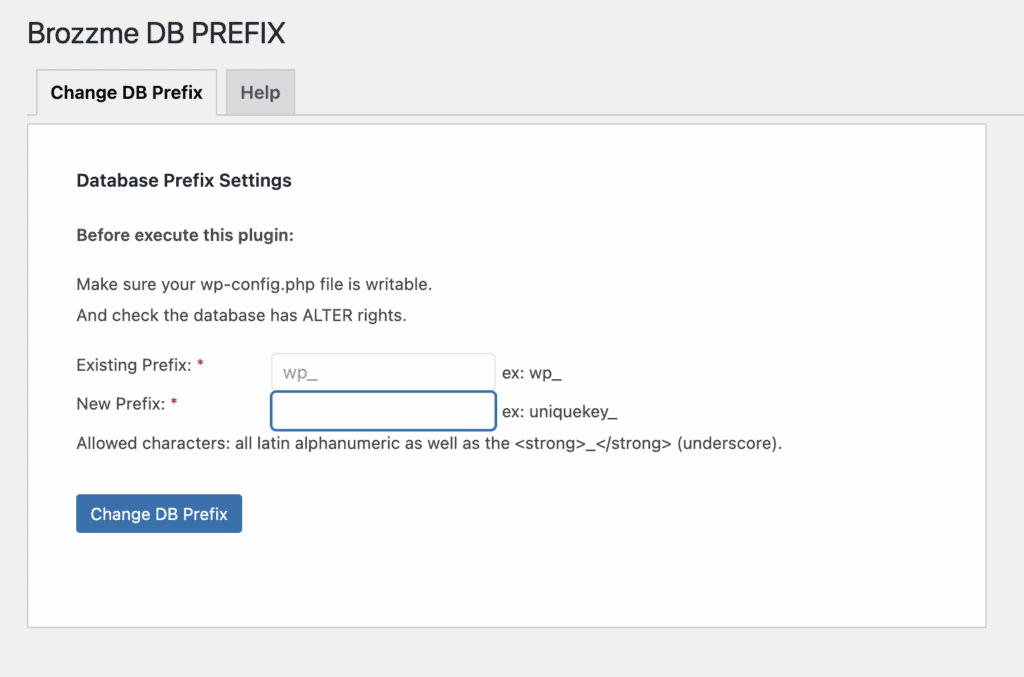
- Double-check your new prefix and click the Change DB Prefix button.
The Brozzme DB Prefix plugin will process the changes and may log you out automatically. Simply log back in to confirm your site is working correctly.
Method 2: Manual Change via phpMyAdmin & FTP
This manual method is for advanced users who are comfortable editing core WordPress files and working directly with their database. It offers full control but comes with significant risk: a single mistake can instantly take your site offline.
- Connect to your server using an FTP client or your host’s File Manager and locate the wp-config.php file in your root directory.
- Open the file and find the line: $table_prefix = ‘wp_’;.

- Change ‘wp_’ to your new prefix, ensuring it ends with an underscore (e.g., $table_prefix = ‘newprefix_’;).
- Save the file. Your site will be broken at this point; this is normal until the next steps are completed.
- Log into your hosting control panel, open phpMyAdmin, and select your WordPress database.
- Go to the SQL tab and run RENAME table queries to change each table from the old prefix to the new one (e.g., RENAME table wp_users TO newprefix_users;). You must do this for all core tables (wp_options, wp_posts, wp_postmeta, wp_usermeta, etc.) and, crucially, for any tables created by your plugins.
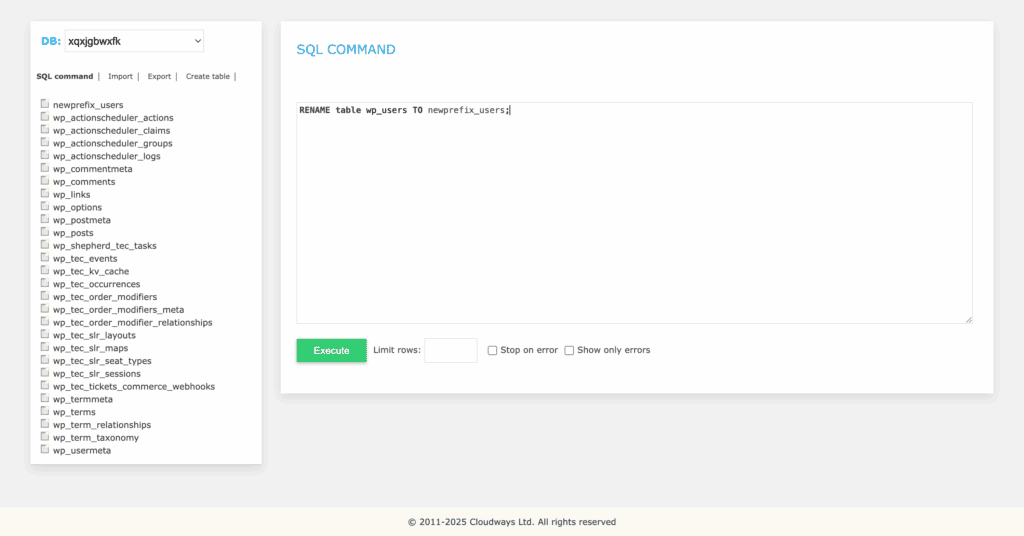
- Finally, you must update data inside the options and usermeta tables that still reference the old prefix.
- Run an SQL query on your newly renamed options table to update the user_roles option (e.g., UPDATE newprefix_options SET option_name = ‘newprefix_user_roles’ WHERE option_name = ‘wp_user_roles’;).
- Run similar SQL UPDATE queries on your usermeta table to find and replace any meta_key values that begin with the old prefix, such as wp_capabilities.
After Changing the Prefix: Critical Checks and Troubleshooting
Changing the prefix is only half the battle. Now you need to verify that your site is still fully functional and know what to do if it isn’t. Follow these steps immediately after making the change to ensure everything is working correctly and to quickly diagnose any problems.
- Start by clearing all cache to ensure you are not viewing an old, saved version of your site. This includes your browser cache, any caching plugins you use (like WP Rocket or W3 Total Cache), and any server-side caching from your hosting provider.
- Attempt to log back into your WordPress admin dashboard. A successful login is a great first sign, confirming that the connection to your newly named users and usermeta tables is correct.
- Thoroughly browse the front end of your site. Click through your navigation menu, visit a few pages and blog posts, and test your contact forms to ensure everything loads and functions as expected. Pay close attention to your permalinks to make sure they don’t lead to 404 errors.
- You may have to solve the plugin conflict if you notice strange behavior from a specific plugin. Check for updates, reach out to the developers and find an alternative plugin if that still fails.
- If you encounter the “Error establishing a database connection,” it almost always means there is a mismatch between the $table_prefix in your wp-config.php file and the actual prefixes on your database tables. Carefully check both for typos.
- If your site loads but the admin area is broken, or content appears to be missing, you likely missed renaming a critical table (like wp_options or wp_usermeta) or failed to update the internal data strings that reference the old prefix. Revisit the manual steps or, if you have a backup, restore your site and try again.
The Myth of the “Secure” Prefix Change
Changing your database prefix from wp_ is one of the oldest security tips in the WordPress handbook, but it’s rooted in an outdated concept: security by obscurity. The logic is flawed and provides a false sense of protection against modern threats.
The prefix wp_ is the default and it’s a well known fact. The theory is that lazy hackers running simple, automated scripts will target tables like wp_users and wp_options. By changing the prefix, you make their job slightly harder. But, modern attacks don’t rely on guessing table names. They exploit vulnerabilities in the code of plugins or themes to gain unauthorized access.
WordPress security tools are better. It’s not as tough to use, less risky for your website and is far more effective. The effort and risk of changing the prefix is better spent on measures that actually block these attacks at the source.
Good Security Practices for Your Website
Instead of relying on outdated tricks, focus on these foundational security measures that provide real protection:
- Use a Security Plugin: Install a comprehensive security plugin like MalCare to provide a firewall (WAF), regular malware scanning, and login protection.
- Enforce Strong Credentials: Use complex passwords for all user accounts and implement two-factor authentication (2FA).
- Keep Everything Updated: Update WordPress regularly.The majority of hacks exploit known vulnerabilities in outdated plugins, themes, or WordPress core.
- Have Automated, Reliable Backups: Use a service like BlogVault to ensure you have a recent, restorable backup available at all times in case something goes wrong.
- Choose a Secure Hosting Provider: When picking a webhost, there is a lot to consider. A quality host will provide server-level security, firewalls, and malware scanning to protect your site.
Final thoughts
Can you change your database table prefix easily? Yes. There are plugins that can do it for you. Should you change it? Absolutely not.
The best way to actually secure your site is to install a security plugin like MalCare and have a really good hosting company. Together, they will protect your website and the servers it’s hosted on.
FAQs
Does changing my WordPress table prefix really improve security?
No, not in any meaningful way. It’s an outdated “security by obscurity” tactic that is easily bypassed by modern automated attacks and skilled hackers.
What are the risks of changing my database table prefix?
The primary risk is breaking your website and causing an “Error establishing a database connection.” It can also lead to plugin compatibility issues and complicate future site maintenance and migrations.
Should I use a custom prefix during a fresh WordPress installation?
Yes, choosing a custom prefix during a brand new installation is perfectly safe and harmless. All the risks are associated with changing the prefix on an existing, live website.
Is a prefix change a good alternative to using a security plugin?
Absolutely not. A security plugin provides active, real-time protection like a firewall, malware scanning, and brute-force prevention. Changing a prefix is a passive, ineffective measure and is not a substitute for a real security solution.
Can changing the table prefix protect my site from SQL injection attacks?
No. SQL injection attacks exploit vulnerabilities in code to gain access to your database. Once an attacker has access, they can easily find out your table names, making your custom prefix irrelevant.

Shreya has been a writer for as long as she can remember. Now, she writes articles that help WordPress users manage the sites that they're proud of, with little to no coding


