

You’re all set to upload an exciting new picture to your WordPress website. But when you open the Media Library, nothing shows up. How annoying is that?
Many users face problems with the WordPress Media Library not loading. One moment it’s fine, and the next, it just won’t work. This can stifle your imagination and delay your projects.
Did you just make a tiny change, like updating a plugin or adjusting your theme? Maybe you’ve added some extra security measures to your site. Small tweaks can lead to this big issue. But don’t worry, we’re here to help you sort it out.
Here’s how you can troubleshoot and get your media library back on track. Whatever the cause, our guide will help you solve the problem quickly and easily.
If you are facing the WordPress Media Library not loading problem, there might be a few reasons why. Begin by clearing all caches and look into whether any plugins or theme conflicts are causing trouble. Make sure your browser settings and PHP limits are set correctly, and check your file permissions. Consider temporarily turning off antivirus software or ModSecurity if necessary. Always remember to backup your site so you don’t lose any data, and to make problem-solving easier.
1. Clear all caches
Old cache files can sometimes cause trouble for your WordPress Media Library. They hold outdated information, which can stop everything from working right. Clearing your caches is a smart first step to fix this issue.
Begin by clearing your browser cache. Browsers keep data to help pages load faster, but this can sometimes cause problems.

Next, if you use a Content Delivery Network (CDN), check it, too. CDNs save copies of your website to speed things up. But like your browser, they might hang onto outdated data.
Lastly, clear the cache from your caching plugin. Many sites use these plugins to load pages quickly. But, old cache files can create errors.

By clearing these caches, you remove old data that could slow down your site. This easy fix can often solve the problem quickly.
2. Check your browser settings
Your browser settings might be why your WordPress Media Library isn’t loading. Extensions, especially security ones, can block or mess with how your site shows up.
Start by checking your browser extensions. Look for ones that might be causing trouble, like site security tools from antivirus software. Try disabling them to see if it helps.
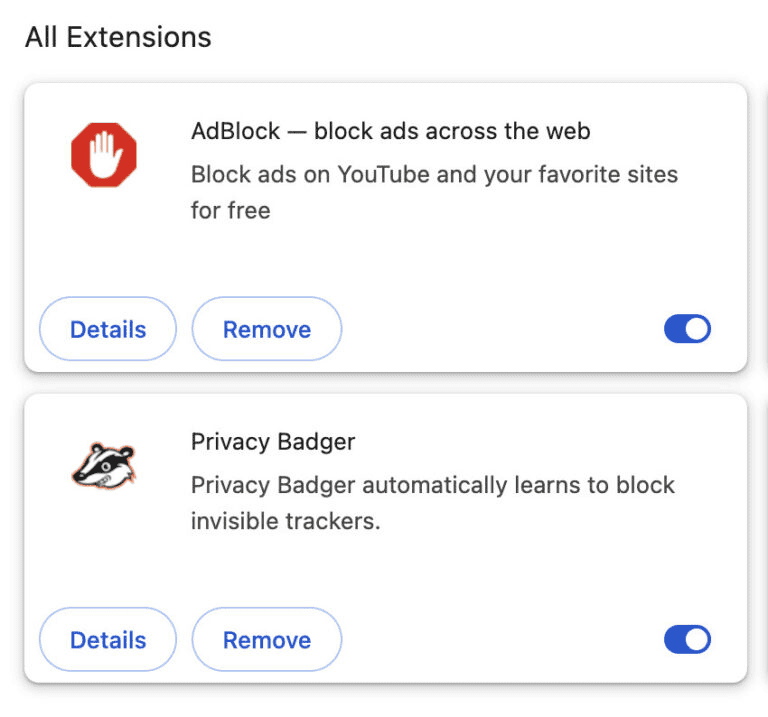
If turning off extensions doesn’t work, try using another browser. Switching might solve the issue, helping you see if your current browser is the problem.
3. Look for plugin conflicts
Plugins are great for adding features to your WordPress site. Yet, they can sometimes clash with each other. If your Media Library isn’t loading, think about any plugins you added or updated recently.
New plugins or updates might conflict with others, messing up how your site works. This can lead to issues like your Media Library not appearing.

To fix this, check the plugins you’ve changed lately. Disable all plugins to see if your Media Library starts working. Then reactivate them one by one while checking if the issue recurs. This will help you identify any conflicting plugins so you can address the issue.
4. Switch to a default theme
Your WordPress theme might be causing problems if your Media Library isn’t loading. Switching to a default theme can help pinpoint the issue.
Try using a simple WordPress theme, like Twenty Twenty-Two. These themes are tested and usually work well with WordPress.

Some premium or custom themes have complex code that might interfere with WordPress. Testing with a default theme helps you see if your current theme is the problem.
5. Adjust PHP limits
Low PHP limits can make your WordPress site slow and cause loading issues in your Media Library. PHP memory and timeout limits dictate how much your server can handle.
If these limits are too low, your site might struggle with large files. You need to raise these PHP limits.
To do so, edit your wp-config.php file and add the following lines above the line that says /* That’s all, stop editing! Happy blogging. */:
define('WP_MEMORY_LIMIT', '256M');
set_time_limit(300);
This boosts your site’s capacity, allowing it to work more smoothly.
6. Verify file permissions
File permissions are vital for your WordPress site’s operation. They dictate who can access and change your server files. Incorrect settings might block your Media Library from accessing necessary files.
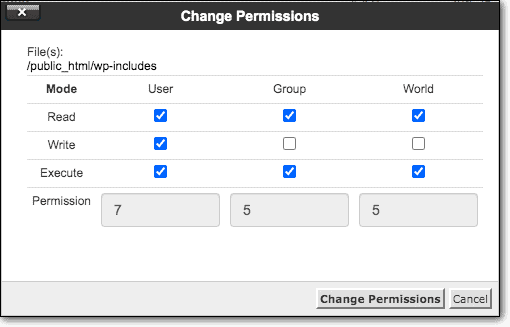
Wrong permissions can prevent your site from reading or writing files, leading to loading issues.
To fix this, check the file permissions on your server. Make sure they allow WordPress to work properly. Ensuring correct permissions can resolve loading problems and make your site more secure.
7. Temporarily disable antivirus software
Antivirus software keeps your computer safe but might disrupt your WordPress Media Library. It can block paths for image loading, causing issues.
Test if your antivirus software is the problem by turning it off temporarily. See if your Media Library loads correctly without it.
If this solves the issue, adjust your antivirus settings to allow the Media Library to load images properly. Remember to turn your antivirus back on afterward to keep your system safe.
8. Look for ModSecurity interference
ModSecurity is a firewall many web hosts use to protect your site. It acts as a shield, blocking suspicious activity.
But, it can mistakenly block things like your Media Library loading, if it sees them as a threat.

Check if ModSecurity is causing your problem by temporarily turning it off. See if your Media Library loads when it’s off.
This advice also applies to any other firewalls you have. Tweaking these settings can help your site run smoothly.
9. Examine error logs
If your Media Library isn’t loading, a server issue might be behind it. Examining error logs can give you clues about the problem.

By looking at these logs, you can spot errors affecting your site’s performance. They reveal hidden issues that need addressing.
Use your browser’s Inspect tool, too. This tool can show errors not listed in the server logs. Combining both lets you get a clearer picture of what’s wrong.
10. Investigate your CDN
CDNs boost your site’s speed by storing content across various locations. But sometimes, this can lead to loading problems with your Media Library.
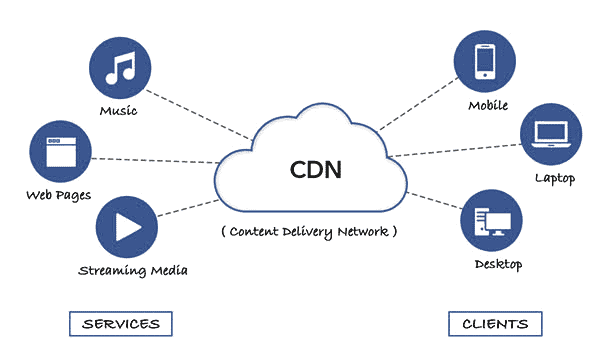
If your Media Library isn’t loading, your CDN might be the culprit. It could be serving outdated files.
To check, try disabling your CDN temporarily. If your Media Library loads without it, consider tweaking your CDN settings or refreshing its cache. This step might resolve the issue and get things back on track.
How to prevent the WordPress Media Library not loading problem?
To stop problems with your WordPress Media Library from happening, try these tips:
- Secure your site: Use a security plugin to keep malware away from your site. Malware can cause troubles like a loading issue with the Media Library. We suggest using MalCare for all-around protection.
- Keep everything updated: Regularly update WordPress, your plugins, and themes. Updates fix bugs and add new features that might solve your issues. It’s smart to test updates on a staging site before going live.
- Limit plugins: Only use plugins you really need. This reduces the chances of conflicts between them.
- Choose quality themes: Pick themes from the WordPress theme repository or trusted marketplaces like Envato. These are more reliable.
- Optimize files: Cut down image file sizes before uploading. Smaller files lower the strain on your server and help the Media Library work more smoothly.
- Use a CDN: A Content Delivery Network can take care of media delivery. This can prevent loading issues with your Media Library.
- Ensure ample server resources: If needed, ask your web host to boost server resources or consider moving to a trustworthy host like Cloudways.
- Regular backups: Use a backup solution so you can restore your site if things go wrong. BlogVault can help you with this with its automatic and safe off-site backups.
- Conduct regular audits: Regularly check file permissions, remove unauthorized users, and keep an eye on activity logs. This helps avoid potential problems.
Final thoughts
Resolving the WordPress Media Library not loading issue might feel daunting, but it doesn’t have to be. With the right approach, you can tackle it quickly. Steps like clearing caches, checking for plugin issues, or adjusting PHP settings can guide you to a solution. Stay patient and thorough, and you’ll soon have your media library up and running.
To keep your site safe, think about using BlogVault. It provides automatic backups that are securely stored off-site. This keeps your data protected without adding stress to your site. Plus, it includes a tool for recovering even crashed sites. BlogVault is a smart choice to easily protect and manage your WordPress site.
FAQs
How to fix WordPress media library not loading?
To fix the WordPress media library not loading, start by clearing all caches. This includes browser, CDN, and caching plugin caches. Then, check your browser settings. Disable any extensions that might cause issues. Look for plugin conflicts by deactivating recent plugins. Try switching to a default theme to see if it fixes the problem. Increase your PHP limits by editing the wp-config.php file. Make sure file permissions on your server are correct. Temporarily turn off antivirus software to see if it helps. Check firewalls like ModSecurity for interference. Review server logs and use your browser’s Inspect tool to find errors. Finally, try disabling your CDN temporarily.
Why is my WordPress gallery not loading?
Your WordPress gallery might not load for several reasons. Old or broken caches can cause this issue. Security browser extensions might block it, so try disabling them. Recent plugins or updates might conflict with the gallery. An incompatible theme might be another reason. Low PHP memory or timeout limits can block loading, so increasing them may help. Incorrect file permissions might prevent access. Antivirus or firewall settings could interfere, so check them. Lastly, a CDN problem could be the cause.
Why can’t I see images in the WordPress media library?
There are a few reasons you might not see images. Old cache files could be the issue, so clear those first. Browser extensions, especially ones about security, might be blocking images. Turn them off to see if it helps. Recent plugins or theme updates could be creating conflicts. Check your theme’s code for issues. Low PHP limits might block files, so increase them if needed. Wrong server file permissions can stop image access. Antivirus or firewall settings might also block images. Lastly, check if your CDN setup is causing a problem.
How to refresh the WordPress media library?
Refreshing the Media Library is easy. First, clear your browser cache to get rid of old data. If you use a caching plugin, clear that cache too. Don’t forget to clear your CDN cache as well. Then, reload the Media Library page in your browser. If it doesn’t work, deactivate any new plugins. Check for updates to WordPress core, themes, or plugins. Sometimes old versions cause issues.

Anurag traded algorithms for adverbs when he switched from being a software engineer to being a writer. Editor by day, he chases F1 by night!


