Your WordPress multisite network has grown, but what happens when the main site no longer fits? It’s a frustrating spot to be in, especially when you realize there’s no official setting for this. We understand the challenge completely.
That’s why we’ve laid out two methods for a successful WordPress multisite change main site process.
Let’s update your network’s foundation to match your new reality, safely.
Changing your multisite’s main site involves editing the wp-config.php file and running a careful database search-and-replace. Before you begin, always create a complete and verified copy of your entire network using a trusted backup plugin.
Prerequisites: Non-negotiable preparation
Before you touch a single file, we need to get everything in order. Skipping these steps is not an option if you want a safe and successful outcome.
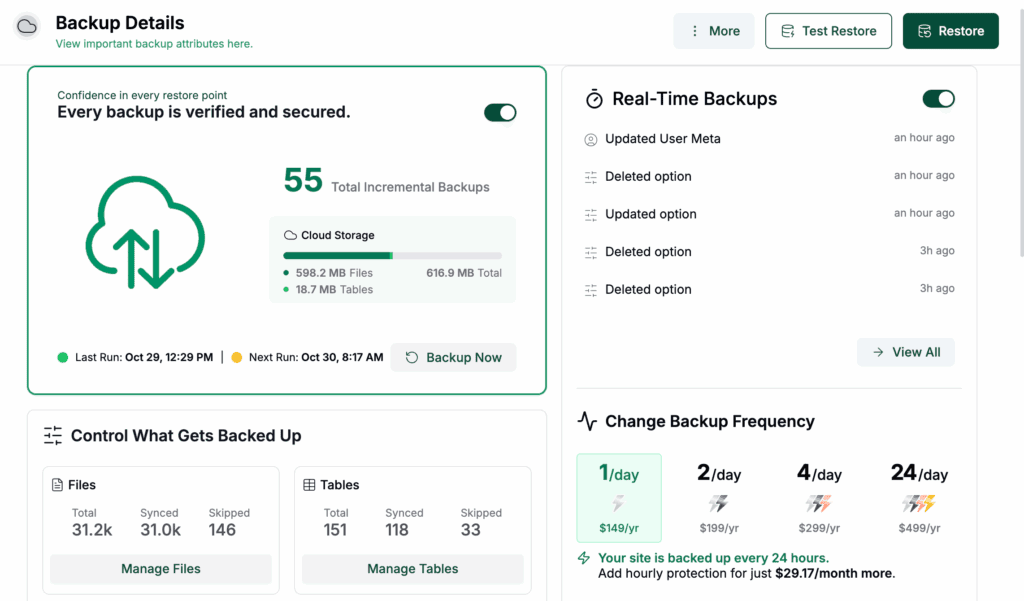
Secure a complete, verified WordPress backup. You need a full backup of your database and all your WordPress files. More importantly, you must test this backup by restoring it in a safe environment. An untested backup is just a hope. A verified backup is your undo button.
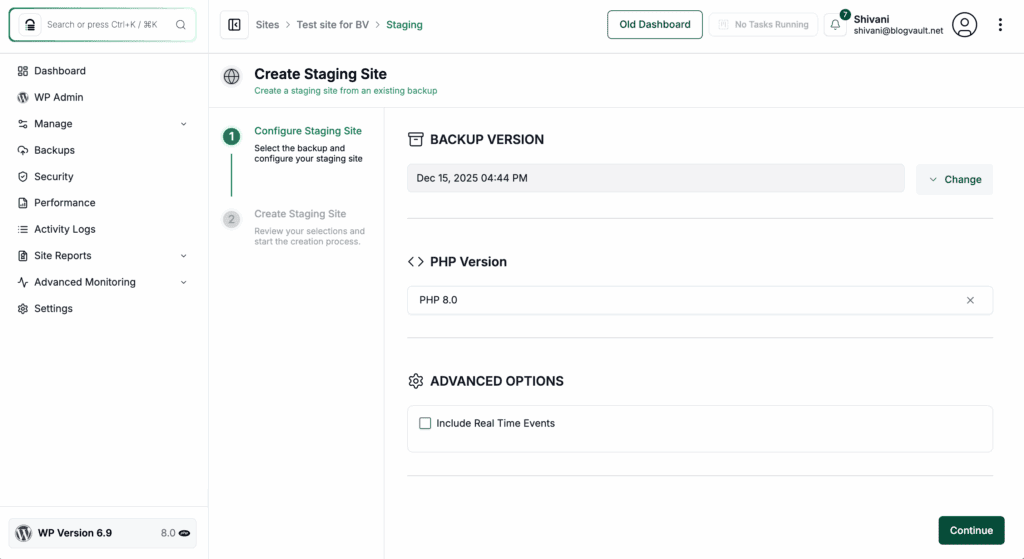
Replicate your network in a staging environment. Never perform this procedure on your live site first. Duplicate your entire network to a staging or development server. This is your sandbox. You can test, validate, and fix any mistakes here without any real-world consequences.
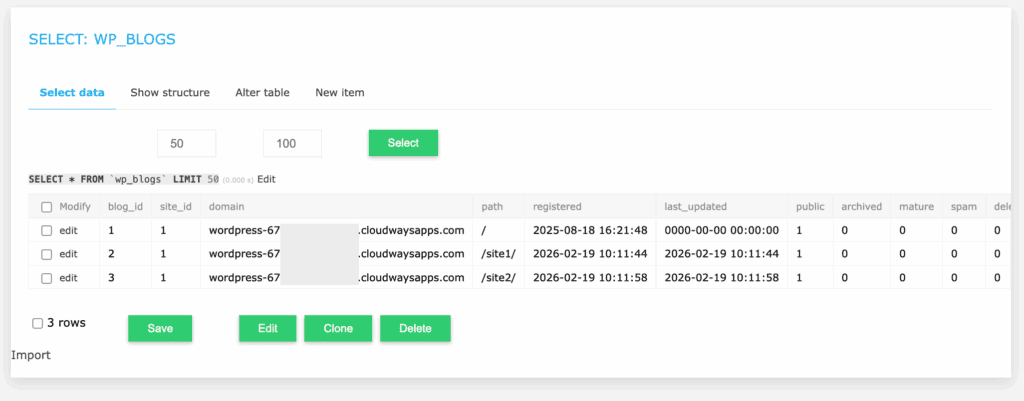
Gather critical site information. You’ll need the blog_id of the site you plan to promote. We’re using the Cloudways Database Manager for this guide, but the process is identical in any database manager. Just open the wp_blogs table to find the ID.
Prepare your database tools. A simple find-and-replace will corrupt your database. Use a specialized tool like the Better Search Replace plugin to do this safely.

WordPress Multisite change main site
With your preparation handled, you have two clear paths forward. The one you choose depends entirely on your goal.
1) Promoting a subsite to a primary site
This is the most common situation. You have an existing subsite, like one with blog_id 3, and you want it to be the new front door for your entire network.
Modify the constants in your wp-config.php file. This is the first step in telling WordPress about the change. Locate these constants and update them to reflect your new main site.
define('DOMAIN_CURRENT_SITE', 'newprimarydomain.com');

define('BLOG_ID_CURRENT_SITE', 3);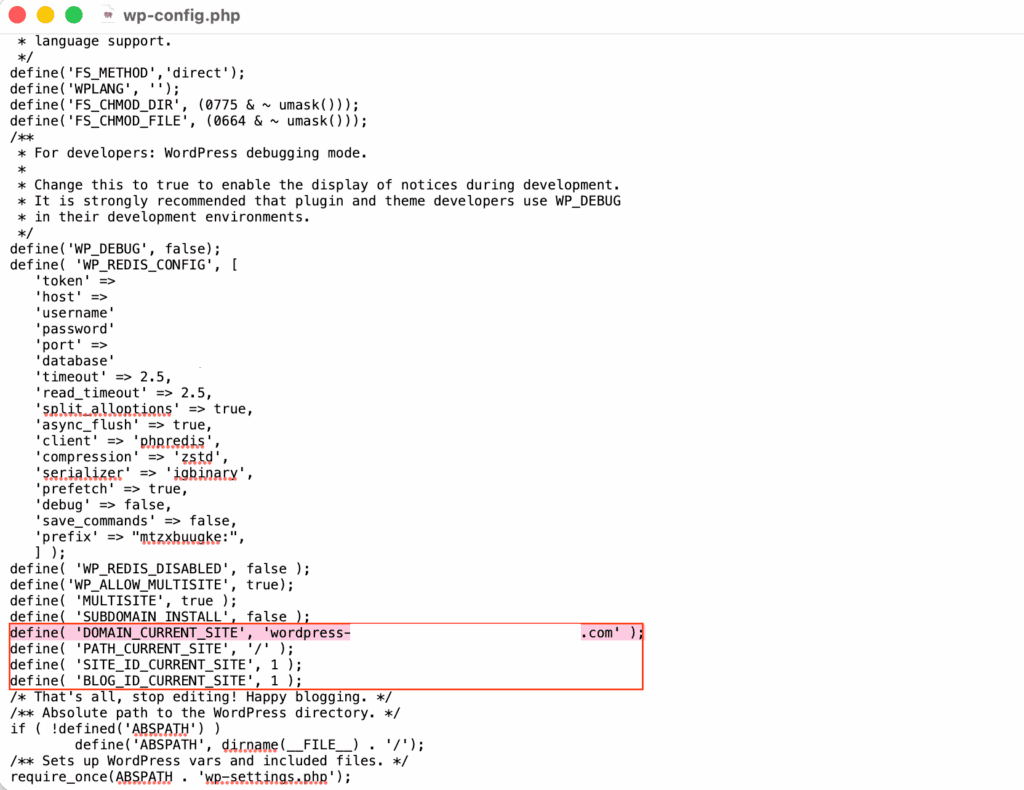
Update the core network database tables. Next, we need to update the network’s main records directly. Using a tool like phpMyAdmin or Adminer, you’ll make two precise changes. This is exactly why you have that full site backup ready. Be careful here, as you are editing fundamental tables.
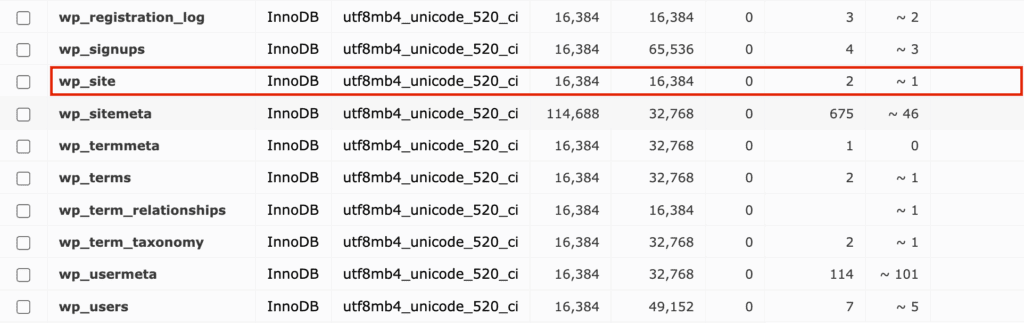
Set the network’s new main address. Go into the wp_site table and change the domain to your new primary domain (newprimarydomain.com).
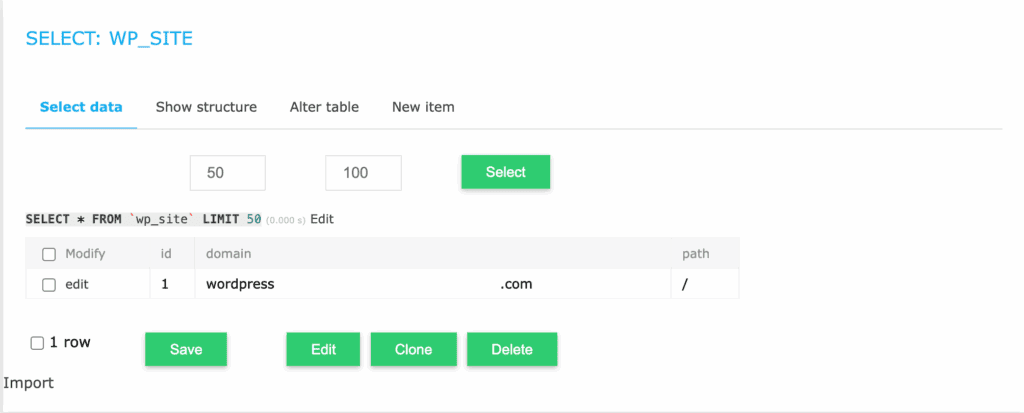
Make your subsite the new “front door.” Open the wp_blogs table, find the row for your chosen site (e.g., blog_id 3), and set its domain to newprimarydomain.com.
Retire the old main site’s domain. In that same wp_blogs table, find the original site (blog_id 1) and change its domain to something unique, like example-root.yournetwork.com. This step is crucial to avoid any conflicts.
Execute a network-wide search and replace. This is the final and most important step. Use your prepared tool to replace every instance of the old primary domain with newprimarydomain.com across all database tables. This corrects every stored URL in your content, settings, and media paths.
2) Changing the domain of the existing root site
This approach is for a simpler scenario. You are keeping blog_id 1 as your main site, but you’re changing its domain. This is common when moving a site from a development URL to its final production address.
Modify the wp-config.php file. You only need to update the domain itself. The blog ID for the main site remains 1.
define('DOMAIN_CURRENT_SITE', 'newproductiondomain.com');
// BLOG_ID_CURRENT_SITE remains 1
Update specific database tables. The new domain (newproductiondomain.com) needs to be changed in these five specific locations.
- wp_options (the siteurl and home options)
- wp_site (the domain column)
- wp_sitemeta (the siteurl meta value)
- wp_blogs (the domain for the row where blog_id = 1)
- wp_1_options (the siteurl and home options for the main site)
Execute a network-wide search and replace. Just like in the first method, run a full, serialization-safe search and replace to update all instances of the old domain to the new one.
Post-change verification protocol
Once the technical work is done, you must verify that it actually worked. This checklist will confirm the health of your network.
- Purge all layers of cache. You need to clear everything. This includes your WordPress object cache, page cache plugins, CDN cache, and any server-side cache like OPcache. Old, cached data is the most common source of confusion after a change like this.
- Test with an incognito browser. Open a private browser window to access your network. This bypasses your local browser cache and shows you what a new visitor would see.
- Test administrative access. Make sure you can successfully log into the network admin dashboard and the WordPress admin of your new primary site.
- Check the front-end integrity. Visit the new main site. Click through pages, posts, and navigation menus. Make sure images load correctly and internal links work.
- Spot check your other subsites. Randomly visit a few other sites in your network. Confirm they are still accessible and functioning correctly.
Best practices for a stable transition
These final steps ensure your network remains healthy and stable for the long term.
- Perform a comprehensive staging test. Your dry run on the staging site must be thorough. Test everything that matters: user logins, contact forms, and any e-commerce functions.
- Document a clear rollback procedure. Know your exact steps to restore from your verified backup. You should also know how long that restoration will take. A clear plan removes panic if something goes wrong.
- Monitor your error logs post-change. For a few days after the switch, keep an eye on your server’s error logs. They can point to lingering issues, like plugins that had the old domain hardcoded.
- Implement an SEO and redirect strategy. To protect your search engine rankings, set up 301 redirects from all old primary site URLs to their new locations. Update your sitemap and your domain in tools like Google Search Console.
- Update all external references. Your work isn’t finished until the new domain is updated everywhere. This includes your CDN settings, SMTP configurations, analytics tracking codes, and any deployment scripts you use.
Parting thoughts
For most situations, the first option is the correct solution. It properly changes the network’s functional main site without trying to rewire its core structure.
However, this is an advanced procedure. It carries inherent risk because it affects your entire network. The process covers everything from creating a backup to the final verification. If any step is outside your technical confidence, we strongly recommend engaging a professional. This is a necessary and prudent investment to safeguard your network’s stability.
FAQs
How do I change the main site in WordPress?
To change the main site in a multisite network, you must edit the wp-config.php file and update specific domain entries in the database. This process reassigns which site acts as the network’s primary root.
How to change site URL in WordPress multisite?
You can change a subsite’s URL directly from the Network Admin dashboard by going to “Sites,” selecting “Edit,” and updating the “Site Address (URL)” field. After saving, you may need a search-and-replace tool to fix URLs embedded in content.
Why is my WordPress site redirecting to another site?
A WordPress site typically redirects due to an incorrect URL in your settings, a misconfigured plugin, or malicious code. Check your .htaccess file and wp-config.php file for unexpected rules or definitions.
How to manage multiple sites with WordPress?
You can manage multiple sites by activating the built-in WordPress Multisite feature, which runs a network of sites from a single installation. Alternatively, management tools like WP Remote let you control completely separate WordPress sites from one central dashboard.

Shivani enjoys crafting guides that make every aspect of using WordPress simple and easy to follow. When she's not glued to her laptop, you can find her buried in a good book or occasionally, painting.