Open your WordPress dashboard on update day and even a routine change can feel a little loaded.
The ordinary jobs are usually the ones that cause trouble: plugin updates, theme tweaks, checkout settings, and cache changes someone recommended because the site felt slow.
Nothing about those sounds dangerous until the checkout stops loading, the mobile menu covers a button, or a form quietly stops sending leads. That’s why staging websites exist. A staging site gives you a closed-off version of the real site, so you can try the change before anyone outside your team has to deal with it.
Staging websites are private copies where you try risky changes before visitors, orders, leads, or search traffic are exposed to them. For WordPress, a staging plugin like BlogVault is usually the simplest way to make that copy without handling files, databases, and URLs yourself.
Use staging before updates, redesigns, checkout work, migrations, and plugin tests. If the public fix would be painful, test privately first.
What is a staging website?
A staging website is a private version of your live site used for testing changes before you publish them.
For WordPress, a useful staging site should be close to live where it counts. Keep the theme and main plugins aligned, and refresh the content when the test depends on current data. That’s what makes the test meaningful. If staging is too different from live, it can pass a change that still breaks the real site.
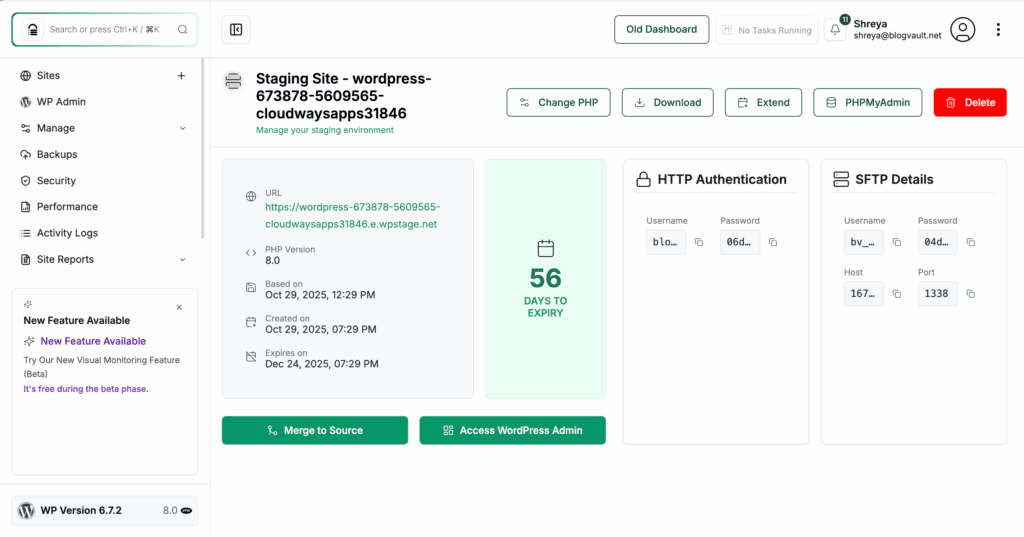
A proper staging site is also isolated. Visitors shouldn’t land on it. Google shouldn’t index it. Customers shouldn’t place real orders there. It also needs its own database, because the database is where your posts, orders, users, settings, and form entries live.
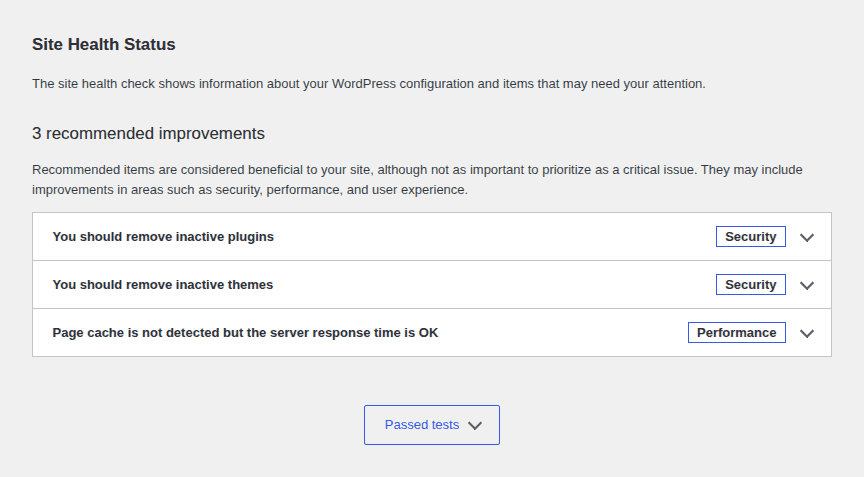
Staging won’t make every change harmless. It gives you a private place to catch problems before they become public.
How staging differs from other site copies
Most confusion comes from the words people use around staging. Your live site is the public site people visit, buy from, and find in search. Many WordPress owners also call this the production site, meaning the real site that must keep working.
A staging site is the private copy where you test a planned change before it reaches live.

A local site runs on your computer. It’s useful for building or learning, but it may not match your live server. A WordPress sandbox is usually a quick test site for trying a plugin or setting. I like sandboxes for quick learning, but I wouldn’t use a blank sandbox as the final test for a shop, a member portal, or a site that collects leads.
When staging is worth the effort
You probably don’t need staging to fix a typo. You do need it when a change can affect how the site works. Use a staging website before you:
- update WordPress, a theme, or an important plugin
- install, replace, or remove a plugin
- change templates, menus, headers, footers, or page builder layouts
- edit checkout, payment, shipping, tax, coupon, or subscription settings
- change forms, login pages, user accounts, or email notifications
- add translations or multilingual features
- test caching, image optimization, or speed settings
- migrate hosts, domains, databases, or site structure
- debug a bug that could get worse while you test
My rule is simple: if a broken live site would cost money, trust, traffic, or hours of cleanup, try the change on the private copy first.
Creating staging websites
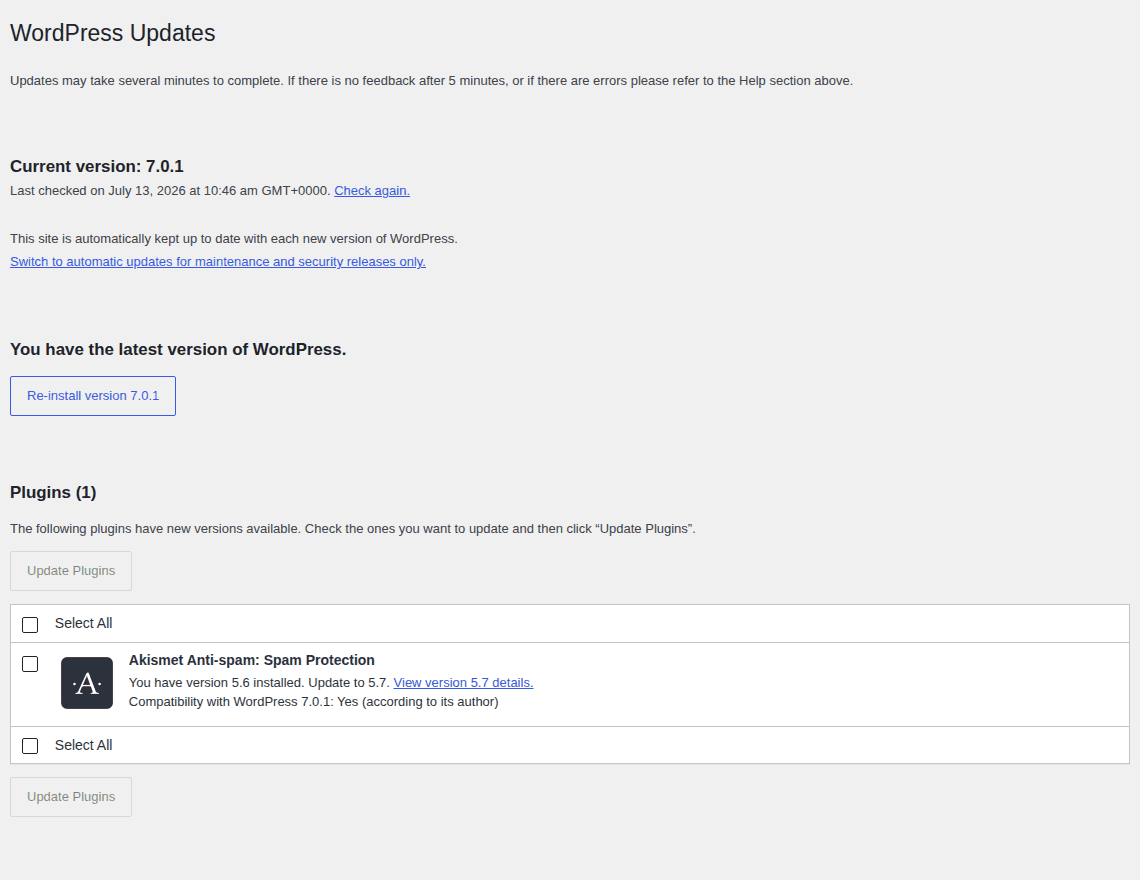
There are three practical ways to create a staging website. Pick the one you’d still be willing to use on a bad day, when the site is acting strange and your patience is already gone.
A) Use a staging plugin
If you’re managing a normal WordPress site, I’d start here.
A WordPress staging plugin can create the private copy, separate it from live, and reduce the manual work of moving files and database content. BlogVault fits this use case because it offers one-click WordPress staging and pairs staging with backups. That pairing matters. Staging gives you a place to check the work. A backup gives you something to restore if the release still goes sideways.
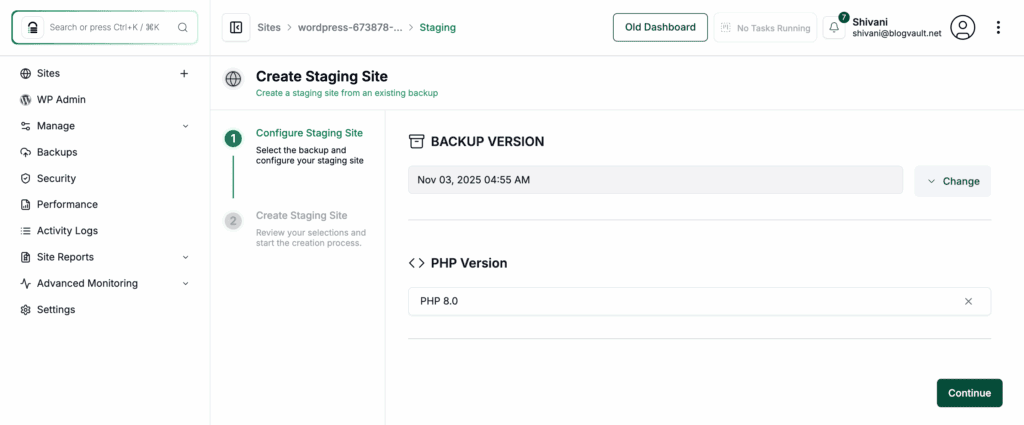
If you need the step-by-step version, use a WordPress-specific guide to create a WordPress staging site instead of trying to turn this overview into a setup checklist. The testing still belongs to you. A plugin can create the copy, but it can’t know whether your checkout, forms, mobile menu, and emails match what your business needs.
B) Use your hosting account
Many hosts include staging in their dashboard. This can be a good option if your plan supports it and the tool clearly explains what it copies. Before you rely on host staging, check three details:
- Is the staging site private and blocked from search engines?
- Does it use a separate database from live?
- When you publish changes, does it move files, the database, or both?
Don’t judge the host tool by the button text alone. A design file change is very different from replacing the live database.
Build staging manually
Manual staging means building the copy yourself. You’ll move WordPress files, export and import the database, update the URLs, adjust the settings, and lock the copy away from visitors and search engines.
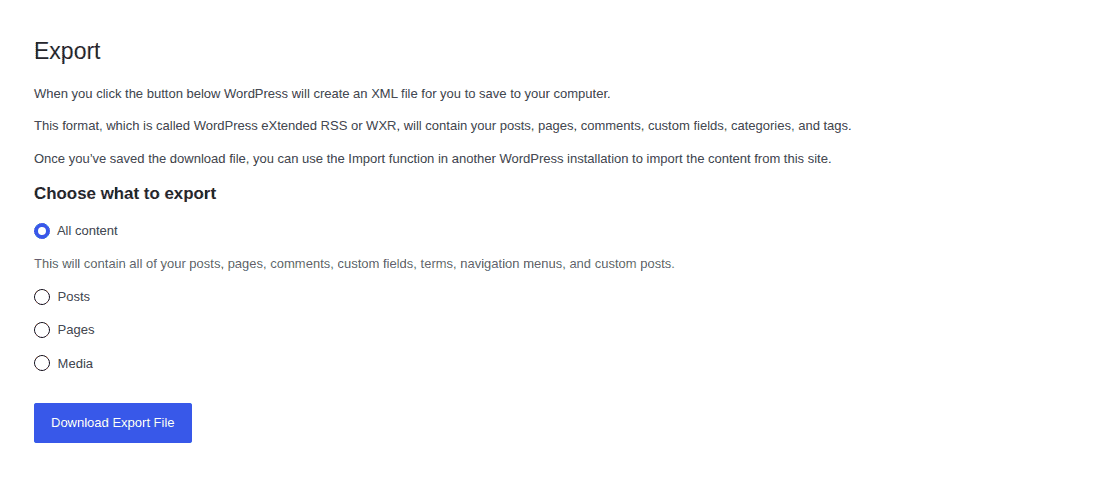
Developers do this all the time. Beginners can do it too, but small mistakes can create strange results. A missed URL can send testers back to live. A shared database can put real data at risk. A public staging copy can expose private work.
If you choose manual staging, save a backup before you touch anything and write down each change. Treat it like real site maintenance.
A simple WordPress staging workflow
Keep the process plain. That’s a compliment when the public site is on the line. For most WordPress changes, this is the staging workflow I’d use:
- Back up the live site first. Before major updates, migrations, or deployment work, backup your WordPress site and keep a clean restore point. Staging doesn’t replace that safety net.
- Create or refresh the staging copy. Use a staging plugin, your host, or a manual copy. An old staging site may no longer match live, and that makes the test less useful.
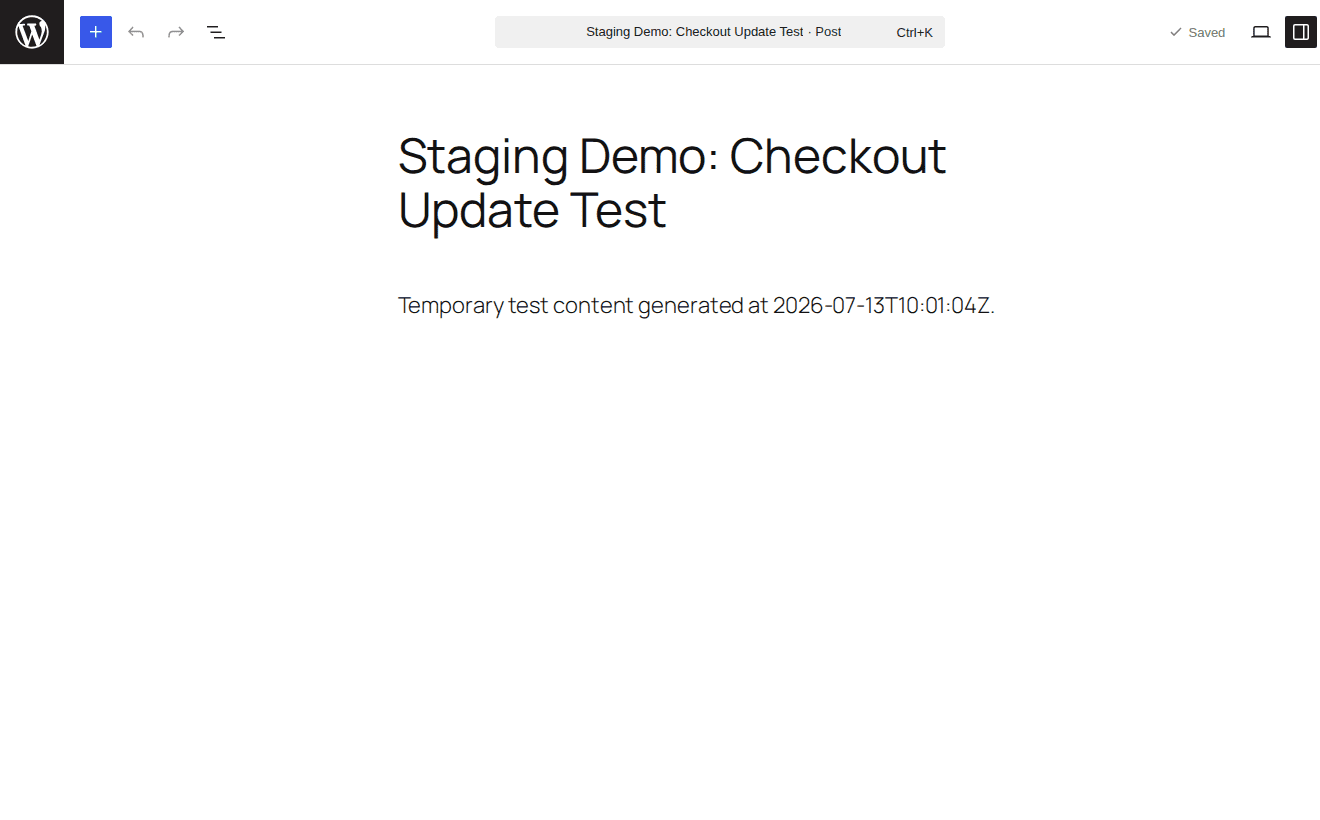
- Make the planned change on staging. Update the plugin, change the layout, edit the checkout setting, or test the migration on the private copy first.
- Test the paths people actually use. Don’t stop at the page you edited. Do the job a visitor came to do: submit the form, open the mobile menu, sign in, or walk through a test purchase.
- Choose the right release method. Repeat the change manually, push files only, use selective deployment, or do a full push only when it’s safe for your kind of site.
- Protect the latest live version before release. If the live site changed while you were testing, save the current state before publishing. This matters most on stores, membership sites, booking sites, and any site that keeps collecting user data while you work.
- Review live after publishing. Check the changed area and the main user paths once the update is public. Staging catches many problems, but the final check still happens on the real site.
What to test on staging
Most people test too little. They load the edited page, see that it looks fine, and move on. That’s how broken forms and checkout issues slip through.
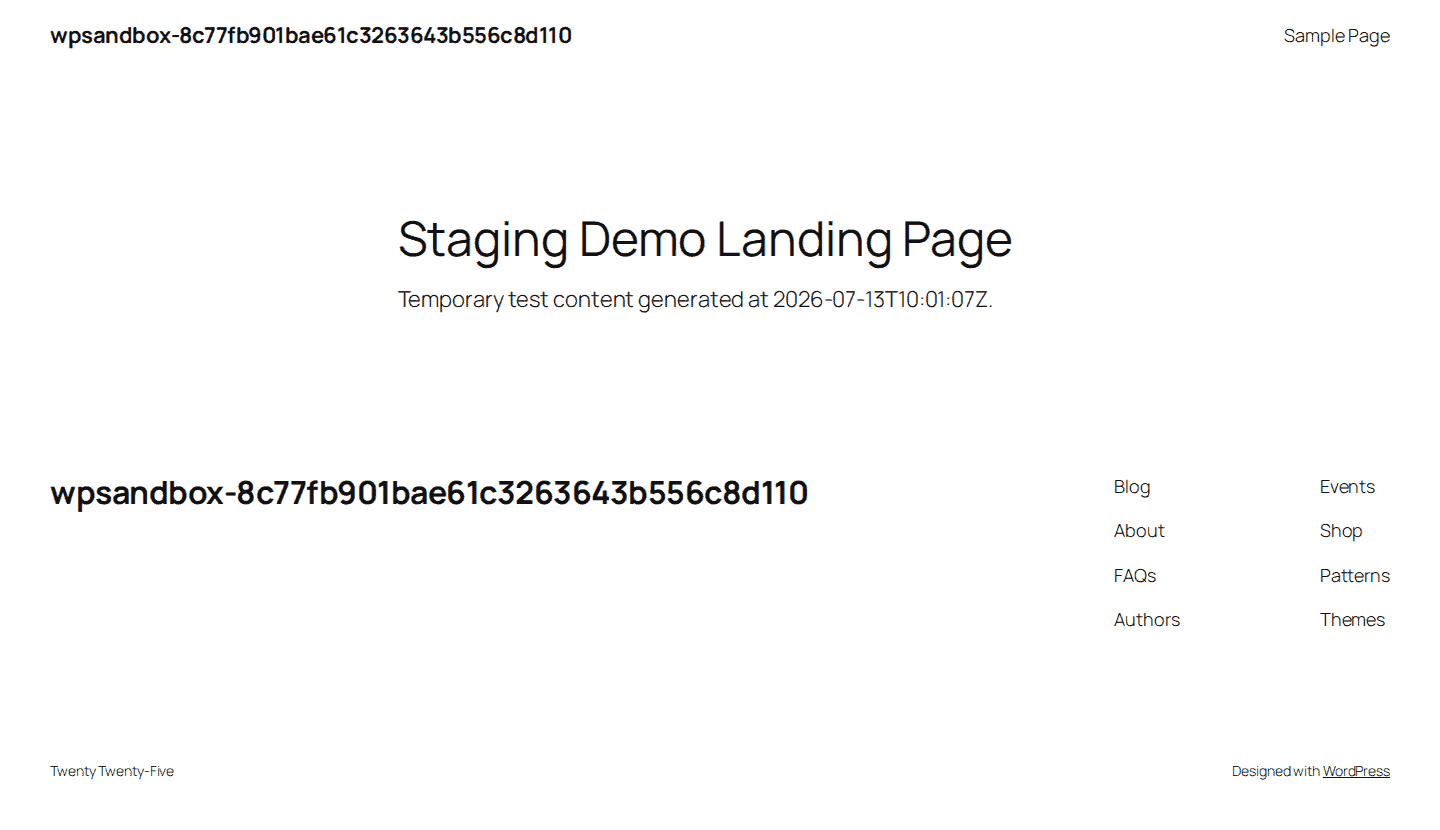
Start with the change, then follow the nearby user journey. After a form plugin update, send an entry and confirm the notification arrives. For WooCommerce updates or checkout work, run a payment in test mode. With caching changes, compare what a visitor sees with what an admin sees, because saved page copies can behave differently for each.
On most WordPress sites, spend your time on the areas visitors rely on:
- the homepage and your most important entry pages
- the page, template, or setting you changed
- navigation, search, header, footer, and mobile menu
- forms, file uploads, and email notifications
- login, account access, password resets, and admin access
- cart and checkout behavior, including coupons, taxes, shipping, and payment test mode if you sell online
- speed, caching, images, and interactive elements
- redirects, permalinks, search visibility, and sitemap behavior
- translated pages and language switchers if your site is multilingual
You don’t need every check for every edit. A small design change can skip payment testing unless it touches checkout. What matters is the path a real visitor would take through the site.
The deployment risk that matters most
Making the staging copy is rarely the hardest part. Moving changes back to live is where people get hurt.
The risk is stale data. Your live site doesn’t pause while you work on staging. Orders come in, forms get submitted, profiles change, and appointments get booked. If you publish the staging database over live, the design work may land perfectly while newer records disappear.
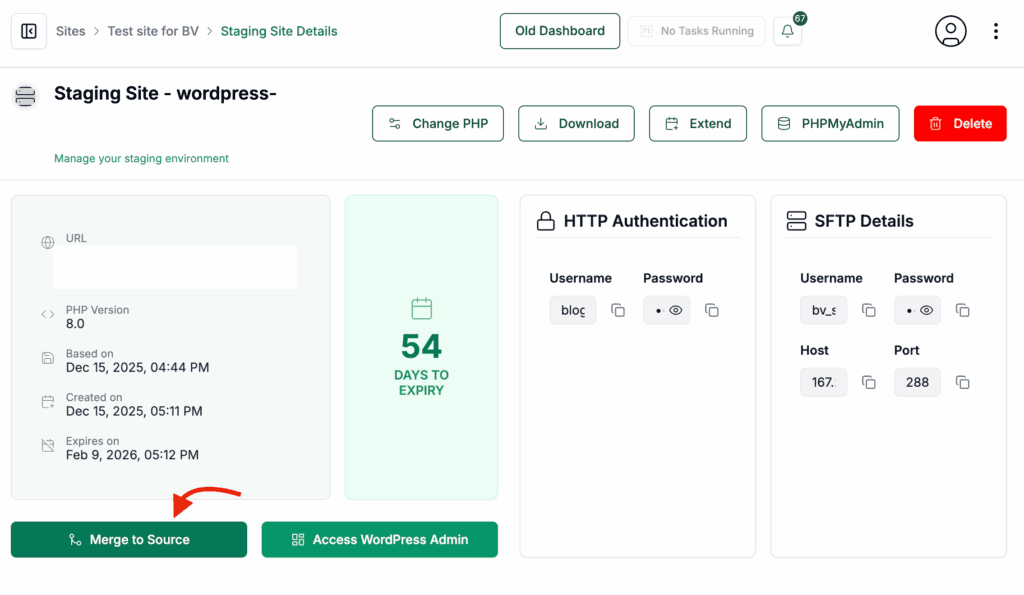
Before you push staging changes live, check this:
- What changed on live while staging was being tested? For a brochure site, the answer may be “nothing important.” For stores, course sites, member portals, directories, forums, and busy lead-gen sites, the answer is usually messier.
- Are you moving files, the database, or both? Theme files and plugin files are one kind of change. A database push can replace posts, settings, orders, users, comments, form submissions, and bookings.
- Does the live site collect data from visitors? If it does, assume the live database has newer information than staging unless you’ve checked.
- Can you repeat the change manually instead? Sometimes the calmer release is to make the same setting change on live, upload the file you already tested, or use a selective deployment tool instead of pushing the whole staging copy.
- Do you have a fresh backup of live? Save the current live state before release, not just the version from before testing began.
If you can’t tell what will be overwritten, don’t push the database yet.
Common staging mistakes
Most staging mistakes come from treating the copy like it’s safer than it really is. Watch for these:
- Assuming staging guarantees a safe release. It gives you somewhere better to test, but a shallow check can still send a broken form or checkout to live.
- Letting search engines see the staging copy. Use password protection and noindex settings so unfinished or duplicate pages don’t show up in search.
- Sharing the live database. Staging should have its own database, otherwise test work can touch real orders, users, settings, and submissions.
- Sending real emails from staging. Test order emails, password resets, and form notifications can confuse customers fast.
- Using real payment settings. Put gateways in test mode on staging unless there’s a clear, deliberate reason to do otherwise.
- Letting staging get stale. An old copy can still help with layout work, but it shouldn’t be the source you trust for live data or release decisions.
- Testing only the edited page. The edited page can behave perfectly while the mobile menu, form confirmation, checkout step, or login flow is broken.

Is staging worth it for a small site?
Yes, once the change affects more than text. Small sites are often more exposed because one person does everything. There may be no developer watching logs, no tester checking forms, and no release process beyond clicking Update.
Staging gives you a controlled pause. You can update the plugin there first, check the important pages, submit the form, and try the mobile menu. If the staging copy behaves well, you can make the live change with better evidence.
If your site takes orders or signups, staging matters even more. The same goes for bookings and lead forms. Just be more careful when moving changes back to live.
Conclusion
Staging websites aren’t just for developers. They’re for anyone who manages a site that people depend on. A good staging environment lets you test the risky work before it reaches visitors.
The part worth remembering is that staging has two jobs: create a private place to test, then help you move the right changes to live without overwriting fresh data. Get those two parts right and staging becomes a normal maintenance habit, not a stressful technical project.
FAQs
What is a staging website?
A staging website is a closed-off copy of your live site where you try changes before publishing them. It helps you catch problems with updates, plugin changes, design work, forms, checkout, migrations, and settings before visitors see them.
How do I create a staging website in WordPress?
For most WordPress sites, use a staging plugin or the staging tool inside your hosting account. If you’re building it manually, copy the files and database into a separate private setup, then update URLs and settings so the clone doesn’t point back to live.
What is the difference between a staging site and a live site?
The live site is the real website people visit and use. Staging is the private testing copy. A good staging site should be blocked from public visitors and search engines, with its database kept separate from live.
Can a staging site affect my live site?
Yes, when setup or deployment is careless. The big danger signs are a shared live database, real emails, real payments, or a database push that replaces newer live records.
Is it safe to push staging changes to live?
It can be safe when you know exactly what will move. Files-only releases are very different from database releases. On active sites, especially stores and membership sites, an old staging database can remove recent orders, users, bookings, or form entries.

Shreya has been a writer for as long as she can remember. Now, she writes articles that help WordPress users manage the sites that they're proud of, with little to no coding