
WordPress multisite networks put you in an impossible position.
Do you give team members enough access to do their jobs, or do you worry about them accidentally breaking other sites?
Understanding WordPress multisite user roles solves this problem completely. This article shows you exactly how to set up user roles so your team can work efficiently while keeping your network secure.
Super Admins control your entire network while site roles stay confined to individual sites. Give users minimum access, and use the User Role Editor plugin for custom roles. Ensure you protect your network with a reliable backup plugin since users with wrong roles can accidentally delete important content.
Understanding WordPress multisite user roles
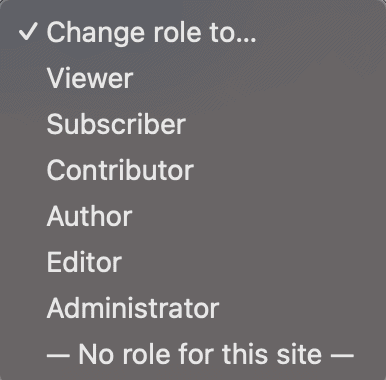
WordPress multisite user roles control what people can do on your network. Every role is a collection of specific permissions.
Here’s how this solves your impossible choice: After you set up your Multisite network, Super Admin is the only network-wide role, and you can grant it to more than one trusted person. All other default roles (Administrator, Editor, Author, Contributor, Subscriber) are assigned per site, and multiple users can share the same role on a given site.
Network permissions and site permissions work independently. This separation is exactly what prevents Site Administrators from breaking your entire network while still giving them enough access to do their jobs.
Super Admin role and capabilities
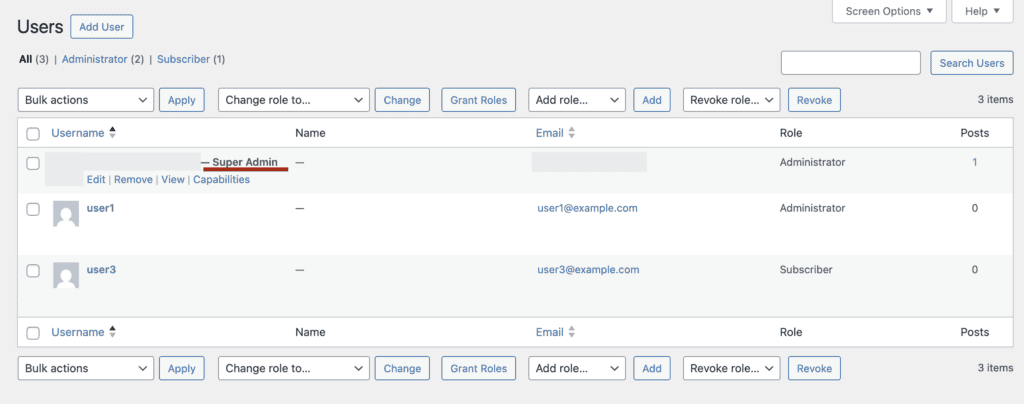
Super Admins have complete control over your multisite network. They get access to the Network Admin dashboard, which serves as the control center for your entire setup.
From there, they can create new sites, delete existing ones, and manage every site in your network. They decide which themes and plugins are available across all sites. When a plugin needs updating, Super Admins handle it for everyone at once.
They also control users at the network level. Super Admins can create accounts, remove people entirely, and assign anyone to any site with any role they want.
Site Administrator role and limits

Site Administrators manage individual sites within your network. Multiple people can have Site Administrator access on the same site.
Site Administrators have full control over their assigned site’s content and appearance. They manage posts, pages, comments, categories, and tags.
When it comes to users, Site Administrators can create new accounts for their site or add existing network users and assign them appropriate roles.
Here’s where their power stops. They can’t:
- Install new themes or plugins (only activate what Super Admins provide)
- Access Network Admin areas
- Create new sites
- Manage other sites in the network
Think of Site Administrators as store managers. They run their location completely but cannot open new stores or make company-wide policy changes.
Standard user roles: Editor, Author, Contributor, Subscriber
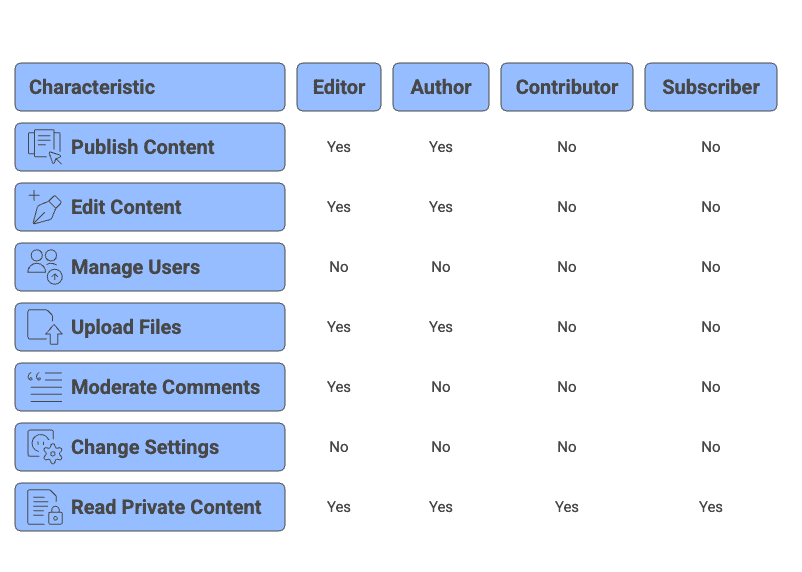
These roles work exactly like standard WordPress roles but stay confined to their assigned site. This is what ends those constant permission requests while keeping your network safe.
Editor: Can publish and edit any content on their site, including posts from other users. They moderate comments and manage categories but cannot change site settings or manage users.
Author: Creates, publishes, and edits only their own posts. They can upload files but cannot touch other users’ content or site settings.
Contributor: Writes posts but needs approval before anything goes live. They cannot upload files or publish content directly.
Subscriber: Can log in, update their profile, and read private content. They cannot create or edit any content.
Each user gets exactly the access they need on each specific site. No more, no less.
How to assign users to sites and set their roles
Now that you understand who controls what, let’s see how to actually set this up. The process involves two main steps: creating users at the network level and assigning them to specific sites with appropriate roles.
Creating new network users
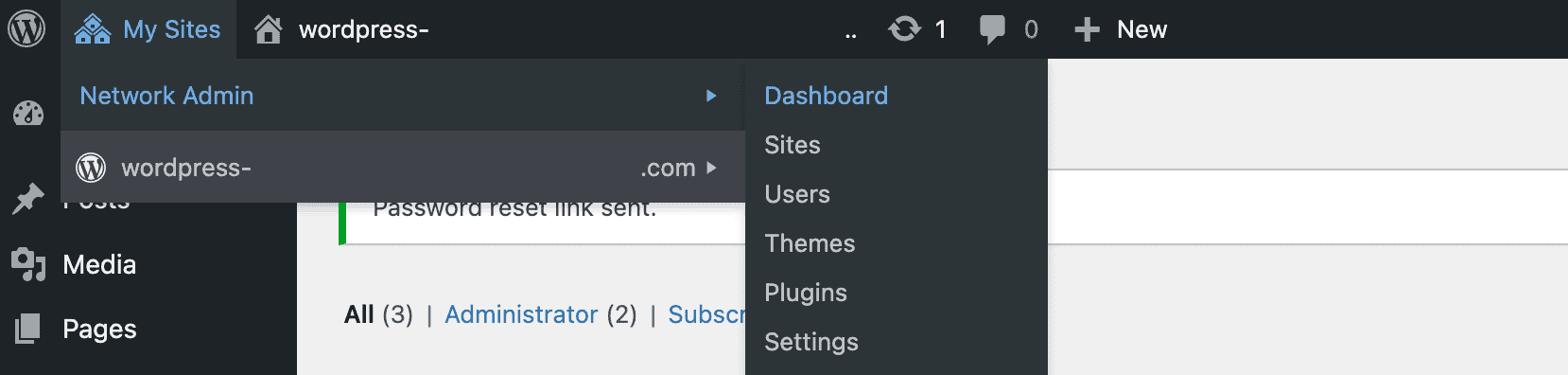
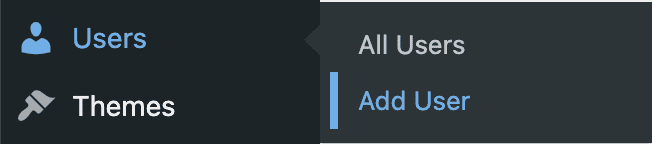
Start in your Network Admin dashboard. Navigate to Users > Add User to register someone new to your entire network. You’ll need their username and email address. WordPress emails the user a password reset link.
Adding users to individual sites
Switch to the dashboard of the site where you want to add this person. Head to Users > Add User, then look for the Add Existing User section. Search for them by username or email address.
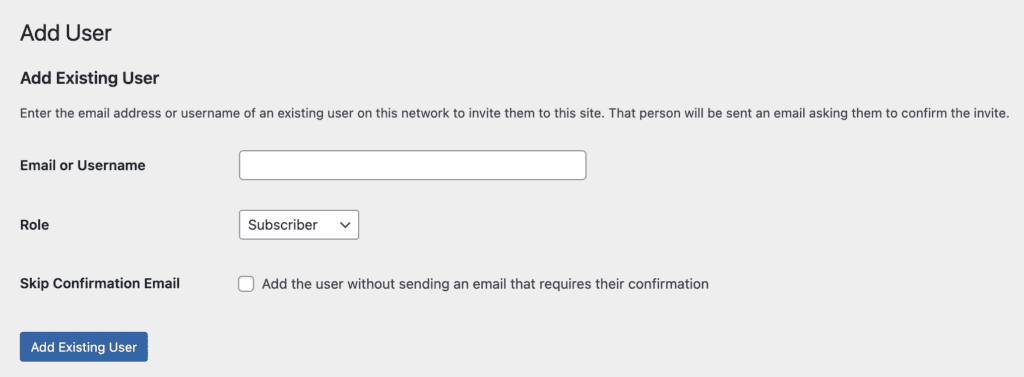
Select their role from the dropdown menu (Subscriber, Contributor, Author, Editor, or Administrator). Click Add Existing User and they’re set up on that site with those specific permissions.

The beauty of this system is that you can add the same person to multiple sites with completely different roles.
Creating custom user roles
Sometimes the standard roles don’t fit your needs. You need something between Author and Editor, or a role that can manage users but not edit content.
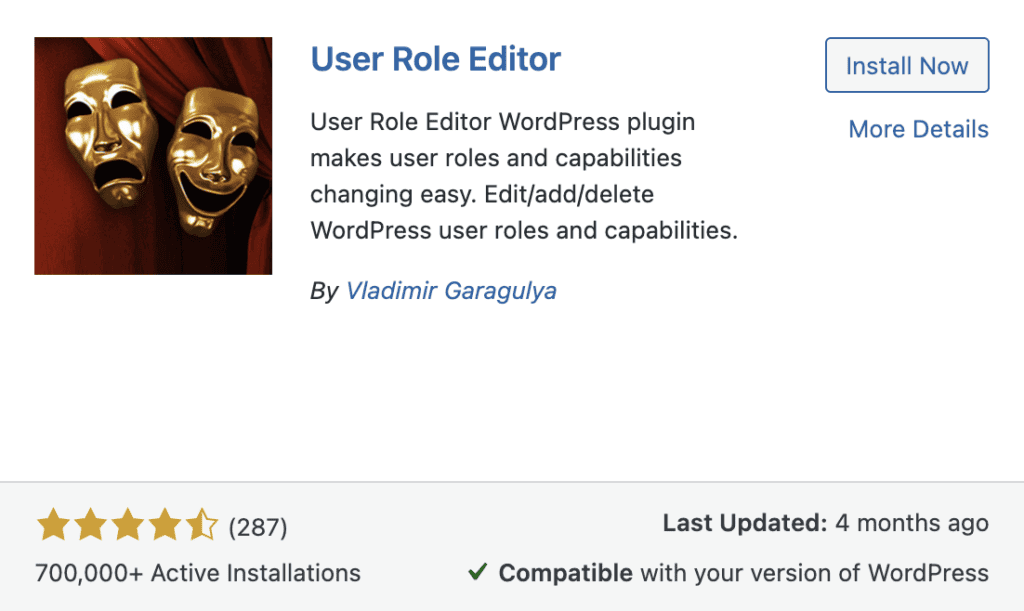
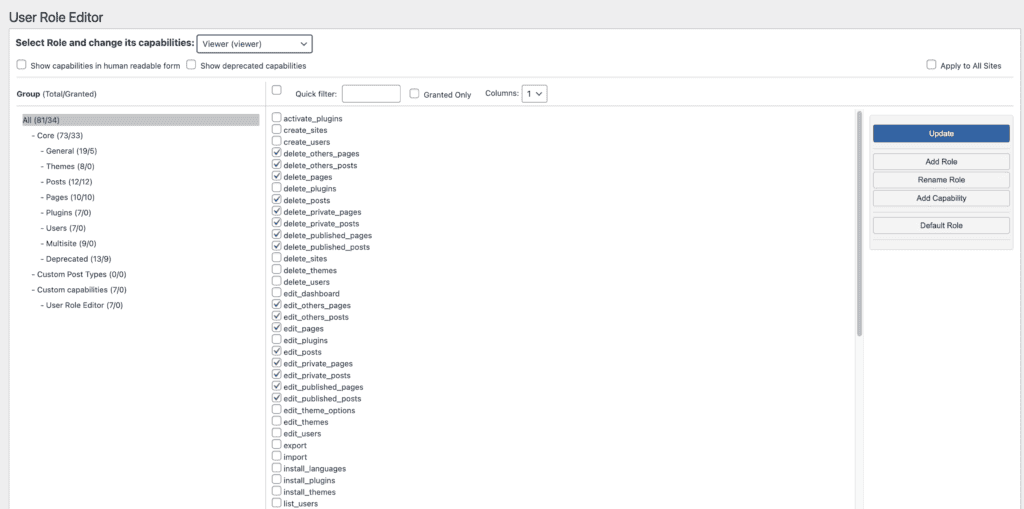
The easiest solution is the User Role Editor plugin. Install it and go to Users > User Role Editor in that site’s dashboard.
Click Add Role to create something new. Start by copying an existing role’s capabilities, then check or uncheck specific permissions to customize what this role can do. Click Update and your custom role is ready.
Security and maintenance
Setting up roles correctly is just the beginning. Here are the essential practices to keep your multisite network secure.
Protect your Super Admin access: Limit Super Admin access to two or three people maximum. Use strong passwords, enable two-factor authentication, and never use admin as a username. Document who has Super Admin access so you can quickly deactivate accounts when people leave.
Multisite backups: Set up regular, network-wide backups for your Multisite using a reliable backup plugin. If something goes wrong, you can quickly restore the network to a previous version.

Monitor your network: Install an activity log plugin to track user actions across your network. When something goes wrong, you’ll know who did what and get to fixing it.

Keep everything updated: WordPress core, themes, and plugins need regular updates. Outdated software can compromise your entire network, regardless of how well you’ve configured user roles.

Smart role management: Give people the minimum access they need. Content writers don’t need Site Administrator access; Editor role works fine. Audit user roles quarterly and remove inactive users promptly.
Troubleshooting user role issues
Even with perfect setup, you’ll run into user role issues. Here are the most common problems and their quick fixes.
I can’t see the menu I need
When users complain about missing menus or options, check their assigned role on that specific site first. For example, a user might be an Editor on Site A but only a Contributor on Site B, which explains why the publish button disappeared.
Go to that site’s Users section and verify their role. If it looks correct, double-check what capabilities that role actually has if it’s custom. Sometimes the role name is right but the permissions aren’t.
My custom role isn’t showing up
Custom roles only exist on the site where you created them. If you need the same custom role across multiple sites, you’ll need to recreate it on each one individually.
Alternatively, use a network-wide plugin like User Role Editor to create roles easily.
Why can’t my Site Admin install plugins?
This isn’t a bug, it’s a feature. Site Administrators cannot install themes or plugins by default. Only Super Admins can install new items network-wide.
Site Admins can only activate or deactivate themes and plugins that Super Admins have already made available to them.
The user can’t access their site
Confirm two things: they were added to the correct site and assigned the right role. It’s easy to add someone to the wrong site when you’re managing multiple subsites.
Check the site’s Users list to make sure they appear there with their assigned role.
Role changes aren’t working
Clear all your WordPress cache first. Role changes can get stuck in cached data.
If you’re editing custom roles, make sure you’re making changes in the correct site’s dashboard, not accidentally editing a different site’s version of the role.
Insufficient permissions errors
The user’s role lacks a specific capability for that action. Check what capabilities their role includes, then either assign them a higher role or add the missing capability to their current role using the User Role Editor plugin.
Most of these problems boil down to checking the basics: right user, right site, right role. Start there and you’ll solve 90% of permission issues quickly.
Parting thoughts
WordPress multisite user roles don’t have to be complicated once you understand the basics. Super Admins control everything network-wide, while site roles stay confined to their specific sites.
You no longer have to choose between constant permission requests and security risks. Give people the minimum access they need to do their jobs effectively, nothing more. Use plugins like User Role Editor when you need custom roles, and review user access quarterly to remove unnecessary permissions.
Your team can now work efficiently, your network stays secure, and you can finally sleep peacefully knowing your sites are protected.
FAQs
What is a user role that is unique to WordPress multisite?
The unique role in WordPress Multisite is Super Admin. It is a network-level role with access to Network Admin and control over sites, themes, plugins, and users across the entire network.
How do I allow multiple user roles in WordPress?
To allow multiple roles, assign more than one role to the same user on a site using a roles plugin or custom code. WordPress supports multiple roles per user in code, but the default UI shows only one; plugins like Members or User Role Editor enable multi-role assignment.
What are the roles of users in WordPress?
The default site-level roles are Administrator, Editor, Author, Contributor, and Subscriber.
Administrator manages the site; Editor manages all content; Author publishes own posts; Contributor writes but can’t publish; Subscriber manages profile. In Multisite, there is also Super Admin, which controls the entire network.
How do I add a super admin to my WordPress multisite?
To add a Super Admin, go to Network Admin > Users, edit the user, and check “Grant this user super admin privileges.”
How many users can a WordPress site have?
A WordPress site does not have a fixed user limit. Practical limits depend on hosting resources, database size, and how plugins query users. Large user counts can slow admin screens and queries, so use caching, pagination, and optimized hosting.

Shivani enjoys crafting guides that make every aspect of using WordPress simple and easy to follow. When she's not glued to her laptop, you can find her buried in a good book or occasionally, painting.