When a page changes unexpectedly, a plugin update breaks your site, or an unfamiliar user logs in, guessing what happened wastes time.
A WordPress activity log gives you the details you need by recording what changed, who made the change, and when it happened. That record can help you fix mistakes and investigate suspicious activity faster.
WordPress does not include a complete activity log by default, so you need a plugin to track these events. We compared the best options for different needs, from simple change histories to detailed records, developer controls, security monitoring, and recovery tools.
A WordPress activity log tracks changes such as logins, content edits, role changes, plugin updates, and settings changes. Pair it with a WordPress backup plugin: logging shows what happened; a separate backup gives you a safe restore point when a change causes damage.
WordPress activity log plugins at a glance
Here is a quick comparison of the six plugins, their best fit, and the tradeoff to check before installing.
| Plugin | Best for | Main strength | Important limit |
|---|---|---|---|
| MalCare | Security-focused owners | Activity history alongside malware scanning, a firewall, and other security tools | Confirm the current plan details and history settings |
| WP Activity Log | Agencies, stores, and complex sites | Deep event detail, integrations, reports, and control over how long records stay | Advanced alerts, reports, remote sign-out, and outside storage need paid features |
| Simple History | Beginners and content teams | Clear language and quick setup | Longer history and some add-ons are separate features |
| Activity Log | Request-source tracking | Shows whether changes came from the dashboard, an automated tool, or a scheduled task | Check compatibility and support for your site |
| Stream | Developers and publicly available code | Filters, alerts, webhooks, export files, text-based searches, and several-site support | IP setup and uninstall data handling need care |
| Jetpack | Existing Jetpack users | Activity history within a wider security and backup service | History length, filters, and other-plugin coverage vary by plan |
1. MalCare
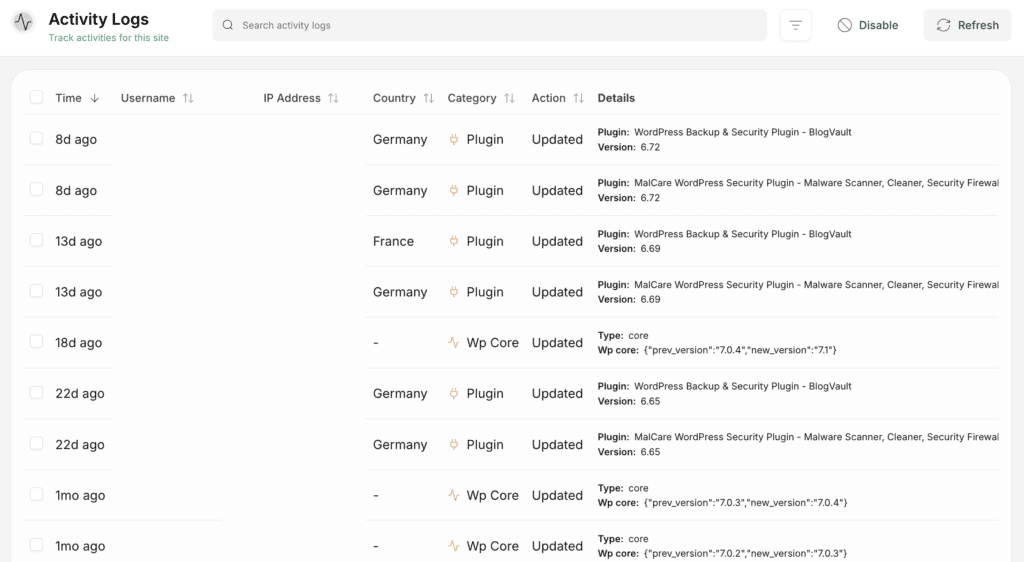
MalCare fits owners who want activity records beside malware scanning, a firewall, and other security controls. Its activity log covers supported changes to posts, pages, users, plugins, themes, files, and WooCommerce activity. Multisite activity is supported too.
That puts the event timeline in the same broader workflow as checking a site for malware, tightening access, and deciding whether a suspicious change needs cleanup or recovery.
Best for
- Choose it when: activity tracking and malware protection belong together. If an unknown plugin appears in the log, the surrounding security tools give you a next step beyond simply recording the event.
- Security-minded owners get one place to review changes and respond to a possible compromise. The log is evidence for that workflow, not proof that the site is hacked.
Tradeoffs
- Records are stored in the MalCare account rather than in the WordPress database, according to MalCare. That can preserve access to the timeline if the site itself is altered, but it does not capture every server event or make the record complete.
- Activity-log availability and depth can depend on the current plan. Check the live plan details before purchase rather than assuming every tier includes the same history.
- Skip it if: you only need a basic change timeline. A standalone logger is simpler; the wider security bundle makes more sense when you will use the protection and response tools too.
2. WP Activity Log
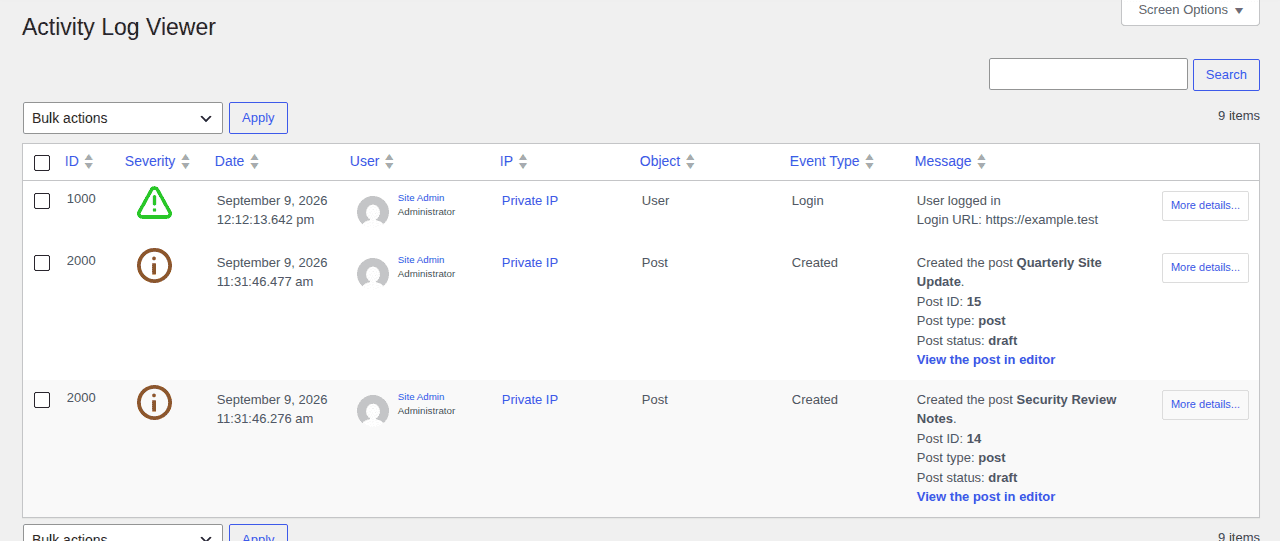
WP Activity Log records detailed WordPress changes. These include content fields, users, roles, login attempts, plugins, themes, settings, files, WooCommerce, and many other tools. Each supported event can include the time, user, role, source IP address, and affected item.
Third-party integrations extend that view into tools such as forms, memberships, custom fields, redirects, and search-visibility plugins, which matters when the change is not limited to a standard post or page. Coverage still depends on the integration being supported, so check the tools your site actually uses.
Best for
- Choose it when: client sites, stores, memberships, or multisite networks need more context than “something changed.” The affected field, actor, role, source, and related integration can narrow the investigation.
- Teams that need detailed records, retention controls, reports, alerts, session management, or log forwarding get a stronger operational audit trail here.
- Skip it if: a small single-author site only needs a readable dashboard timeline. Simple History may answer that need with less configuration.
Tradeoffs
- The free edition covers core event logging, while paid features add alerts, reports, user-session management, external storage, and log mirroring. Mirroring means sending a copy to another record system.
- Advanced controls help only if someone will review alerts or maintain the extra storage and reporting workflow. A small site may find them harder to operate than they are worth.
- Set the retention period deliberately. The default and available options can change with the product version, and long histories increase storage and privacy responsibilities.
3. Simple History
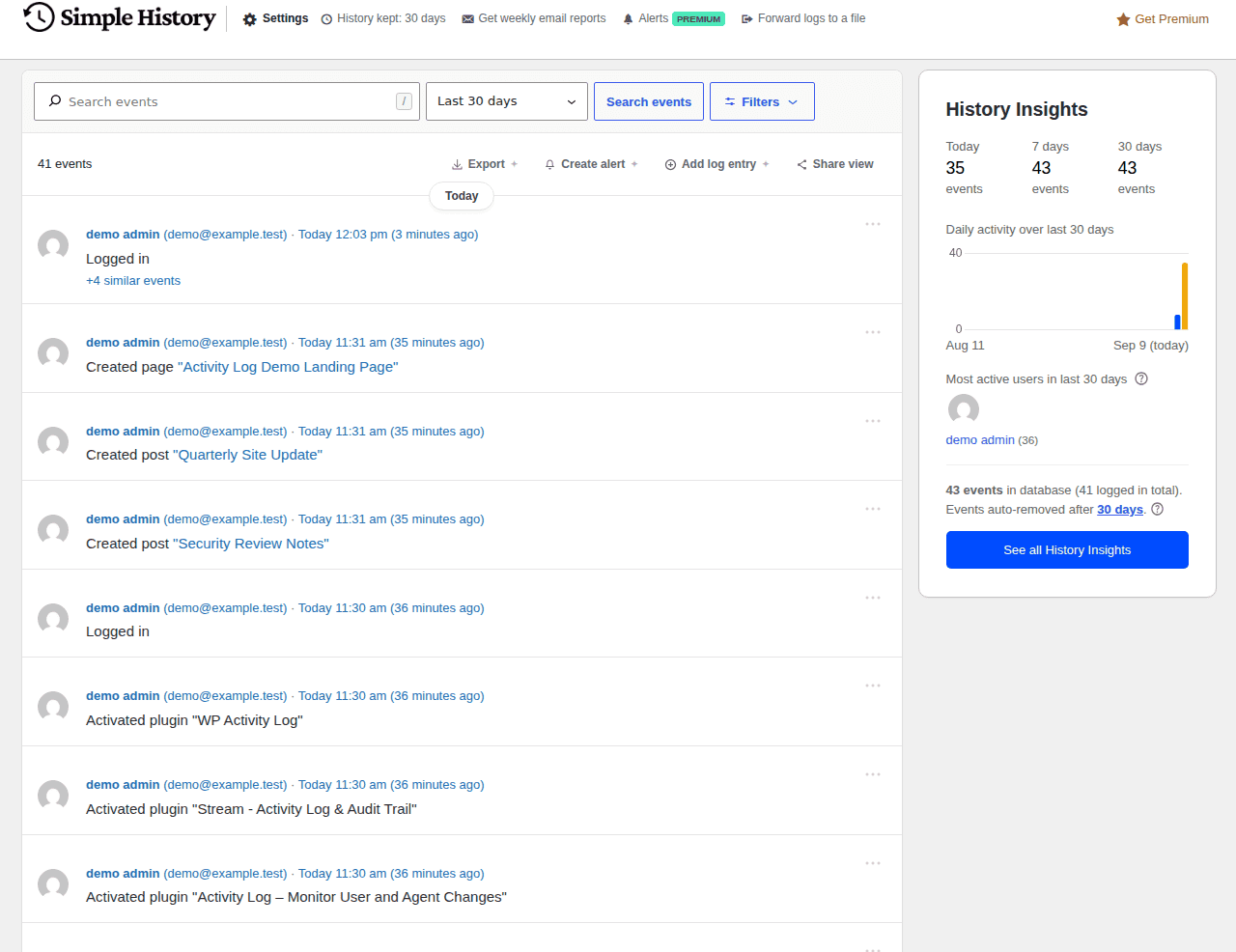
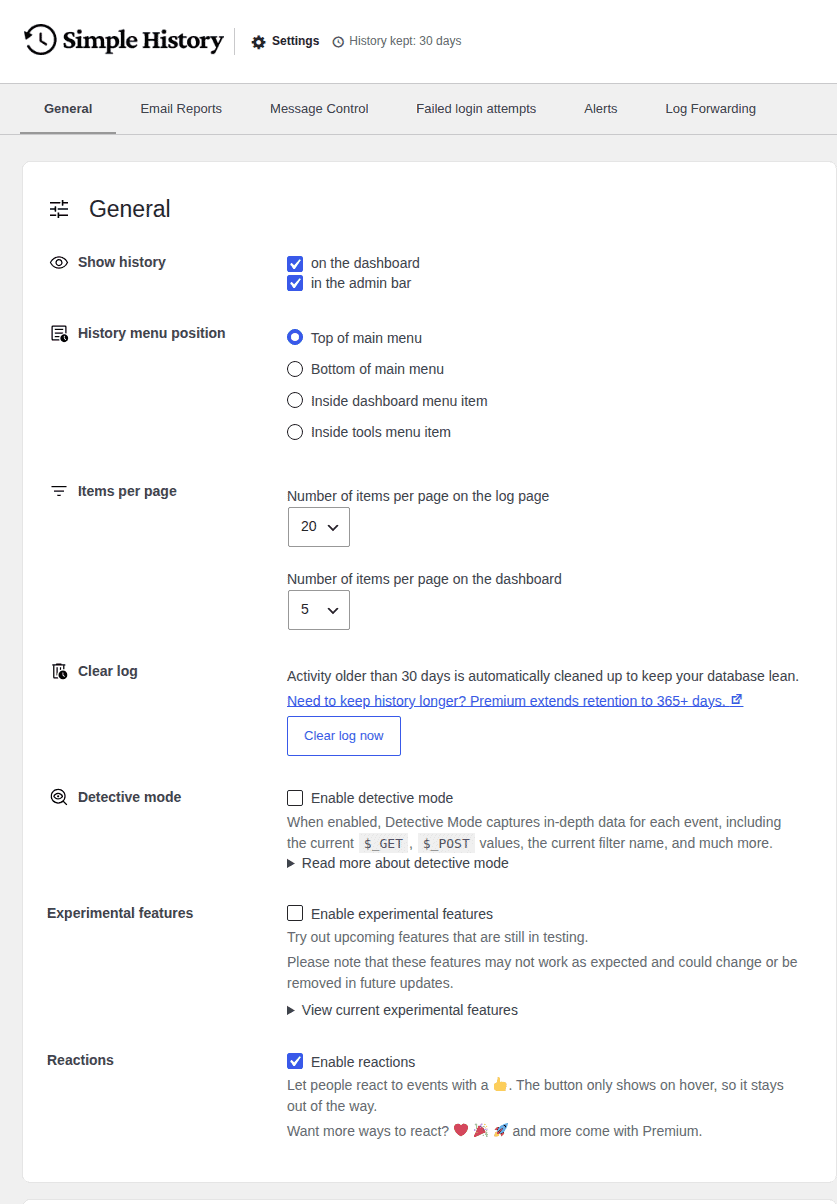
Simple History uses plain event descriptions and is the clearest free starting point. Activity appears in the WordPress dashboard and the top WordPress toolbar. The plugin tracks common content, user, login, plugin, theme, comment, media, menu, widget, and settings changes and the core version is free.
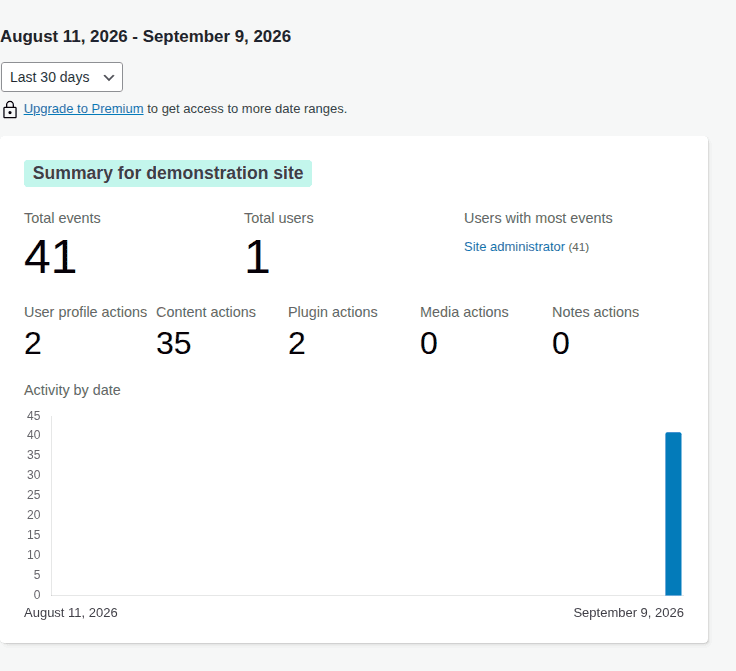
In our WordPress admin test, version 5.32.0 opened its Event Log without a setup wizard and displayed search, date filters, event filters, and History Insights.
The page showed eight events, backfilled three existing posts and one user, and recorded its own installation and activation.
Best for
- Choose it when: a beginner or content team needs to answer “what changed?” without learning a complex audit console. The dashboard and admin-bar views make the history easy to find.
- In the direct admin test, setup was low friction and existing content and user activity appeared in the initial view. That makes it a practical starting point for a typical site, not evidence of complete coverage for every plugin or store workflow.
- Skip it if: you need centralized reports, deep ecommerce coverage, or extensive alert routing without add-ons.
Tradeoffs
- Add-ons provide options such as alerts, forwarding, longer history, and WooCommerce records. Export and longer history were marked as paid add-ons in the tested screen.
- Retention needs verification before publication or rollout. The tested screen showed 30 days, while the current WordPress.org listing says 60 days by default; use the setting on the version you install as the authority.
- Choose another tool if you need reports for several sites or broad store coverage without adding extensions.
4. Activity Log
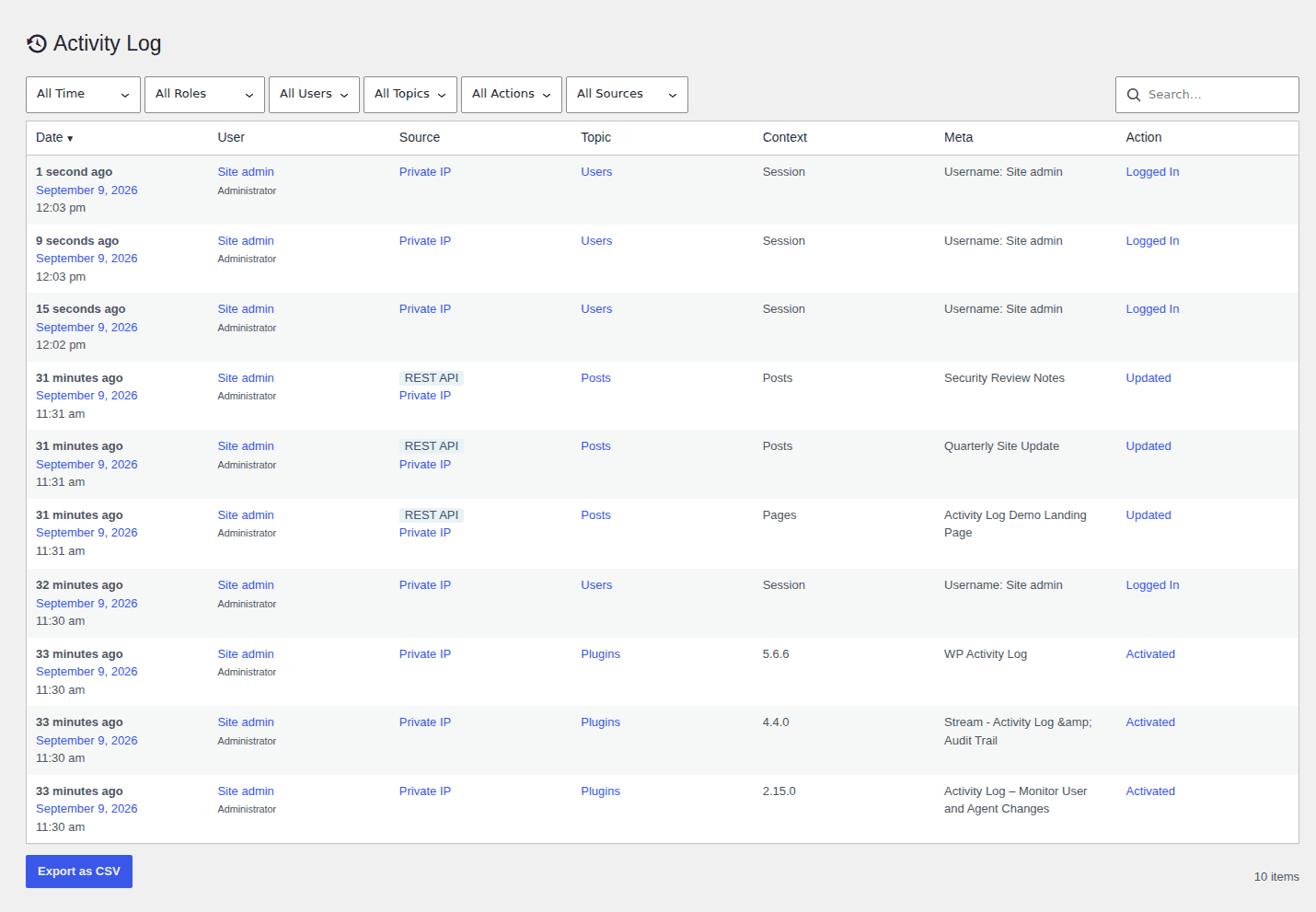
Activity Log records common WordPress actions and identifies the request source. It can show whether a change came from the WordPress dashboard, a REST API request, or the WP-CLI command tool. A REST API lets software exchange data with WordPress.
WP-CLI is a text-based command tool. Scheduled WordPress tasks and other supported sources can appear too. The log stores records in a separate database table and adds controls for filters, retention, export, privacy, and multisite, so developers can distinguish an automated change from a person working in wp-admin.
Best for
- Choose it when: a post, setting, or plugin changes without a person working in the dashboard. Request-source labels can point you toward an integration, cron job, REST client, or WP-CLI command.
- Owners and developers get WooCommerce, email, multisite, retention, export, and privacy controls without a larger security bundle.
- Skip it if: your team needs mature enterprise reporting or a wider incident-response service.
Tradeoffs
- The separate table keeps activity data distinct from ordinary WordPress content, but it still lives in the site database. Include it in database size, WordPress backup plans, and cleanup planning.
- Check its current WordPress and PHP requirements, support activity, and privacy settings before using it on a high-value site.
- Do not treat a vendor’s performance statement as a guarantee for every hosting setup. Measure the effect on your own staging environment if logging volume is high.
5. Stream
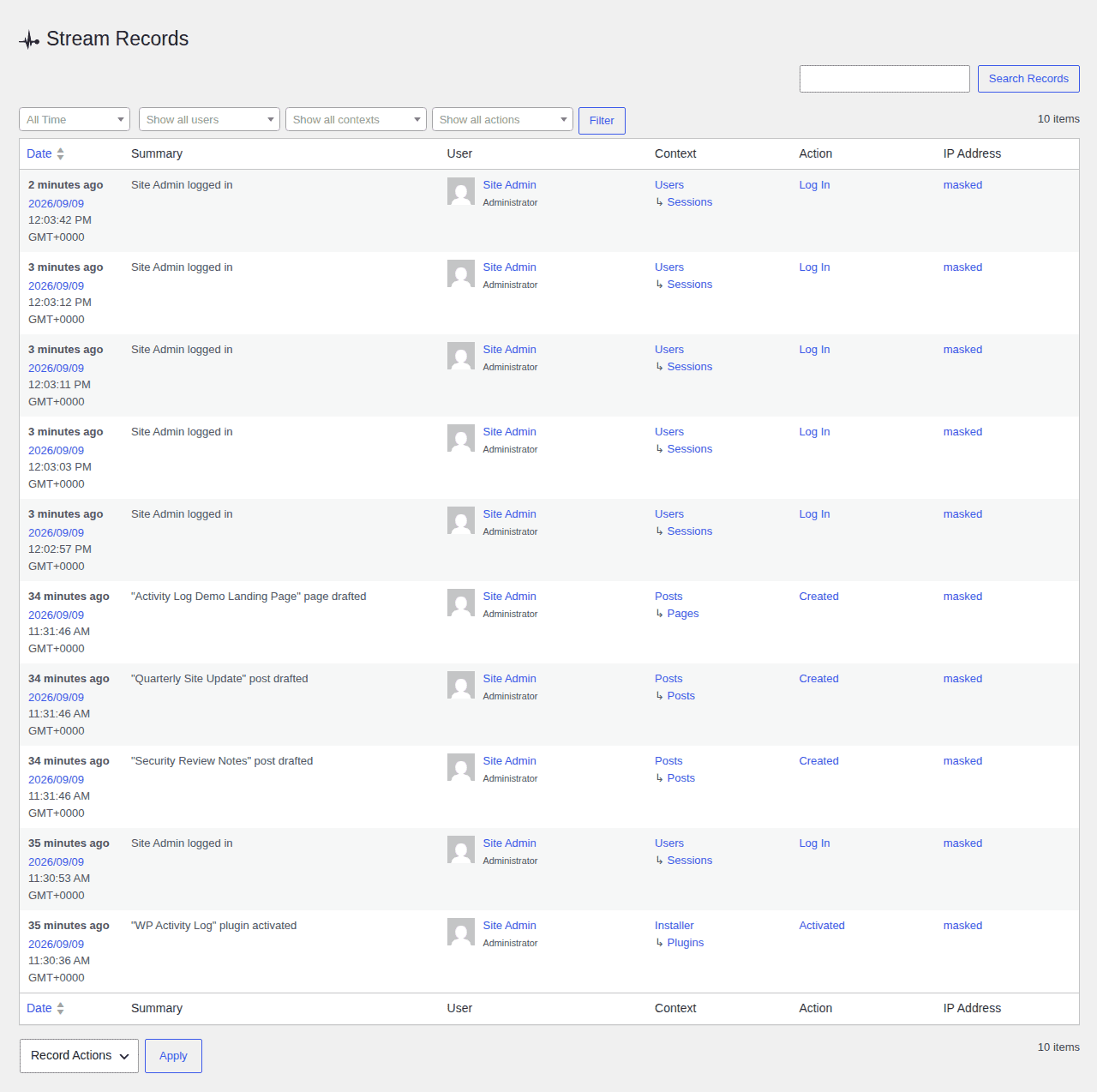
Stream is free, with code anyone can inspect. It filters records by user, role, area, action, and IP address. Email alerts, webhooks, which are automatic messages sent to another service, export files, text-based searches, and a network view for multisite are also available.
Its integrations, command-line interface, and CSV/JSON export fit teams that need to move activity records into a debugging or automation workflow rather than leave them only in wp-admin.
Best for
- Choose it when: a developer needs filters, exports, webhooks, integrations, command-line access, or multisite visibility. A high-risk change can be routed to a team channel or inspected alongside an automated task.
- Core WordPress actions and integrations such as WooCommerce, forms, and search tools make it more flexible than a basic timeline when the team already has technical workflows.
- Skip it if: nontechnical users need the simplest interpretation or if nobody can validate the site’s proxy and IP configuration.
Tradeoffs
- IP information can be wrong behind a proxy or content delivery service unless the server passes a verified client address. Do not copy an untrusted address from a request header into the log.
- The current directory page says automatic data removal during uninstall is disabled from version 3.9.3 while the maintainers refine that process. Plan how you will remove old records yourself and document that step.
- Technical flexibility creates setup responsibility. A nontechnical team may prefer Simple History’s clearer dashboard experience.
6. Jetpack
Jetpack records core WordPress and Jetpack activity. This includes logins, post and page changes, comments, plugin and theme changes, user management, widgets, and settings. The activity log is viewed in Jetpack Cloud, and only site administrators can view it.
Because the log sits inside Jetpack’s wider service, the same ecosystem can also cover related needs such as backups, malware scans, brute-force protection, uptime monitoring, performance, or growth features, depending on the plan.
Best for
- Choose it when: your site already uses Jetpack for backup, security, speed, or growth features. One ecosystem can be easier to manage than a separate activity-log plugin and separate service accounts.
- Readers who value convenience and broad coverage over specialized audit controls will get the most from it.
- Skip it if: detailed third-party plugin coverage or a standalone audit trail is the primary requirement.
Tradeoffs
- History depth depends on the plan: the free plan shows the 20 most recent events, Backup or Security plans show 30 days, and the Complete plan shows up to one year in the current documentation. Recheck these limits before purchase.
- The activity log cannot currently be exported, and Jetpack’s documentation says settings inside other plugins and themes are not currently supported.
- Filters are available on paid plans. Choose WP Activity Log or Activity Log when detailed records from other plugins or automated requests are the main need.
What should a WordPress activity log track?
An activity log is a time-ordered list of site actions. A useful entry shows the time, the user and their permission level, the affected item, and available source details such as an IP address. Common records include:
- Content changes: posts, pages, custom content types such as products or listings, titles, URLs, status, text, and search settings.
- User activity: new accounts, logins, failed logins, profile changes, password or email changes, and permission changes.
- Plugin, theme, and core changes: installs, updates, activation, removal, and WordPress updates.
- Site settings: permalinks, site addresses, reading and discussion settings, menus, widgets, and plugin settings.
- Comments and media: approval, deletion, uploads, edits, and replacements.
- Store and network activity: WooCommerce orders and products, plus site creation, network settings, and site-user membership across a multisite setup, where one WordPress installation manages several sites.
WordPress revisions can show earlier versions of some content. Hosting and WordPress debug logs can show requests made to the site. Neither provides a complete record of every WordPress action, and a new logger cannot recreate actions that happened before it started recording. A custom login, registration, or automation flow may also need specific plugin support or configuration before its actions appear in the log.
An activity log supports investigation and accountability, but it does not prove that a site is hacked. It cannot block harmful requests or replace a backup plugin, malware scanner, firewall, or server record.
How to choose the right plugin
After comparing the plugins, use these checks before you install one:
- Match the event coverage to your site: a blog may need posts and logins. A store may also need orders, product changes, refunds, and customer activity. Meanwhile, a membership site or a team managing multiple WordPress sites needs user, role, and site-level context.
- Check special workflows before you commit: multisite owners should confirm network events and site-user membership. Owners using custom login, registration, or automation tools should confirm that those integrations are supported rather than assuming every request will be recorded.
- Review the detail behind each record: a timestamp alone is weak evidence. Look for the user, permission level, affected item, source, and old and new values when available.
- Plan the response before choosing features: alerts, reports, exports, session controls, and automatic messages to another service matter only if your team will use them.
- Set how long records should stay: more history helps an investigation but uses storage and may keep personal data longer than needed. Retention should match the time you realistically need to investigate.
- Test the source information on your host: a proxy or content delivery service, which sits between visitors and your server, can hide the visitor’s real IP address unless the server passes it safely.
How to start tracking changes
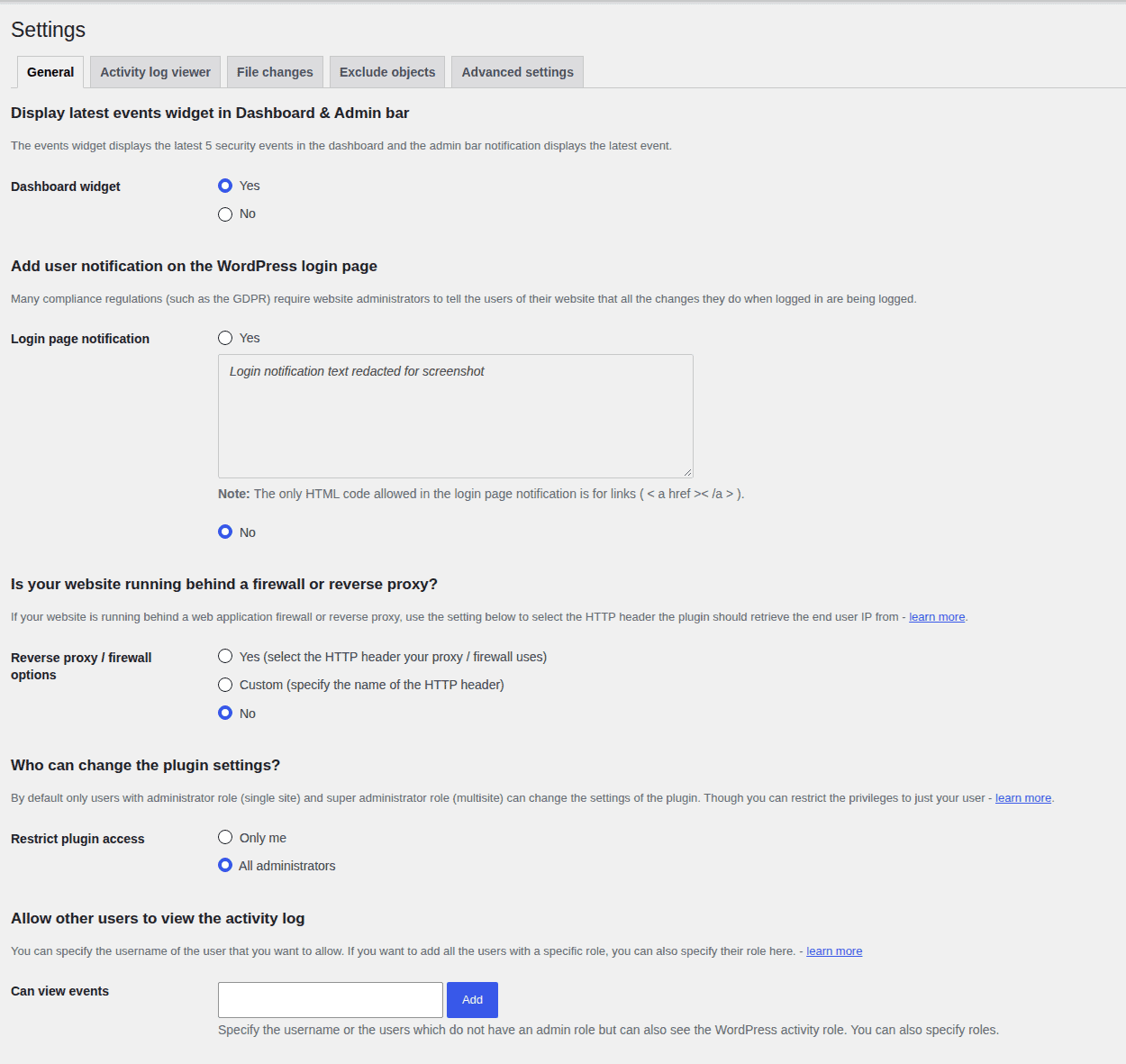
- Install before the next incident: a logger usually records from activation onward. It cannot create a complete past timeline.
- Open the plugin’s activity page: most add a dashboard menu or admin-bar view. Jetpack sends you to Jetpack Cloud instead.
- Create one safe test change: edit a draft or change a harmless setting, then confirm that the entry shows the right user, time, item, and source. Repeat this check after major plugin, theme, or hosting changes.
- Set access and record duration: limit viewing to trusted users and keep history for the time your site needs to investigate problems.
- Pair the log with a backup plugin: the log can identify a bad change. A manual WordPress backup can help you restore the site to a known-good state. Test WordPress backups before you rely on them during an incident.
How to investigate an unexpected change
Suppose an unfamiliar plugin was activated overnight. Treat the entry as a clue, not automatic proof of a break-in.
- Read the complete activity entry: note the time, user, permission level, plugin name, source IP address, and request source if available. If a plugin update is incomplete, troubleshoot WordPress plugins that are not updating.
- Compare nearby access changes: look for a new administrator, a permission upgrade, password or email changes, and failed or successful logins around the same time.
- Check recovery and server records: compare the event with backup and plugin update history. Server records and WordPress error logs can show lower-level requests that the activity log does not capture. Changes made in the hosting account, such as DNS or file-access changes, may require separate provider records.
- Preserve evidence before cleanup: export or copy the relevant details if the plugin supports it. Do not delete the log while you are still investigating.
- Restrict the affected account when needed: if the change was not approved, suspend or limit the account, restore from a known-good backup when appropriate, and scan for harmful code.
A single failed login may be a typing mistake. However, a new administrator followed by a plugin activation and unfamiliar login source deserves urgent review.
FAQs
Does WordPress have a built-in activity log?
Not a complete dashboard activity log. WordPress revisions cover some content history, while hosting and server records cover technical requests. A compatible activity-log plugin is usually needed for searchable records of users, logins, plugins, themes, and settings.
How do I find my WordPress activity log?
Install and activate a compatible plugin, then open the dashboard or admin-bar menu it adds. Jetpack activity is viewed in Jetpack Cloud. The exact location depends on the product.
Can a plugin show activity from before it was installed?
Usually not. Most plugins begin recording when they are active. Revisions, backups, site update records, and hosting logs may help with older events, but they will not recreate a complete activity history.
What should a WordPress activity log track?
At minimum, track users and permissions, logins, content, plugins, themes, settings, comments, media, and WordPress updates. Add store, membership, file, and multisite events when they affect your site.
Is a WordPress activity log a security plugin?
An activity log helps you investigate and document changes. It does not replace malware scanning, a firewall, access controls, a backup plugin, or server records. This remains true when a security product includes all of them.
Conclusion
Choose Simple History for a readable free starting point, WP Activity Log for detailed change records, Activity Log for request-source detail, Stream for developer control, Jetpack for an existing Jetpack setup, and MalCare’s WordPress activity log when activity tracking should sit beside malware protection and other security tools.
Enable logging before you need it, test that it records the actions that matter, and set a sensible record duration. Keep a separate backup plugin and review high-risk changes quickly, because a log tells you what happened but cannot restore a damaged site by itself.

Shivani enjoys crafting guides that make every aspect of using WordPress simple and easy to follow. When she's not glued to her laptop, you can find her buried in a good book or occasionally, painting.