Choosing between WP Rocket vs W3 Total Cache is a popular decision to make when choosing a good WordPress cache plugin. You want faster pages and a smoother visitor experience without crashing your site or technical know-how.
It’s easy to feel overwhelmed by settings, host quirks, and the fear of breaking something. This article gives straightforward, jargon-free comparisons based on real tests. We’ll give you honest pros and cons, and simple, safe setup tips so you can make a confident choice.
WP Rocket is easy but paid, while W3 Total Cache is free but complex to optimize. Neither fully addresses everything needed for a truly fast site. Airlift offers fully managed speed optimization that is more impactful.
What Are WP Rocket and W3 Total Cache?
Before we get into the details of WP Rocket vs W3 Total Cache, let’s understand what each of these WordPress caching plugins offers. Knowing their core strengths will help you decide which one might be a better fit for your site.
WP Rocket
WP Rocket is a premium, user-friendly caching and performance plugin. It’s often seen as the “set it and forget it” option for speeding up your WordPress site. It works immediately after you activate it, offering built-in optimizations like lazy loading for images, options to minify your code, and cache preloading. A significant benefit of its paid license is the access to dedicated support, which is very helpful for non-technical users.

W3 Total Cache (W3TC)
W3 Total Cache (W3TC) is a free, powerful, and highly configurable WordPress caching plugin. This plugin is often chosen by those who want very deep control over every aspect of their site’s caching. While the core plugin is free to download and use, it comes with a steeper learning curve. It supports many layers of caching, including page, object, database, and browser caching. It also allows you to connect to advanced caching backends like Redis and Memcached, if your hosting environment supports them.

WP Rocket vs W3 Total Cache: A Head-to-Head Comparison
Now that you know what each plugin generally offers, it’s time to put WP Rocket and W3 Total Cache side-by-side. This head-to-head comparison will break down exactly how they handle core features like ease of use, caching, and other important optimizations. Understanding these differences is key to choosing the best WordPress caching plugin for your site, ensuring it runs as fast and smoothly as possible.
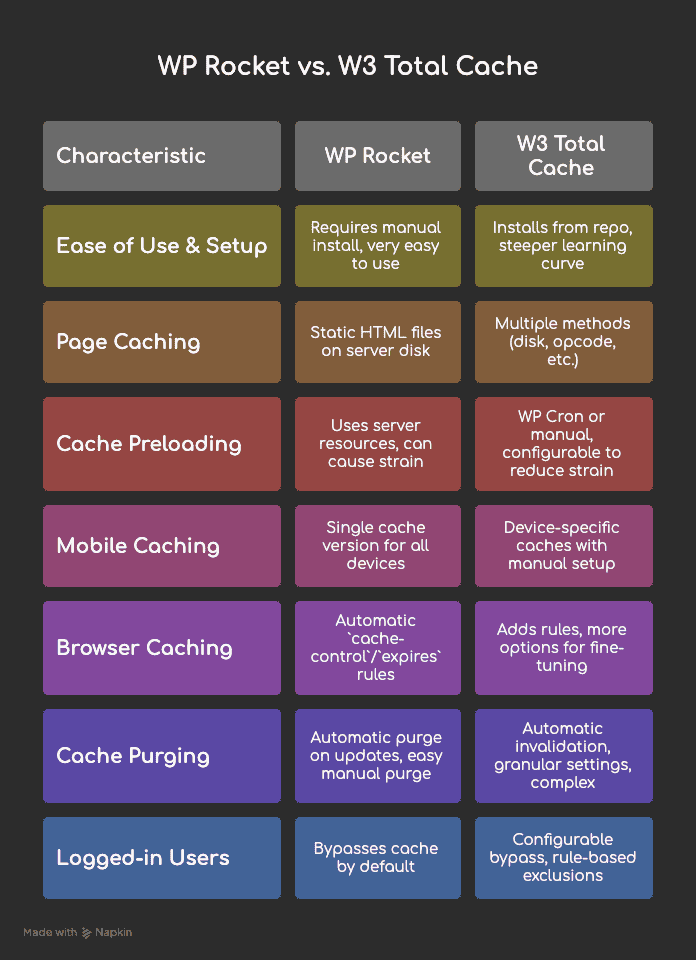
Ease of Use and Setup
When picking a WordPress caching plugin, how easy it is to install and get working is often the first thing people look for. This section covers the initial setup process and how user-friendly each plugin is, especially for someone who isn’t a seasoned developer.
WP Rocket: This plugin is incredibly user-friendly. You get major speed gains with just a few clicks. The main difference is you must buy a subscription, download a zip file from their website, and then manually upload and install the plugin. It’s not in the free WordPress plugin repository. However, their documentation is very helpful, and support is included, making setup smooth.
W3 Total Cache: You can install W3 Total Cache directly from the free WordPress plugin repository. This is a big plus for getting started without a purchase. But once activated, you’ll find many settings and options. This makes for a much steeper learning curve, especially for non-technical users. Support mostly comes from community forums, which can be less direct than paid support.
Page Caching: The Core Mechanism
Page caching is the backbone of WordPress caching. It’s the process that creates fast-loading versions of your pages. Here, we look at how each plugin handles this essential task and what methods they use.
WP Rocket: WP Rocket creates static HTML files of your pages. It stores these files on your server’s disk. When a visitor comes to your site, your server delivers this lightweight HTML file instantly. This drastically reduces the need to process PHP and query the database repeatedly, making your site much faster.
W3 Total Cache: W3 Total Cache also supports page caching. It offers multiple caching methods beyond just disk storage, like opcode caching. You can fine-tune it for different server setups, including using advanced options like Memcached or Redis. While these extra options can give better optimization on capable hosts, they require correct configuration, which adds complexity.

Cache Preloading (Cache Warm-up)
Cache preloading, or “cache warm-up,” is about making sure your cached pages are ready before someone visits them. This means the very first visitor to a page still gets a fast, cached version, instead of waiting for the cache to build.
WP Rocket: WP Rocket uses your site’s sitemap to proactively visit and create cached versions of your pages. This “preloading” ensures that visitors don’t have to wait. However, this process uses your own server’s resources (like CPU and memory) to crawl and generate those cached files.
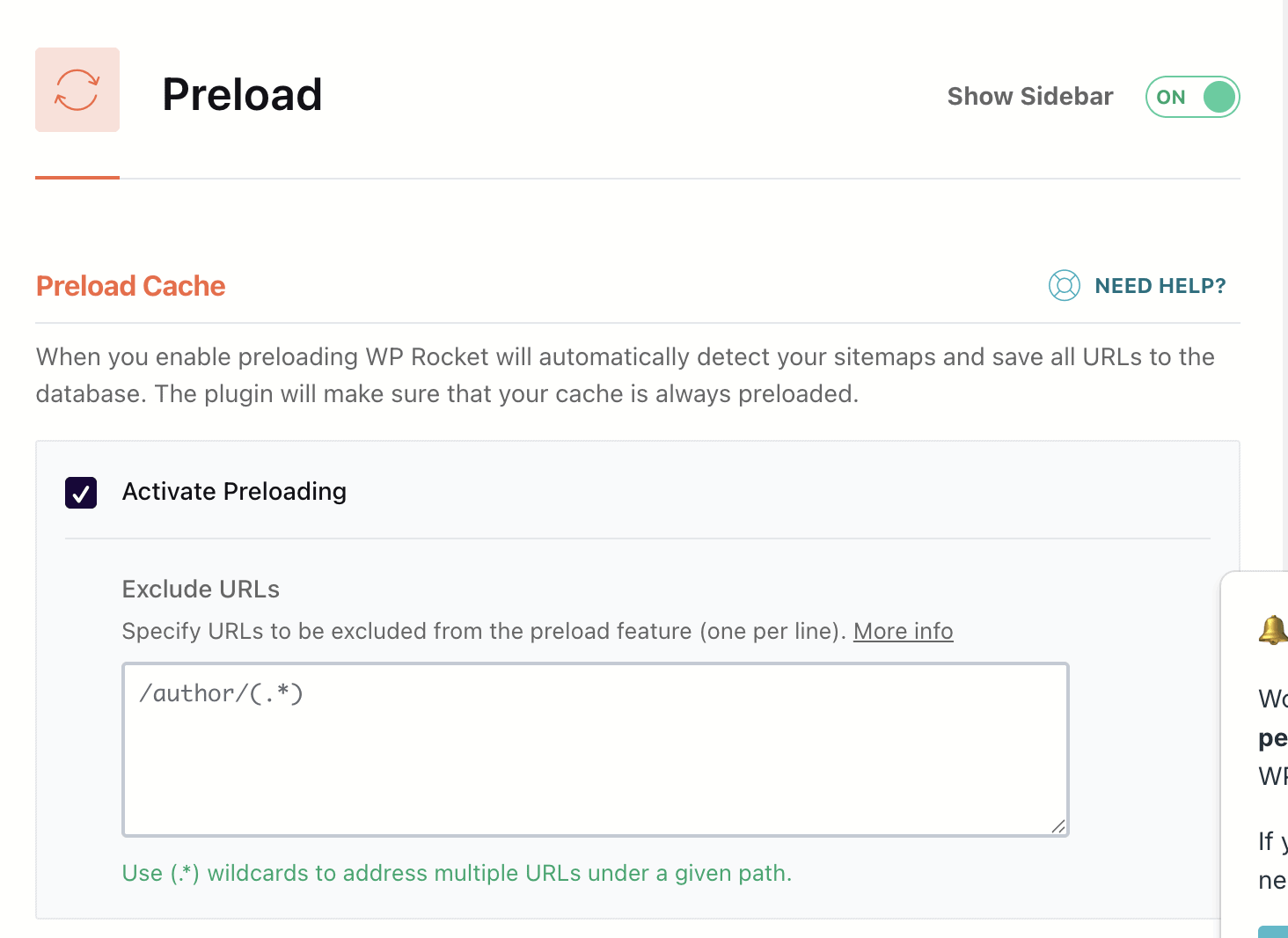
W3 Total Cache: W3 Total Cache also has a page cache preload feature. It can use your sitemap or a manual list of URLs. Preloading typically runs using your WordPress cron jobs or manual triggers. This can be configured to reduce strain on your server, but it’s another setting that needs careful setup.
Mobile Caching
With so many people browsing on their phones, mobile caching is crucial. It’s about ensuring your site loads quickly for visitors on any device. This section looks at how each WordPress caching plugin handles different screen sizes and device types.
WP Rocket: WP Rocket is designed assuming most modern WordPress themes are responsive. It typically serves a single cache version that works well across all devices: desktop, tablet, and mobile. If you have a theme that requires entirely separate mobile pages, it offers advanced options for creating distinct mobile cache files.
W3 Total Cache: W3 Total Cache can be configured to create device-specific caches. This means it can serve different optimized versions based on whether a visitor is using a desktop, tablet, or phone (using “user-agent groups”). This offers more flexibility for sites that need truly different mobile and desktop versions, but it requires manual setup and configuration.
Browser Caching
Browser caching is a clever trick to speed up repeat visits. It tells a visitor’s web browser to save static parts of your site, like images, CSS, and fonts, on their own computer. When they visit another page or come back later, those elements load instantly from their device instead of being re-downloaded.
WP Rocket: WP Rocket automatically adds rules to your server’s configuration file (like .htaccess for Apache servers). These rules instruct a visitor’s web browser to store static files locally. This sets strong browser caching for all your static assets with minimal effort on your part.
W3 Total Cache: W3 Total Cache also adds browser caching rules and gives you more options for fine-tuning these settings and headers. It works well for both Apache and Nginx server setups, but getting the optimal results might involve adjusting server files directly, which is a more advanced task.
Cache Purging & Invalidation
Having an old, stale version of your content showing up is bad for business and can cause WordPress errors. Cache purging and invalidation ensure that when you update your website, visitors see the newest version right away. Here’s how each WordPress caching plugin handles this vital process.
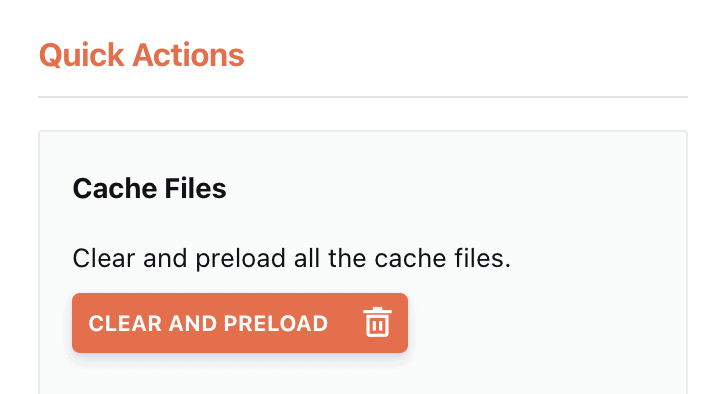
WP Rocket: WP Rocket automatically purges the cache for affected pages whenever you update or publish content. For example, if you edit a blog post, it clears the cache for that post and often the homepage too. You also get easy-to-find manual purge buttons in your WordPress admin bar and dashboard to clear the entire cache with a single click.
W3 Total Cache: W3 Total Cache supports automatic invalidation when you update content, and it has manual purge options. However, it offers more granular invalidation settings, which can be useful but also require a deeper understanding of how its cache hierarchy works. This means more control, but also more complexity.
Handling Logged-in Users & Dynamic Content
Not all content should be cached. For example, if a user is logged into your site, they need to see their personal dashboard or shopping cart. Caching these dynamic elements would break your site. This section looks at how each plugin safely handles logged-in users and other dynamic content.
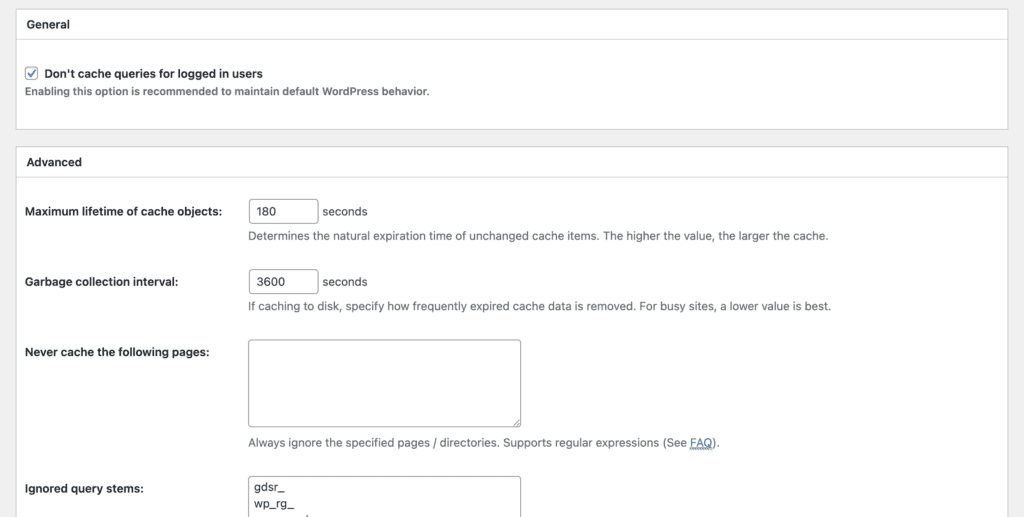
WP Rocket: WP Rocket automatically detects when a user is logged into WordPress and completely bypasses the cache for them. This means logged-in users always see live, personalized content. It also automatically excludes critical e-commerce pages like Cart, Checkout, and My Account for plugins like WooCommerce, ensuring that dynamic content is never broken by caching.
W3 Total Cache: W3 Total Cache can also be configured to bypass the cache for logged-in users. It has rule-based exclusions for dynamic pages, which is important for e-commerce stores or membership sites. However, correctly configuring these rules is crucial to ensure that dynamic content from plugins like WooCommerce functions without issues.
Comparing Non-Caching Features: Beyond Just Speed
Beyond basic page caching, what else do these WordPress caching plugins offer? This section digs into all the extra features that can help your site. These include optimizing your code, handling images, and improving server efficiency. Knowing these differences is key for a truly fast site and helps you decide between WP Rocket vs W3 Total Cache for your full performance needs.
File Optimization (CSS & JavaScript)
This feature is all about making your website’s code smaller and faster to load.
- WP Rocket: Offers user-friendly toggles to minify your CSS and JavaScript files. It also has features like “Optimize CSS Delivery” (which generates Critical CSS) to reduce render-blocking styles and options to defer or delay JavaScript execution. These are great for improving Core Web Vitals.
- W3 Total Cache: Uses a “Minify” module for minification and concatenation of CSS and JS. While powerful, its settings are more technical to configure. It’s also more likely to cause layout breaks if not set up correctly, so proceed with caution.
Lazy Loading (Images, Iframes, Videos)
Lazy loading is an easy way to fix a slow website. It makes sure images and videos only load when a user scrolls to them, saving bandwidth and speeding up initial page load.
- WP Rocket: Includes a built-in lazy loading feature for images, iframes, and videos. It’s a simple on/off toggle.
- W3 Total Cache: Does not have a built-in lazy-loading feature for images or videos. You will need to install a separate plugin for this functionality.
CDN Support & Asset Rewriting
A Content Delivery Network (CDN) serves your website’s files from servers closer to your visitors, making your site load faster globally.
- WP Rocket: Does not include its own built-in CDN service. However, it offers excellent integration with popular third-party CDNs like Cloudflare, BunnyCDN, and StackPath through simple settings.
- W3 Total Cache: Has extensive CDN integration and URL rewrite options built directly into the plugin. It can work with many different CDN providers and supports custom CDN setups.
Database Maintenance / Cleanup
Over time, your WordPress database can get cluttered with old revisions, spam, and temporary data. Cleaning this up keeps your site running smoothly.
- WP Rocket: Includes built-in tools for database cleanup. You can remove post revisions, old drafts, trashed posts, and temporary data (transients). You can even schedule these cleanups to run automatically.
- W3 Total Cache: While it offers database caching (which caches query results), it does not include tools for cleaning up or optimizing your database. You would need to use a separate plugin for database maintenance.
Support & Updates
When something goes wrong, or you need help, good support is invaluable.
- WP Rocket: Your paid license includes dedicated support from their team and regular software updates.
- W3 Total Cache: The free plugin relies on community support and forum help. Official paid support is less centralized and might require additional paid extensions for certain features.
Pricing: Subscription vs. Free
Cost is a major factor when choosing a WordPress caching plugin. This section breaks down the pricing models for WP Rocket vs W3 Total Cache, looking at what you get for your money (or lack thereof) and the true cost of each option.
WP Rocket: This is a premium plugin with an annual license. Your purchase includes ongoing updates and dedicated support, which is a big advantage for any WordPress admin. Many users see it as a good return on investment (ROI) because it bundles many powerful optimizations into one easy-to-use plugin, saving time and potential conflicts from juggling multiple free tools.
W3 Total Cache: The core W3 Total Cache plugin is free and available directly from the WordPress plugin repository. While it has historically offered optional paid add-ons for certain advanced features, the primary “cost” for most users isn’t monetary. Instead, it’s the significant time and effort required to correctly configure and maintain its many complex settings.
What We Missed in WP Rocket and W3 Total Cache?
Both WP Rocket and W3 Total Cache are powerful, but here’s what often gets missed in the debate about WordPress caching plugins:
The Hosting Limitation:
Both plugins do their best to optimize your site, but they can’t fix inadequate hosting. WP Rocket is entirely limited by your server’s hardware. W3 Total Cache offloads some work with advanced caching, but your site’s backend speed (Time to First Byte) still depends on your host. Pouring premium fuel into a broken engine won’t win you the race.
The “Black Box” Problem:
WP Rocket’s user-friendly automation, and W3 Total Cache’s aggressive settings, can both create a “black box” problem. When a form stops working or a script conflicts, it’s nearly impossible for a non-expert to diagnose the cause. You’re left randomly disabling features, hoping to find the culprit, and ultimately sacrificing performance for functionality. This is where expert oversight becomes critical, with a human engineer who can achieve maximum speed without breaking your site.
The Incomplete Puzzle:
To get the full benefit of WP Rocket, you still need to find, configure, and pay for a separate CDN and an image optimization plugin. This creates a fragile ecosystem of tools that can conflict after any update. W3 Total Cache is powerful, but it still won’t clean your database or easily address server-level issues. A complete solution shouldn’t require you to fill gaps or juggle plugins.
Final Thoughts
Both WP Rocket and W3 Total Cache are fantastic tools that can dramatically speed up your WordPress site. There is no single “winner”—only the right choice for your needs. If you’re looking for an easy, all-inclusive powerhouse and are comfortable with a subscription (and its features), WP Rocket is an excellent investment. If you are a hands-on user who values deep control, free access to many options, and don’t mind a steeper learning curve, W3 Total Cache has powerful capabilities.
But if you’ve realized that your time is better spent on your business than on being a plugin technician, a managed service like Airlift is the logical next step. We handle everything for you—from server tuning to expert configuration—so you just get the result: a consistently fast website, guaranteed.
FAQs
Which cache plugin is best for WordPress?
There isn’t one “best” cache plugin for every WordPress site. WP Rocket is excellent for ease of use and all-in-one features, especially for non-technical users. W3 Total Cache offers powerful, free, granular control for advanced users. Often, the best solution depends on your hosting (e.g., LiteSpeed Cache for LiteSpeed servers) and your technical skill.
What is the alternative to W3 Total Cache?
Popular alternatives to W3 Total Cache include WP Rocket (premium, user-friendly), LiteSpeed Cache (free, best for LiteSpeed servers), WP Fastest Cache (free, simpler), and Cache Enabler (free, lightweight). Your choice depends on your budget, technical comfort, and specific needs.
What is the difference between W3 Total Cache and WP Fastest Cache?
W3 Total Cache offers extensive, granular control over many caching layers (page, object, database, browser) and is highly configurable for advanced users. WP Fastest Cache is much simpler, with fewer options, making it easier for beginners to get basic caching running without being overwhelmed by settings.
What’s better than WP Rocket?
“Better” depends on what you need. For deep, free, technical control, W3 Total Cache might be considered better by some developers. For server-optimized speed on LiteSpeed hosts, LiteSpeed Cache is often superior. For a completely hands-off, managed solution that addresses hosting and goes beyond plugin-level optimizations, a service like Airlift could be considered better.

Shreya has been a writer for as long as she can remember. Now, she writes articles that help WordPress users manage the sites that they're proud of, with little to no coding