When you’re exploring different caching plugins for wordpress, you’ll find that wordpress object cache plugins are a necessary tool for making your site faster. It’s a sensible step for reducing database load, especially for stores or membership sites.
But the technical terms like “Redis” and “persistent cache” can feel confusing when you’re just trying to run your business. So we’ve broken it all down into a simple, jargon-free guide. We’ll show you exactly which plugin to choose and how to set it up easily.
Performance solutions like Airlift go beyond single-task plugins by solving the entire performance puzzle for you. While object caching is a crucial first step for your database, Airlift also optimizes your code, images, and fonts automatically for a complete speed overhaul.
What is WordPress Object Caching?
WordPress caching is a broad term for different methods used to speed up your site. While page caching saves a finished copy of a page for visitors, object caching targets the speed of the server itself.
Every time someone visits your site, WordPress queries its database to fetch the same data over and over—like posts, site settings, and product info. This repetitive process puts a heavy strain on your server, causing the slowdowns you experience on busy stores or membership sites. Object caching solves this by storing the results of those common queries and other computed data in a super-fast, short-term memory, so the heavy work only needs to be done once.

1. Redis Object Cache

Redis Object Cache is the first plugin I installed in my testing. It’s an industry favourite for a reason: it’s free, brutally effective, and dead simple. Redis is an extremely fast in-memory data server that acts as the high-performance engine, providing the persistent memory where WordPress stores database results for instant retrieval.If your host has Redis, this should be your starting point. It’s a true “set it and forget it” tool that just works.

Pros:
- Simple, one-click setup.
- Fast, reliable, and free.
- Huge hosting and plugin compatibility.
Cons:
- No performance analytics.
- Zero advanced configuration options.
Best for: The vast majority of WordPress sites.
2. Object Cache Pro

Object Cache Pro was next up. The difference was immediately obvious. IThis isn’t just a plugin; it’s enterprise-grade infrastructure for WordPress, built for sites where downtime is not an option. It uses the same Redis technology as the previous plugin. However, it’s the better plugin of the two for WooCommerce sites.
In our case, our test sites are hosted on Cloudways and Object Cache Pro is automatically enabled on all of them. all you have to do is go to the Application Settings on the Cloudways dashboard. Then, navigate to the WordPress Settings tab and enable the feature.

Pros:
- Blazing fast, high-performance code.
- In-depth cache analytics dashboard.
- Built for massive scale.
- Professional, dedicated support.
Cons:
- Requires a paid subscription.
- Overkill for small, simple sites.
Best for: High-traffic sites, WooCommerce, and enterprises.
3. W3 Total Cache
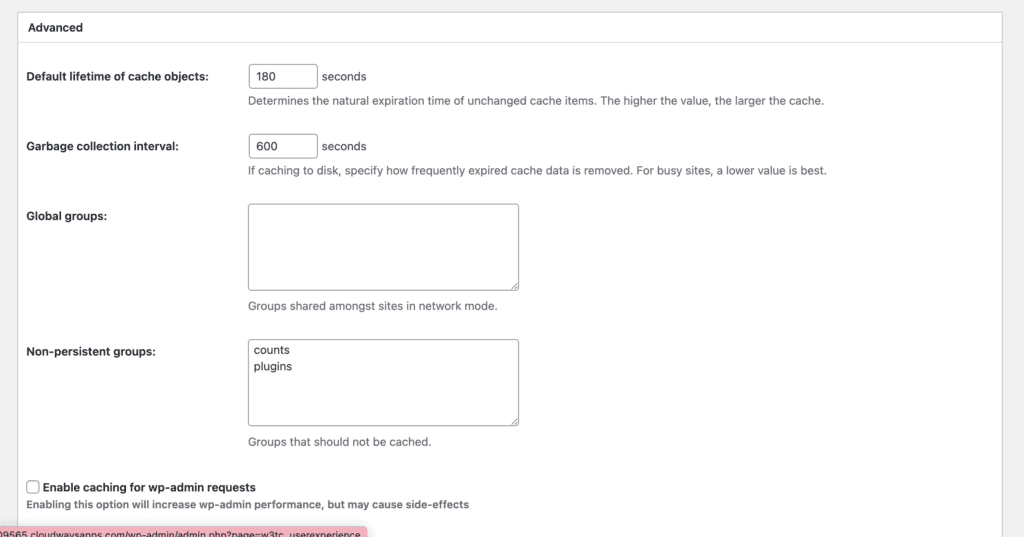
I’ve tested W3 Total Cache before and it’s incredibly powerful if you know what you’re doing. It can manage your object cache alongside everything else, but I’ll be direct: its settings panel is a minefield for beginners. One wrong click can break things, so proceed with caution.
Pros:
- All-in-one performance suite.
- Supports Redis and Memcached.
- Extremely granular, precise controls.
Cons:
- Overwhelming for new users.
- Easy to misconfigure badly.
Best for: Technical users who want complete control.
4. LiteSpeed Cache

LiteSpeed Cache is another great caching plugin. It’s free and powerful…if your site is on a LiteSpeed server. It can outperform every other combination because it communicates directly with the server, which is far more efficient. The object cache integration is seamless and often automatic.

Pros:
- Unbeatable server-level performance.
- Automatic Redis cache integration.
- Completely free with host.
Cons:
- Only works on LiteSpeed servers.
Best for: Anyone and everyone on LiteSpeed hosting.
5. Docket Cache
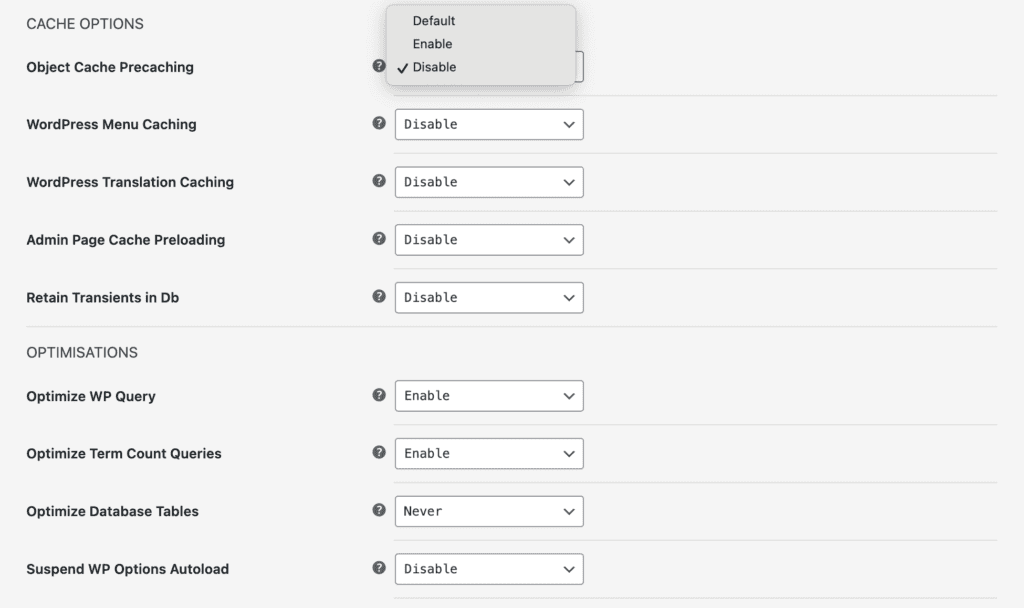
I’ve tested Docket Cache on shared hosting plans where Redis wasn’t an option, and it’s a fantastic alternative. It uses a file-based cache that’s surprisingly fast and much better than having no persistent cache at all. This means that instead of storing cached data in the server’s ultra-fast RAM like Redis does, it writes the data into simple, static files on the server’s disk. It’s the smartest choice when your options are limited./image
Pros:
- Works without Redis/Memcached.
- Great for shared hosting.
- Noticeable performance boost.
Cons:
- Not as fast as Redis.
- Check for plugin conflicts.
Best for: When Redis or Memcached is not available.
Is Object Caching Enough?
Implementing a persistent object cache directly tackles the database bottleneck. However, it’s crucial to understand that it solves one specific, albeit very important, problem. A truly fast website is a complex system. So, here’s what you need to recognise is missing:
- The Image Optimization Problem: Object caching does absolutely nothing for your images. Large, uncompressed image files are one of the single biggest contributors to slow page load times. Your site might be able to generate the page’s structure quickly thanks to object caching, but users will still be stuck waiting for heavy JPG and PNG files to download. A complete performance solution must also automatically resize, compress, and convert images to modern, fast-loading formats like WebP.
- The Code Bloat Challenge: Your theme and plugins are made up of CSS and JavaScript files that tell the browser how your site should look and function. If this code is bloated, unoptimized, or loaded inefficiently, it can block the browser from rendering your page, leaving visitors staring at a blank white screen. Object caching works on the server side and has no effect on this frontend code, meaning your site can still feel slow even with a fast database response.
- The Frontend Delivery Gap: Object caching speeds up how quickly your server can think, but it doesn’t change how it delivers the final page. For most visitors who aren’t logged in, there is no need to query the database at all. The fastest method is page caching, which saves a fully-built static HTML copy of your pages. Combining a powerful object cache for logged-in users with a page cache for visitors creates a truly comprehensive server-side speed strategy.
What is the Best Solution for WordPress Performance?
This leaves us with a critical question: if a powerful object cache plugin isn’t the complete answer, what is? Sure. You can throw more plugins into the mx for the other performance issues. But, it is prone to conflicts and bloat. The best way to improve your website performance is to use Airlift.
You can check out our review of Airlift to learn more about the features. But, here’s a quick look at what makes the plugin stand out from the rest:
- Airlift is a Holistic Performance Platform: The best solution is one that treats performance as a single, comprehensive problem. Instead of just being an object cache, Airlift is a complete platform that automatically optimizes every layer of your website. It provides a world-class object cache to speed up your database while simultaneously optimizing your images, minifying your code, streamlining your fonts, and serving your content from a global CDN. It addresses every issue in one integrated system.
- It’s Automatic and Effortless: With Airlift, you don’t need to be a performance expert or spend your time configuring a dozen different plugin settings. The platform is designed to work automatically, applying best practices without requiring any technical input from you. This eliminates the guesswork and the risk of misconfiguration, ensuring your site is always running at peak performance. It’s a “done-for-you” service, not another tool you have to learn to manage.
- It Simplifies Your Site and Reduces Risk: By handling everything, Airlift allows you to remove multiple other performance plugins from your site. A simpler plugin stack means fewer potential security vulnerabilities, fewer conflicts between plugins, and a more stable, reliable website. Instead of hoping your collection of individual plugins works well together, you get a single, cohesive system engineered for speed and stability.
Final thoughts
Implementing a WordPress object cache plugin is an excellent and necessary step to fix a slow, overworked database. It’s often the single most impactful change you can make. However, object caching is only one piece of the performance puzzle. It won’t optimize your images, clean up bloated code from other plugins, or streamline your fonts, which means you’re still left juggling multiple other plugins to solve the rest of the problem.
This is where a holistic solution like Airlift offers a fundamentally smarter approach. Airlift includes a world-class object cache as part of its core service, but it also automatically handles every other critical optimization—code, images, and fonts—in one unified platform. Instead of playing system administrator with a fragile stack of plugins, you get a complete, managed solution that guarantees a faster site, allowing you to focus on your business, not on technical maintenance.
FAQs
What is WordPress object cache?
WordPress object cache is a built-in mechanism that stores the results of your website’s database queries in a fast, temporary memory. This prevents WordPress from having to run the same slow, repetitive database operations for every visitor. By default, this cache is “non-persistent” (it clears on every page load), but a plugin enables a “persistent” cache that remembers the data for all users, dramatically speeding up your site.
How do I enable object cache in WordPress?
Enabling a persistent object cache is a simple three-step process:
Check Your Host: First, ask your hosting provider if they support a caching system like Redis. This is a crucial first step.
Install a Plugin: Install a free plugin like Redis Object Cache from the WordPress plugin directory.
Activate It: Go to Settings > Redis in your WordPress dashboard and click the “Enable Object Cache” button. The plugin should show a “Connected” status.
Should I enable object cache?
Yes, you should enable it if you have:
A WooCommerce store, membership site, or forum.
A site with medium-to-high traffic.
A slow WordPress admin dashboard.
You might not need it if you have a very small, low-traffic blog or a simple static website, but for most dynamic sites, it’s one of the most effective speed optimizations you can make.
Which cache plugin is best for WordPress?
There isn’t one single “best” plugin, as it depends on your needs:
- For most people: The free Redis Object Cache plugin is the perfect starting point. It’s simple, reliable, and highly effective.
- For serious businesses: Object Cache Pro is the premium choice for high-traffic stores and mission-critical sites that need maximum performance and reliability.
- For an all-in-one solution: WP Rocket is a great premium plugin that manages both page caching and object caching in one user-friendly interface.
- For LiteSpeed hosting: You should only use the LiteSpeed Cache plugin, as it integrates directly with your server for the best possible performance.

Shreya has been a writer for as long as she can remember. Now, she writes articles that help WordPress users manage the sites that they're proud of, with little to no coding