WordPress update failures are undeniably annoying. Especially when you are hit with the “An automated WordPress update has failed to complete” message. This feature is supposed to be a godsend, intended to simplify your workload, not complicate it.
But don’t worry—we’ve got you covered, like always.
We will guide you through easy steps to resolve the issue so you can get those updates running smoothly again in no time.
When an automated WordPress update fails, it can be due to server issues, internet problems, or plugin conflicts, affecting your site’s performance and security. Always use a backup plugin to backup your site first to protect your data and ensure a quick recovery if needed.
What does “An automated WordPress update has failed to complete” mean?
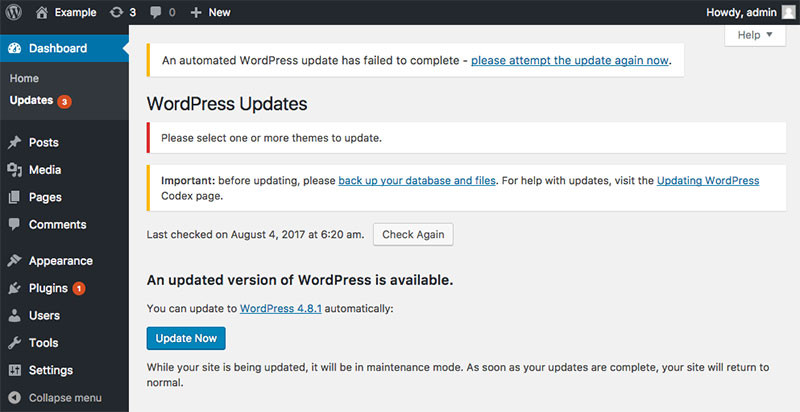
WordPress is the platform you use to build and manage your website. It keeps itself updated regularly to improve security and add new features without you having to lift a finger. This is known as an automated update.
However, sometimes these updates don’t finish as expected. This can happen because of a glitch, a hiccup in your internet connection, or a problem with a plugin or theme not getting along with the update.
When an update isn’t complete, your site might not be visible to users and could display a “scheduled for maintenance” message.
This means your site could be stuck in maintenance mode or left with software that’s incomplete or outdated, affecting its performance and accessibility.
This can mess with how your site works and even put its security at risk.
How to fix the “An automated WordPress update has failed to complete” error
1. Manually update WordPress
If you’re pressed for time and require a quick solution, consider manually update WordPress.
Step 1: Download the latest WordPress version from WordPress.org.

Step 2: Use FTP or your hosting control panel to upload the new files and replace the existing ones. This might be a temporary fix, but it can get your site up and running.

2. Check server resources
Make sure your server has enough resources to handle updates. Low resources can cause updates to fail, so it might be time to give your server a boost.
3. Verify file permissions
Check that all permissions are set correctly. WordPress folders should have permissions set to 755 and files to 644. Wrong permissions can stop updates from completing.

4. Increase PHP time and memory limits
WordPress may occasionally require more time or memory to complete updates.
Step 1: Access the wp-config.php file in your WordPress directory.

Step 2: Increase the execution time by adding or changing the line:
set_time_limit(300);Step 3: Boost the memory limit with:
define('WP_MEMORY_LIMIT', '256M'); This helps your server complete updates.
5. Check your internet connection
Make sure your internet connection is stable. A weak or interrupted connection can cause problems.
6. Clear the browser cache
Residual files in your browser can make a failed update appear more problematic than it is. Clear your cache to ensure you’re viewing the latest version of your site.

7. Disable plugins
Sometimes, plugins can interfere with updates. To see if this is the issue, disable all plugins through your WordPress dashboard and check if this fixes the problem. If the update works after disabling the plugins, reactivate them one by one. This will help you identify which plugin is causing the trouble.

8. Switch to a default theme
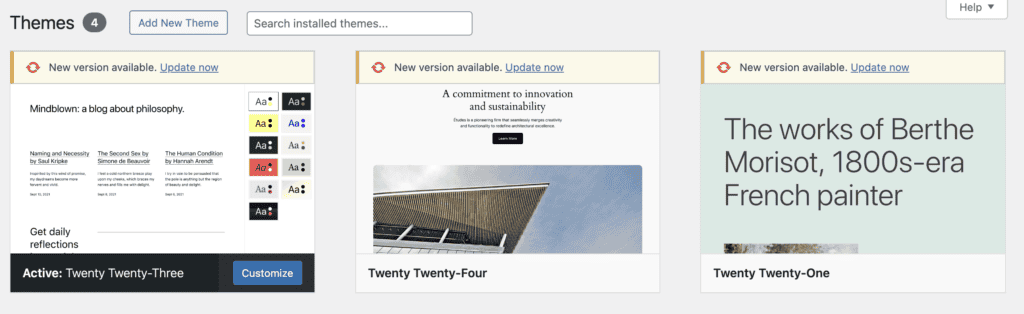
Your theme might be causing issues with the update process. To troubleshoot, switch to a default theme like Twenty Twenty-Four. If the update works after making this change, it indicates that your custom theme might need an update or some adjustments to fix compatibility issues.
9. Contact your hosting provider
If nothing works, reach out to your hosting provider. They can check server logs and help resolve the issue.
Post troubleshooting measures
Once you’ve performed all the previously mentioned troubleshooting steps, here’s what you should do next. These are some practical steps to keep your WordPress site running efficiently and avoid future problems:
1. Remove the .maintenance file
If an update gets interrupted, your site might be stuck in maintenance mode, making it inaccessible. To resolve this, remove the .maintenance file from your site’s root directory. This action will bring your site back online for users.

2. Ensure a stable internet connection
Before performing updates, make sure your internet connection is stable. A reliable connection helps prevent interruptions during the update process.
3. Regularly update plugins and themes
Keep your plugins and themes up to date. This ensures they remain compatible with the latest WordPress updates and reduces the risk of conflicts.

4. Backup your site
Consider creating a backup of your site before major updates. This ensures you have a copy of all your data and settings, safeguarding against any potential issues during the update.

5. Monitor server resources
Regularly check your server’s resources and performance. If your server is low on resources, it can lead to update failures. Monitoring can help you address issues before they cause problems.
6. Check error logs regularly
Review error logs periodically. This practice can help you identify potential issues early, allowing you to address them quickly and maintain smooth site operation.
Parting thoughts
Regular maintenance and updates are essential for a secure WordPress site. If your site gets stuck, removing the .maintenance file can help. Quickly fixing failed updates prevents downtime and security risks.
Regular backups safeguard your data, while monitoring performance helps catch issues early. Staying updated on WordPress changes ensures compatibility and smooth operation.
FAQs
How to fix an automated WordPress update has failed to complete?
To fix a failed automated WordPress update, you can manually update WordPress, ensure your server has adequate resources, check file permissions, increase PHP time and memory limits, and disable conflicting plugins or themes.
Why is my WordPress auto update not working?
WordPress auto updates might not work due to server resource issues, internet connection problems, or conflicts with plugins and themes. Checking these areas can help identify the problem.
Why does my WordPress update keep failing?
WordPress updates can keep failing if there are insufficient server resources, file permission errors, incompatible plugins or themes, or a weak internet connection. Addressing these factors can resolve the issue.
How do I automate WordPress updates?
To automate WordPress updates, enable automatic updates in your WordPress settings or use a plugin that manages updates for core files, themes, and plugins.
How do I force WordPress to update?
To force WordPress to update, you can manually download the latest version from WordPress.org and upload it via FTP to replace the existing files on your server.

Shivani enjoys crafting guides that make every aspect of using WordPress simple and easy to follow. When she's not glued to her laptop, you can find her buried in a good book or occasionally, painting.