Adding files to your WordPress site should be a piece of cake, right? But not when you’re hit with “An error occurred in the upload. Please try again later.” It’s a common hiccup that can stop everything in its tracks.
But no worries—we’ve got you covered. We’ve tackled this conundrum and have gathered a bunch of solutions.
From quick tweaks to slightly more involved fixes, these methods will have you back on track and uploading without a hitch.
The an error occurred in the upload. Please try again later. WordPress error is a common issue often due to file size limits, unsupported formats, or server restrictions. Always backup your site before making any changes to core files or settings to prevent data loss.
Understanding upload errors and why they occur
When you encounter an upload error in WordPress, it could be due to several reasons:
1. File size limit: One common issue is that your file might be too big. Websites often limit the size of files you can upload, so it’s good to check that your file isn’t too large.
2. Unsupported file type: The type of file you’re attempting to upload might not be allowed. WordPress restricts certain file formats for security reasons. If your file isn’t supported, you may get an error message indicating the upload isn’t allowed due to security risks.

3. Internet connection: A weak or unstable internet connection could be causing the problem. Similar to how a phone call drops with poor reception, a shaky connection can interrupt your upload.
4. Plugins and themes: At times, the issue might be within WordPress itself. Plugins or themes that are meant to add features or change designs can sometimes conflict with other elements of the site, leading to upload issues.
5. Server space: If your site is running low on space, that could stop uploads too. Just like you can’t fit more items into a full backpack, you can’t upload more files without room on the server.

6. Temporary WordPress issues: Occasionally, WordPress may be experiencing minor problems. These are often resolved by simply refreshing the page or trying the upload again later.
Troubleshooting upload issues in WordPress
If you’re facing upload problems in WordPress, follow these steps to troubleshoot and resolve the issue:
1. Check your internet connection
Make sure your internet connection is reliable and consistent. To verify, test other devices on the same network to see if they work properly. If you experience issues, try restarting your router or modem to restore the connection.
2. Try a different browser
Switch to another browser, such as Chrome, Firefox, or Safari, to see if the upload problem persists. Sometimes, browser settings or cached data can interfere with uploads, and a new browser might help uncover the issue.

3. Verify file type support
Make sure the file you’re trying to upload is in a format supported by WordPress, like JPG, PNG, or PDF. Unsupported formats can trigger errors during the upload process.

4. Check for plugin conflicts
Deactivate all plugins: Temporarily turn off all plugins to check if they are causing the upload problem.

Reactivate plugins one by one: If deactivating plugins fixes the issue, turn them back on individually. After activating each one, test the upload process to identify if a particular plugin is the culprit.
5. Switch to a default theme
Activate a default WordPress theme: If you’re using a custom theme, switch to a default one like Twenty Twenty-Four.
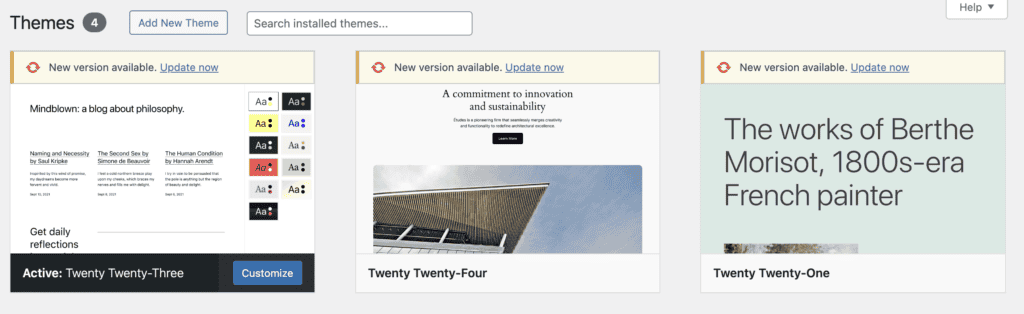
Identify theme issues: If the problem resolves with a default theme, the issue might be with the custom theme. Contact the theme developer for further assistance.
6. Review file and folder permissions
Access WordPress files: Log in to your FTP client or hosting provider’s control panel.

Check permissions: Verify that file permissions are set to 644 and folder permissions are set to 755. Incorrect permissions can lead to upload issues.

Fix permissions: Repairing WordPress permissions will assign the right access allowing you to continue with your upload.
7. Update WordPress and plugins
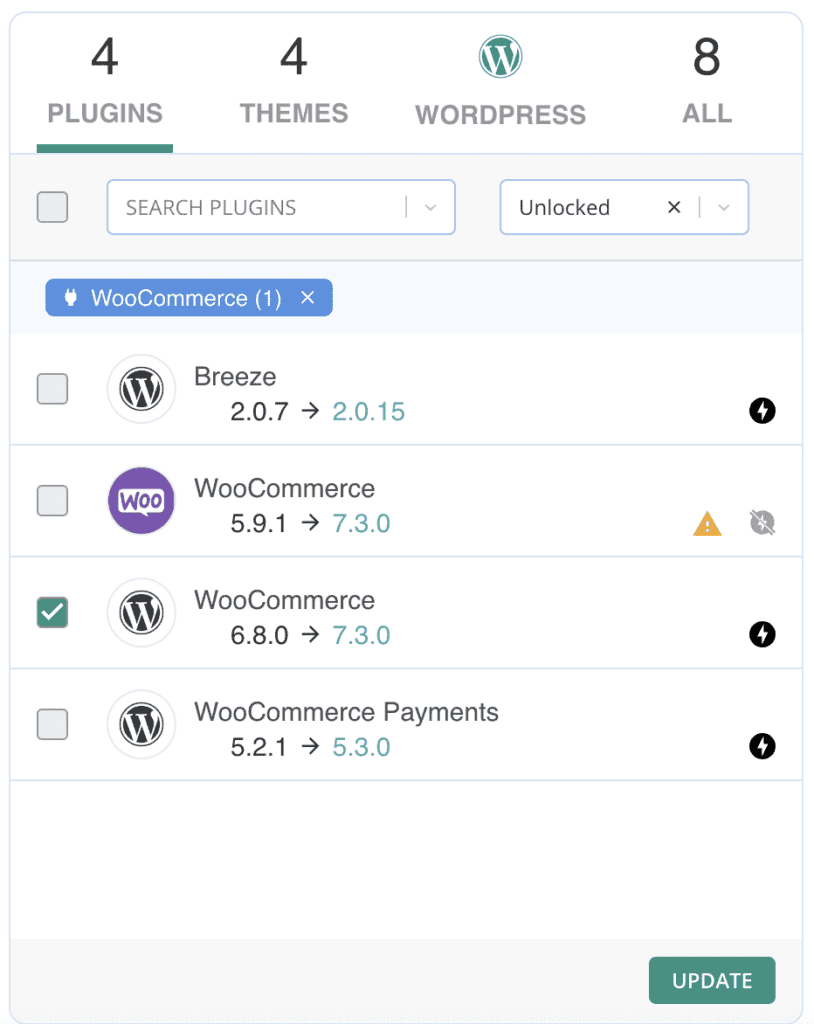
Navigate to your WordPress dashboard to find updates for WordPress, as well as all installed plugins and themes. Ensure your site is up-to-date to avoid compatibility problems and errors.
8. Increase PHP memory limit
Access php.ini file: Navigate to your server and locate the php.ini file, typically in the root directory.
Edit memory limit: Open the file and find the line referencing memory_limit. Change it to something higher, like 256M, based on your needs and server capacity.
memory_limit = 256MSave changes: After making adjustments, save the file to apply the new memory limit.
9. Modify the .htaccess file
Locate .htaccess file: Access your server and find the .htaccess file, usually in the root directory of your WordPress setup.
Edit the file: Use a text editor within your hosting control panel or an FTP client to open the file. Add the following line:
SetEnv MAGICK_THREAD_LIMIT 1Save changes: Save the file after editing to apply your changes. This can help reduce server load during image processing.
10. Reach out to your hosting provider
If the issue persists after trying these steps, contact your hosting provider. They can check for server-specific problems and offer further assistance in resolving the issue.
Best practices to prevent future upload failures
Keeping your WordPress site running seamlessly is vital. To ensure your uploads go smoothly, consider these straightforward steps:
1. Regularly update everything: Always keep WordPress, along with your plugins and themes, up to date. This helps prevent potential issues that could interfere with your uploads.

2. Maintain a stable internet connection: A fast and consistent internet connection is essential for reliable uploads.
3. Monitor your server space: Keep track of your server space and storage limits. Operating without enough space is like trying to squeeze more clothes into an already-packed suitcase.
4. Use supported file types: Stick to file types that WordPress supports, such as JPG, PNG, or PDF, to avoid unnecessary errors during uploads.
5. Manage file permissions: Regularly check and adjust your file permissions to ensure they’re set correctly.
6. Limit plugins and themes: Only use the plugins and themes essential for your site’s functionality. This reduces the risk of conflicts that can cause upload problems.
7. Monitor server performance: Keep an eye on your server’s health. Tackling issues early is like fixing a small leak before it turns into a major flood.
8. Set PHP memory limits: Ensure your PHP memory limit is adequate to handle larger file uploads. If the server runs out of memory, you’ll face memory exhaustion errors.
9. Backup your website: Get a backup plugin to safeguard your site’s data. This way, if something goes wrong, you can easily restore everything.

10. Choose a reliable host: Select a dependable hosting provider that meets your site’s needs. Consider them your trusty sidekick, ready to assist whenever needed.
Parting thoughts
Upload errors can occur for various reasons. Understanding what might cause them makes handling issues easier, reducing surprises and stress. Regular site maintenance paired with a reliable hosting provider can keep your site running smoothly.
While challenges may arise, you’re now better equipped to manage them and keep everything running as efficiently as possible.
FAQs
Why can’t I upload a file to WordPress?
If you’re encountering issues uploading a file to WordPress, it could be due to unsupported file types, file size limitations, or server constraints. Verify that the file format is supported and that it doesn’t surpass the maximum size limit set by your site.
Why can’t I upload an image on WordPress?
If you’re struggling to upload an image, ensure the format is supported by WordPress, like JPG or PNG. Also, review your media settings to make sure there aren’t any limitations on image dimensions or file size.
How do I fix a WordPress error?
To resolve a WordPress error, start by determining the specific error message. Common solutions include deactivating plugins or themes, checking for updates, and confirming that your WordPress installation is up to date. These actions often address the issue.
How do I manually upload to a WordPress site?
To manually upload files to a WordPress site, use an FTP client like FileZilla. Log in to your server with your FTP credentials, navigate to the wp-content/uploads directory, and place your files there.

Shivani enjoys crafting guides that make every aspect of using WordPress simple and easy to follow. When she's not glued to her laptop, you can find her buried in a good book or occasionally, painting.