
Running into the “Sorry, this file type is not permitted for security reasons” error in WordPress can be frustrating, especially when you’re about to upload a new image or document.
This message pops up because WordPress restricts certain file types to protect your site from potential harm. While this security feature is important, it can sometimes block files you know are safe.
But there’s no need to worry. There’s an easy way to address this. With a few adjustments, you can get back to updating your site smoothly. Stay with it—you’ll be back on track in no time!
The “Sorry, this file type is not permitted for security reasons” error is meant to keep your site safe, so it is not recommended to use risky methods like editing core files or installing a plugin to fix it. If you decide to proceed, always backup your entire site first to ensure you can restore it if something goes wrong.
What does the error message mean?

The “Sorry, this file type is not permitted for security reasons” error is about keeping your WordPress site safe. It appears when you try to upload a file that isn’t a part of the WordPress-allowed file types.
Standard file types like PDFs, PNGs, and JPEGs are typically permitted because they are considered safe. However, formats like SVGs and others might be blocked as they can carry harmful code.
This system prevents harmful scripts or malware from entering your site, ensuring its security and smooth operation. Even if your file seems safe, WordPress might not recognize it, leading to it being blocked to maintain your website’s safety.
How to fix the sorry this file type is not permitted for security reasons WordPress error
A) Convert the file to a supported file format (Recommended)
This is the safest method. You avoid risky changes by sticking with file types WordPress already trusts:
- Check what file types WordPress allows. Common ones include JPEG, PNG, and PDF.
- Convert your file using an online tool or software. There are many free options available.

- Try uploading the new file to your site. This way, it is safe and keeps things running smoothly.
B) Edit the wp-config.php file
This method is risky because it involves altering one of WordPress’s core files. Make sure you make the changes carefully to not cause any issues.
- Use FTP or your hosting control panel to access your WordPress files. Open the wp-config.php file with a text editor.\

- Add the following line of code. This code allies more file types.
define('ALLOW_UNFILTERED_UPLOADS', true);Once done, save your changes carefully to avoid mistakes.
C) Use a plugin
Plugins can be a quick fix, but they can also cause problems. They might not always play nice with other parts of your site and lead to a website crash.
- Look for a plugin like WP Extra File Types in the WordPress plugin directory.

- Install the plugin by heading to Plugins in your dashboard, clicking Add New, and searching for it.
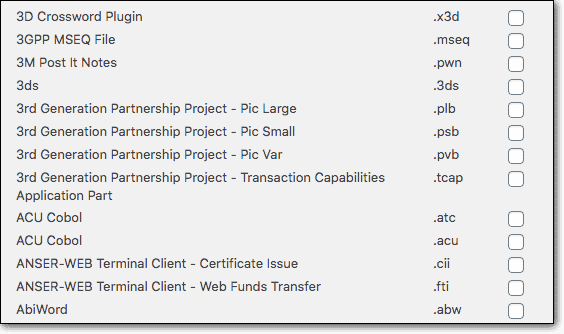
- Configure it by going to Settings > Extra File Types and selecting the types you want to allow.
D) Consult with Hosting Provider (Recommended)
If you’re not comfortable doing these steps yourself, it’s okay to ask for help. Just contact your hosting provider’s support team. They might have easy solutions specific to your hosting setup, minimizing risks to your site.
What to do when you still get an error on file formats supported by WordPress
If you’re still getting the error even with file types that WordPress should support, here’s how you can troubleshoot and fix it:
1) Check for plugin problems
Sometimes bugs in plugins, especially those handling images or maps, can trigger errors. If you’ve recently added or updated a plugin, try turning it off.
Disable your plugins one by one, and after each one, try your upload again. This helps you pinpoint the problematic plugin. Once you find it, contact the plugin’s developer.
2) Try a different theme
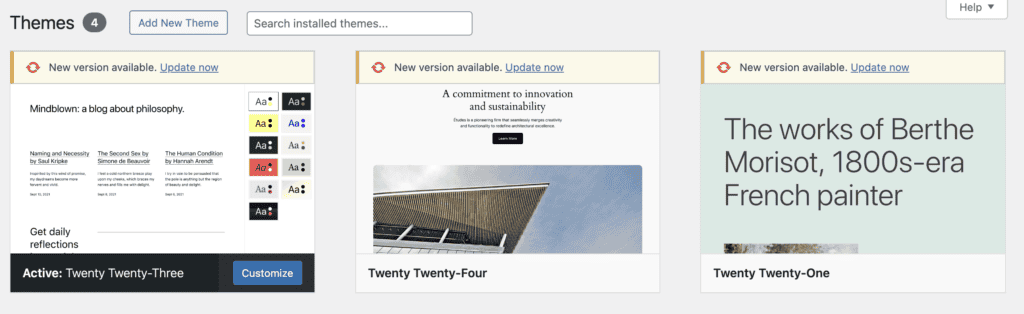
If disabling plugins doesn’t solve the problem, your theme might be the culprit. Switch to a default WordPress theme like Twenty Twenty-One. If the error disappears, your theme is likely causing the issue. Themes can sometimes interfere with uploads in ways you might not notice.
3) Reinstall WordPress core files
If changing themes doesn’t help, consider repairing your WordPress installation. This process can fix hidden issues with the core part of your site that might be causing the error.
4) Get help from your hosting provider
If nothing seems to work, it could be time to contact your hosting provider’s support team. They can provide more advanced troubleshooting and determine if there’s a larger problem affecting your site.
Best practices to prevent future issues
To keep your site running smoothly and avoid these problems in the future, here are some best practices to follow:
Keep everything updated: Make sure your WordPress, themes, and plugins are regularly updated. Updates can fix bugs and enhance security.

Choose wisely: Use only trusted plugins and themes from reliable sources. Check reviews and ensure compatibility with your WordPress version before installing.
Limit plugins: The more plugins you have, the higher the chance of conflicts. Keep only the plugins that are essential for your site.
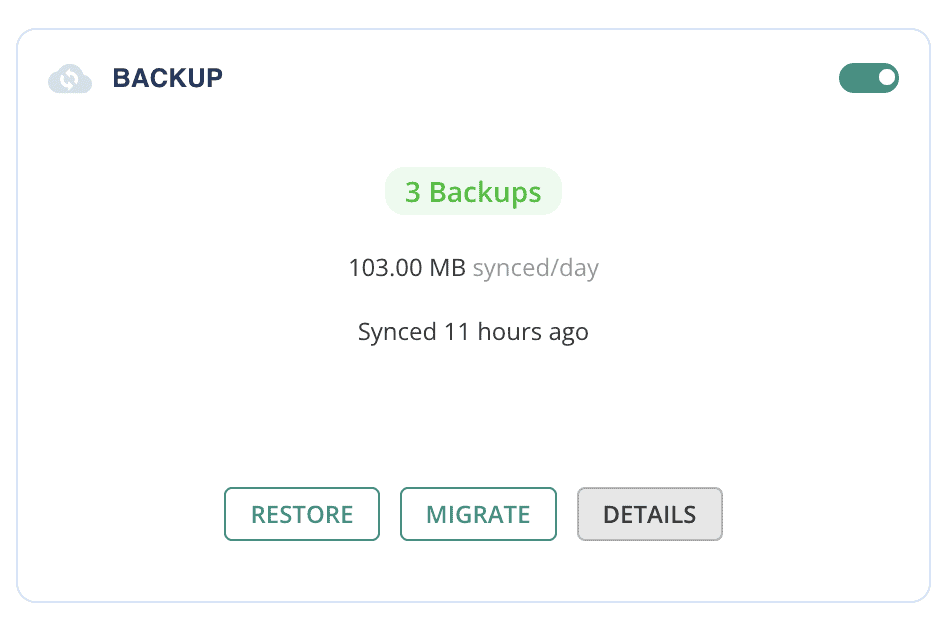
Backup regularly: Regular backups ensure you can restore your site easily if something goes wrong. Make backing up your site a routine.
Avoid direct changes: Try not to make direct changes to WordPress core files, as they can lead to issues later on.
Keep a record: Document any changes or updates to your site. This practice helps you track down the causes of issues if they arise.
Parting thoughts
If you’re having trouble uploading files to WordPress, try converting the file to a commonly accepted format first. This is the simplest way to prevent issues.
If you need to resort to more complex solutions, like using plugins or editing files, proceed cautiously and remember to revert those changes once the issue is resolved.
Always keep your WordPress site updated and back it up regularly. If you find yourself stuck, don’t hesitate to reach out to your hosting support for assistance. These steps will help ensure your site remains safe and operates smoothly.
FAQs
Why does WordPress say “sorry you are not allowed to upload this file type”?
This message shows up because WordPress limits certain file types to protect your site from potentially dangerous files. It’s a security feature to make sure only safe files are uploaded.
How do I allow file types in WordPress?
To enable more file types, you can use a plugin like WP Extra File Types or modify the wp-config.php file to permit unfiltered uploads. Be cautious and weigh the security implications before making changes.
Which file type is not accepted in WordPress by default?
WordPress doesn’t support certain file types like SVGs, EXE, and some script files by default because these can contain potentially harmful code.
What to do when a file type is not allowed?
Convert the file to a format that is supported, such as JPEG, PNG, or PDF. You can also adjust settings through a plugin or by editing core files, but ensure you back up your site beforehand.
How do I fix file permissions in WordPress?
To fix file permissions, access your site files via FTP or your hosting control panel and set the appropriate permissions: usually 644 for files and 755 for directories, to maintain functionality and security.

Shivani enjoys crafting guides that make every aspect of using WordPress simple and easy to follow. When she's not glued to her laptop, you can find her buried in a good book or occasionally, painting.