A complete WordPress site backup is your ultimate safety net, and you should absolutely have one. But think about those smaller, everyday moments. You’re about to update a theme you’ve spent hours perfecting, or you want to test a small code change.
You just need a quick ‘save point’ for your design.
That’s what knowing how to backup WordPress theme gives you. And don’t worry, it’s a lot simpler than it sounds. This guide will walk you through it step-by-step.
Without backups, your site is at risk. A backup plugin is the simplest and most reliable way to secure it, as most options offer the ability to save everything with a click and restore your site quickly after any issue.
How to backup WordPress theme
Before we dive into the four different methods to backup your theme, we have to say that we don’t recommend taking partial backups. A partial backup, in this case, just a backup of your theme, is far more likely to fail when you attempt to restore your site from a major crash.
This is because the problem might be a faulty plugin or a database issue, and a theme backup won’t touch those parts of your site. So, we cannot in good faith recommend only backing up your theme.
But here are the different ways to go about it:
A) Using a plugin
Honestly, the best way to backup a WordPress theme is with a dedicated backup plugin. Tools like BlogVault are the gold standard because they automatically backup your entire site by default, including all files and the database.
This gives you the full-site protection needed for a real emergency, not just a partial copy. Plus, everything is managed from an external dashboard, so you can access your backups even if your site is down.
First, get a full backup
Install and connect the plugin: Follow the prompts to add the plugin to your site and let it perform its first Initial Sync. That’s it. You now have a complete, secure backup of your entire website, which includes the theme files you want.
Next, download just your theme files
Now that you have a full backup, you can easily pull out a copy of just your theme.
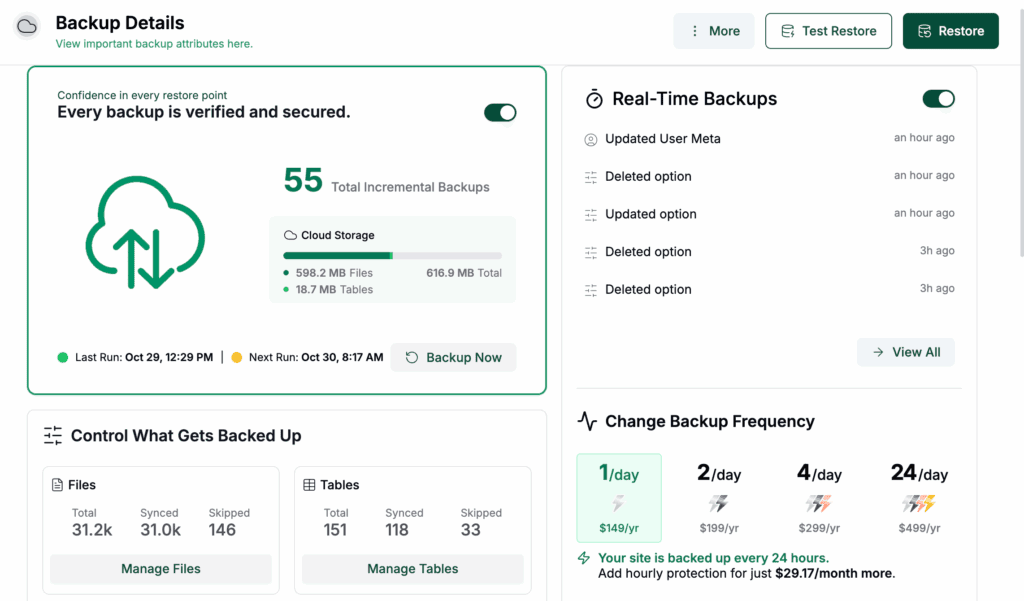
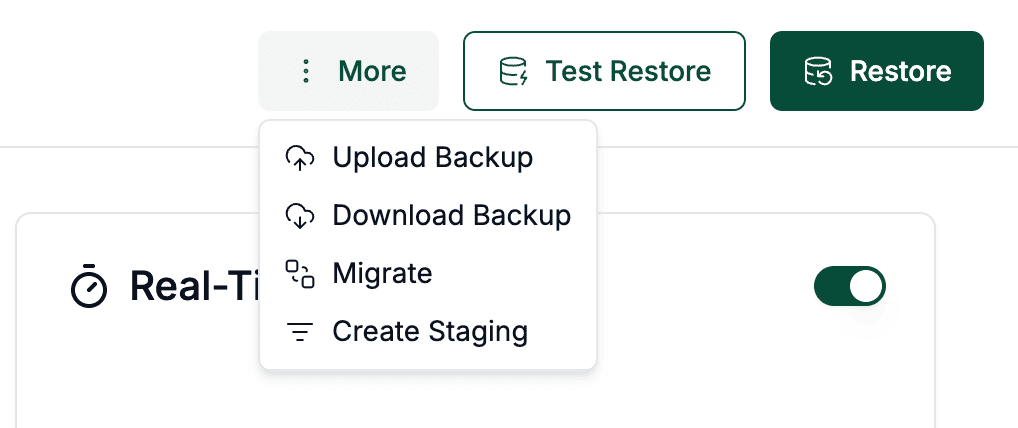
Find the download option: In your backup card, locate your site and select the option to Download Backup.
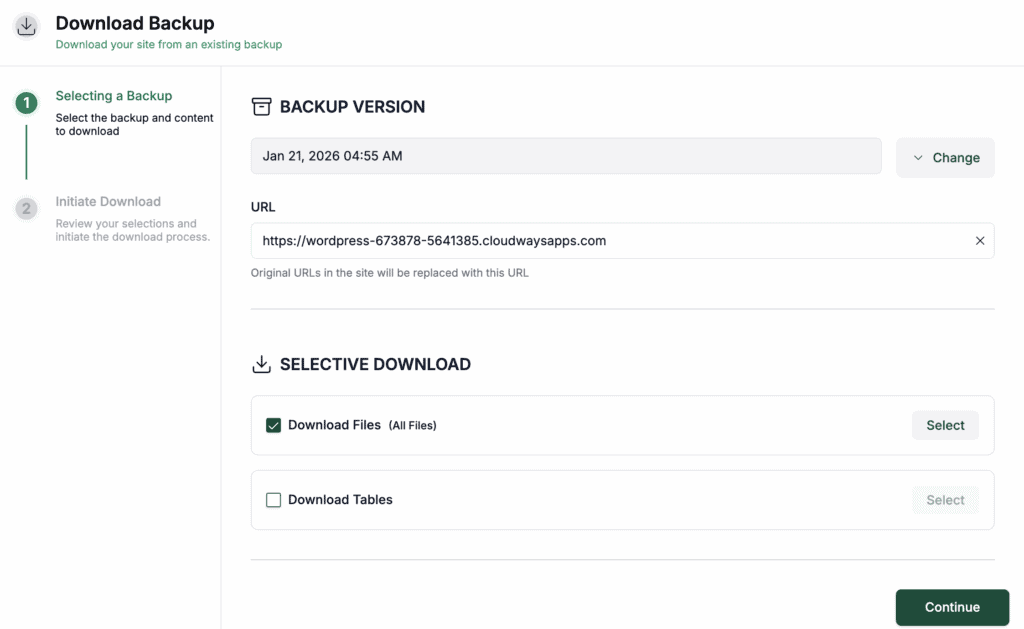
Configure the selective download: First select the most recent backup version and then head to the SELECTIVE DOWNLOAD section uncheck the option for Download Tables (that’s your database) but keep the Download Files option checked.
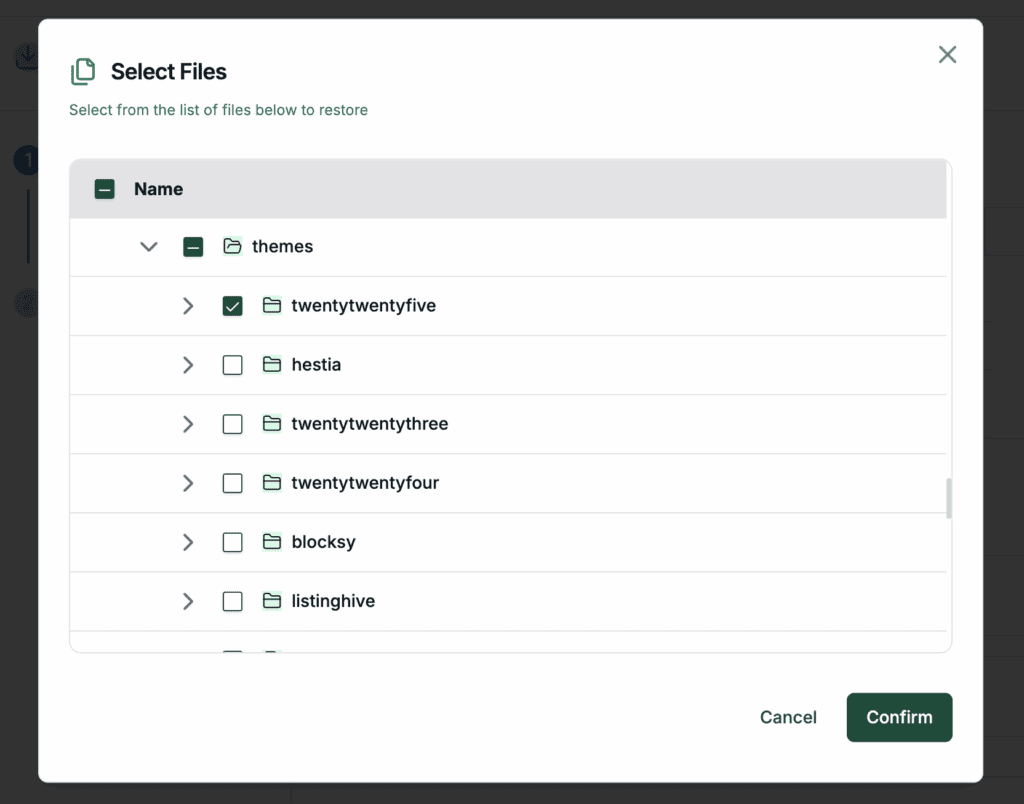
Isolate your specific theme folder: A list of all your site files will appear. Deselect everything, then navigate to the wp-content/themes/ directory. Find and select the folder for your specific theme (e.g., astra or kadence).
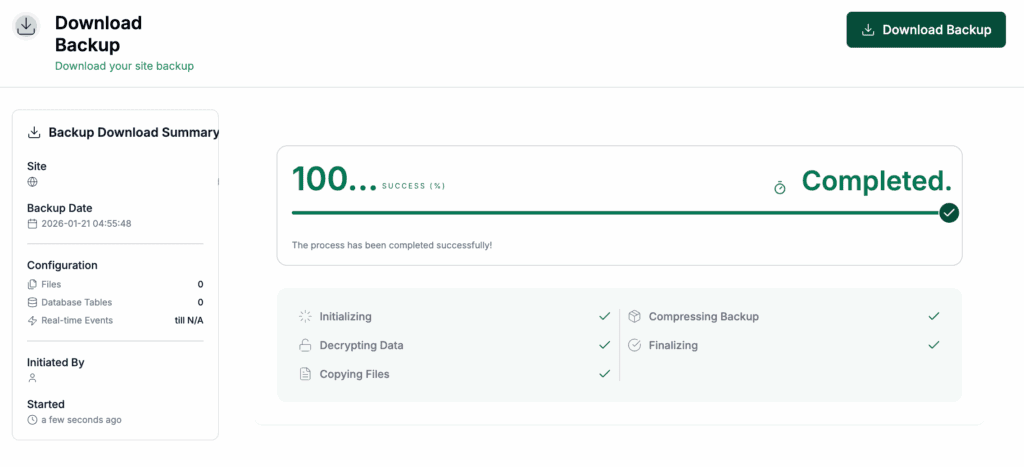
Confirm and download the file: Once you’ve selected only your theme folder, Confirm your choice and hit the Download button. Wait for a few minutes for the process to complete and the download link to generate. Once completed hit the Download Backup button.
A neat .zip file containing only your theme will be downloaded to your computer. You now have a precise copy of your design files, ready to be stored safely, and a full-site backup ready for any real disaster.
B) Using cPanel
If you prefer a more hands-on approach or don’t want to add another plugin, you can backup your theme directly through your hosting control panel. Many hosts, like Bluehost or SiteGround, use something called cPanel. It’s basically a dashboard for all your server settings and files.

Log into cPanel and open the File Manager: First, log into your hosting account and find your cPanel dashboard. Look for an icon called File Manager and open it. This is your window into the website’s live server files.


Navigate to your theme’s directory: On the left, find your website’s root folder. This is usually named public_html but can sometimes be www or your domain name. From there, the path is the same for every WordPress site: click through wp-content and then into the themes folder.


Compress your theme folder into a zip file: You’ll see a folder for each theme you have installed. Find the folder for your active theme, right-click on it, and select Compress. Choose the Zip Archive format when prompted. This will create a single, portable .zip file of your entire theme.

Download the zip file to your computer: The new .zip file will appear in the same directory. Right-click on it and select Download. This will save the backup directly to your computer, where you can store it safely.
C) Using WordPress FTP

If cPanel isn’t an option, you can back up your theme directly using FTP. It’s a classic method that uses a dedicated app, called an FTP client, to move files between your computer and your website. The most popular client is FileZilla, which is free, reliable, and perfect for this task.
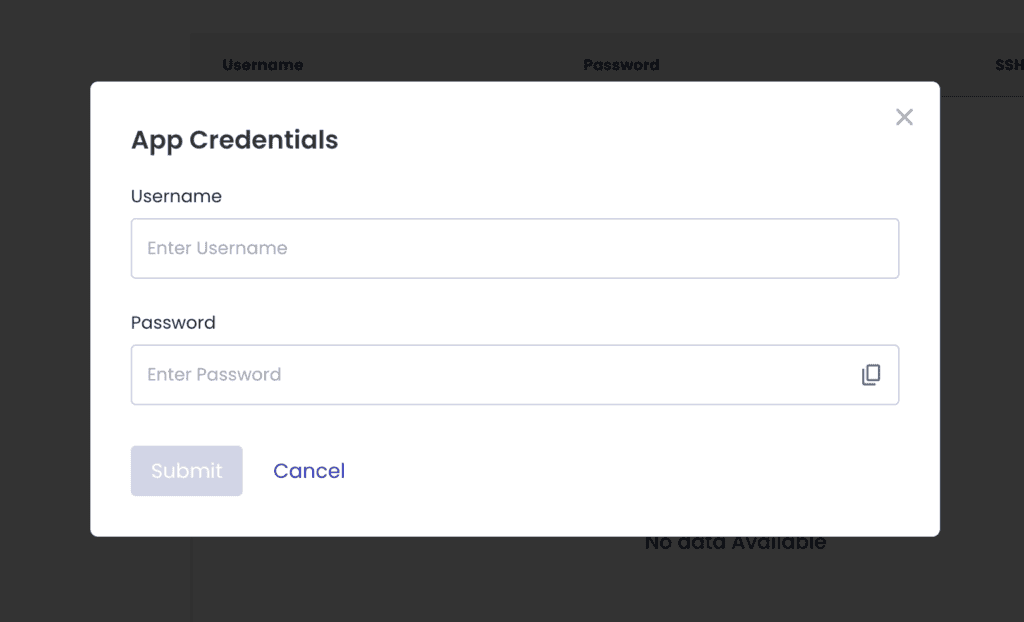
First, find your FTP login details: Before you can connect, you need your server’s credentials. You can find these in your hosting account’s dashboard, often under a section called FTP Accounts or Access Details. You’re looking for three pieces of information: the Host (often your domain name or an IP address), Username, and Password. The Port (usually 22 for SFTP or 21 for FTP).

Connect to your server using FileZilla: Open FileZilla and plug those details into the fields at the top of the screen, then click Quickconnect. The screen will split into two main panels. The left side is your computer; the right side is your live website. This two-sided view is what makes moving files so easy.
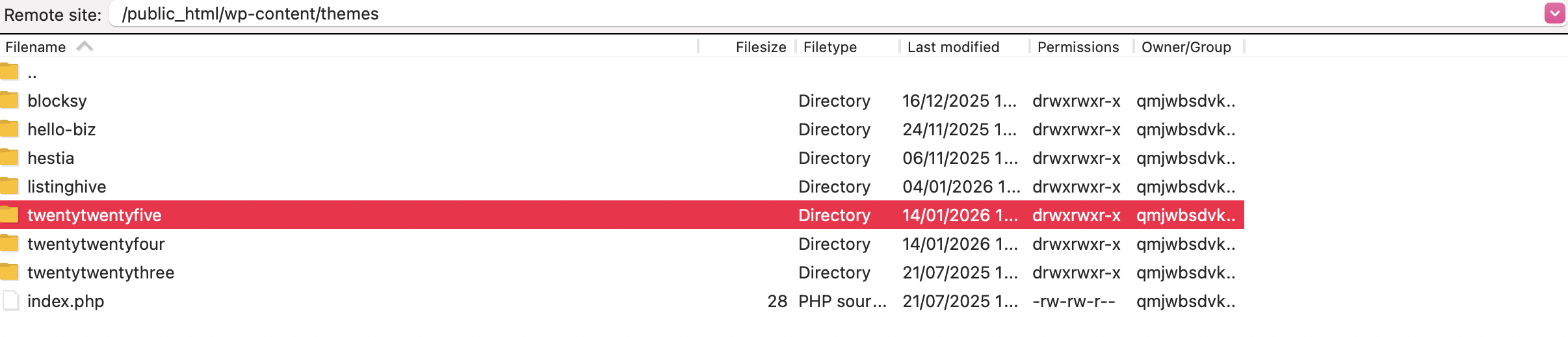
Find and navigate to your theme’s folder: On the right-hand side (your website), find the root folder—usually public_html or www. From there, click through the same path as before: wp-content and then into the themes folder. This is where all your theme files live.
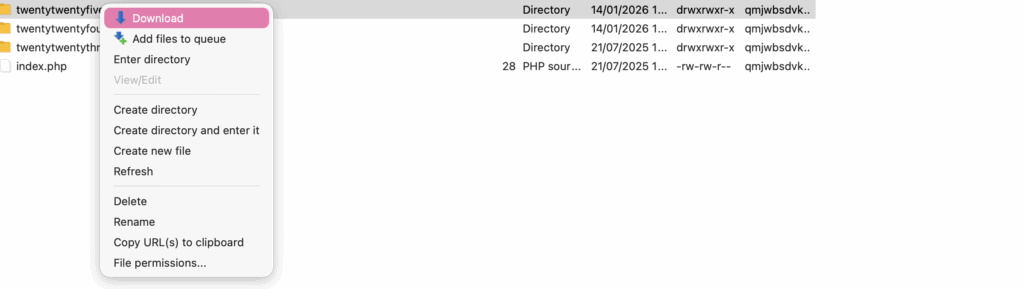
Download the folder to your computer: Find the folder for your active theme, right-click on it, and select Download. FileZilla will start copying the entire folder over to the location you have open on the left side (your computer). The download time depends on the size of your theme, but it’s usually quite fast.
4) Using the theme editor
You can use the Theme Editor in your dashboard to copy theme files, but I have to be honest: in my experience, this isn’t a reliable backup method. It’s incredibly slow, tedious, and a single mistake can ruin your copy. Its only real value is for grabbing the code from a single file, like functions.php.
If you still just need to grab one file, here’s how.

Navigate to the Theme File Editor: From your WordPress dashboard, go to the Appearance section in the left-hand menu and click on Theme File Editor.

Select the correct theme and file: On the top right, use the dropdown menu to select the theme you want to view. On the far right, you’ll see a list of all the theme’s template files. Click on the one you need, like style.css.

Copy the entire contents of the file: Click inside the editor, select all the text from top to bottom (you can use Ctrl+A or Cmd+A), and copy it to your clipboard.

Paste and save the code on your computer: Open a text editor on your computer (like Notepad or TextEdit), paste the code in, and save the file with the exact same name and extension, like style.css.
Repeat this for every single file (and see why this is a bad idea) To back up the whole theme, you’d have to repeat this process for every single file, making sure you recreate the exact same folder structure on your computer.
As you can probably tell, this is an incredibly inefficient way to backup a full theme. But if you just need to quickly grab the code from one specific file? It gets the job done.
Why is a theme backup important?
A theme backup protects the hours you’ve spent tailoring your theme and getting it just right. Accidents happen, like a mistaken deletion or a failed update, leaving your site’s design vulnerable. Here are the key reasons you shouldn’t skip this.
- Preserve your custom design work: A backup saves every modification in your theme’s files, from small CSS tweaks to major layout changes. It spares you the headache of starting over from scratch if something goes wrong.
- Safely handle WordPress updates: Updates to WordPress or your theme can create compatibility problems, especially with major version changes. If an upgrade breaks your site’s look, a backup lets you easily roll back to the working version.
- Test changes without risk: A backup allows you to test a new theme or major design changes on a staging site without risk. If anything breaks, you can fall back on your saved copy without affecting your live website.
- Save time and money on fixes: Restoring a theme from a backup is much faster than rebuilding it from memory. It saves you time and resources, letting you focus on your business instead of troubleshooting a broken site.
Without a backup, you risk having accidental changes, bad updates, or attacks wipe out your work. A backup is the smartest way to protect your site’s design.
Parting thoughts
To wrap it up, we’ve got a few options on the table: plugins, cPanel backup, manual FTP client, and an in-built theme editor tool.
Even with all these methods out there, we would recommend considering using a robust plugin like BlogVault to ensure automated and reliable backups.
Sure, manual FTP, using cPanel or custom code could do the job, but let’s face it: they can be a pain. Not to mention the potential for human error. Why bother with all that when you can have a plugin like BlogVault doing the heavy lifting for you?
FAQs
Should I have a backup theme on WordPress?
No, having a backup of your theme on WordPress is not necessary, but it’s important to regularly backup your entire WordPress site, including your theme files. Backups ensure that you have a copy of your website in case anything goes wrong or you want to revert to a previous version.
How do I make a full backup of WordPress?
To take a full backup of WordPress, you can use a backup plugin like BlogVault or rely on your hosting provider’s backup tools. There is a drawback if you choose your hosting provider’s backup as they save it on your server slowing down your site. But BlogVault saves it on their own servers, not affecting the performance of your site.
What is a theme backup?
Theme backup involves creating a copy of your WordPress theme files to protect any customisations or changes you’ve made. However, it’s crucial to note that we highly recommend complete and regular backups of your entire WordPress website. These backups ensure the security and integrity of your site, allowing you to revert to a previous version if needed.
How do I export a modified WordPress theme?
To export a modified WordPress theme, you need to download the modified theme files from your WordPress installation. Access your website’s files using an FTP client or through your cPanel’s’s file manager. Locate the theme folder in the “wp-content/themes” directory and download the entire folder to your computer. This will export the modified theme for backup or future use.

Shivani enjoys crafting guides that make every aspect of using WordPress simple and easy to follow. When she's not glued to her laptop, you can find her buried in a good book or occasionally, painting.