As a website owner, you might face the constant threat of data loss, hacking attempts, and accidental deletions, putting your website content at risk.
Having a backup of your website is the first step to archiving your site.
By maintaining a reliable archive, you can easily restore your website’s content, themes, plugins, and customizations whenever necessary.
Using a backup plugin to backup your site entirely is the foundational step to creating a site archive. It makes your site invulnerable to data loss and potential disasters, ensuring secure storage and seamless restoration when necessary.
What’s WordPress site archive?
A WordPress site archive is simply a full copy of your website saved in one file or folder. You can think of it like a snapshot of your site at a specific moment in time. It usually includes everything that makes your website work, such as your pages and posts, images, themes, plugins, and the database that stores your content and settings.
It is one of the ways to retain an independent copy of a site.
In this article, we will discuss two detailed methods and the importance of archiving your WordPress site.
How to archive a WordPress site
We will go through two methods to archive your WordPress site:
A) Via a plugin (Recommended)
Archiving a WordPress site is incredibly easy with a reliable WordPress backup plugin.
We highly recommend using BlogVault. Thanks to its user-friendly interface and intuitive navigation, you can swiftly archive a WordPress site without any hassle.
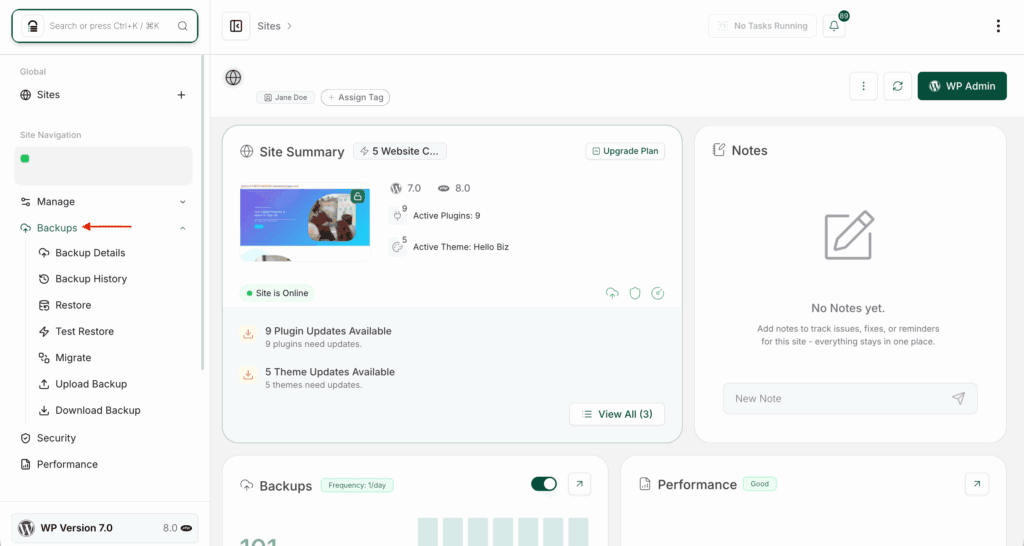
Prepare your backup: Once you’ve installed BlogVault have have initiated a sync, head to the Backups section on the side menu. Here, click on the Download Backup option.
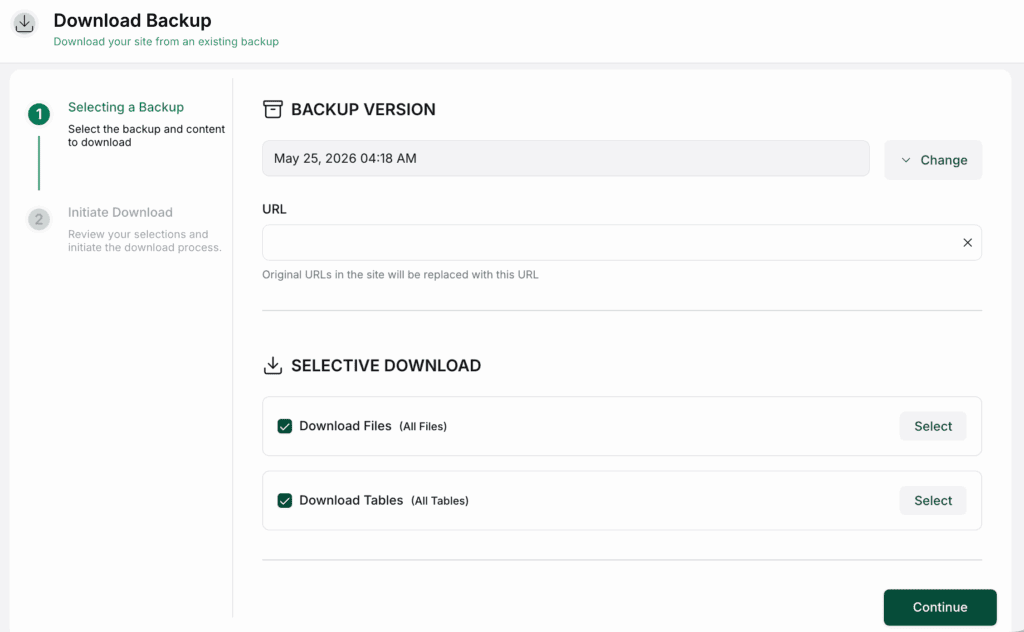
Select backup version and files: Choose your required Backup Version and ensure that you select Download Files and Download Tables. This ensures that you have a comprehensive copy of both your files and your database tables. Click on Continue to proceed with the download process.
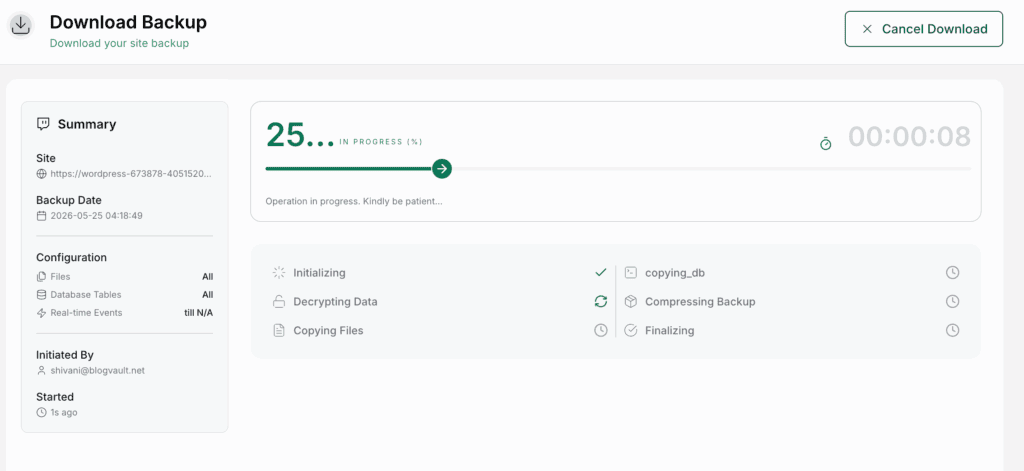
Verify and initiate the backup download: After the backup is ready for download, click on the Download Backup button. This will save a .zip file to your device. For long-term storage, you can save your backup to Dropbox directly through the Blogvault dashboard. This backup serves as a archive. You could consider compressing the file and uploading it to a cloud-based platform or any other reliable storage location.
B) Manually
If you want to manually backup your WordPress site, you will need to have a copy of your website’s files and database. It is essential for you to have these two components for a complete site archive.
The files of your website contain all the themes, plugins, and custom code that determine your site’s design and functionality. The database stores critical content, comments, user data, and configurations. Archiving both ensures that you have a complete copy of your site, allowing for easy restoration in case of any issues or data loss.
A. Download files
You can download your WordPress site files using FTP, cPanel, or SSH. Choose the method you’re most comfortable with.
Option 1. FTP

Use an FTP client like Cyberduck to connect to your server with your IP address and SFTP/SSH credentials from your hosting provider. Once connected, open your site’s root directory (public_html/www), select all files and folders, and download them to your computer. After the download is complete, move the files to your archive folder you created earlier.

Option 2. cPanel

Log in to cPanel and open File Manager. Navigate to your site’s root directory (public_html/www), then compress the folder into a .zip file. Once the zip file is created, download it to your computer, extract it if needed, and move the contents to your archive folder.

Option 3. SSH
If you’re comfortable using the command line, you can download your site files over SSH. Connect to your server and run a command like:
scp -r username@serveraddress:rootfolder localfolderThis copies your site’s root folder to your local machine. Once downloaded, move the files to your archive folder.
B. Download database
To complete your WordPress site archive, you also need to download your site’s database. You can do this using your host’s database manager, phpMyAdmin, or SSH.
Option 1. Built-in database manager

Many hosting providers offer a built-in database tool. Open your host’s database manager, select your site’s database, and click Export. Choose SQL as the format and gzip if compression is available, then start the export. Once the file downloads, extract it if needed and save it in the same archive folder as your site files.

Option 2. phpMyAdmin

To download a backup from phpMyAdmin, you can access it from within cPanel. Open phpMyAdmin from your hosting panel or by visiting /phpmyadmin if your host allows direct access. Select your WordPress database, go to the Export tab, choose Quick as the export method and SQL as the format, then click Export. Save the downloaded .sql file in the same archive folder as your site files.

Option 3. SSH
If you use WP-CLI, you can export the database from the command line with:
wp db export filename.sqlThen download it to your computer with:
scp username@serveraddress:rootfolder/filename.sql localfolderAfter downloading the file, move it to the same archive folder as your site files.
Once your archive folder contains both your site files and database, compress the folder into a .zip file to save space and keep everything together. Give it a clear name, such as WordPress-Site-Archive-ddmmyyyy.zip, so it is easy to identify later.
You can store the archive on your computer, an external drive, or a cloud storage service like Google Drive or Dropbox for extra safety and easier access.
Blog archive vs. site archive
Before diving into the archiving process, it’s important to understand the difference between your WordPress blog archive and a complete site archive.
Your WordPress blog archive refers to the organised collection of your blog posts, typically displayed on archive pages by date, category, or tag. These WordPress archive pages are automatically generated by WordPress and help visitors navigate your content chronologically or by topic. They improve user navigation and SEO, and are dynamically generated from your database.
A complete site archive, on the other hand, includes everything: your blog posts, WordPress archive pages, themes, plugins, media files, and database. When you archive your website using the methods above, you’re creating a comprehensive backup that preserves both your content and your site’s functionality.
Site backup vs. site archive
When it comes to data storage and retention, as a website owner it’s crucial to understand the distinction between website backups and website archives. While both serve as essential website data management practices, they serve different purposes and employ distinct storage methodologies.
Backup: preserving data for restoration
A WordPress backup involves creating a duplicate copy of your data, typically performed regularly or when the original data changes. The primary objective of a backup is to make sure you have a copy of any file that you currently use and cannot afford to lose.
It acts as a safety net, ensuring that your site can be restored in the event of data loss or system failures.
During a backup, your original site stays untouched, while a copy is saved in another location. Backups can be updated over time, and older versions are often deleted to save storage space.
Storage for backups typically involves cloud storage or easily accessible local backup storage. This ensures quick access and restores when needed, making backups ideal for maintaining the latest versions of your website’s files, configurations, and user-generated data.
Archive: preserving data for long-term storage and reference
Unlike backups that focus on recent versions of data, website archives are used for long-term storage and reference. An archive is a copy of data specifically created for retention purposes, either to meet compliance requirements or to preserve historical records.
For example, archives of deleted sites are often created for record-keeping.
When data is archived, it is usually moved to a separate storage location and kept as a fixed, unchangeable copy. Unlike backups, archives are meant for long-term storage and are often used for reference, compliance, legal needs, or finding older information later.
A site is usually archived when its data is older, rarely accessed, or no longer actively needed, such as after a project ends.
If you need both backups and archives, BlogVault is a strong option. Because it creates full-site backups, those backups can also work as effective site archives.
Importance of site archives and backups
Backups and archives both play an important role in protecting your website. Backups help you recover quickly from data loss, while archives help you store important data for the long term for reference, compliance, or record-keeping.
Using both helps you protect your site’s files, content, settings, and user data, while also making it easier to reduce risk, meet legal requirements, and preserve important information over time. By understanding the difference, you can choose the right approach for your website’s needs.
Parting thoughts
Archiving your WordPress site is an important way to protect your content and keep it accessible when you need it. Whether you use a plugin like BlogVault or create an archive manually, having a copy of your site helps protect you from data loss, hacks, and accidental deletions.
Taking the time to set up a proper archiving process can help you protect valuable site data, prepare for unexpected issues, and manage your website with more confidence.
FAQs
How do I archive an entire WordPress site?
Archiving an entire WordPress site can be done using plugins like BlogVault or by manually downloading the files and exporting the database. Archiving a site involves creating a copy of all the website’s files, database, themes, plugins, and media.
How can I ensure the safety and preservation of my WordPress site’s content and data?
To ensure the safety and preservation of your WordPress site’s content and data you need to implement a reliable backup strategy, storing backups in secure locations (such as cloud storage or offline devices), and following best practices for archiving will help protect your website’s content and data.
What are the potential risks and challenges associated with not having a proper archive or backup?
The potential risks of not having a proper archive or backup strategy can expose your website to data loss, hacking incidents, accidental deletions, or server failures. In such cases, recovering your website and its content becomes challenging, resulting in extended downtime, loss of valuable information, and damage to your online presence.
What are the best practices for archiving a WordPress site?
Some best practices for archiving a WordPress site include regularly creating backups and archives, storing backups in off-site locations, verifying the integrity of backups and archives, documenting the archiving process, and periodically testing the restoration process to ensure data recovery.
Which tools or plugins are recommended for effectively archiving a WordPress site?
Several trusted tools and plugins are available for effectively archiving a WordPress site. Some popular options include BlogVault, UpdraftPlus, BackWPup, and Duplicator. These tools offer features for creating backups, automating the archiving process, and storing backups securely.
How do I archive my website if it’s primarily a blog?
To archive your website when it’s blog-focused, pay special attention to your WordPress blog archive and WordPress archive pages. These include your category pages, tag pages, and date-based archives that help organise your content. Use either the BlogVault plugin method or manual backup to ensure your complete archive is preserved, including all posts, comments, and the archive page structures.
What’s the difference between archiving a website and creating a backup?
When you archive a website, you’re creating a comprehensive snapshot for long-term storage, which includes your WordPress blog archive and all WordPress archive pages. While backups are typically for recent restoration, archives serve as historical records of your entire site structure and content.

Shivani enjoys crafting guides that make every aspect of using WordPress simple and easy to follow. When she's not glued to her laptop, you can find her buried in a good book or occasionally, painting.