

Seeing the dreaded ERR_SSL_VERSION_OR_CIPHER_MISMATCH error pop up on your screen can feel alarming. WordPress errors like this can impact your WordPress site’s credibility, security, and SEO rankings are at stake. Visitors encountering this SSL issue face warnings of insecure connections, harming user trust, decreasing traffic, and negatively impacting your website’s perceived reliability. As a website owner, you’re likely scrambling for a quick solution to restore your users’ trust and maintain smooth access.
Fortunately, you’re not alone—and this issue can be swiftly resolved. This article will walk you through everything you know.
Solve the ERR_SSL_VERSION_OR_CIPHER_MISMATCH error by ensuring your SSL/TLS configuration is up-to-date. Check your SSL certificate validity, upgrade to modern TLS protocols, and configure your server’s cipher suites to support current standards, restoring your WordPress site’s security and trustworthiness swiftly.
What is the ERR_SSL_VERSION_OR_CIPHER_MISMATCH Error?
The ERR_SSL_VERSION_OR_CIPHER_MISMATCH is an error message typically encountered in internet browsers, signifying an issue with the SSL/TLS connection between a client and a server. This means that your site is not secure.
This error is caused by discrepancies in the SSL/TLS handshake protocol between a client and server. The SSL/TLS handshake establishes a secure connection by exchanging keys. It verifies identities and allows encrypted communication between a client and server. If they fail to establish an agreement on secure communication standards, you’ll see this error.
One main cause is using incompatible SSL/TLS versions, which happens when a server supports old protocols. Additionally, outdated SSL certificates on the server can fail to be recognized as trustworthy. If the server software isn’t updated, it may not support newer security protocols, causing more connection issues.
Fixing the ERR_SSL_VERSION_OR_CIPHER_MISMATCH error
Now that you understand what the ERR_SSL_VERSION_OR_CIPHER_MISMATCH error is and why it happens, let’s dive into how to fix it. This error usually shows up when there’s a problem with your SSL certificate or the server’s settings. Don’t worry—most solutions are simple and can be done without advanced technical knowledge. Let’s go step by step to resolve this issue so your site can load securely again.
1. Check expiry of SSL certificate:
An expired SSL certificate is one of the common causes of this error. SSL certificates help keep your website secure for visitors, but they have an expiration date. Once it expires, browsers can no longer trust the website, leading to errors like ERR_SSL_VERSION_OR_CIPHER_MISMATCH. By checking the expiry date of your SSL certificate, you can confirm if this is the issue.
To check if your SSL certificate has expired, use a tool like Qualys’s SSL Checker. Simply enter your website URL into the tool, and it will show details about your certificate, including the expiration date. If your SSL certificate has expired, you’ll need to replace or renew it. You can usually do this through your hosting provider or wherever you purchased your SSL certificate. Once renewed, the error should no longer appear.

2. Update server SSL/TLS configuration:
Outdated SSL/TLS versions can cause the ERR_SSL_VERSION_OR_CIPHER_MISMATCH error. Modern browsers only support newer and secure versions of these protocols. If your server still uses older versions like SSLv3 or TLS 1.0, browsers will block the connection. Updating your server’s SSL/TLS configuration ensures your site remains secure and compatible with today’s standards.
Reach out to your web host to help you update your server configuration.
3. Enable compatible cipher suites:
Cipher suites are a key part of how SSL/TLS protocols handle encryption. If your server uses outdated or weak cipher suites, browsers may reject the connection, causing the ERR_SSL_VERSION_OR_CIPHER_MISMATCH error. Ensuring your server uses strong and commonly supported cipher suites helps maintain a secure and compatible environment for your website. Most hosting providers or server control panels offer tools to update this configuration. If you’re unsure, contact your hosting provider for help.
4. Renew or Reinstall SSL Certificate:
Your SSL certificate needs to be properly installed, valid, and unexpired for browsers to trust your website. If the certificate is corrupted, incorrectly installed, or expired, you might see the ERR_SSL_VERSION_OR_CIPHER_MISMATCH error. Renewing or reinstalling the SSL certificate can often fix this issue.
First, check the status of your SSL certificate using a tool like SSL Checker. If the certificate is expired or listed as invalid, you’ll need to renew it. Use a tool like Really Simple SSL to do so.

5. Clear Browser Cache and SSL State:
Sometimes, the ERR_SSL_VERSION_OR_CIPHER_MISMATCH error isn’t caused by the server but by your browser. Cached data, cookies, or old SSL state stored in your browser can conflict with the website’s updated configuration. Clearing your cache and SSL state can often resolve the issue on the user side.
The steps to clear browser cache will vary depending on the browser. But, here’s how to do so on Chrome:
- Click the three vertical dots in the top-right corner of your Chrome window, then select Settings from the dropdown menu.
- Scroll down the Settings page and click on Privacy and security in the left sidebar.
- Click on Clear browsing data in the main panel. This will open a new dialog box with various clearing options.
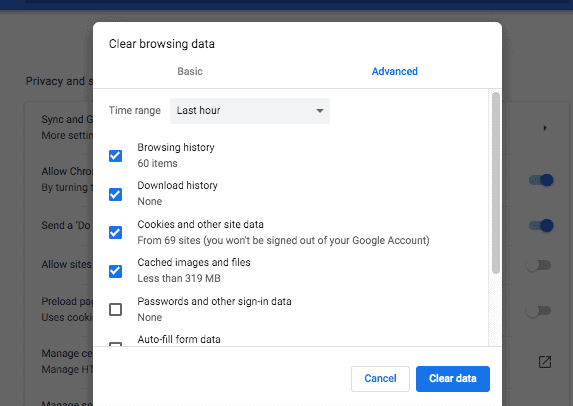
- In the dialog box that appears, choose the time range from the dropdown menu (select All time for a complete cache clearing)
- Click the Clear data button in the bottom-right corner of the dialog box.
6. Update your browser:
Outdated web browsers can cause the ERR_SSL_VERSION_OR_CIPHER_MISMATCH error. Browsers are regularly updated to support the newest security protocols, like the latest SSL/TLS versions and cipher suites. If you’re using an older version, it might not be compatible with modern websites. Updating your browser is a simple way to fix this issue.
The steps to do so will vary depending on the browser. Here are the steps to update google Chrome:
- Click the three dots menu in the top-right corner
- Hover over Help in the dropdown menu
- Click About Google Chrome
- Chrome will automatically check for updates
- If an update is available, Chrome will download it

- Click Relaunch when prompted to complete the update
- Chrome will restart with the latest version installed
7. Check for redirect loops
Redirect loops can sometimes lead to ERR_SSL_VERSION_OR_CIPHER_MISMATCH. A redirect loop happens when your website keeps sending requests back and forth endlessly, instead of resolving the connection. This can confuse browsers and make them unable to establish a secure connection. Reach out to your web hosts support team to figure it out.
8. Contact hosting provider
If you’ve tried all the troubleshooting steps and the ERR_SSL_VERSION_OR_CIPHER_MISMATCH error still persists, it may be time to contact your hosting provider. Sometimes, the issue might be server-side and requires technical adjustments that you can’t access directly.
How to prevent the ERR_SSL_VERSION_OR_CIPHER_MISMATCH?
Fixing the ERR_SSL_VERSION_OR_CIPHER_MISMATCH error can be time-consuming and frustrating, especially if it keeps recurring. While it’s important to know how to resolve the issue, it’s even better to prevent it from happening in the first place. By taking proactive steps, you can minimize the chances of running into this problem again. Let’s explore some key practices to keep your website secure and error-free.
- Regularly update ssl certificates: Monitor your SSL certificate for an expiration date and renew it well before it expires. This ensures your certificate remains valid, avoiding connection errors and maintaining trust with your visitors.
- Adopt modern ssl/tls protocols: Outdated SSL/TLS protocols are no longer secure or supported by modern browsers. Make sure your server is configured to use the latest protocols, such as TLS 1.2 and TLS 1.3, for improved security and compatibility.
- Maintain strong cipher suites: Remove any deprecated or weak cipher suites from your server’s configuration. Stick to strong and up-to-date cipher suites that protect data encryption and ensure compatibility with browsers.
- Perform regular security audits: Security is an ongoing process. Frequently audit your server configurations to detect potential vulnerabilities, outdated protocols, or misconfigurations that could lead to errors like this one.
- Use reliable certificate authorities (CAs): Always obtain your SSL certificates from reputable CAs. Trusted CAs ensure your certificate is compatible with all major browsers and offer robust security features.
- Keep server software up-to-date: Your server software plays a big role in securing your website. Regularly apply updates and patches to your server to protect it against vulnerabilities, including those that may affect SSL/TLS configurations.
Final thoughts
A breach in your website’s security is something you can’t afford to ignore. Errors like ERR_SSL_VERSION_OR_CIPHER_MISMATCH don’t just affect your visitors—they signal potential weaknesses in your website’s security setup. If left unresolved, these issues could expose sensitive data and damage your website’s reputation. That’s why it’s critical to address the problem as soon as possible.
To ensure long-term protection, consider using tools like BlogVault to monitor your website’s security. BlogVault can warn you of SSL certificate invalidity and help you get ahead.
FAQs
How to resolve ERR_SSL_VERSION_OR_CIPHER_MISMATCH error?
This error can be resolved by addressing issues with your SSL/TLS configuration. Here are the steps:
- Check if the SSL certificate has expired and renew it if needed.
- Update your server to use modern SSL/TLS protocols (TLS 1.2 or higher).
- Ensure your server’s cipher suites include only strong, secure options.
- Clear your browser cache and SSL state to remove outdated data.
If issues persist, contact your hosting provider for assistance in reviewing server-side configurations.
How do I fix an unsupported protocol version?
An unsupported protocol version means your server or browser is using outdated protocols like SSLv3 or TLS 1.0, which many browsers have dropped support for. To fix this:
- Update your server configuration to enable only supported protocols, such as TLS 1.2 or 1.3.
- Update your web browser to the latest version, ensuring it supports current security protocols.
Contact your hosting provider for help enabling only modern protocols on your server.
How do I fix an SSL protocol error in Chrome?
To fix an SSL protocol error in Chrome:
- Clear your browsing data and SSL state: Go to Settings > Privacy and Security > Clear Browsing Data and remove cache and cookies. Then clear the SSL state in your operating system.
- Check your system date and time: Incorrect date/time settings can lead to SSL errors. Make sure they’re accurate.
- Update your browser: Ensure Chrome is updated to the latest version.
If the issue is server-side, contact your hosting provider to check the SSL/TLS configuration.
How to fix error 113 net::ERR_SSL_VERSION_OR_CIPHER_MISMATCH: unknown error?
This error typically points to outdated or misconfigured settings on either your browser or server. To fix it:
- Renew or reinstall the SSL certificate if it’s invalid, expired, or corrupted.
- Enable modern TLS protocols (TLS 1.2/TLS 1.3) on your server and disable older ones like SSLv3 or TLS 1.0.
- Configure your server to use strong, widely supported cipher suites.
- Clear your browser cache and SSL state, and ensure your browser is up-to-date.
If the problem continues, contact your hosting provider for technical assistance.

Shreya has been a writer for as long as she can remember. Now, she writes articles that help WordPress users manage the sites that they're proud of, with little to no coding


