

Is your WordPress site stuck in a loop, redirecting over and over? It can be really frustrating when your site just won’t load.
But why does this happen? And more importantly, how can you fix it?
You’re not alone! Many people face this WordPress redirect error.
The too many redirects WordPress error means your browser is going in circles between webpages. This usually happens due to incorrect website or browser configurations.
But don’t worry, fixing it is easier than you think. Let’s look at some simple steps to help you stop these endless redirects. Whether it’s deleting old data or changing a setting, we’ll help you fix the issue and stop it from happening again.
You can fix the too many redirects WordPress error with some simple steps. These involve refreshing the page and checking your SSL settings and site configurations. But before you start, make sure to backup your entire site. This way, you’ll have something to rely on if anything goes wrong.
1. Refresh the web page
Sometimes, the easiest fixes are the most effective. It might sound simple, but reloading the page might solve your issue. If you see the too many redirects WordPress error, try hitting the Refresh button on your browser.
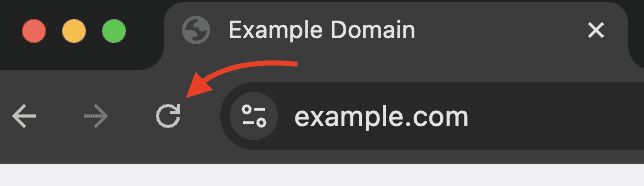
Refreshing can clear up small problems and help your site load properly. If that doesn’t work, switch to another browser. Different browsers can deal with redirects differently.
2. Delete all cookies
Cookies are tiny pieces of data that websites save in your browser. They help sites recall things about your visits. But sometimes they can have outdated or wrong information. They can also become corrupted.
When this occurs, it can cause problems with your browsing, like the too many redirects WordPress error. To resolve this, you should clear your cookies.
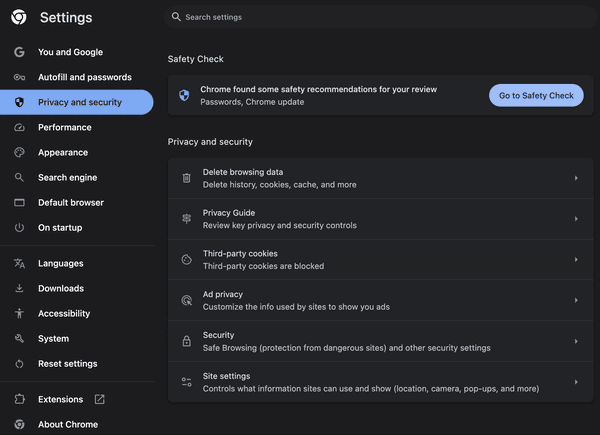
First, go to your browser settings and find where you can clear or manage cookies. Each browser does it a bit differently, but you’ll usually find this in the Privacy or History section. Choose the option to delete all cookies. Once you’ve done that, try visiting your site again to see if the problem is fixed.
3. Clear all caches
Caches store small bits of information to help websites load faster. But, if the cached data gets old, it can cause issues, like the too many redirects WordPress error.
Clearing caches can fix these problems. You should clear your browser cache, caching plugin cache, CDN cache, and server cache.
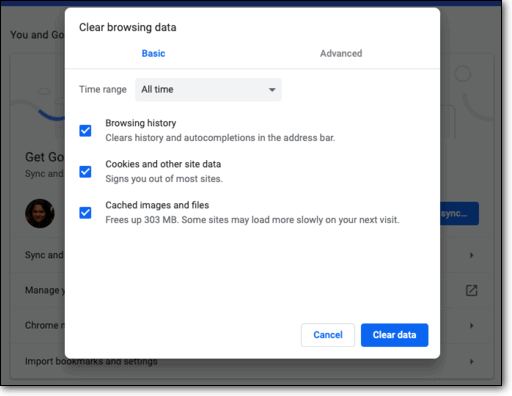
Start by going to your browser settings to clear the browser cache. If you use caching plugins on your site, visit their settings and clear those caches. For a CDN, log into its dashboard to find the option to clear the cache. Finally, you might need to reach out to your hosting provider to clear the server cache.
Once you’ve cleared everything, visit your site again to see if it’s working properly.
4. Deactivate/disable WordPress plugins
Sometimes, plugins can cause site errors. Adding a new plugin or updating one might create conflicts with your existing site setup. This can lead to issues on your site.
If you can access your site’s admin dashboard, start by deactivating all plugins. Go to the Plugins section and click Deactivate for each one. Then, try loading your site again.

If you can’t access the admin dashboard, you’ll need to use FTP. Connect to your site with an FTP client like Filezilla. Find the wp-content folder and rename the plugins folder to something like plugins_old. This will disable all plugins. Now, check your site again.
If your site works, a plugin was likely the issue. Rename the plugins folder back to its original name. Deactivate individual plugins by renaming their folders and reactivate them one by one. Each time you activate a plugin, check if your site still works. When you find the plugin causing the problem, you have choices.

You can replace the plugin or reach out to its developers. Inform them about the issue; they might fix it with an update. Once it’s resolved, you can safely use the plugin again.
5. Check WordPress site settings
URL mismatches in your WordPress settings can cause errors. This often happens if URLs differ between wp-admin, wp-config.php, and the database. Even small differences, like using http in one URL and https in another, can cause problems.
If you can access the admin dashboard, start there. Go to Settings and check the WordPress Address (URL) and Site Address (URL). Make sure they match your site’s URL.

Next, access your wp-config.php file using FTP. Look for WP_HOME and WP_SITEURL values. Ensure they match your site’s URL.
Then, use phpMyAdmin or your host’s database manager to access your database. Check the wp_options table for the siteurl and home fields. Confirm they’re consistent with your site’s URL.

If you find mismatches, correct them to ensure all URLs are the same. Keeping everything consistent helps avoid errors.
If you can’t access the admin dashboard, you can edit your wp-config.php file and add this code:
update_option('home', 'https://yoursite.com');

update_option('siteurl', 'https://yoursite.com');
Replace https://yoursite.com with your actual site URL. This forces the correct URLs back into your dashboard.
6. Check your site’s SSL configuration
Switching your site to HTTPS by getting an SSL certificate is a smart security upgrade. Many web hosts even provide free SSL certificates with their plans. However, during setup, you might face errors causing redirects. These could be due to incorrect SSL installation, misconfigured certificates, or domain issues.
If you’ve recently switched to HTTPS or installed a new SSL certificate, it’s wise to check your setup. Use an online tool like the Qualys SSL Server Test to review your site’s SSL configuration. This tool will help you see if everything is set up right.
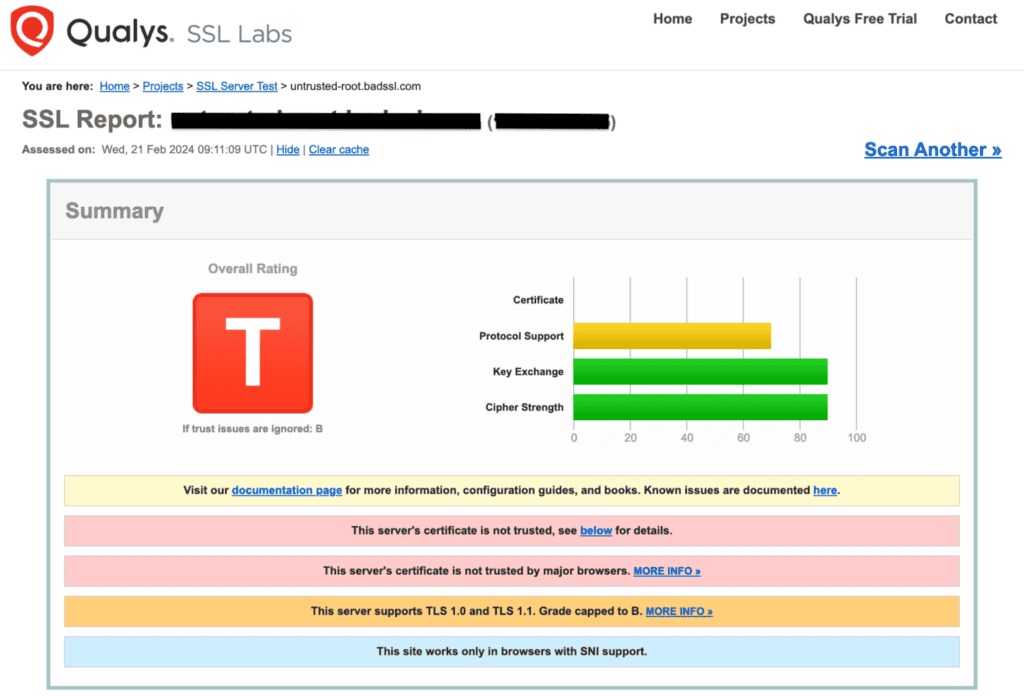
If the test shows problems, you might need to reinstall the SSL certificate or adjust the settings. If it feels too technical, consider getting expert help.
7. Update hard-coded links
Your site’s pages use various resources like images, audio, and videos. All these resources connect to your site via URLs. If your site is on HTTPS but these resource links aren’t, you might face mixed content and redirect issues.
To fix this, update these links. Use a plugin like Better Search Replace to change all HTTP links to HTTPS. This makes updating many links quick and easy.
For resources not available over HTTPS, consider replacing them. Additionally, using a Content Delivery Network (CDN) can help prevent issues. CDNs often manage resource links more efficiently and securely.
8. Check for redirects on your server
Your server might have redirects in place. For example, HTTPS redirects that guide users from the HTTP to the HTTPS version of your site. You might also use 301 redirects to help users find new pages if the old ones have moved.
These redirects are usually found in your .htaccess file on Apache servers. If you use nginx, they’re in the nginx.conf file.
To check or change these settings, you can edit these files. Here’s how you redirect all HTTP requests to HTTPS on Apache servers:
RewriteEngine On

RewriteCond %{HTTPS} off

RewriteRule ^(.*)$ https://%{HTTP_HOST}%{REQUEST_URI} [L,R=301]
For nginx servers, use this code:
server {

listen 80;

server_name domain.com www.domain.com;

return 301 https://domain.com$request_uri;

}
Replace domain.com with your website name.
If you need to temporarily disable the redirects, add a # in front of each line to comment them out. This works for both Apache and nginx.
9. Check third-party settings
Third-party settings can also impact your site. These include configurations on web host dashboards, CDNs, or web application firewalls. Sometimes, these settings may interfere with your site and cause redirects.
For example, be cautious if you use a service like Cloudflare’s WAF. Enabling Cloudflare’s Flexible SSL while using an SSL certificate from another provider can lead to redirects. This setup often causes problems.
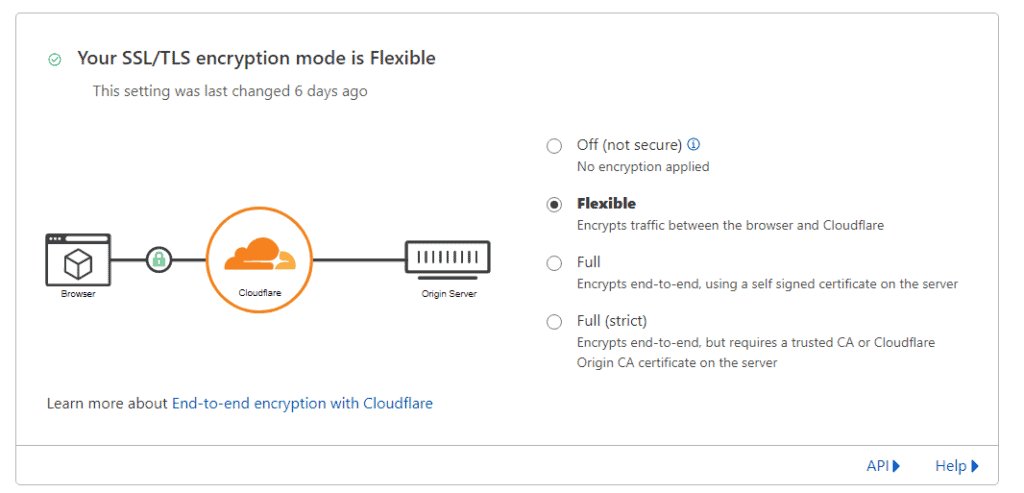
Instead, try using the Always use HTTPS option in Cloudflare. This setting simplifies SSL management and helps prevent conflicts.
10. If all else fails, contact your web host
So you’ve tried all solutions but the issue persists. This might mean there is a deeper problem with your WordPress site. In that case, it’s a good idea to contact your web hosting provider.

Web hosts usually have WordPress experts who can investigate settings and identify the issue. They have the tools and expertise to troubleshoot and fix more complex problems.
Getting help from your web host can save you time and stress. They’re equipped to handle issues that might be beyond your capabilities. Don’t hesitate to ask for their support if you need it.
What causes the too many redirects WordPress error?
Redirects are essential in web development for tasks like changing URLs and improving SEO. They send users from one URL to another, often used when a page’s address changes. Common types are 301 (permanent) and 302 (temporary) redirects.
The too many redirects WordPress error occurs when a browser tries to load a webpage but gets stuck in a redirect loop. This usually results from incorrect settings in WordPress URL, .htaccess file, or plugin configurations. If URLs are not set correctly, they can create a loop, like redirecting Page A to Page B and back. This endless loop leads to the ERR_TOO_MANY_REDIRECTS error.
Sometimes, plugins or themes add conflicting redirect instructions with server settings. This could lead to the too many redirects WordPress error and hurt your SEO and traffic if not resolved.
How do browsers handle redirects?
Browsers like Chrome follow redirect instructions from servers. But they have limits to prevent harmful loops. Legitimate sites may trigger this unintentionally when misconfigured.
In a loop, the browser keeps trying new URLs until it reaches the redirect limit. Once it reaches the limit, it then shows an error like ERR_TOO_MANY_REDIRECTS. This affects user experience and accessibility. Note that this is not a browser issue but is an indicator of incorrect site settings.
Redirects are useful for managing site structure. But problems arise when they’re not set up correctly, leading to the error.
How to prevent the too many redirects WordPress error in future?
Regular maintenance and careful site management can prevent the too many redirects WordPress error. Here are some steps to ensure this error doesn’t reoccur:
Clear cookies and caches regularly: Frequently clear your browser cookies and caches. This avoids any conflicts that might lead to redirect errors.
Keep plugins and themes updated: Always update your plugins and themes. Updates often fix bugs that could cause redirects.
Test on staging sites: Before updating plugins and themes, create a staging site and use it to test them. This minimizes the risk of issues affecting your live site.
Use a migration tool: When moving your site, use a tool like MigrateGuru. This ensures all redirects and settings are transferred correctly, reducing errors.
Conduct regular user audits: Perform security audits to identify and remove suspicious user accounts. This maintains site security and reduces harmful redirects.
Final thoughts
Dealing with the too many redirects WordPress error can be overwhelming, but you’re not alone. Many users encounter this issue. By following steps like refreshing the page, clearing cookies, and checking your settings, you can get your site back online. Small tweaks can make a big difference, so patience is key.
Unexpected problems can arise with websites, which is why regular backups are essential. If something goes wrong, a backup lets you easily restore your site. It provides peace of mind as a safety net. We recommend using BlogVault for automated and secure backups. It stores backups off-site in an encrypted form. This ensures the security of your backups without straining your site’s resources. Plus, BlogVault offers a one-click restore feature for quick and safe recovery.
FAQs
How to fix WordPress too many redirects?
To fix the too many redirects WordPress error, start by clearing your browser’s cookies and cache. Then, make sure the WordPress URLs in your site settings, wp-config.php file, and database match. Deactivate all plugins and reactivate them one at a time to identify the issue. Also, review your .htaccess file or nginx.conf for any incorrect redirects and fix them. If you have a new SSL certificate, ensure it’s set up correctly—tools like Qualys SSL Server Test can assist. If the problem persists, contact your web host for support. They can help resolve deeper issues.
How many redirects is too many for SEO?
Having too many redirects can slow down your site and confuse search engines, which is bad for SEO. Ideally, keep redirects to a minimum. One or two are usually acceptable, but more can negatively impact page load times and user experience. Each additional redirect can cause delays. Due to this, search engines might lower your website’s ranking. Maintain a short redirect chain to ensure quick access to your content. It also upholds good SEO practices.
Are redirects bad for SEO?
Redirects themselves aren’t bad for SEO if used properly. They guide users and search engines from an old page to a new one, preserving your site’s rank. However, too many can slow your site and cause issues. Use the correct type, like 301 redirects for permanent changes, and keep the number low to avoid loops. This keeps your site fast and supports your SEO.

Anurag traded algorithms for adverbs when he switched from being a software engineer to being a writer. Editor by day, he chases F1 by night!


