

Think of permalinks in WordPress as the helpful signs that guide your visitors to the right places on your website. Just like a street sign helps you find a friend’s house, permalinks direct people to the information or products they’re looking for.
But what if those signs suddenly vanished or pointed the wrong way?
WordPress permalinks not working is a common WordPress error. Instead of finding what they need, visitors might see an HTTP 404 error, like hitting a dead end. This can be really annoying and makes your site hard to navigate.
In this article, we’ll share easy ways to fix your permalinks. We’ll also help you understand why this problem happens, so you can avoid it in the future.
WordPress permalinks help visitors get around your site easily. But when they stop working, people can’t access the pages and see HTTP 404 errors. You can fix this with simple steps like resetting the permalinks or adjusting your site’s server settings.
1. Reset permalinks on wp-admin
Fixing broken permalinks can be easy if you reset them through wp-admin. Your WordPress site’s .htaccess file holds the permalink settings. When you reset them, it updates this file and can fix many errors like WordPress permalinks not working.
Here’s how to do it:
1. Log in to your WordPress dashboard.
2. Go to the Settings menu.
3. Click on Permalinks. You’ll see various choices for how your URLs look.

4. Change your current Permalink structure to a different one. Any option will do. Save the changes once you’ve picked a new structure.

5. Then, switch back to your original Permalink structure and save it again.
2. Deactivate conflicting plugins
Sometimes, plugin conflicts can break your permalinks. To solve this, try deactivating your plugins one at a time.
Start by going to the Plugins section in your WordPress dashboard. Select one plugin and deactivate it. Then, check your site to see if the permalink issue is fixed.

If you still find WordPress permalinks not working, re-activate the plugin and move to the next one. Keep doing this until you find the plugin causing the issue.
Once you find it, you have two choices. You can replace the plugin with another one that works without issues, or you can reach out to the plugin developers. They might fix the problem in an update, and you can use the plugin again once it’s resolved.
3. Check file permissions
File permissions are important for your WordPress site to run smoothly. If you’re having permalink troubles, check the permissions of your .htaccess file—it should be set to 644.
To do this, use an FTP client like Filezilla or your web host’s file manager. Find the .htaccess file, right-click on it, and check the permissions. If it’s not 644, you might have accidentally changed it.

Set the permissions back to 644 if they’re different. This way, the file is readable and writable by you, but only readable by others. Correct permissions can help fix your permalink issues and prevent problems like WordPress permalinks not working.
4. Clear WordPress cache
Clearing your WordPress cache can help fix the WordPress permalinks not working issue.
Cache stores copies of your pages to make them load faster, but it can also keep outdated information. Such old cached data can cause problems on your site.
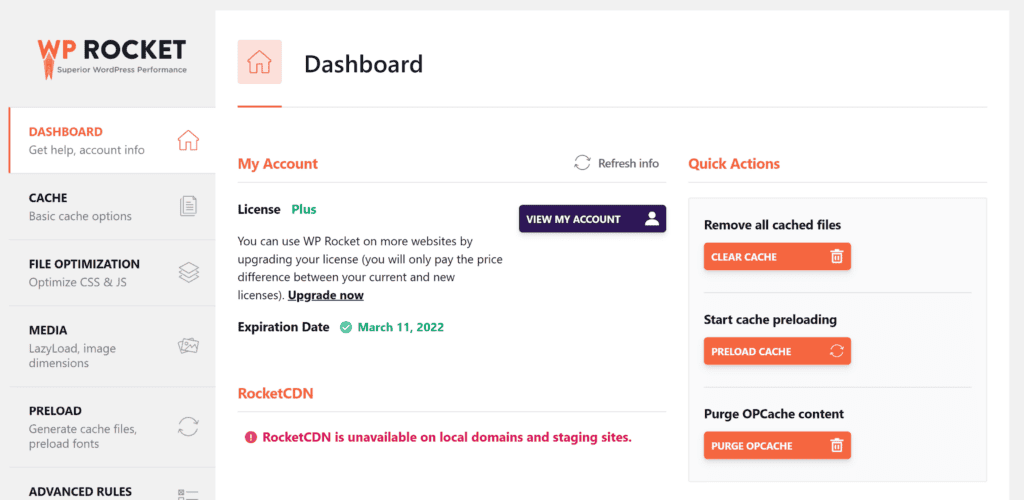
If you’re using caching plugins, be sure to clear their cache. Most plugins have an easy button for this in the settings. Go to the plugin settings and find the Clear Cache button. Click it to remove stored data.
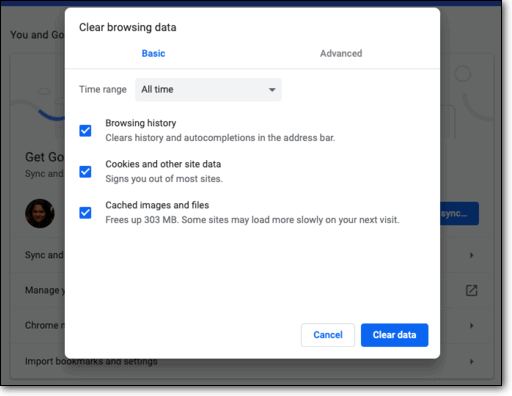
Also, clear your browser cache, as it might show older versions of your pages. By clearing all caches, your site will load updated content.
5. Check if your links are updated to the SSL standard
If you’ve recently switched to HTTPS or updated your SSL settings, it might impact your permalinks. These changes can cause issues if your database doesn’t update correctly. When your site moves from HTTP to HTTPS, all links must change to match.
To update your links to HTTPS, you can use a plugin like Really Simple SSL. This plugin makes the process easy. Just install and activate it, then click Activate SSL on the plugin’s dashboard. It handles everything for you, so you don’t need to fix each link by hand.

By making sure all your links use HTTPS, you can prevent many permalink problems, including WordPress permalinks not working. It’s important to keep your site secure and working well. Using a plugin simplifies this process and keeps your site healthy.
6. Regenerate the .htaccess file
Regenerating your .htaccess file is a technical solution that can fix permalink issues. Sometimes plugins change this file and cause problems. This especially happens with security plugins.
Here’s how to regenerate it:
1. Use an FTP client like Filezilla or your web host’s file manager to find the .htaccess file. It’s usually in the root folder named public_html or www.

2. Edit the .htaccess file, delete everything inside, and save it as an empty file.

3. Go to your WordPress dashboard, then to Settings > Permalinks.
4. Choose your preferred Permalink structure and save the changes. This will rewrite the .htaccess file with the correct settings.
Make sure to backup your site before doing this, as any custom changes in the .htaccess file will be lost. A full backup ensures you can restore any important code if needed. This reset often helps solve permalink problems, including WordPress permalinks not working.
7. Configure your site server
If other methods haven’t worked, configuring your site server might help fix the WordPress permalinks not working issue. If you can access your server, you can adjust some settings. Here’s how to do it based on your server type:
For Apache servers
1. Regenerate your .htaccess file: Follow the earlier steps to do this.
2. Find the server’s configuration file: Look for httpd.conf or apache2.conf in the /etc/apache2/ directory.
3. Edit the configuration file: Locate this code:
<Directory /var/www/>

Options Indexes FollowSymLinks

AllowOverride None

Require all granted

</Directory>
4. Change the AllowOverride value from None to All: This lets the .htaccess file make changes.
5. Restart your server: Use these SSH commands to restart:
sudo a2enmod rewrite

sudo systemctl restart apache2
For nginx servers
1. Find the server’s configuration file: Look for default.conf or a file named after your site in the /etc/nginx/ directory.
2. Update the configuration file:
– If your site is in the root directory:
location / {

try_files $uri $uri/ /index.php?$args;

}
– If your site is in a folder:
location /subdirectory/ {

try_files $uri $uri/ /subdirectory/index.php?$args;

}
Replace subdirectory with your site’s directory name.
3. Restart your server: Use this command in SSH:
sudo systemctl reload nginxThese steps can help fix your WordPress permalinks not working issue. Remember to backup your site before making changes, so you can revert if needed.
Why does the WordPress permalinks not working error occur?
The WordPress permalinks not working error can occur for several reasons. Here are some detailed causes:
You installed a new plugin: Adding a plugin can add new settings. For example, security plugins might change the .htaccess file, affecting your permalinks.
You updated an existing plugin: Updating plugins might introduce new features or code that conflict with your current setup. This can cause permalink issues, like WordPress permalinks not working.
You restored your site from a backup: Restoring your site can bring back old settings. This could include permalink structures that don’t match your current plugins or themes.
You migrated your site from one host to another: Migrating between hosts might not carry over all settings correctly. Different server setups can affect permalinks.
You modified your site’s .htaccess file and made a mistake: The .htaccess file manages URL handling. Any accidental changes can disrupt permalinks.
Final thoughts
Permalinks are essential for navigating your WordPress site. When they break, users see errors instead of your content. This can hurt your site’s performance and traffic. Fixing permalink issues, including WordPress permalinks not working and redirect loops, can be easy. Start with simple steps, then try advanced fixes if needed, to keep your site user-friendly.
Always test changes like updates and installations on a staging site before applying them to your live site. Be sure to back up your site to avoid losing data. We recommend using BlogVault for these tasks. BlogVault lets you create staging sites quickly. It also takes automatic backups and stores them securely off-site. Its one-click restore feature makes site modifications hassle-free. With the right approach, you can ensure smooth navigation and help users find what they need.
FAQs
How do I fix permalinks in WordPress?
To fix permalinks, go to your dashboard and navigate to Settings > Permalinks. Change your permalink structure to something different and save it. Then, switch back to your original structure and save again. If that doesn’t work, deactivate plugins one at a time to find any conflicts. Check your .htaccess file through FTP and ensure it has the correct permissions. Clearing your cache, updating your site, and checking for SSL issues can also help.
How do I enable permalinks in WordPress?
To enable permalinks, log in to your dashboard and go to Settings > Permalinks. Choose your preferred structure, like Post name or Day and name. Click Save Changes to activate it. Ensure your .htaccess file is writable, as WordPress needs this to apply changes.
Do permalinks expire?
No, permalinks do not expire. Once set, they stay active until you change them. But, site changes, plugins, or structure updates can affect them. Regularly check your setup to ensure permalinks work properly.
Why is my WordPress link not working?
Your WordPress link might not work due to various reasons. It could be a permalink issue or conflicts with plugins or themes. Other causes include a broken .htaccess file or caching problems. Check recent site changes or updates that might have affected the links.

Anurag traded algorithms for adverbs when he switched from being a software engineer to being a writer. Editor by day, he chases F1 by night!


