Seeing the fatal error allowed memory size exhausted message on your WordPress site can really throw a wrench in your plans. You cannot perform your maintenance tasks.
Everything suddenly comes to a standstill. It’s disruptive, we know.
But don’t worry—there’s a way out. There’s a simple fix for this issue. With a few steps, you can get things back on track without too much hassle. This guide will walk you through exactly what you need to do.
The fatal error allowed memory size exhausted occurs when your site uses more memory than allowed. Always use a backup plugin to backup your entire site before troubleshooting to prevent further issues.
What does ‘fatal error allowed memory size exhausted’ mean?
This error means your website is trying to use more memory than it’s allowed. Your website needs memory to do things like process data, run plugins, and load pages.
When it runs out of memory, it’s like trying to fit too many files in a small cabinet. Everything stops because there’s not enough space.
This usually happens with heavy plugins, too many functions, or big tasks happening all at once.
But don’t worry, this does not mean that your site is broken; it just needs a bit more space to do its job. You might see this error during updates when installing new plugins, or uploading large files.
As your site grows and gets more visitors, it can push the limits of its memory. Most hosting plans start with a basic memory limit, which might need to be increased as your site gets busier.
How to fix the allowed memory size exhausted error
Running into the “allowed memory size exhausted” error can be frustrating, but you can fix it in a few different ways. Here’s how:
A) Edit wp-config.php
- Access site files: Locate your website’s files using a file manager plugin or an FTP client FileZilla.
- Locate and edit the wp-config.php file: You will find the wp-config file in your WordPress root directory often named, public_html or www.
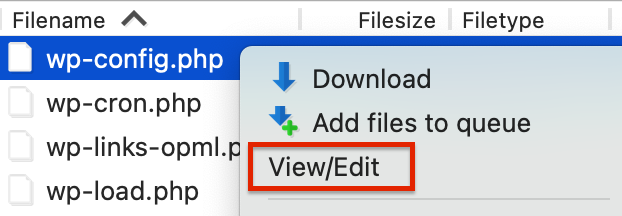
Towards the end of the file, right above the line, “That’s all, stop editing! Happy blogging.” Add the following line of code:
define('WP_MEMORY_LIMIT', '256M');Your hosting provider typically sets your site’s default memory limit to 32MB. By increasing it to 256MB, you’ll give your site more room to operate smoothly.
- Save the changes: With FileZilla, you can directly save changes to the wp-config.php file. However, other FTP clients might not have a built-in editor. In that case, you’ll need to manually upload the updated file and overwrite the old one.
After making these changes, check your website to see if the error is resolved.
B) Edit the php.ini file
- Locate the php.ini file: Use your hosting control panel or FTP to find the php.ini file.

- Edit the php.ini file: Add or update the line to say:
memory_limit = 256M;- Save and upload the file: Once you have increased the memory limit, save the file and upload it to your server’s root directory. Check your website to make sure the error is gone.
C) Disable plugins
If your site still shows the error after trying these fixes, it might mean a certain plugin is taking up too much memory.
- Navigate to Plugins: Log into your WordPress dashboard and go to the Plugins section.
- Deactivate all plugins: Select all the plugins at once to see if the error goes away. If it does, reactivate each plugin one by one to identify the problem.

If you can’t access your dashboard, use FTP:
- Access your website files: Within your root directory, public_html, or www, head to the wp-content directory.
- Rename the plugins folder: To deactivate all the plugins, rename the Plugins folder to something like plugins-deactivated.
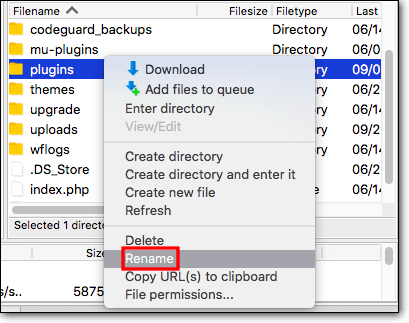
Check your site to see if the error is resolved. If it is, rename the plugins folder back to plugins. Then, rename each individual plugin within the folder to pluginname_deact to deactivate them. Reactivate the plugins one by one to identify which one is causing the issue.
Best practices for memory management
Keeping your website running smoothly is important, and managing its memory is a big part of that. Here are some simple tips to help:
Watch your memory usage: Just like checking how much storage is left on your phone, make sure to monitor your website’s memory so you can catch any problems early.

Stay updated: Keep your plugins, themes, and WordPress itself updated. Updates often fix bugs and improve performance.

Use only necessary plugins: Try to keep the number of active plugins to a minimum. Having too many can slow your site down.
Choose lightweight themes and plugins: Pick options that don’t use too much memory. This helps your site load faster.
Use a caching plugin: These plugins help your site load more quickly by storing copies of your pages for visitors.
Optimize your images: Make sure your images aren’t too large. Smaller images make your site load faster and put less strain on your server.
Think about upgrading your hosting plan: If your site is getting bigger, you might need a better hosting plan or a good web host to handle everything.
Clean up your database: Regularly remove old and unnecessary data to keep your site running efficiently.
Check your site’s performance: Run tests to spot any slow areas or potential issues before they become problems.
Parting thoughts
Dealing with the fatal error allowed memory size exhausted can be straightforward once you know what to do. Regularly checking and adjusting your site’s memory settings helps keep things running smoothly. As your site grows, make sure your server can handle the extra activity.
Being proactive with your site’s resources can prevent those frustrating memory exhaustion errors. Think of it like giving your car a regular tune-up to keep it in good shape. With the right steps, you can keep your site running smoothly and efficiently.
FAQs
How do I fix fatal error allowed memory size?
To fix the fatal error allowed memory size issue, you need to increase the memory limit for your WordPress site. This can be done by editing your wp-config.php file to add the line: define(‘WP_MEMORY_LIMIT’, ‘256M’);. This helps your site handle more data and processes.
What is the fatal error allowed memory size of 134217728 bytes exhausted in PHP?
The error message means that PHP has hit its memory limit of about 128MB and can’t process more data. This often happens with resource-heavy tasks, and you can fix it by increasing the memory limit in the php.ini or wp-config.php files.
How can I fix fatal error?
To fix a fatal error, identify the error type first. Commonly, it involves memory limits or software conflicts. Increase memory limits in your site’s settings or resolve any plugin or theme conflicts by deactivating them and reactivating them one by one to find the issue.
Why do I get fatal error?
Fatal errors occur when your website encounters a problem it can’t resolve, often due to memory limits or conflicting plugins/themes. It stops processes to avoid further issues. Adjusting memory settings or resolving software conflicts typically resolves these errors.
What is memory fatal error?
A memory fatal error occurs when your site tries to use more memory than it’s allocated, stopping processes in their tracks. This can happen during large data processing tasks. Increasing the memory allocation in your server or site settings can usually fix this issue.

Shivani enjoys crafting guides that make every aspect of using WordPress simple and easy to follow. When she's not glued to her laptop, you can find her buried in a good book or occasionally, painting.