One hack or server crash can wipe your entire website out in minutes. GoDaddy offers hosting backups with their plans, but will they protect your work when you need them the most?
Can you trust their backup system to capture everything and restore it correctly? Are there hidden costs or limitations that could leave you stranded during a crisis?
This guide explains exactly how GoDaddy backups work and what you need to know about their system. It also provides step-by-step instructions to set up, manage, and recover your backups when disaster strikes.
GoDaddy’s backup system has significant limitations, including short retention periods, single-point failures, and security risks. The most effective approach is to combine GoDaddy’s backups with a dedicated backup plugin, like BlogVault, which stores backups independently and mitigates many of GoDaddy backups’ weaknesses.
Understanding GoDaddy backups
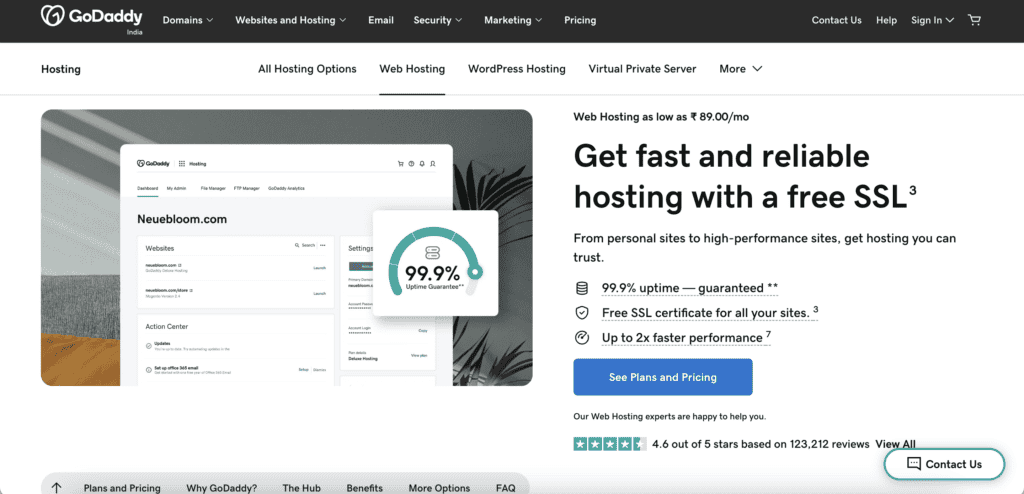
GoDaddy offers two distinct backup approaches, and they work very differently.
- Free automated backups live directly on your hosting server. These eat up your disk space and come completely unencrypted. When you download these backups, they arrive as ZIP files containing all your site data, customer information, and passwords. If you lose that file, you’ve got a major data breach on your hands.
- The paid Website Backup service takes a different approach. It stores your data in the cloud with encryption for around $2.99 monthly. Since cloud backups don’t use your hosting disk space, you won’t hit storage limits as quickly.
However, it is important to note that both services have the same vulnerability when you download backup files. Whether free or paid, downloaded backups still arrive as unencrypted ZIP files on your computer.
Backup retention varies dramatically by plan.
- Web Hosting (cPanel) keeps just 1 day of automatic backup history.
- Managed WordPress Hosting extends this to 30 days of daily backups. The paid service extends this to 90 days.
But here’s an issue that may arise with short retention periods: it’s the lack of flexibility to revert to previous stable versions of your site, which is essential for troubleshooting after updates or unintended changes.
There’s another vulnerability most people don’t consider. All GoDaddy backups tie directly to your main account. If your account gets compromised or suspended for billing issues, you lose access to both your live site and backups simultaneously.
Additionally, standard backups don’t include email data. You need to purchase a separate add-on for email backup and restoration, which adds to your monthly costs.
How to backup your GoDaddy website
You’ve got three ways to create backups on GoDaddy, and each serves different needs. Let us walk you through all your options so you can pick what works for your situation.
Method 1: Using the Website Backup service (PAID)
This is GoDaddy’s premium solution, starting around $2.99 a month. It’s the most comprehensive option for data protection and disaster recovery capabilities.
The paid service handles automatic daily scheduling, includes malware detection, and offers one-click restores. But here’s what sets it apart: you can schedule backups hourly if needed, and it retains backups for up to 90 days. That’s a much wider safety window than the free alternative.
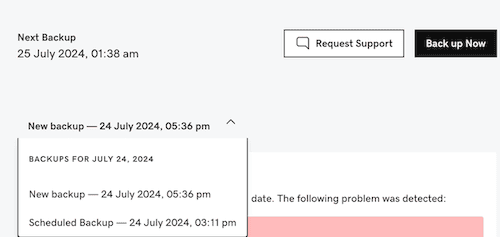
Find and set up backup service: Log in to GoDaddy, go to My Products, find Website Security and Backups, then click Set up if you are a first-time user. If you are an existing user, select Manage
Access backup settings (First-time users): Click Details under Backups, then click the three dots (…) in the top right and select Settings
Configure backup options: Choose how often to backup (daily works for most people), add your website login details, and pick United States or Europe for storage location. Click Save Settings
Start your backup: Click Backups in the top left, then click Backup Now, give it a name, and click Continue
Small sites backup in minutes, larger ones take longer. Check your backup list to make sure the new backup appears there.
Method 2: The free automatic daily backup
This feature starts taking backups of your site from the moment you set up your account. GoDaddy creates a backup automatically every 24 hours without any action from you. Simple, but limited.
You get one recovery point from the last 24 hours on the basic web host plan. Whereas managed hosting customers get 30 days of backup history. When disaster strikes, you access these backups through your hosting dashboard during restoration.
The downside? You can’t control when backups happen, and you’re stuck with whatever GoDaddy backups captured during their automated process. No on-demand backups, no timing flexibility.
Method 3: Creating a manual cPanel backup
This two-part process gives you complete control but requires hands-on work. You’ll backup your website files and database separately.
Part A: Backing up your website files
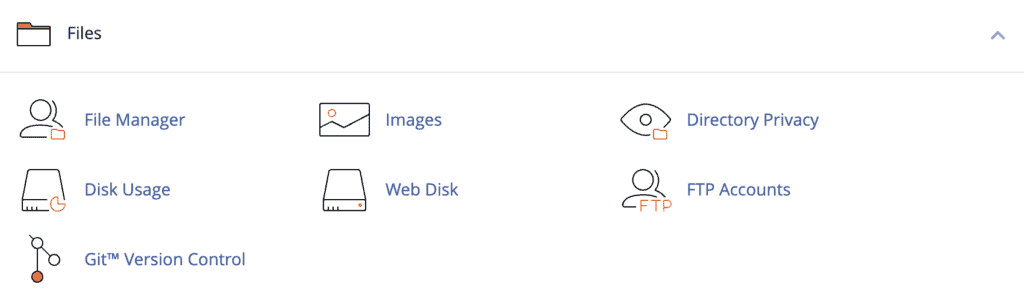
Access File Manager: Log into your cPanel account. Next, find and click the File Manager icon
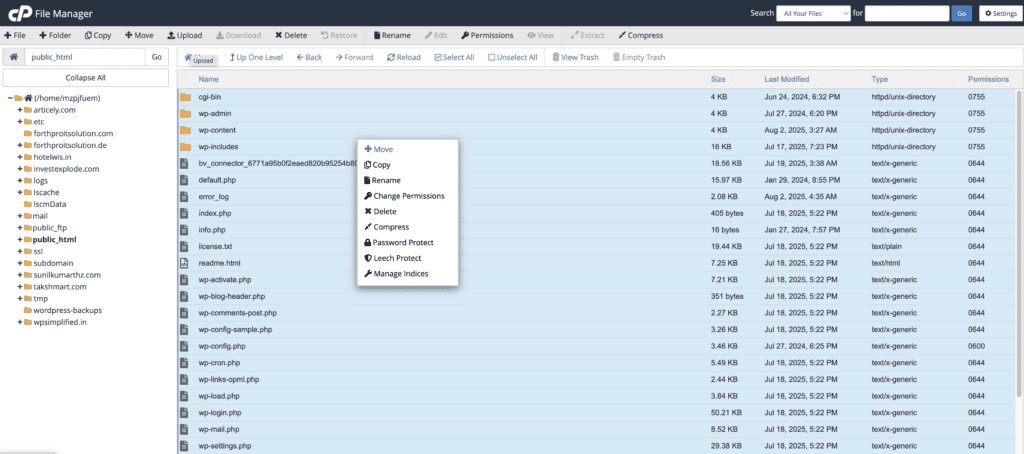
Select all files: Go to your site’s root folder (usually called public_html or www) and click to select all files in your root directory

Create a ZIP file and download: Click Compress to create a ZIP file of all selected files. Next, download the ZIP file to your computer
Part B: Backing up your database
Access phpMyAdmin database: From cPanel, find and open phpMyAdmin. Next, choose your database from the left sidebar list

Export database: Click the Export tab at the top. Keep the default settings (Quick method and SQL format)

Download database: Click Go to download the database file to your computer
This manual method takes more effort, but you control exactly when backups happen and what gets included. You’re not dependent on GoDaddy’s automated systems working perfectly, and you can create backups before any major changes to your site.
How to restore GoDaddy backups
The restore process depends on the backup method you used. Here’s how to get your site back online with each approach.
Method 1: Restoring with the paid Website Backup service
Access your backup service: Navigate to your GoDaddy product page, and find Website Security and Backups, and click Manage All
Find backup details: Select the site that needs to be restored. Under Backups, select Details
Choose your restore date: In the calendar, pick the backup date you want, and click Restore Backup. Next, you have to choose what you want to restore. Select one: Restore files or Restore database, or you can select both
Start the restoration: Once you select what you want to restore, click on Continue to begin the restore process
Once the restoration is complete, clear your server and website cache to properly view the changes.
Method 2: Restoring the free automatic daily backup
The free backup restoration process varies slightly depending on whether you’re using cPanel or another hosting dashboard, but the concept remains the same.
Access your hosting account: Go to your GoDaddy product page and select Web Hosting. Next to your Web Hosting (cPanel) account, select Manage

Select backup date: Click on Backups at the top of your screen and choose your desired backup date. Wait a few minutes for the backup to be mounted to the cPanel server
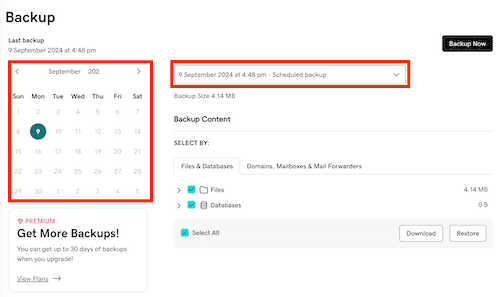
Choose what to restore: In the Backup Content section, make a selection of what you want restored. Once selected, click on Restore and wait for the process to complete
Method 3: Restoring a manual cPanel backup (Risky)
Part A: Restoring website files
Access File Manager: Log into GoDaddy and navigate to your control panel (cPanel). Within cPanel, find and click on the File Manager icon.
Extract files: Right-click the .zip file on your computer and select Extract (on Windows) or Double click (On Mac) to extract your site files.

Upload backup: Use the Upload button to replace all your files. If prompted to overwrite, agree and continue.
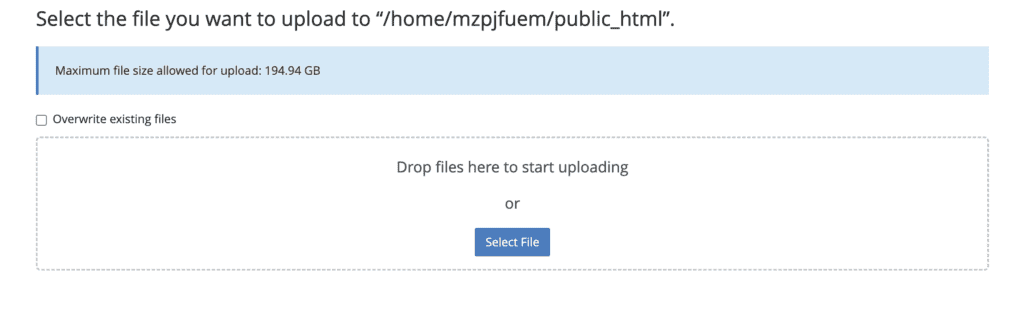
Part B: Restoring your database
Access phpMyAdmin: From cPanel, click phpMyAdmin under Databases.
Select database: Choose your website’s database from the left sidebar.

Clear existing data: Select all tables and choose Drop to delete them.

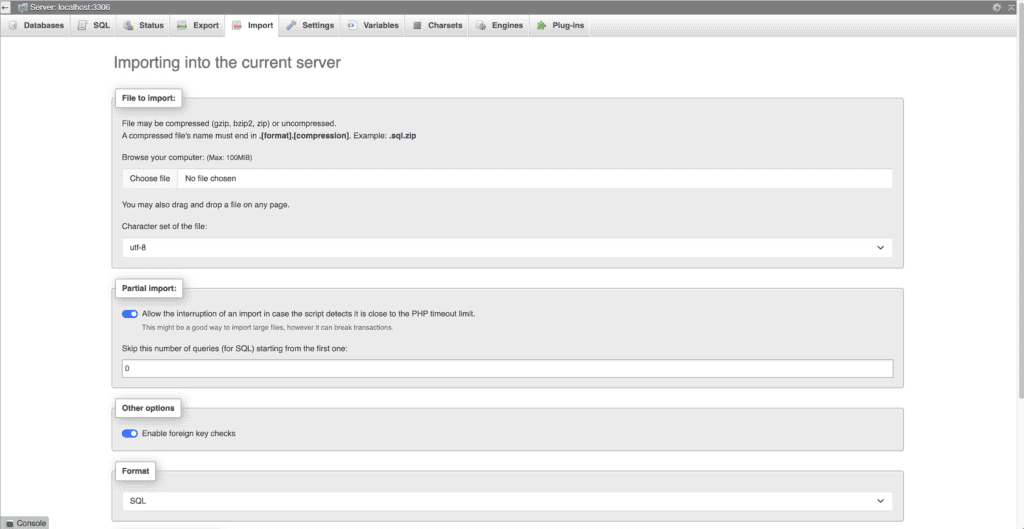
Import backup: Click the Import tab, choose your .sql file, and click Go.
Are GoDaddy backups enough?
Unless you’re paying for the premium add-on, your GoDaddy backups are dangerously basic. Even with the paid service, there are serious gaps that could leave you vulnerable.

Single point of failure. All your backups are tied to your main GoDaddy account. Account gets hacked or suspended? You lose access to both your live site and all backups simultaneously.
Free backups often capture broken sites. If your site gets corrupted during the day, that night’s automatic backup preserves the problem. Without longer retention periods, you might not have any clean backups to restore from.
Short retention periods create blind spots. Even paid service only keeps backups for 90 days. Malware can sit dormant for months before activating. If hackers planted something four months ago, all your available backups are infected.
Manual restores fail frequently. Larger websites hit hidden size limits and timeout errors during restoration. The process meant to save your business becomes another source of frustration when it doesn’t work.
Storage space problems. Manual cPanel backups consume your space. Poor cleanup can crash your site by filling storage allocation.
Security vulnerabilities. Downloaded backups arrive as unencrypted ZIP files containing customer data, payment information, and passwords. Lose that file, and you’re facing massive data breach liability.
Troubleshooting GoDaddy Backup Errors
When backup processes go wrong, these are the most common issues you’ll face and how to fix them quickly.
The restore process stalls or fails. This usually hits large sites due to server timeouts. Contact GoDaddy support for paid services. For manual restores, this often means critical failure requiring technical help.
Manual backup download is incomplete. Your internet connection dropped during download. Compare the downloaded file size to the original. If they don’t match, download again.
Manual file restore fails in File Manager. Your ZIP file exceeds the server’s upload limit (usually around 500MB). You’ll need to use FTP software like FileZilla instead.
Database restore fails in phpMyAdmin. Your SQL file is larger than the upload limit (typically 50MB). This is common with content-heavy sites and can risk total data loss.
Backup not found or missing from the list. The retention period expired, and GoDaddy permanently deleted it. Remember, your free automatic backups disappear after 24 hours.
Site looks unchanged after a successful restore. Almost always a caching problem. Clear your cache and reload the page.
Best WordPress backup plugin for GoDaddy sites
A dedicated plugin is the smartest way to make up for GoDaddy’s backup limitations. BlogVault stands out as a top-tier choice that solves the problems we’ve been talking about.
Why BlogVault works so well:
- Independent storage: Backups live on separate servers, away from GoDaddy. If your hosting gets hacked or suspended, your backups stay safe elsewhere. Plus, your server storage remains untouched
- Reliable restoration: One-click restore works even for large e-commerce sites
- One-click staging: Free staging area lets you test your backups safely before touching your live site
- Full encryption: Everything gets encrypted for security
- Real-time WooCommerce backups: You will never lose orders or customer data
- No single point of failure: Your backup system doesn’t depend on GoDaddy’s infrastructure or account status
It’s everything GoDaddy’s backup or any hosting backup system should be, but isn’t.
Parting thoughts
GoDaddy’s backups work as a starting point, but relying solely on your host creates a single point of failure that puts your business at risk.
The safest strategy combines GoDaddy backups with an independent plugin like BlogVault. Don’t wait for a crisis to discover the holes in your safety net.
FAQs
Does GoDaddy have Backups?
Yes, GoDaddy offers backup services as part of its hosting plans. These include automated daily backups and the option to restore your website with just a few clicks. However, always confirm the specifics of your plan for details.
How to get backup from GoDaddy?
To get a backup from GoDaddy, log in to your account and navigate to your hosting dashboard. Select the option to manage backups, where you can download or restore backups as needed. Follow the on-screen instructions for a smooth process.
Where is website security and Backups in GoDaddy?
Website security and backups are accessible from your GoDaddy account dashboard. Navigate to the Security or Backups section to manage settings. This is where you configure backup schedules and security alerts.
What are the disadvantages of GoDaddy?
Some users find that GoDaddy’s pricing can be higher than competitors, especially with add-ons. Additionally, support levels and features might vary across different plans. It’s essential to review the plan details thoroughly.
Does GoDaddy backup emails?
Email backup is not included by default in GoDaddy hosting plans. Email Backup is a purchasable add-on specifically for email accounts. Check your plan options to see what’s available for email protection.
Who should I use instead of GoDaddy?
Alternatives to GoDaddy include Bluehost, SiteGround, and A2 Hosting. Each offers various features and pricing structures, so consider your specific needs. It’s recommended to compare features like performance, support, and backup options.

Shivani enjoys crafting guides that make every aspect of using WordPress simple and easy to follow. When she's not glued to her laptop, you can find her buried in a good book or occasionally, painting.