

Even with strong WordPress security, database-related problems can arise.
You are likely here for one of two reasons: you are locked out of your site, and common fixes have failed, or you need to change your database connection credentials.
In either case, you have come to the right place. This guide provides the clear, proven steps to resolve both issues.
To fix a lockout, edit the wp_users table in phpMyAdmin; to fix a connection error, sync the password between your host panel and wp-config.php. Before any changes, always backup your site, and use a dedicated backup plugin as an ongoing security measure.
Prerequisites
This process is safe if you follow these instructions precisely. Skipping these steps introduces unnecessary risk.
1. Take a full site backup
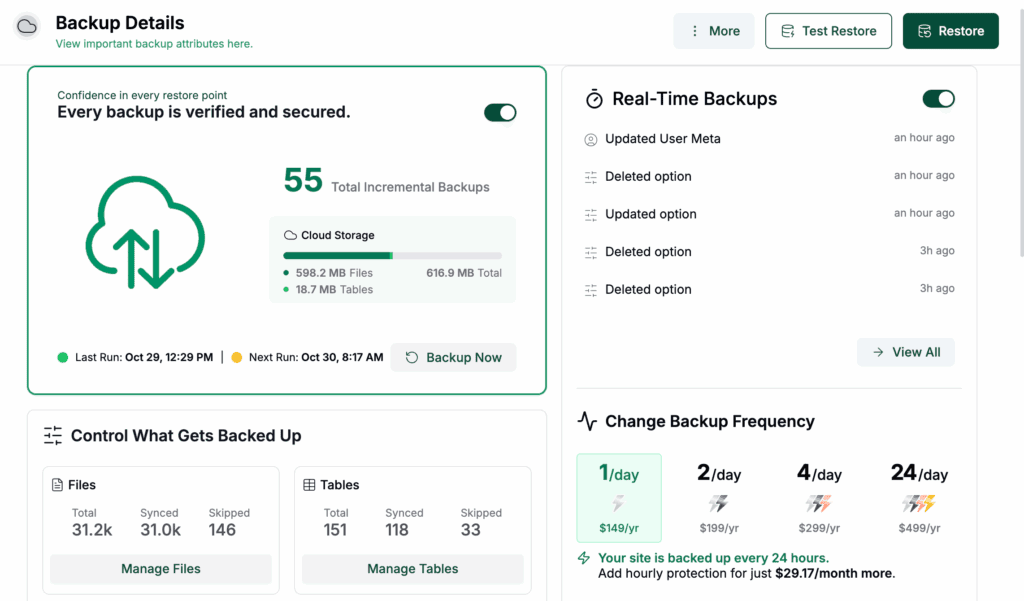
Make a copy of your entire site. This is your non-negotiable recovery point. Instead of manual downloads, the most reliable method is to use a dedicated backup plugin like BlogVault. It handles both your database and files in one click, eliminating the risk of errors before you proceed.
2. Gather your access information

You will need direct access to your website’s server, often done using FTP/SFTP credentials with a client like FileZilla. However, the easiest and most common method is to log directly into your hosting dashboard. This gives you access to both the file manager and the database tools in one place.
3. Have your new credentials ready
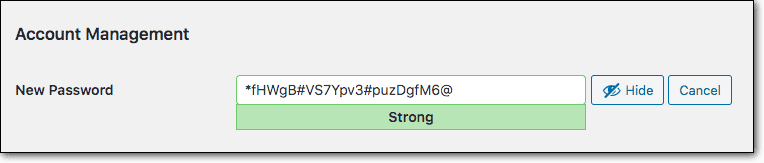
Decide on your new strong password before you begin. Use a password manager to generate a unique one and have it ready to copy and paste.
A) Modifying WordPress password in the database
This is the solution when you are locked out of your WordPress dashboard (/wp-admin) and the “Lost your password?” feature is not working.
Method 1: Using phpMyAdmin

Access phpMyAdmin: Log into your hosting control panel, find the Databases section, and click on phpMyAdmin.

Select your WordPress database: In the left sidebar of phpMyAdmin, click the name of your WordPress database.
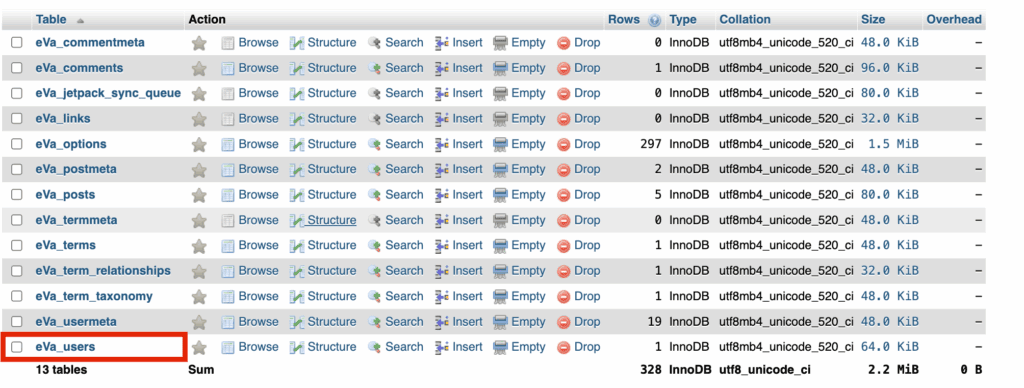
Locate the users table: Find the table named wp_users. If your site uses a custom prefix, it might look like myprefix_users.

Edit the user record: Click on the wp_users table. Find the row for your username and click the Edit button, which is usually a pencil icon.
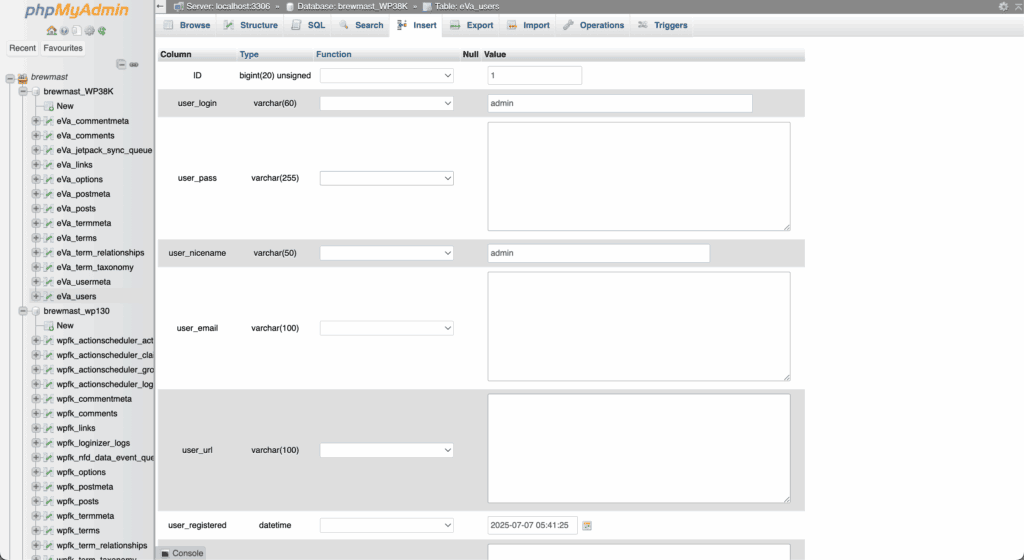
Change the password field: Find the user_pass field.

- In the Function column dropdown next to it, you must select MD5.
- In the Value field, delete the existing text and type your new password.
Save the change: Scroll to the bottom and click the Go button. Head to your WordPress login page and log in with your username and the new password.
Method 2: Using WordPress database via functions.php
Use this method only if you cannot access phpMyAdmin but can edit your theme files.
Connect to your site: Use an FTP client or your host’s File Manager.

Edit the theme’s functions.php file: Navigate to /wp-content/themes/your-active-theme/. Find and edit the functions.php file. Before proceeding, it is wise to verify your backup. This confirms you have a valid recovery point to restore your site in case any subsequent edits cause an error.
Add the reset code: At the very bottom of the file, add this code:
function wpb_admin_account_password_reset(){

    $user_id = 1; // Change '1' to the ID of the user if different.

    $new_password = '__Your_New_Strong_Password_Here__';

    wp_set_password( $new_password, $user_id );

}

add_action( 'init', 'wpb_admin_account_password_reset' );
Replace __Your_New_Strong_Password_Here__ with your actual new password. The default admin user ID is usually 1, but check your wp_users table if you are unsure.
Trigger the reset: Save the file. Now, just load any page on your website. This triggers the code and resets the password.
Remove the code IMMEDIATELY: This is the most important step. Log in to WordPress with your new password, then immediately go back to the functions.php file and delete the code you added. If you leave it, your password will be reset every time anyone visits your site.
B) Changing database connection credentials
This section covers the procedure for changing your database connection credentials. You’ll need to do this either to fix an “Error Establishing a Database Connection” or if you simply want to update your password for security.
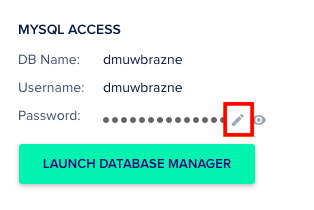
Change the MySQL user password: Log into your hosting control panel and find the MySQL Databases section. Use the interface to change the password for your database user, then copy the new password.
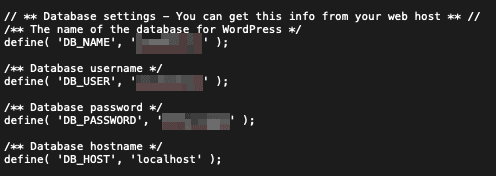
Update the wp-config.php file: Access your site’s files and edit the wp-config.php file. Replace the value in define( ‘DB_PASSWORD’, … ); with your new password, then save the file. Refresh your site to see the fix.
Troubleshooting issues
Password reset via phpMyAdmin didn’t work?
- Verify you selected the MD5 function. This is the most common mistake.
- Ensure you are editing the correct user row.
- Clear your browser cache and cookies before trying to log in again.
“Database connection” error persists after updating wp-config.php?
- Triple-check for typos in DB_NAME, DB_USER, DB_PASSWORD, and DB_HOST.
- Confirm your DB_HOST is correct. It’s usually localhost, but some hosts use something different.
- Ensure the database user has ALL PRIVILEGES granted to the database in your hosting panel.
I don’t know my database details.
They are all stored in your wp-config.php file. If you can’t access it, your hosting provider can help you.
Security best practices
- Always backup first: Never make direct database changes without a recent backup.
- Follow the principle of least privilege: Your WordPress database user only needs permissions for its specific database, not the entire server.
- Use strong, unique passwords: Your WordPress admin and MySQL database passwords should be different and complex.
- Keep credentials secure: Ensure the wp-config.php file has the correct permissions (usually 644) to prevent it from being publicly accessible.
- Consider regular updates: Changing your database password every 6-12 months is a good security habit.
Parting thoughts
The database-related problems that lock you out or break connections are now manageable. This guide has equipped you with the direct procedures for both scenarios. When you’re faced with a situation where the common fixes aren’t working, you have the solution. You are in control of your site’s most critical credentials.
FAQs
How do I change the DB user password?
You change the DB user password within your hosting control panel’s MySQL Databases section. After changing it, you must update the DB_PASSWORD value in your wp-config.php file to match.
How to find WordPress admin password in database?
You cannot find the plain-text admin password in the database because it is securely encrypted. Instead, you overwrite the existing encrypted value with a new password using the MD5 function in phpMyAdmin.
How to change access database password?
To change the database access password, you must first reset it for the MySQL user in your hosting control panel. Then, you need to update the wp-config.php file with the new password to restore the connection.
Where are the MySQL passwords in WordPress?
The MySQL database password is stored in the wp-config.php file in your site’s root directory. The encrypted WordPress user passwords are stored in the user_pass column of the wp_users table.
How to reset password for SQL database user?
You reset the password for an SQL database user through your hosting provider’s control panel, usually in a tool called “MySQL Databases.” WordPress cannot change this password directly from its dashboard.
How do I check my database password?
You can check your current database password by opening the wp-config.php file in your site’s root directory. Look for the line define( ‘DB_PASSWORD’, ‘your_password_is_here’ ); to see the value.

Shivani enjoys crafting guides that make every aspect of using WordPress simple and easy to follow. When she's not glued to her laptop, you can find her buried in a good book or occasionally, painting.


