You are looking at a backup setting, hosting panel, NAS tool, or plugin option, and mirror sounds like the safer choice. It sounds current. It sounds complete. It sounds like the thing you want when a WordPress site breaks five minutes before a campaign, client review, or sale.
That is the trap in mirror backup vs full backup. A mirror backup keeps the latest copy of your data. A full backup preserves a complete copy from a specific point in time.
Use a mirror backup when you need quick access to the current version of files, but do not rely on it as your only safety net. Use full, versioned, offsite WordPress backups when you need to recover from deletion, malware, bad updates, database corruption, or host failure.
The question is not “which one copies faster?” The better question is: when the current site is broken, which backup still gives you a clean way back?
Mirror backup vs full backup: the core difference
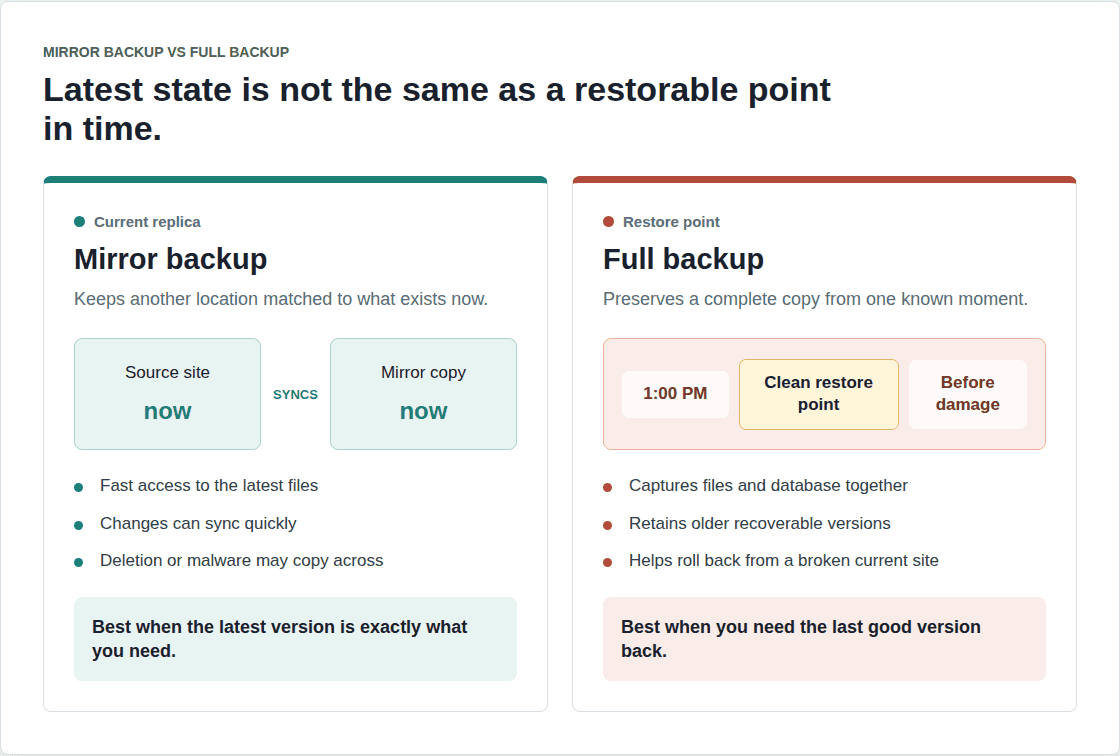
The easiest way to understand the comparison is this: a mirror is a live copy, while a full backup is a restore point.
A mirror backup tries to keep another location matched to the source. If a file is added, the mirror adds it. If a file changes, the mirror updates. If a file is deleted, many mirror setups delete it too. Some tools start by copying everything, then keep syncing only the changes.
A full backup captures the complete selected data at one moment. For WordPress, that should mean the database, uploads, themes, plugins, settings, media, configuration, and other site-critical files. A file-only copy is not a full WordPress backup in any useful recovery sense.
Here is where people get fooled: a mirror can be perfectly accurate and still be the wrong backup. If production is damaged, the mirror may faithfully copy the damage. Mirror backups are good at preserving the latest state. Full backups are better at preserving a known recoverable state.
Quick comparison
If you only read one section, read this one. The difference matters most during restore, not during backup creation.
| Question | Mirror backup | Full backup |
|---|---|---|
| What does it preserve? | The latest state | A complete point in time |
| What is it best for? | Current file access | Recovery and rollback |
| What happens after deletion or malware? | Damage may sync too | Older clean versions can help |
| Does it protect WordPress data? | Only if database backup is included separately | Yes, if it is a full-site backup |
| Main tradeoff | Fast and convenient, but thin on history | Heavier, but safer when you need to go back |
The pattern is simple: mirror wins when you need the latest copy quickly; full backup wins when you need to go back.
That “go back” part is the whole reason backups exist. The newest copy is not always the safest copy. After a bad update, accidental deletion, infected theme file, or corrupted database table, the newest copy may be the problem.
When a mirror backup is the better fit
A mirror backup is not useless. It is just often asked to do the wrong job.
Use a mirror backup when the current version is exactly what you need:
- You need fast access to latest files: A designer, developer, or agency can grab the newest uploads, assets, or theme files without waiting for a full restore.
- You want a current duplicate for a narrow workflow: A file mirror can help with staging, handoffs, migrations, or quick file inspection.
- You are improving availability, not rollback: Mirroring can help keep a second copy ready if the first storage location fails.
- You do not need history: If the latest version is always the only version that matters, a mirror can be efficient.
For a static file folder, that can be perfectly reasonable. For WordPress, it gets more complicated.
Your WordPress site is not just files. Posts, pages, users, comments, WooCommerce orders, form submissions, plugin settings, menu structures, and page builder content live in the database. A mirror of the uploads folder can bring back images. It will not bring back an order placed before checkout broke.
Use mirror backups as a current-copy layer. Do not use them as the recovery base for a serious WordPress site.
Where mirror backups go wrong
The dangerous part of a mirror backup is that it is obedient. It can copy the mistake as quickly as it copies the good file.
| Failure | Mirror risk | Versioned backup advantage |
|---|---|---|
| Deleted media or files | The deletion can be copied | Restore from before it happened |
| Bad plugin update | Broken files or database changes can be mirrored | Roll back to the last healthy site |
| Malware or ransomware | Infected or encrypted files can replace the good copy | Recover from a retained clean point |
| Database corruption | A file mirror may miss the real damage | Restore files and database together |
This is the part demos skip. Backups do not fail only because they were never created. They also fail because they restore the wrong thing.
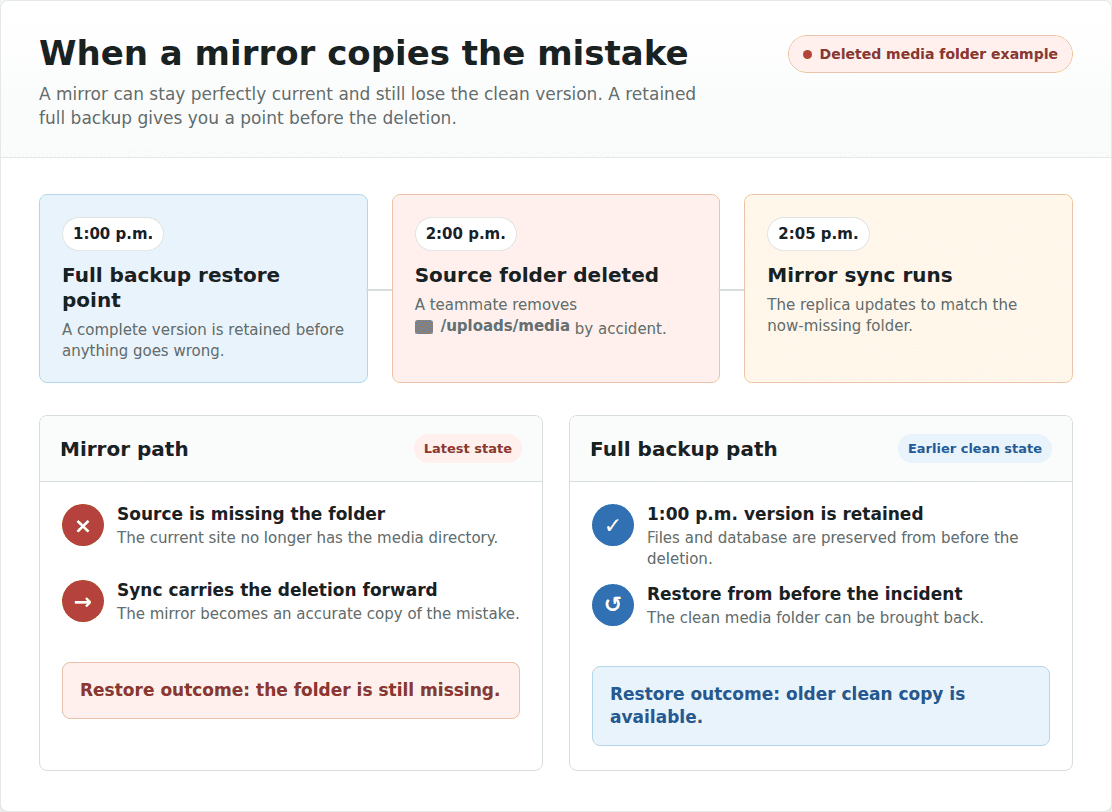
Say a teammate deletes a media folder at 2:00 p.m. and the mirror syncs at 2:05 p.m. The mirror may now be missing the folder too. A retained backup from 1:00 p.m. lets you restore your WordPress site to a previous date.
Or take a WooCommerce store. If a plugin update breaks checkout and also changes database settings, a file mirror is not enough. You need the files and the database from the same healthy point. Otherwise, you can end up with restored code talking to damaged data.
Host failure adds one more trap: location. A mirror inside the same hosting account can disappear with the account, the server, or the compromise. Offsite storage matters because it separates the backup from the failure.
The mistake is treating “same as production” as “safe from production’s problems.” If production is wrong, same-as-production can be wrong too.
What full backups do better
A full backup is heavier, but it is easier to trust under pressure because it gives you a complete recovery point.
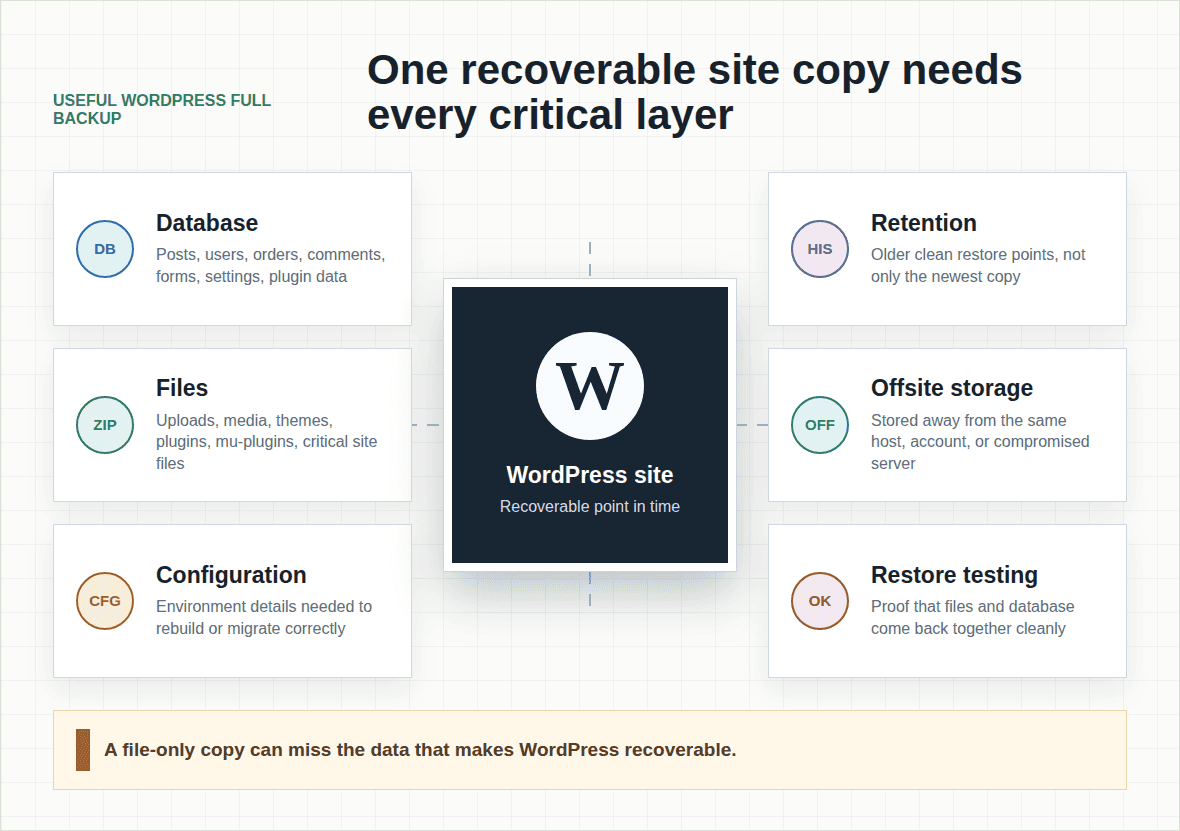
For WordPress, a useful full backup should include:
- Database: Posts, pages, users, comments, orders, form entries, settings, and plugin data.
- Files: Uploads, media, themes, plugins, must-use plugins, and site-critical files.
- Configuration: Anything needed to rebuild the site correctly after a restore or migration.
- Retention: Older restore points, not just the latest copy.
- Offsite storage: A location outside the same hosting account or server.
- Restore testing: Proof that the backup can actually bring the site back.
A complete WordPress backup has to cover more than the visible files.
The tradeoff is cost in time and storage. Full backups are larger. Running them too often on a busy site can also add load at exactly the wrong time.
That does not make mirror better for recovery. It means a good WordPress backup strategy should not rely only on repeated heavy full backups either. The practical answer is usually full-site backups with retained restore points, plus efficient change capture between those points.
In plain English: keep complete recoverable versions, but do not make the server recopy the entire site every time a customer places an order.
The better WordPress strategy is not mirror-only or full-only
Most WordPress sites should not choose one of the many types of backups and call the job done.
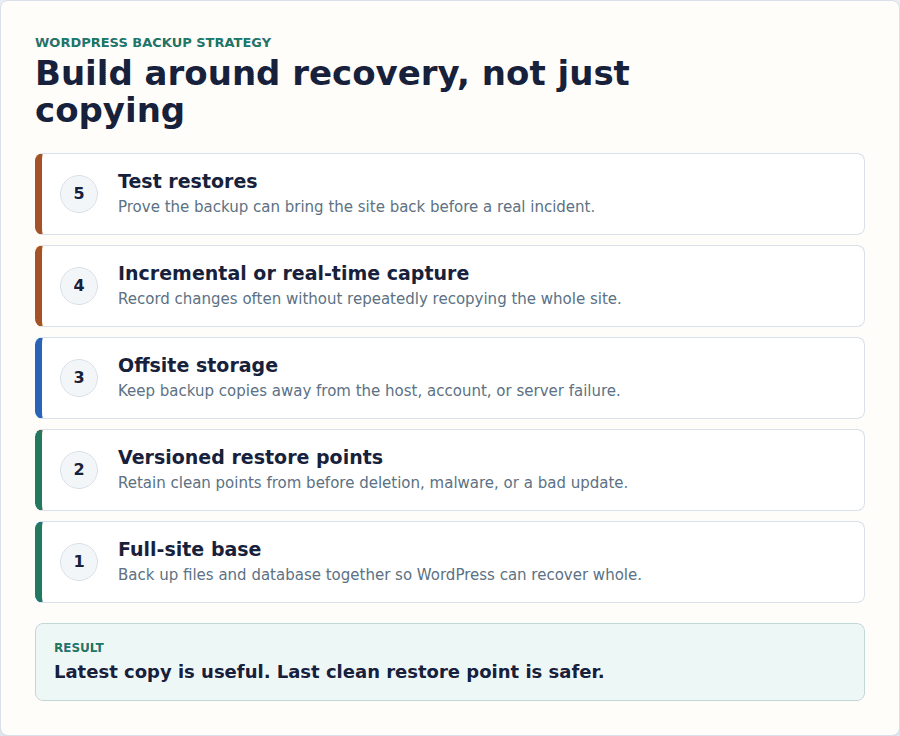
The safer setup is recovery-focused:
- Use full-site backups as the base: The backup must cover files and database together.
- Keep versioned restore points: You need a point before the mistake, infection, or bad update.
- Store backups offsite: A backup beside the broken site can disappear with the broken site.
- Use incremental backups for active sites: Capture changes without repeatedly running large full backups.
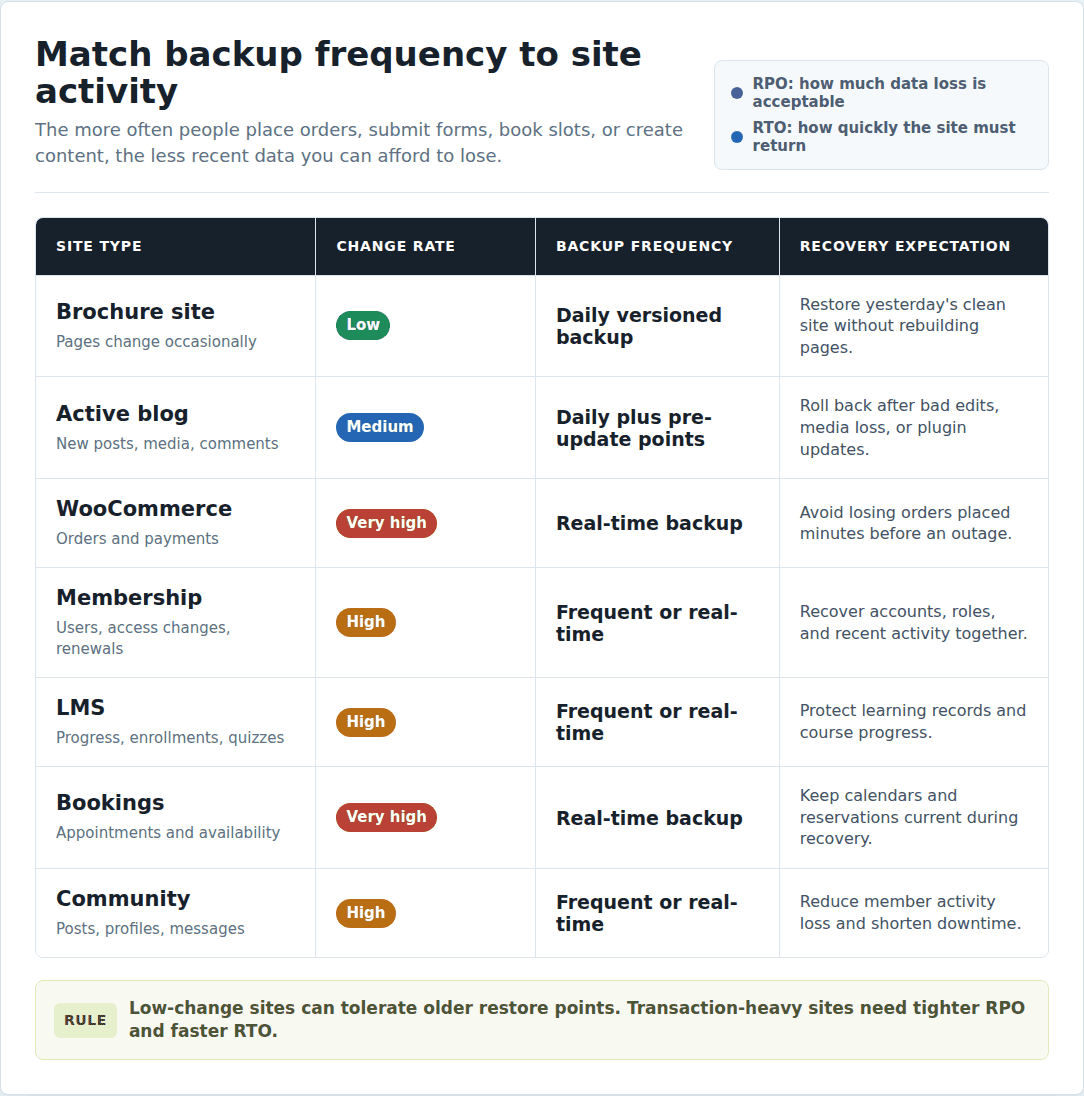
- Use real-time backups for transaction-heavy sites: WooCommerce, memberships, bookings, LMS sites, and communities can change every few minutes.
- Test restores before you need one: Restore day is a bad time to discover the database was missing.
Two backup terms are useful here, even if you never want to become a backup person.
RPO means how much recent data you can afford to lose. A brochure site may be fine with yesterday’s version. A store running a sale is not fine losing six hours of orders.
RTO means how long the site can stay down while you restore it. A personal blog can wait. A booking site during business hours probably cannot.
This is why the real comparison is not just mirror backup vs full backup. It is latest copy vs recoverable history. For WordPress, recoverable history wins.
BlogVault fits this recovery-first model because it creates full-site WordPress backups, stores them offsite, uses incremental backups to reduce server load, and supports daily or real-time backup options depending on site activity. The practical value is not that a backup exists somewhere. The value is that you can restore the whole site to a clean point when the latest version is damaged.
Which one should you choose?
Choose based on the failure you are trying to survive.
For a plain file archive, a mirror may be enough if the latest version is all you care about. For a small brochure WordPress site, daily full-site versioned backups are usually the more sensible base. For an active blog, add clean restore points before plugin, theme, and content-heavy changes.
For WooCommerce, memberships, LMS sites, bookings, and communities, use real-time or very frequent versioned backups. Orders, users, payments, and form submissions can change every few minutes, so yesterday’s backup may be too old.
For agencies, the boring requirements become the important ones: offsite retention, quick restore testing, and a repeatable process across client sites. You do not want every restore to become a custom rescue operation.
If you are protecting a WordPress site that matters to a business, your WordPress backup strategy should default to full-site, versioned, offsite backups. Add mirror backup only when you also need fast current-file access or another availability layer. Let each method do its own job.
Do not make the mirror your only safety net. That is how a neat backup setup becomes a very tidy copy of the disaster.
Mistakes to avoid
Backup mistakes usually look reasonable until restore day.
- Do not treat RAID or server mirroring as a backup. It can help with hardware failure or uptime, but it does not give you clean historical restore points.
- Do not keep every copy in the same hosting account. If the account is locked, compromised, deleted, or unavailable, the backup can go with it.
- Do not back up only WordPress files. The database carries the content and business data.
- Do not trust the newest copy by default. After deletion, malware, or corruption, the newest copy may be the damaged one.
- Do not run heavy full backups so often that they hurt the site. Use incremental or real-time backups when the site changes often.
- Do not skip restore testing. A backup you have never restored is a promise you have not checked.
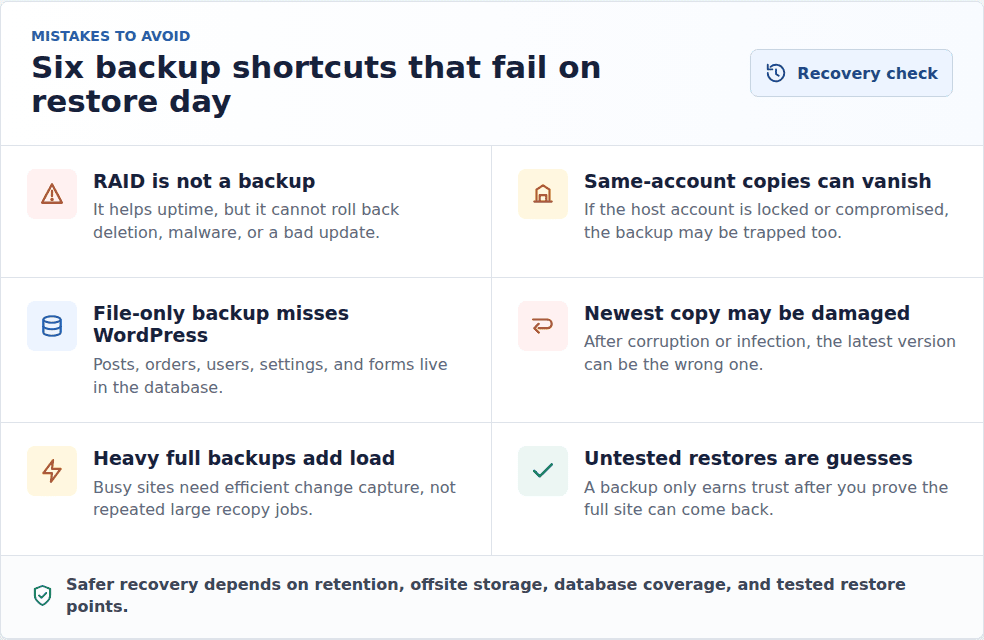
The boring parts are the important parts: retention, offsite storage, database coverage, and tested restore.
Final recommendation
If you only need the latest copy of a few files, mirror backup can help. If you need to recover a WordPress site after deletion, malware, a bad update, database corruption, or host failure, use full-site, versioned, offsite backups with retention.
For a low-change site, daily versioned backups may be enough. For an active blog, add pre-update backups before plugin and theme changes. For WooCommerce, membership, LMS, booking, or other transaction-heavy sites, use real-time backups so orders and user activity are not left exposed between restore points.
Build the backup strategy around the restore you will need on your worst day. A mirror can give you the latest state. A versioned full-site backup can give you the last good one.
FAQs
Is a mirror backup the same as a full backup?
No. A mirror backup keeps a current replica of the source. A full backup captures a complete copy from a specific point in time. A mirror may start with a full copy, but it usually keeps updating to match the latest source.
Is mirror backup safe?
It is safe as a current-copy layer. It is risky as your only backup because deletion, corruption, malware, or ransomware can sync to the mirror too.
Which is better for WordPress: mirror backup or full backup?
For recovery, full-site versioned backups are better. WordPress needs files and database recovery, offsite storage, retained restore points, and tested restore. Mirror backup can still help with quick current-file access.
Can mirror backup protect against ransomware?
Not reliably. If encrypted or infected files sync to the mirror, the mirror may hold the damaged version too. You need separate clean restore points that ransomware cannot overwrite.
Do full backups take more space than mirror backups?
Usually, yes. Full backups take more storage and time, especially when you retain multiple versions. That is why active WordPress sites often use full-site backups plus incremental or real-time change capture.
Should I use both mirror and full backups?
Use both only when they have different jobs. A mirror can help with current access or availability. Full-site, versioned backups should remain your recovery safety net.

Akshat is the founder and CEO of BlogVault, MalCare, and WP Remote.