
If your WordPress site is constantly changing, you need a backup system that can keep up. Incremental backups help by saving only what changed since the previous backup instead of copying your entire site each time. That means you can create backups more often while using less storage and server time.
Think of them as frequent snapshots of your site. If an update breaks something or a customer order goes missing, you can choose a recent restore point and get back to a working version.
In this guide, we’ll show you how incremental backups work, why they can be a great fit for WordPress, and what to look for in a backup system you can trust.
An incremental backup saves only recent changes, so a WordPress backup plugin can run smaller jobs more often. In a traditional setup, a later restore needs the full backup and each needed increment in order. Some plugins combine them into one restore point.
What is an incremental backup?
An incremental backup contains data changed or created since the last backup. The last backup may be the first full copy or another change-only backup. Depending on the tool, this can include new or edited files, database updates, deleted items, and renamed items.
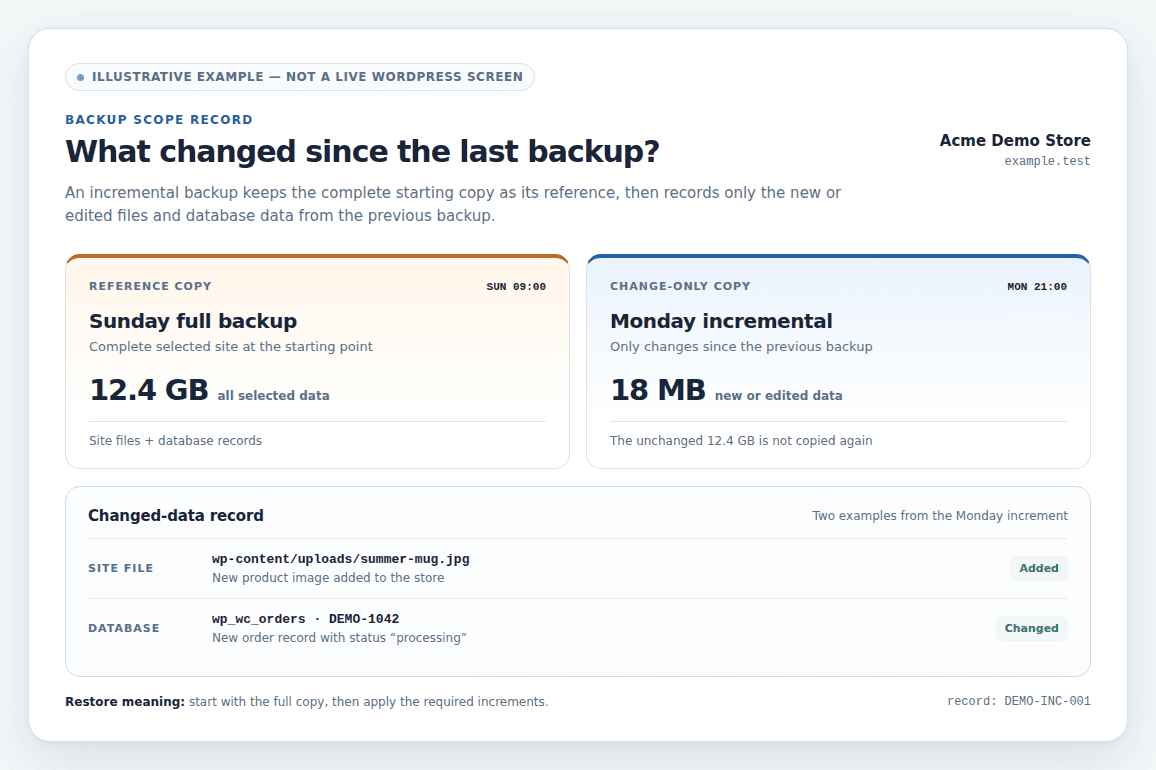
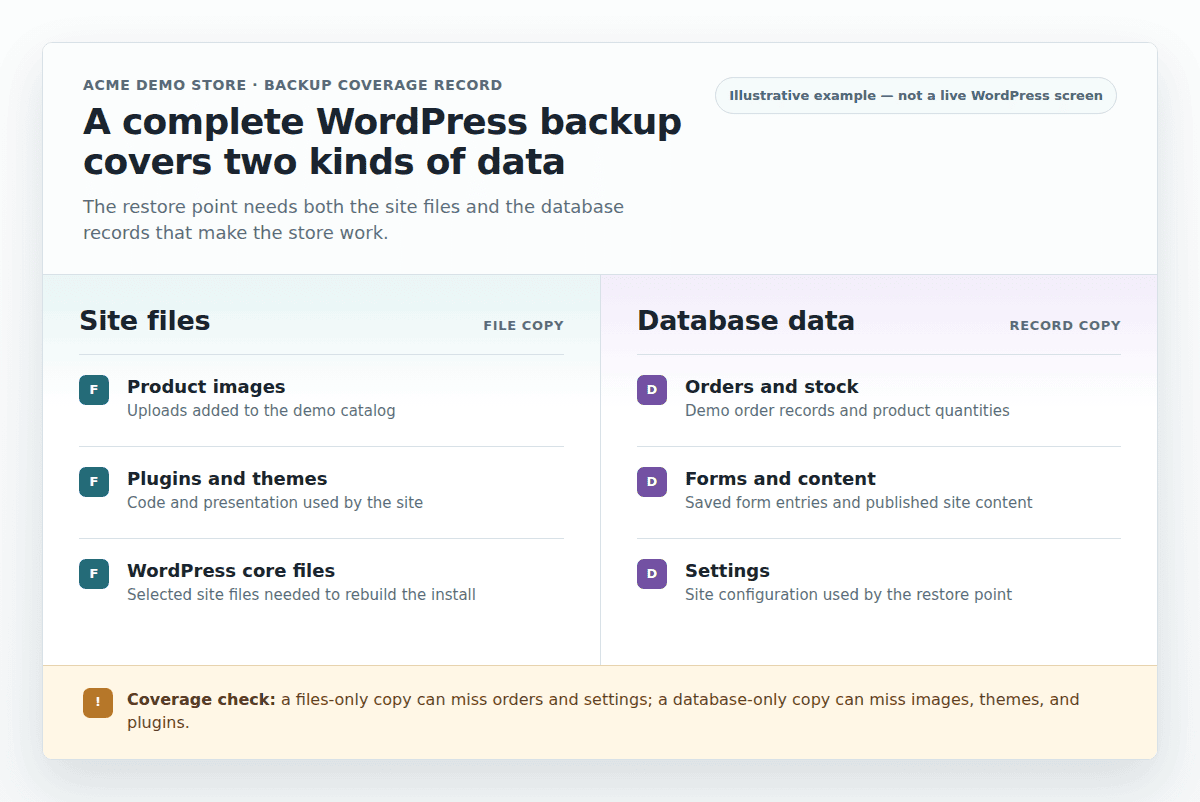
A database is where WordPress stores content and settings. It can hold posts, users, form entries, memberships, and WooCommerce orders. Site files include uploads, themes, plugins, site settings, and WordPress core files. A complete WordPress backup normally needs both.
A standard plan works like this:
- The system creates a full backup of the selected data.
- The next backup saves changes made after that full backup.
- Each later change-only backup saves changes made after the backup before it.
- A restore combines the full backup with the required increments to rebuild the chosen point in time.
The tool also decides how much of a file it copies. Files such as themes, plugins, uploads, and WordPress core files can be viewed and managed using a WordPress file manager. A file-based system may copy a whole changed file, while a block-based system copies only changed portions of a large file, where supported.
How do incremental backups work? A website example
Consider a store that receives orders, changes stock levels, uploads product images, and updates settings throughout the week. For a WooCommerce store, a WooCommerce backup needs to capture these changes alongside the rest of the site. Copying the entire site after every change would use more time and storage than necessary.
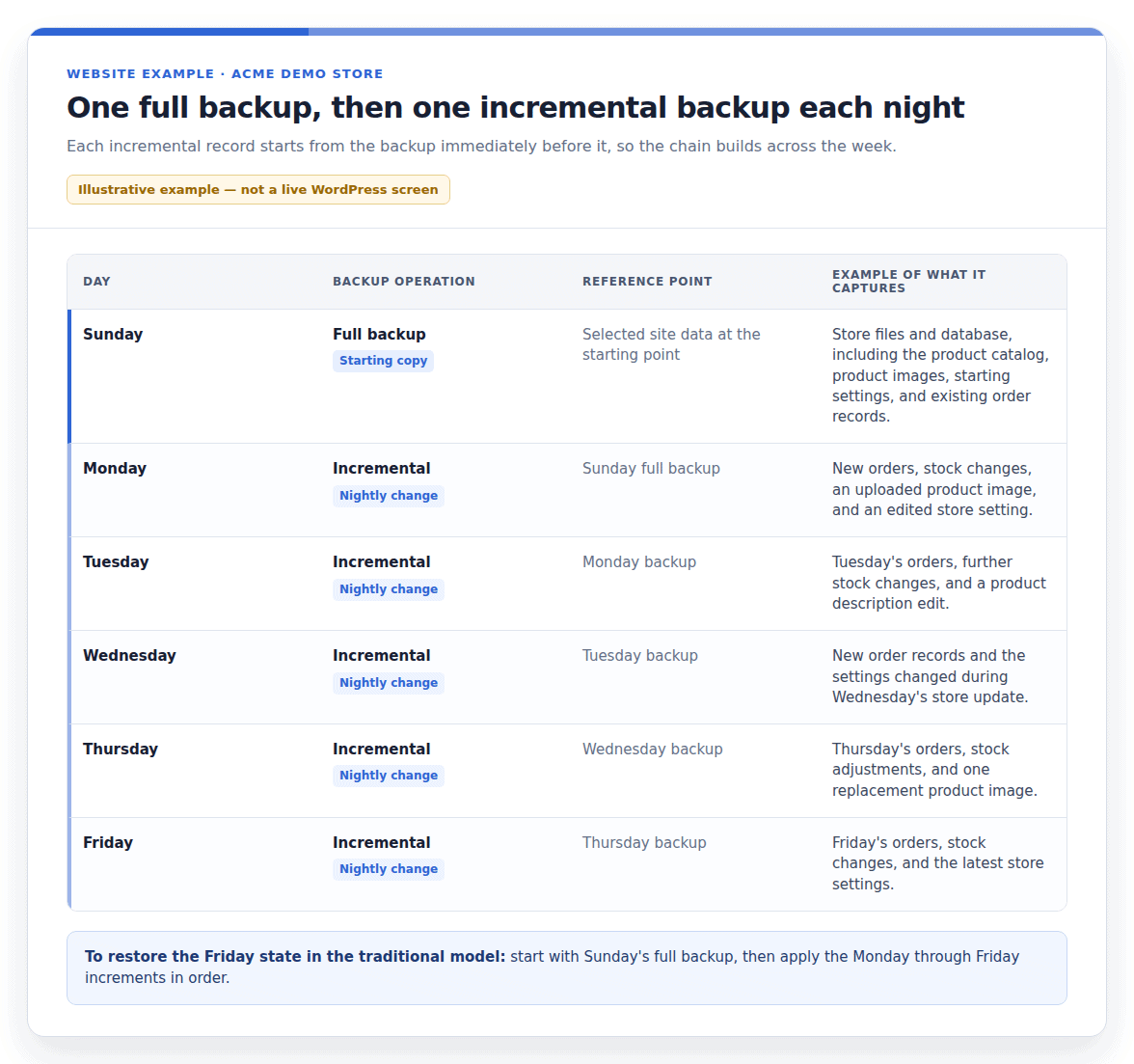
The store makes a full backup on Sunday. It makes one change-only backup each evening after that:
| Day | Backup operation | Example of what it captures |
|---|---|---|
| Sunday | Full backup | The selected files and database at the starting point |
| Monday | Incremental | Monday’s orders, product edits, and uploaded images |
| Tuesday | Incremental | Changes made after Monday’s backup |
| Wednesday | Incremental | Changes made after Tuesday’s backup |
| Thursday to Saturday | Incremental | Changes made after the previous evening’s backup |
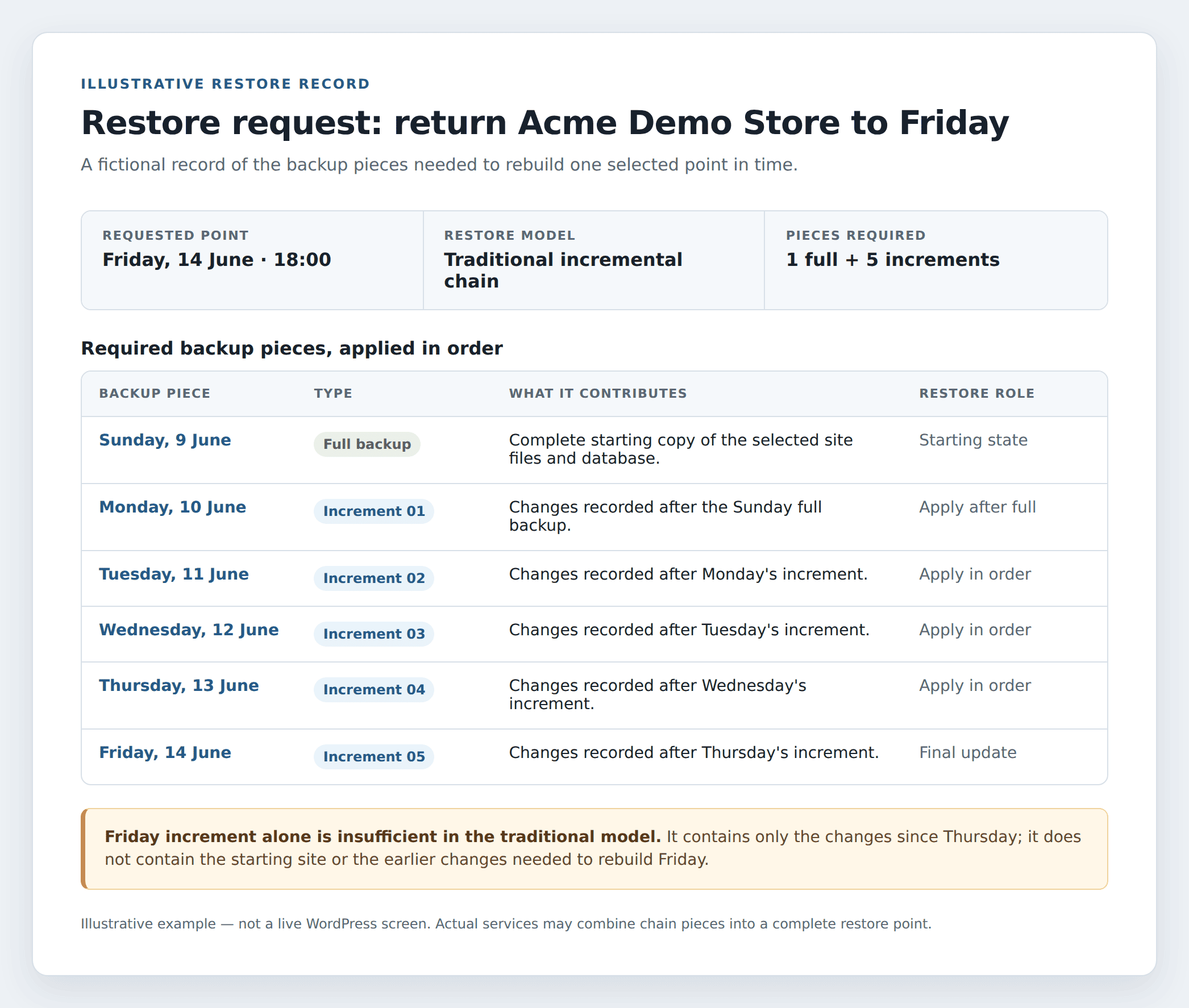
To restore the store to Friday, the standard model uses Sunday’s full backup and applies the Monday through Friday increments in order.
Restoring only Friday’s increment would not rebuild the store. It contains changes since Thursday, not the starting site or earlier changes. This set of related backups is often called a restore chain.
How often you backup matters too. A daily backup can leave nearly a day’s work outside the latest restore point. Smaller jobs may run more often. Each job must finish and stay there for the time old backups are kept.
What are the benefits of incremental backups?
This method is most useful when a site changes often but cannot repeat a full copy throughout the day.
Smaller backup jobs and lower storage use
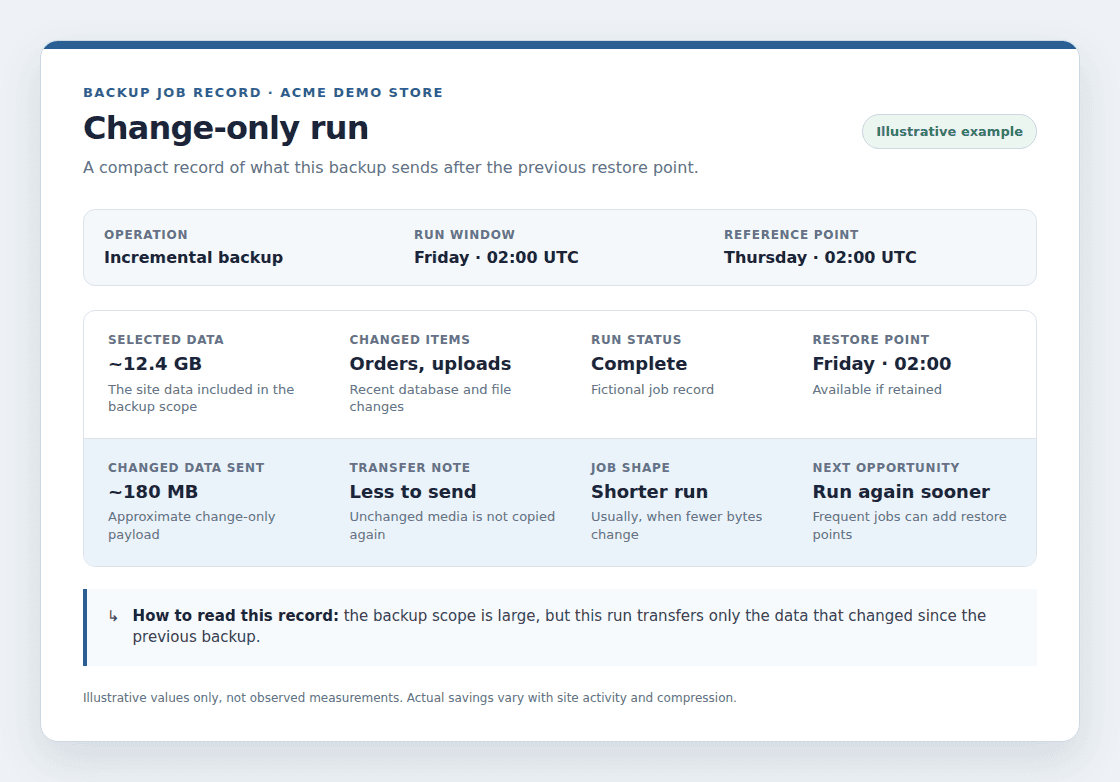
After the full starting copy, each new backup contains only recent changes. An unchanged media library is not transferred every time. Savings depend on site activity, compression, and how many copies are kept.
Faster backup runs
Copying less data usually shortens each job, which helps sites with limited resources or a short period when backups can run. Preparing, protecting, and sending data still take time, so speed varies.
Less internet data and work on the live site
Smaller transfers use less internet data and can reduce work on the live WordPress site. This matters for large uploads, limited hosting plans, and busy stores.
More restore points
Smaller jobs may allow more frequent backups and reduce recent data loss after a failure. They still need monitoring and restore tests.
What are the risks and disadvantages?
This method makes backup jobs more efficient. It does not automatically make recovery simple.
A traditional restore can depend on several backups
A standard restore may need the full backup and every needed change-only backup after it. If one part is missing, damaged, deleted too soon, or unreadable, the restore can take longer.
Some services combine these parts or handle the chain for you. Check what the service needs to restore a specific date.
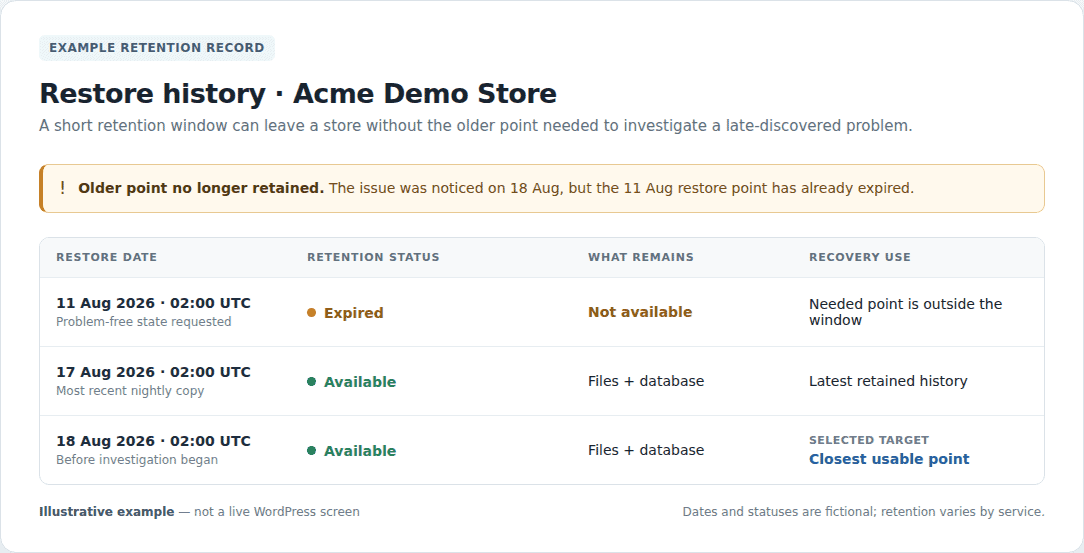
Retention can remove the point you need
Keeping only recent WordPress backup versions saves storage but may remove an older restore point. A store may need more old copies than a small blog if a problem goes unnoticed for days.
Frequent jobs need regular monitoring
More backups create more job records and storage decisions. Make sure the service sends failure alerts and shows the restore points still there.
Incremental vs. full, differential, and mirror backups
When comparing the types of backup, the main difference is what each new backup uses as its reference point.
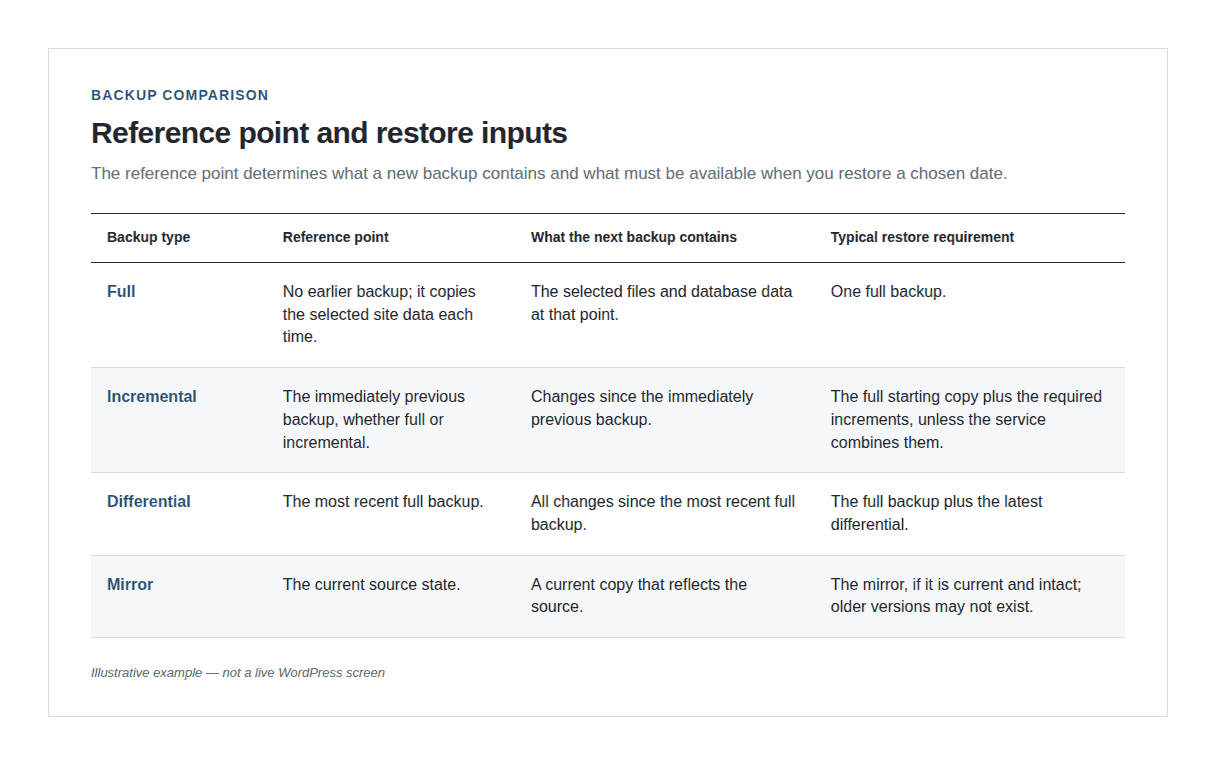
| Backup type | What the next backup contains | Typical restore requirement | Main trade-off |
|---|---|---|---|
| Full | The selected site data each time | One full backup | Simple recovery, but more time, storage, internet data, and server work |
| Incremental | Changes since the immediately previous backup | The full starting copy plus required increments, unless the service combines them | Small, quick jobs, but more dependence in a traditional chain |
| Differential backup | All changes since the most recent full backup | The full backup plus the latest differential | Easier recovery than a long chain, but the backup grows until the next full copy |
| Mirror | A current copy that reflects the source | The mirror, if it is current and intact | Useful for availability, but it may not keep older versions or protect against copied deletions |
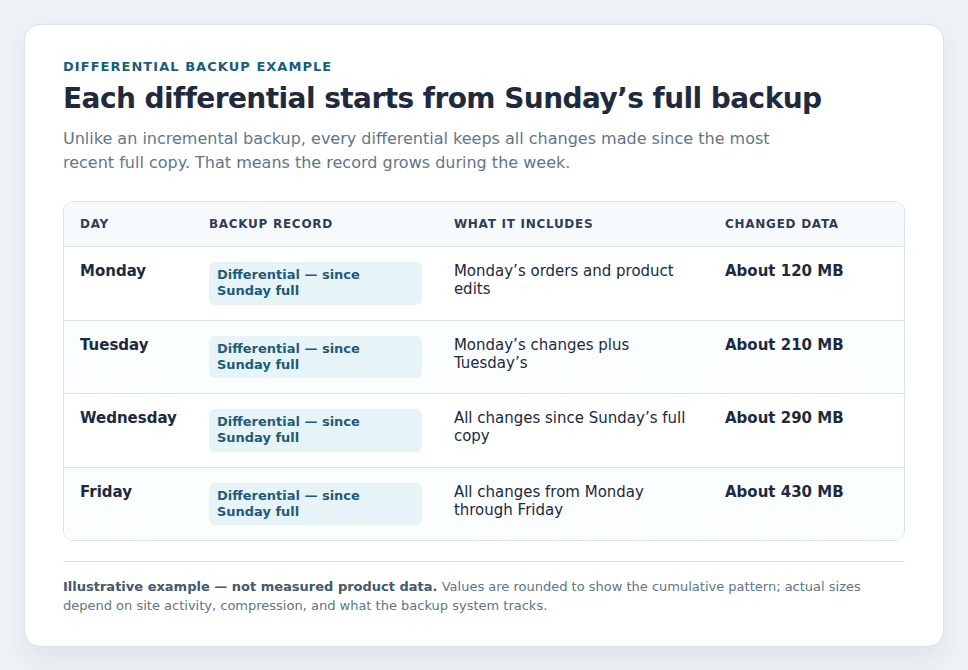
A full backup is often the simplest restore starting point, but repeating it can be expensive. Change-only backups stay smaller because they use the latest backup as their reference. Differential backups grow during the cycle because they always include changes since the latest full backup. The right choice depends on site activity, storage, backup time, restore speed, and the tool’s restore process.
Why do they restore differently?
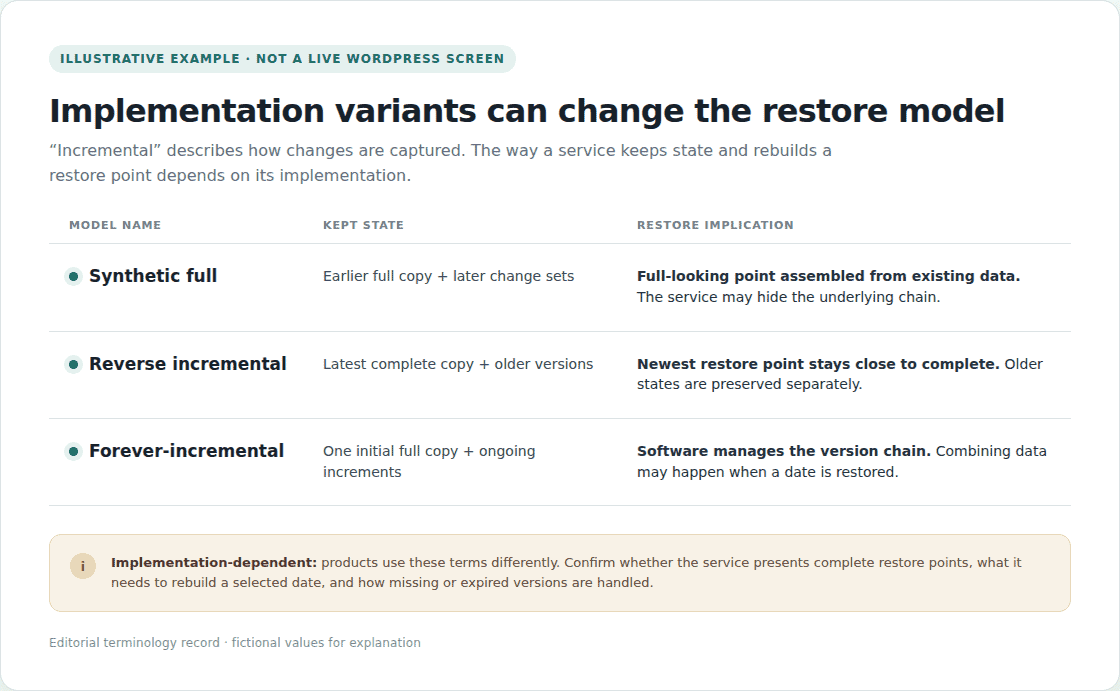
The word incremental describes how changes are captured. A backup service can organize those changes in different ways:
- Synthetic full: A full-looking restore point assembled from an earlier full backup and later changes, without copying the entire live site again.
- Reverse incremental: The latest complete copy is kept up to date with new changes while older versions are saved separately.
- Forever-incremental: One initial full backup is followed by ongoing increments, while the software manages versions and combines data when needed.
These designs can reduce the visible chain, but they do not remove the need to keep old backups, watch for failures, check data, and test restores. Find out whether the service gives complete restore points.
Are incremental backups worth it?
This method can suit a WordPress site with frequent changes, large files, or limited hosting resources. It is often a good fit for stores, membership, booking, learning, and publishing sites, as well as sites with regular form entries.
A small brochure site that rarely changes may prefer automated full backups. A site that cannot tolerate a hard restore should choose a service that manages the chain or creates complete restore points. Test that process before an outage.
Choose a backup setup based on four simple factors:
- How much recent work can the site afford to lose?
- How quickly must the site be online again?
- Does the backup cover the files, database, and custom data the site needs?
- Can the owner select and restore a known point without overwriting the live site by mistake?
How often you back up controls how recent the newest restore point is. The time you keep old backups controls how far back you can restore. Both should match the site’s activity and the cost of losing data.
How to take incremental backups
Backing up a WordPress site manually is hard. The system must track file and database changes, preserve deletions, connect versions, and make the result restorable. For most WordPress owners, a backup plugin is the easiest choice.
For a managed service such as BlogVault, the general process is:
- Create the complete starting backup: Connect the WordPress site. Let the service create the first full copy of the chosen files and database data.
- Let the backup plugin capture ongoing changes: Allow the service to record later changes based on the schedule and settings available for the site.
- Create a fresh rollback point before risky work: Start a backup manually before a migration, update, import, redesign, or bulk edit. This gives you a clean recovery point.
- Test recovery in a separate location: Use WordPress staging environment, which is a private copy used for testing, to restore WordPress from a backup. Check the admin area, pages, media, forms, logins, and key business functions.
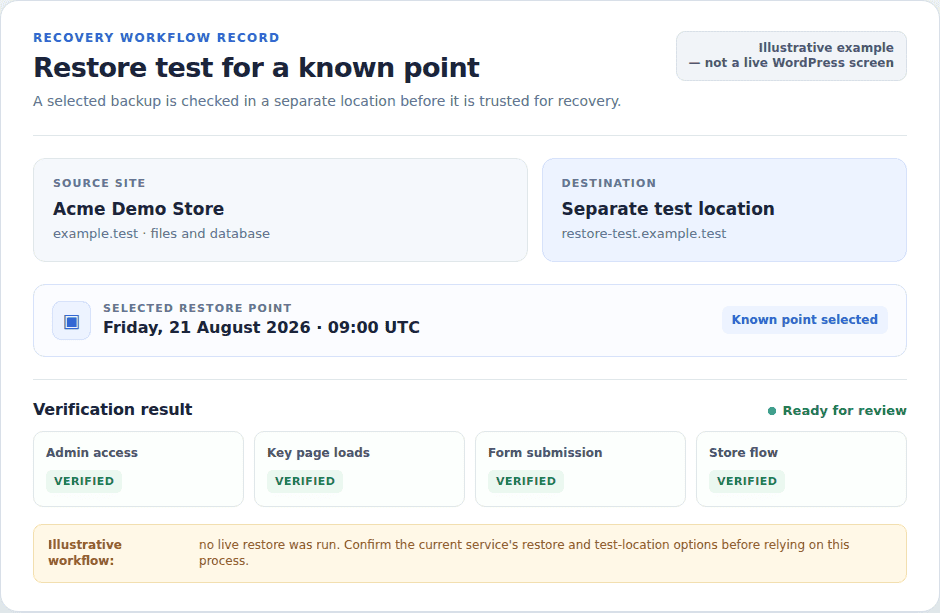
BlogVault currently describes full backups, change-only backups between them, storage away from the website, restore options, and a Test Restore workflow that creates a separate test environment. These details are not universal to every backup plugin. Confirm the current plan’s schedule, retention, what can be restored, and test options before relying on them.
What is the best backup strategy?
For many active WordPress sites, a full starting copy plus regular change-only backups gives a useful balance. Later backups protect new orders, leads, uploads, content, and settings without repeating the whole-site copy.
Use this checklist to build a safer plan:
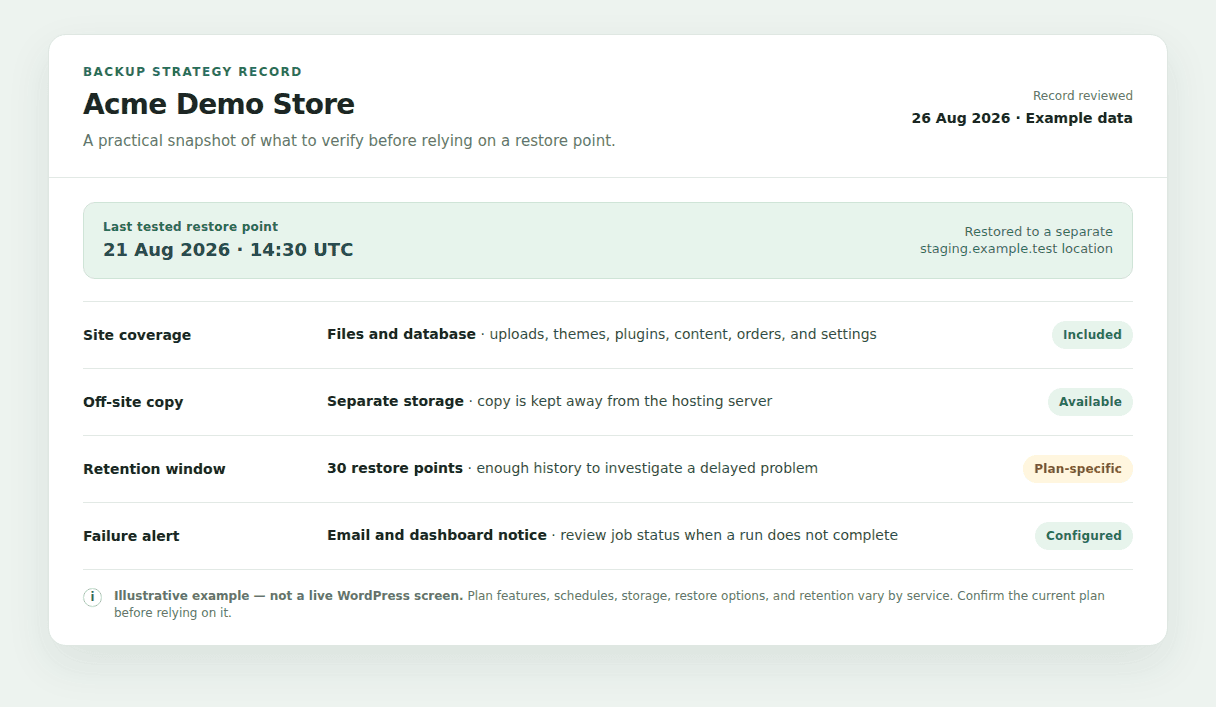
- Include both site files and database data: Check that the backup covers uploads, themes, plugins, site settings, content, orders, users, and extra database sections the site depends on.
- Match backup frequency to site activity: A site that takes orders or receives form entries needs frequent protection. A site edited once a month may need less.
- Keep history long enough to find hidden problems: Retain enough versions to recover from an issue that was not noticed immediately.
- Store copies away from the hosting server: Separate storage helps when the host fails or the site is compromised. WordPress security maintenance includes protecting the backup account carefully.
- Watch completion messages and failure alerts: A success message only confirms that the job reported completion. Check that the expected files, database data, and restore point are present.
- Practice restoring before an emergency: Use a staging site or another safe place. Test checkout, forms, logins, media, and admin access.
FAQs
Do incremental backups need a full backup?
Usually, yes. A standard plan starts with a full backup and saves later changes. The change-only backups alone do not contain the complete site, although some services assemble them into complete restore points.
Can you restore an incremental backup by itself?
Not always. A traditional restore needs the full backup and required earlier increments. A managed service may combine those pieces, but test a real backup date before you depend on it.
What is the difference between incremental and differential backup?
An incremental backup saves changes since the most recent backup of any type. A differential saves all changes since the most recent full backup. Incrementals are usually smaller, while differentials grow larger until the next full backup.
Are incremental backups good for WordPress?
They can fit active WordPress sites that receive orders, leads, comments, uploads, or regular content changes. Use a tool that covers files and database data, stores copies away from the host, alerts you to failures, and supports tested restores.
Should I use a backup plugin for incremental backups?
For most WordPress owners, yes. A backup plugin can track changes and manage scheduled backups without manual assembly. Choose one based on coverage, how long copies are kept, storage location, restore options, and test-restore support.
Conclusion
Incremental backup saves only recent changes, which can make frequent WordPress backups smaller and faster. It is useful for active sites that cannot afford to repeat a full copy every time the site changes.
The important decision is the WordPress backup and restore path. A disaster recovery plan should include a backup plugin or service that covers the complete site, keeps enough history in separate storage, reports failures, and lets you test recovery. A small backup is helpful, but a tested restore point is what protects the site when something goes wrong.

Shivani enjoys crafting guides that make every aspect of using WordPress simple and easy to follow. When she's not glued to her laptop, you can find her buried in a good book or occasionally, painting.