You are probably looking at a WordPress backup to Google Drive because Drive already feels familiar. You know where your files are, you know how to share them, and it feels safer than leaving the only copy of your site inside your hosting account.
That instinct is good. An off-site copy can save you when a host fails, an update breaks the site, malware damages files, or someone deletes the wrong thing.
The part to be careful about is this: Google Drive is only the storage shelf. The backup tool decides whether the copy is complete, current, private, and restorable.
Use a method that backs up both files and database, saves recent versions, protects access, and lets you test a restore before there is an emergency. For a small site that changes rarely, a Drive-connected to a reliable backup plugin may be enough. For a store, membership, course, booking, multisite network, or client site, Drive should be one part of a stronger recovery plan rather than the whole plan.
What Google Drive solves
Google Drive gives you off-site storage. That means the backup copy is away from the web server that runs your site. This helps when the server copy is not available or cannot be trusted.
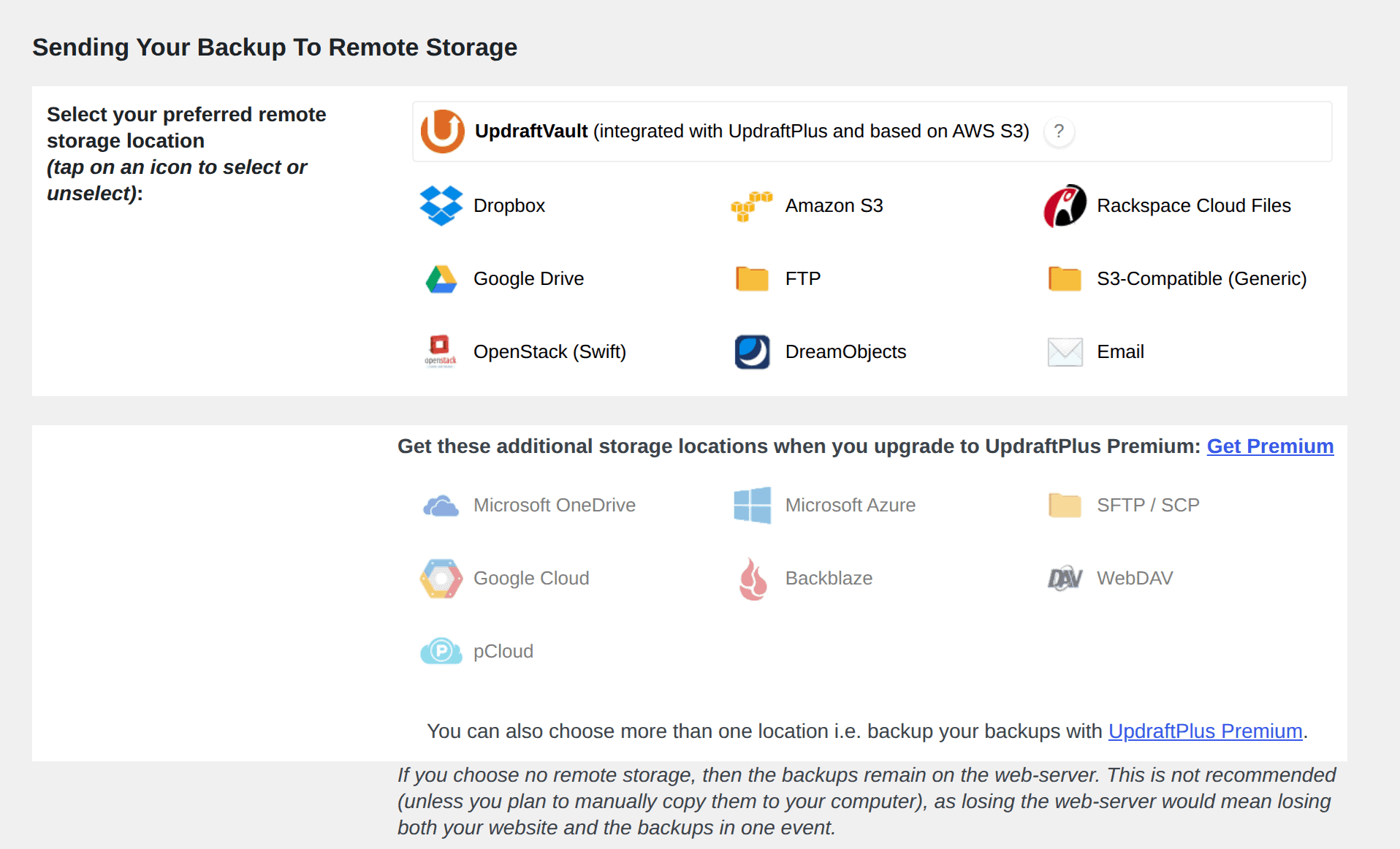
Drive is also easy for most site owners to understand. You can open a folder, download a backup archive, hand a copy to a developer, or keep a dated backup before a risky change. Those are real benefits. They do not make Drive a backup system by itself.
Google Drive stores what your backup method sends. If the backup misses the database, Drive stores an incomplete backup. If an upload stops halfway, Drive may still contain files that look useful. If the newest backup is three weeks old, Drive will not know that your latest orders, users, comments, or form entries are missing.
Before you trust any Drive backup, check what it includes, when it last ran, where it is stored, who can access it, and how you would restore it.
What a complete WordPress backup needs
A complete WordPress backup has two major parts:
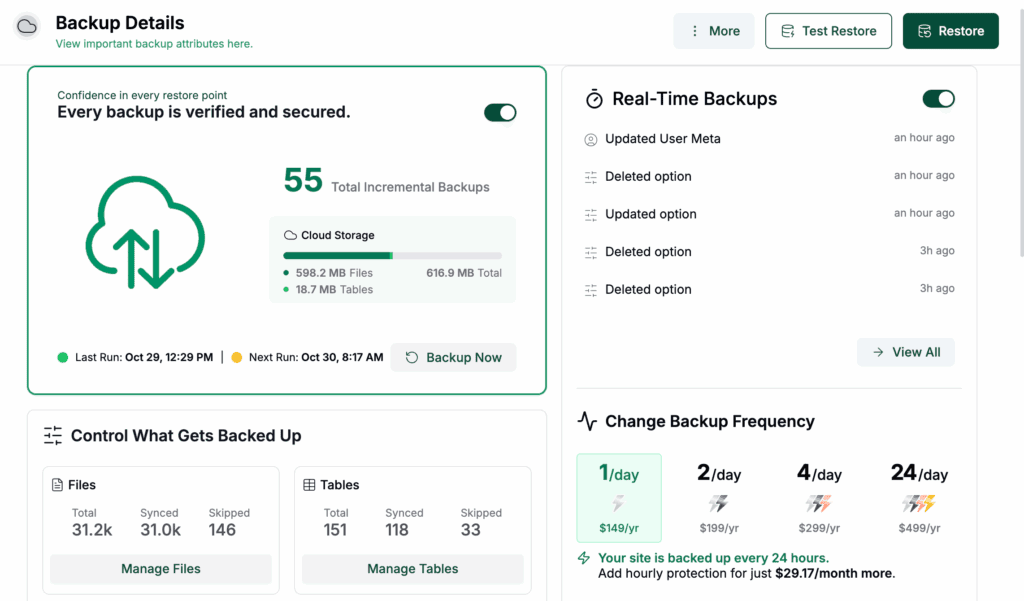
- Save the WordPress files that make the site load: This includes WordPress core files, themes, plugins, uploads, images, media, and custom files.
- Save the database that holds the site’s content and activity: This includes posts, pages, users, comments, settings, form entries, orders, memberships, bookings, course progress, and plugin data.
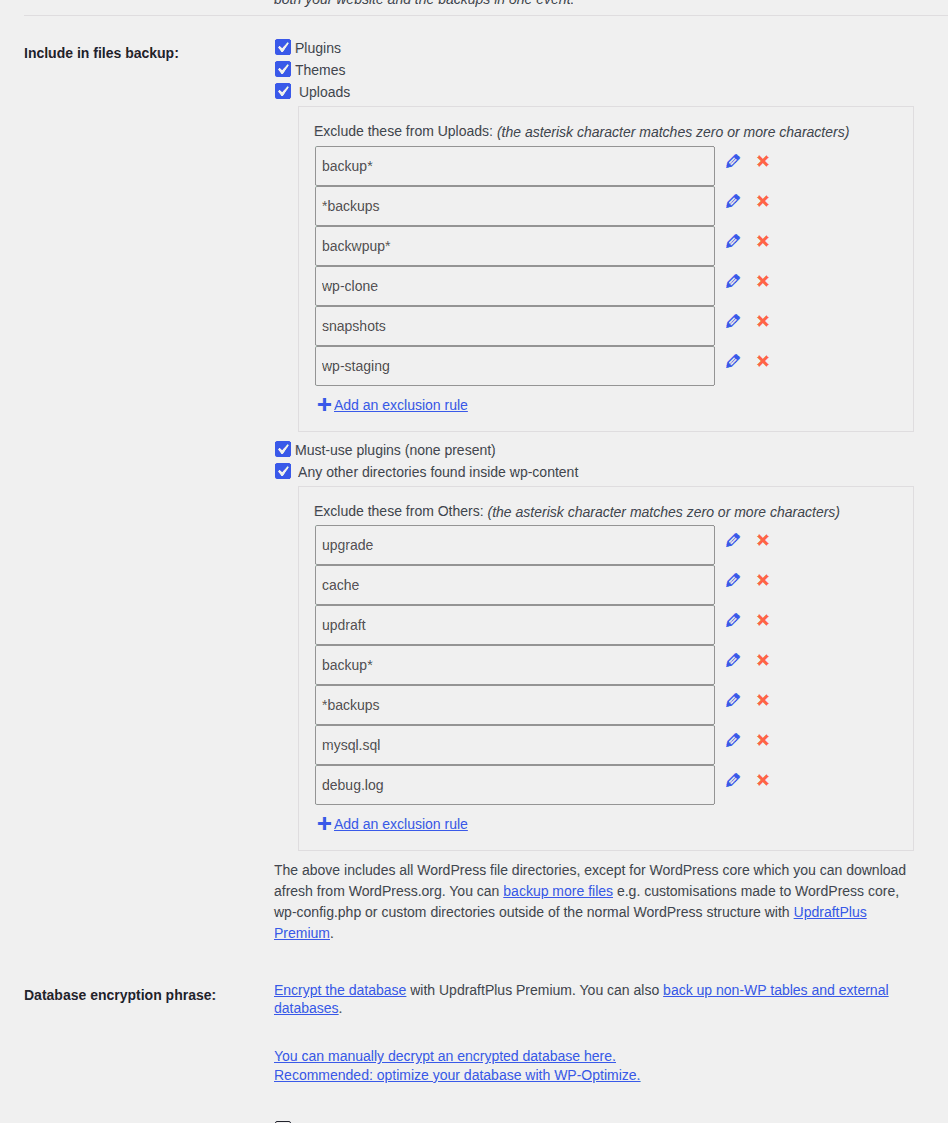
WordPress documentation treats files and database as the parts needed for full backup and restore. A files-only backup is not enough. A database export by itself is not enough either.
The two parts should also come from nearly the same moment. If you download files in the morning and export the database at night, the pieces may not match. That can lead to missing media, broken plugin settings, lost records, or confusing restore work.
A) Backup plugin with Google Drive support
For most WordPress owners, the best method is a backup service that sends a copy of your site to Google Drive. A good service should be able to:
- Backup both files and the database.
- Run on an automatic schedule.
- Send backups directly to Google Drive.
- Keep multiple versions for different restore points.
- Provide clear logs and a simple restore process.
Before choosing, always confirm that the service is actively maintained, supports your WordPress/PHP versions, and includes Google Drive support in your plan.
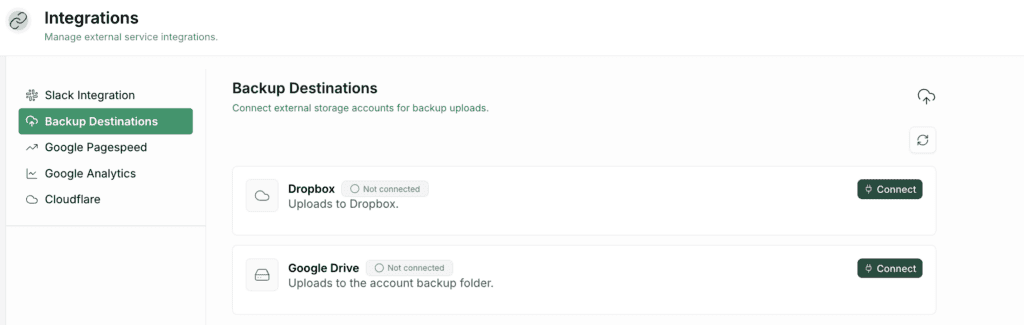
We used BlogVault. It uses an external dashboard, which means your backup and restore controls are always accessible even if your site is down. From this dashboard, we could easily manage backups, staging, and connect remote storage like Google Drive.
When you connect any service to Google Drive, remember to review the permissions screen carefully before approving. If you stop using the service later, be sure to go into your Google account and revoke its access.
Plugin setup checklist
- Sign up for BlogVault and connect your site: BlogVault is a maintained service, so the first step is to create an account and install its connector plugin on your WordPress site. This gives you access to its powerful external dashboard.
- Connect the Google account that should own the backups: From the BlogVault dashboard, link the site owner’s or a managed business Google account, not a temporary developer account. If using a team account, confirm whether BlogVault supports Google Workspace Shared Drives.
- Confirm BlogVault’s initial full backup completes successfully: After connecting your site, BlogVault performs a complete first sync. Ensure this initial backup finishes before relying solely on the automated schedule.
- Enable the “Copy to Google Drive” feature, then check your Drive: BlogVault’s primary backups are stored on its own secure servers. After enabling the option to send a copy to Google Drive, open the folder to confirm the files arrive as expected.
- Set the schedule based on how often the site changes: Use the BlogVault dashboard to set the backup frequency. For active blogs, choose daily. For WooCommerce or membership sites, use BlogVault’s real-time backup feature to protect every transaction and user change.
- Manage your backup retention: BlogVault keeps an archive of your backups (e.g., 90 or 365 days) on its own servers. This means your Google Drive storage is only used for the extra copies you choose to send.
- Test the restore using BlogVault’s built-in staging: A backup is not proven until it’s restored. Use BlogVault’s one-click staging feature to create a private copy of your site and test the restore process safely, without affecting your live visitors. Our guide to test restore backups explains the same habit well.
B) Host backups to Google Drive
Some hosts and control panels can send backups to Google Drive. If your host uses cPanel, understand the cPanel backup restore path before you rely on it. Softaculous is one example when the host includes that feature.
This route can be useful because it runs outside WordPress. If WordPress is broken and you cannot log in, a host-level backup may still be available from the hosting panel.
The risk is that host backups can feel complete until you need to restore them. Some restores are simple. Others need manual uploads, database imports, support tickets, or paid add-ons. Check these points before you rely on a host route:
- Confirm full-site coverage before turning it on: The backup should include WordPress files and the database, not only an installer package or file archive.
- Run one backup and inspect the Drive folder: Do not stop after connecting Google Drive. Look for the actual backup file and check that it has a sensible date and size.
- Find the restore controls while the site is healthy: Know whether you can restore yourself, whether support must do it, and whether restore works from the Drive copy or only from host storage.
- Keep access outside the host account: Billing issues, account locks, or host outages can block the hosting panel. If the only restore path depends on the same host account, keep another reachable copy.
Host backups are useful when backup and restore are both clear. They are risky when they create archives you do not know how to use.
C) Manual backup to Google Drive
Manual backup can help before a risky update, migration, theme change, performance change, cleanup, or developer handoff. It is not a good long-term plan for a live site because it depends on memory, timing, downloads, exports, uploads, and careful storage.
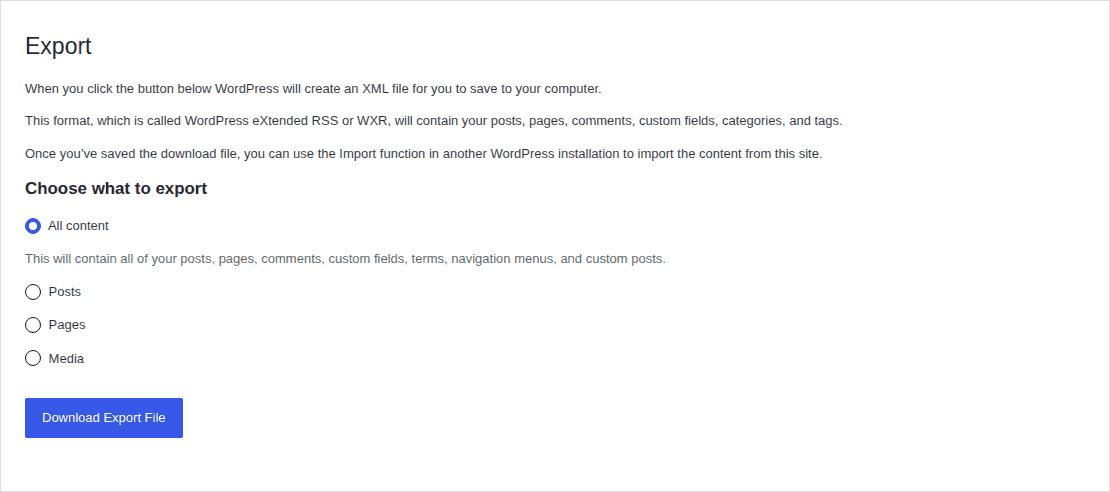
Use it as an extra copy, not your regular recovery system:
- Export the database close to the file download: Use phpMyAdmin or your host’s database export tool. Close timing reduces the chance that posts, orders, form entries, or settings change between the two backup parts.
- Download the WordPress files from the server: Use your host file manager, FTP, or SFTP. Include uploads, themes, plugins, and custom files.
- Keep both backup parts in one dated folder: Use the site name and date in the folder name. Clear naming matters when you are stressed and comparing versions.
- Upload the complete folder or archive to Google Drive: Wait for the upload to finish. Large backups can fail if your connection drops.
- Write down what the backup contains and what it excludes: Note whether it includes files, database, uploads, custom directories, and any skipped folders.
Manual backups often fail quietly. The file download may be incomplete. The database export may be from a different time. The Drive upload may stop before every archive is present. You usually discover those problems only during restore.
Security and ownership need attention
Google says Drive files are encrypted in transit and at rest with AES-256-bit encryption. That is useful baseline protection.
- A WordPress backup can still contain sensitive data. It may include database login details, customer records, orders, private media, form entries, unpublished content, plugin settings, and user information. Anyone with access to the backup file may be able to download that data.
- Use a private folder. Share it only with people who need recovery access. Remove old developers, agencies, staff, and contractors when they no longer need it. Use backup-file encryption if your backup tool offers it, especially for sites with customer or member records.
- Ownership matters too. Files in a personal Google Drive belong to that account. If a developer or employee owns the folder and leaves, the backup process can break or become hard to manage. Google Workspace Shared Drive files are owned by the organization, not by one individual, and remain with the organization when the creator leaves.
Google Drive authorization is where backup setup becomes an account ownership decision.
Do not assume every backup plugin supports Shared Drives. Some support personal Drive only. Some support Shared Drives only on paid plans. Confirm this before you buy or configure the plugin. Old backups are still sensitive data. Keep enough versions to recover from recent mistakes, but do not keep years of private site archives unless you have a business or legal reason.
How often should you backup to Google Drive?
Backup frequency should match how often your site changes. It should not depend on how often you remember to run a backup.
| Site type | Practical starting schedule |
|---|---|
| Low-change brochure site | Weekly full backup |
| Active blog | Daily backup |
| WooCommerce store | Frequent database backups, plus regular full backups |
| Membership, LMS, booking, or donation site | Frequent or real-time backups for user data |
| Before major changes | Extra backup before updates, migrations, theme changes, or cleanup |
Google accounts include 15 GB of free storage shared across Drive, Gmail, and Photos. That can fill fast if your site has many images, videos, or frequent full-site backups.
Schedule heavy full backups during low-traffic hours. This reduces pressure on your server while files are packaged and uploaded.
Pros and cons of WordPress backup to Google Drive
| Pros | Cons |
|---|---|
| Keeps a copy away from your web server | Does not prove the backup can be restored |
| Familiar for most site owners | Free storage is shared with Gmail and Photos |
| Works with many backup plugins | Large media libraries can fill storage fast |
| Useful as an off-site copy in a 3-2-1 plan | Manual backups are easy to skip or mismatch |
| Easy to share with a site owner or team | Personal account ownership can create risk |
| Helpful for audits, migrations, or handoff | Shared Drive support depends on the tool |
A 3-2-1 backup plan means you keep three copies of important data, use two storage types, and keep one copy off-site. Google Drive can help with the off-site copy. It should not be the only recovery plan for a site where downtime or data loss would hurt.
Why BlogVault is the safer fit
If your main goal is to keep your own extra copy, Google Drive is a reasonable storage location. If your goal is to recover your WordPress site quickly after a crash, hack, bad update, or host problem, the restore path matters as much as the storage location.
BlogVault is built for WordPress backups. It can automate off-site backups, keep multiple versions, support multisite backups, and make restores easier than handling files and database imports yourself. This matters most for stores, busy blogs, member sites, client sites, and business sites. Losing even a few hours of data can matter on those sites. You can still use Google Drive as your own secondary copy:
- Connect BlogVault to the WordPress site first: Let the backup service create the backup instead of relying on manual exports.
- Wait until the first backup has completed: Confirm there is a recent backup before downloading anything for storage elsewhere.
- Download the latest backup archive from the BlogVault dashboard: Treat this as your extra owner-held copy, not as the only recovery method.
- Rename the archive with the site name and backup date: Clear names reduce confusion during handoff or emergency recovery.
- Upload the archive to a private Google Drive folder: Keep access limited to people who need recovery access.
That gives you a Drive copy while BlogVault handles backup creation, versions, and restore.
Quick decision guide
- Use a Drive-connected backup plugin if you have a small or medium site: This is the simplest automatic route when you want off-site storage in a familiar place and can test restore.
- Use host backups to Drive if your host offers the feature and restore is clear: This can help when WordPress admin is unavailable, but it still needs a tested restore path.
- Use manual backup to Drive before one-time risky changes: It is useful as an extra safety copy, not as the regular backup plan for a live site.
- Use BlogVault or another dedicated WordPress backup service for higher-risk sites: This fits sites that change often, store customer data, earn revenue, run multisite, or need faster recovery.
FAQs
Can I backup WordPress to Google Drive for free?
Yes, if your backup method supports Google Drive and your backup files fit within your available Google storage. The free 15 GB is shared across Drive, Gmail, and Photos, so large sites may need stricter retention or more storage.
Is Google Drive safe for WordPress backups?
Google Drive provides encryption in transit and at rest, but backup safety also depends on folder permissions, account ownership, backup-file encryption, and restore testing. A private Drive folder is safer than a shared folder that old developers or staff can still access.
Is Google Drive enough as my only WordPress backup?
It can be enough for a small, low-risk site if the backup is complete, automatic, current, private, and restore-tested. For a business-critical site, use Google Drive as one copy in a broader plan.
Can I restore WordPress directly from Google Drive?
Only if your backup plugin or host tool supports that restore flow. Manual backups need more work because you must upload files and import the database yourself.
What happens if Google Drive runs out of space?
New backups may fail or stop uploading. Set retention rules, check storage use, and delete old backup files you no longer need.
Conclusion
A WordPress backup to Google Drive is useful when you treat Drive as off-site storage, not as the whole backup plan. The backup must include files and database, run on the right schedule, protect access, manage old versions, and pass a restore test.
For a simple site, a good backup plugin connected to Drive may be enough. For a store, member site, multisite network, or business site, use a stronger backup service and keep Google Drive as an extra copy if you want one.

Shivani enjoys crafting guides that make every aspect of using WordPress simple and easy to follow. When she's not glued to her laptop, you can find her buried in a good book or occasionally, painting.