

A WordPress forms plugin should work flawlessly, but with Ninja Forms, it brings your communication to a halt. A user gets the success message, and the submission is logged right in your dashboard.
Yet neither the notification to your admin inbox nor the confirmation sent to the user ever arrives.
This is the classic Ninja Forms not sending email issue. It’s a common headache, but the fix is reliable. This guide will show you exactly how to solve it.
Fix the Ninja Forms not sending email issue by installing an SMTP plugin to bypass WordPress’s unreliable mail function. Always use a trusted backup plugin to protect your working configuration.
Why Ninja Forms emails fail to send
When Ninja Forms fails to send email, the plugin itself is rarely the culprit. The real problem lies in how WordPress sends email by default.
WordPress uses a basic PHP function mail() that sends emails without proper authentication. Because email providers like Gmail and Outlook cannot verify the sender is legitimate, they treat these messages as a security risk.
The emails are sent to the spam folder or blocked entirely. This lack of authentication is the core of the problem.
Beyond that, a few other things often go wrong:

- Host interference: Many shared web hosts intentionally limit this default email function to prevent spam. Your emails might be getting stopped before they even leave your server, and you’d never know it.
- Incorrect from address: A simple configuration mistake is another common culprit. If the “From” address in your form’s email action is invalid or doesn’t exist, receiving servers will often reject the message instantly.
- Plugin conflicts: Sometimes, another plugin or even your site’s theme can interfere with the form’s submission process, preventing the email from ever being sent.
Ninja Forms knows this is a widespread WordPress issue. It’s precisely why they developed their own solution: SendWP. You’ve probably seen the prompt for it right in your dashboard.
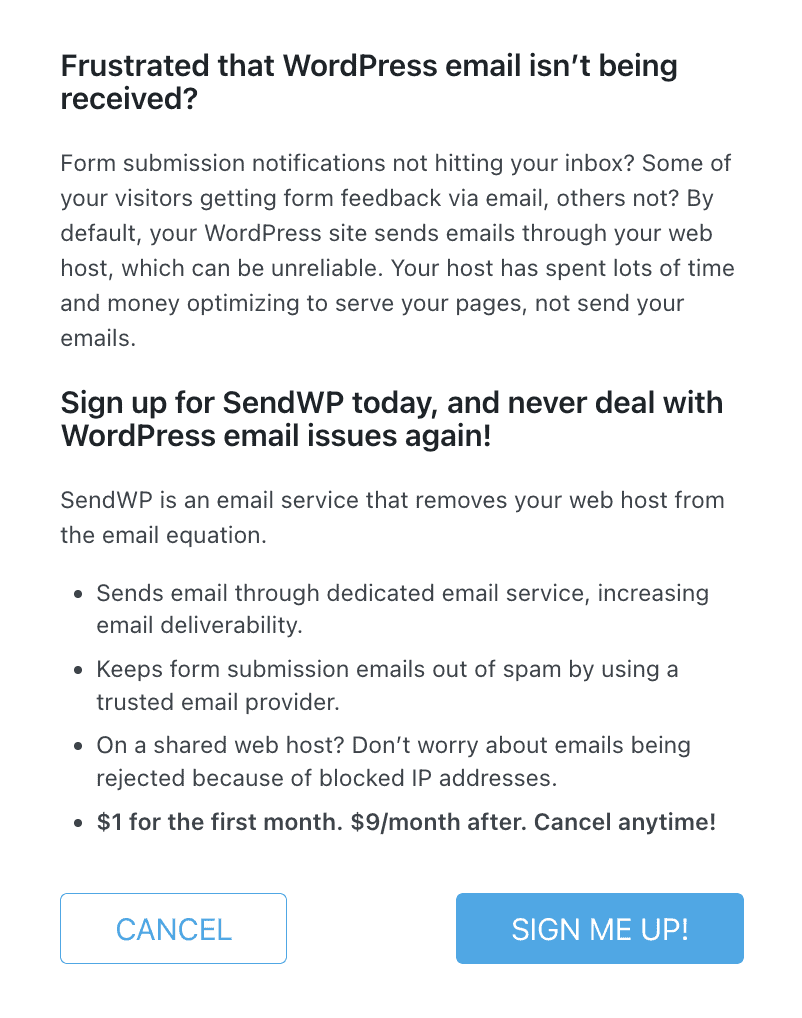
SendWP claims to bypass your host with a professional email service, ensuring your notifications are authenticated and delivered. They offer a $1 trial for the first month and then $9/month after.
Troubleshooting Ninja Forms not sending email
Let’s run through the fixes. We’ll start with the simple stuff that solves the problem 90% of the time, then move on to the more advanced solutions if needed.
The 5-minute quick checks
Work through this list first. A simple oversight is often the real culprit.
- Clear caches and check for updates. This is basic but necessary. Clear all your cache. Then, make sure both WordPress and the Ninja Forms plugin are fully updated to their latest versions.

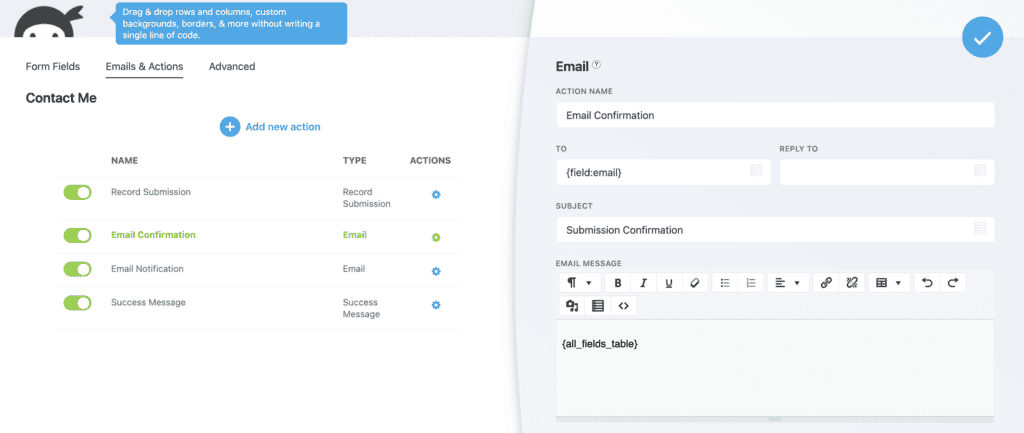
- Check your form’s email action. Go to your form’s Emails & Actions tab. Confirm the notification is on, check the “To” address for typos, and ensure the “From” address is a valid email, as an error here is a common point of failure.
- Verify WordPress admin email. Navigate to Settings > General in your WordPress dashboard. Make sure the Administration Email Address is correct. WordPress often uses this as a default sender, and an error here can break email functionality.

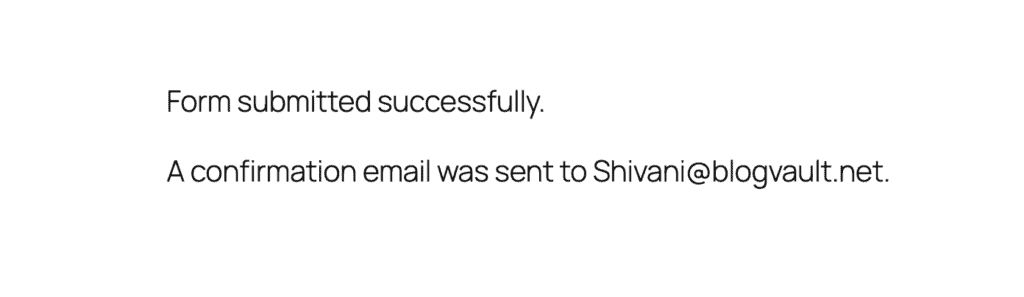
- Confirm the form is actually working. Submit a test entry on your form right now. First, check your spam folder. Nothing? Now, go to Ninja Forms > Submissions in your dashboard. If you see your test entry listed there, that’s great news. It means the form is capturing data correctly. The problem isn’t the form; it’s the email delivery itself.
Advanced troubleshooting
If the quick checks didn’t solve it, the problem is almost certainly with your server’s email configuration.
- Install an SMTP plugin. This is the professional solution and the one I rely on. The default WordPress mail function is notoriously unreliable. An SMTP plugin forces your site to send emails through a proper, authenticated email account.
I recommend WP Mail SMTP. Its setup wizard easily connects your site to an email provider like Gmail or Outlook. For a simpler, integrated fix, consider SendWP, the official service from Ninja Forms. Either tool will permanently solve the email delivery problem.
- Perform a conflict test. Rarely, another plugin or your theme can interfere. To check, temporarily switch to a default WordPress theme (like Twenty Twenty-Four) and deactivate all plugins except Ninja Forms. If your test email sends now, reactivate your plugins one by one, testing after each, until you find the one causing the conflict.

Best practices to prevent this from recurring
Fixing a problem is good. Never having the problem in the first place is much better. Once you get your Ninja Forms emails working, a few simple habits can ensure they stay that way.
Build a bulletproof foundation
First, let’s get the two most critical pieces in place. These are non-negotiable for a reliable website.
- Make SMTP standard practice. This should be one of the first things you set up on any new WordPress site. It professionalizes your email sending and bypasses the unreliable default method entirely.
- Automate your backups. Create backups automatically to an off-site location like Google Drive using a trusted backup plugin. This routine, established right alongside your SMTP setup, is your safety net.
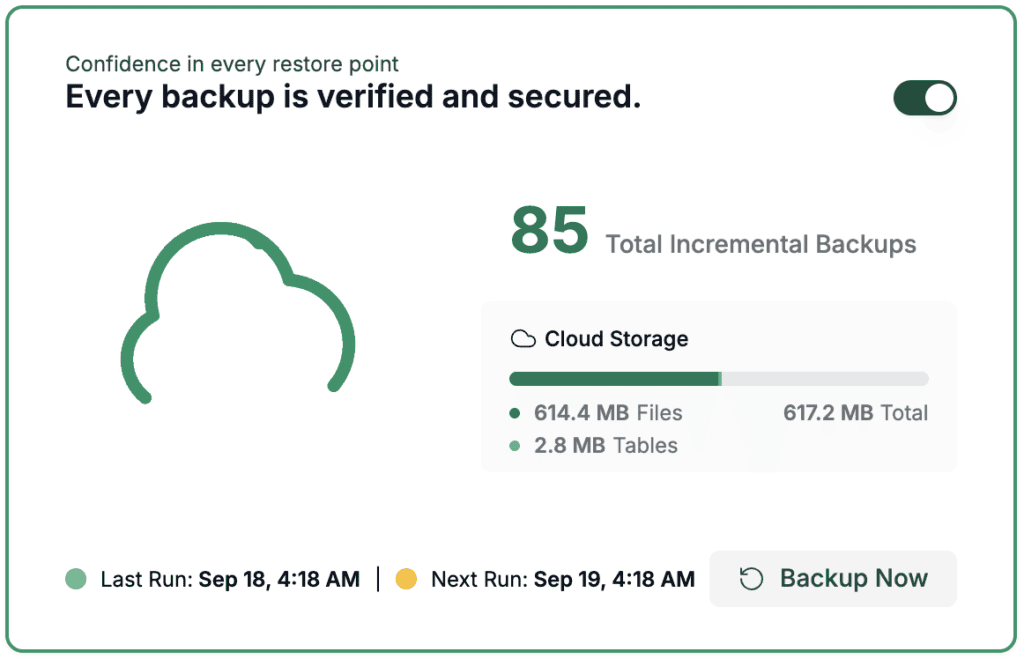
An update can go wrong or a server setting can change, and a perfectly working setup breaks. Having that backup protects your entire site, including your perfectly configured form and SMTP settings.
Adopt smart ongoing habits
With a solid foundation, these regular practices will keep things running smoothly.
- Get the setup right from day one. From the moment you create a form, think about deliverability. Always use a real email address from your domain, like contact@yoursite.com, for both your main WordPress admin email and the “From” address in your Ninja Forms email actions.
- Don’t set it and forget it. A website is like a garden; it needs regular tending. Once a month, submit a quick test on your main contact form to ensure the email arrives. Keep your plugins, theme, and WordPress itself updated, and try to be a plugin minimalist. A cleaner site is a healthier, more reliable site.
Parting thoughts
Remember, the issue is rarely Ninja Forms, but WordPress’s unreliable mail system. Configuring a proper SMTP service is the one permanent fix, and with a solid website backup, you can protect that working setup for good. Just make testing a regular habit, and you’ll never have to worry about this again.
FAQs
Why am I not receiving emails from the contact form?
You are not receiving emails because they are either being blocked by your server or filtered as spam due to a lack of authentication. A proper SMTP setup ensures your form notifications are verified and delivered.
What is the difference between Ninja Forms and formidable forms?
The main difference is their focus; Ninja Forms excels at creating user-friendly contact forms with a simple interface. Formidable Forms is more data-driven, designed for building complex applications like directories and listings.
What is the difference between contact form 7 and Ninja Forms?
The key difference is the user experience; Ninja Forms has a modern, visual drag-and-drop builder. Contact Form 7 is more basic and relies on shortcodes, making it less intuitive for beginners.
Is Ninja Forms free to use?
Yes, the core Ninja Forms plugin is free and lets you build unlimited forms with all the essential fields. Advanced features like conditional logic and payment integrations require paid add-ons.
How to setup Ninja Forms?
You can set up Ninja Forms by installing it from the WordPress plugin directory, which adds a Ninja Forms menu to your dashboard. From there, click Add New to start building your form with the drag-and-drop interface.
How do I see submissions in Ninja Forms?
You can see all submissions by navigating to the Ninja Forms menu in your WordPress dashboard and clicking on Submissions. On that screen, you can select your specific form from a dropdown menu to view its entries.

Shivani enjoys crafting guides that make every aspect of using WordPress simple and easy to follow. When she's not glued to her laptop, you can find her buried in a good book or occasionally, painting.


