

You’re working on your WordPress site, making some changes, or possibly updating a plugin. But suddenly, you see the message: “Are You Sure You Want to Do This?“It’s a bit of a head-scratcher and disrupts your workflow.
But don’t worry—you’re not alone, and there’s a fix. We’ve put together an easy guide to help you solve this problem. It’s worked for many others, and it will work for you too. With our help, you’ll get past this error and back to managing your site in no time.
The “Are You Sure You Want to Do This?” error in WordPress often stems from session or permission problems linked to security tokens, known as nonces. Ensure your site is secure. Scan for malware and take a backup of your site using a backup plugin like BlogVault before you start troubleshooting.
The “Are You Sure You Want to Do This?” error in WordPress

This error message appears without giving much detail, similar to the 500 internal server error. You might run into this message when trying to install a plugin, change a theme, or upload files. Essentially, it’s WordPress’s way of saying that it can’t complete your request.
Here’s what’s usually happening behind the scenes: this error often relates to session hiccups or permission issues. It could pop up if your login session has timed out or if there’s a plugin or theme causing a clash.
Another frequent cause is something called a nonce, which is a security feature in WordPress. Nonces help confirm that actions are performed safely and help guard against certain cyber threats. If a nonce is missing, no longer valid, or expired, WordPress might block the action you’re trying to perform.
The challenge here is the vague error message—it doesn’t specify what’s going wrong, which can be pretty perplexing. However, the silver lining is that with a few problem-solving steps, you can usually resolve this issue quite effortlessly.
1. Check your WordPress site security

First, make sure you’re logged in with an admin account to have complete access. To keep your site secure, use security plugins to scan for issues or malware. Verify that your SSL certificate is active for secure connections.
Regularly update your passwords to strengthen them and consider setting up a firewall for extra protection. Keep an eye on user activity logs to detect any unusual behavior.
2. Clear cache

Sometimes, temporary files cause issues. Clear your browser cache and cookies first. If your hosting service offers server-side caching, clear that too. Restart your browser and attempt your action again to see if the issue is resolved.
3. Check if the file you may be trying to upload is the right format
If you’re uploading a file, ensure it’s a format WordPress supports, like a ZIP file. Confirm the file size isn’t too large for WordPress or hosting limits.
Try uploading a different file to check if the format is the issue. If it’s an uncommon file type, consider compressing or converting it to a more standard format.
4. Disable plugins
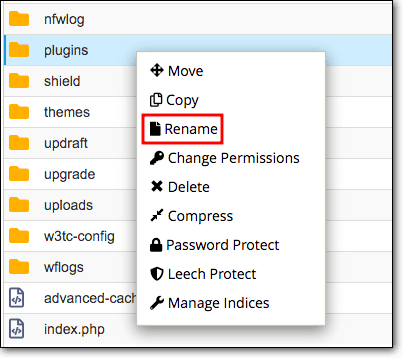
Plugins can sometimes cause issues. Temporarily deactivate all plugins to identify if one is causing the error. If you can’t access your WordPress dashboard, use an FTP client to rename the plugins folder, which will deactivate all of them.
If the error goes away, one of the plugins is likely the culprit.
4.1 Find the problematic plugin
Once you know a plugin is causing the issue, rename each plugin folder one at a time to locate the troublemaker. When you find it, check for updates or reach out to the developer for support.
5. Revert to default theme
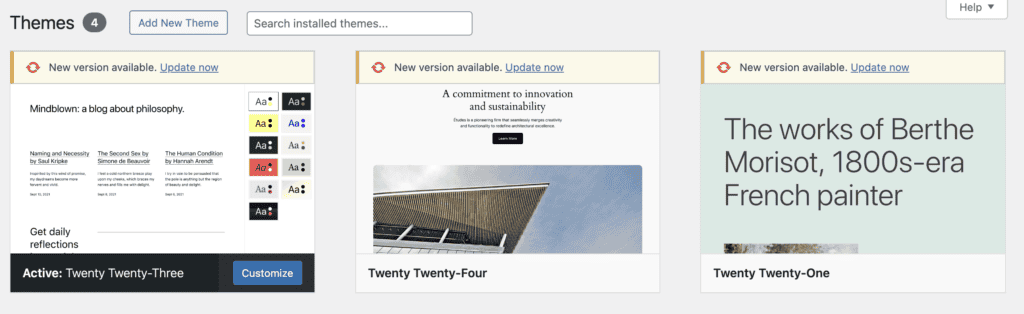
Switch your theme to a default WordPress theme like Twenty Twenty-Four. If the error vanishes, the problem might be with your previous theme’s code. Contact the theme developer to see if they can help fix it.
6. Increase PHP memory limit
Sometimes WordPress runs out of memory, causing errors. You can increase the PHP memory limit by editing the wp-config.php file. This provides WordPress more memory to work with.
7. Update WordPress manually
If nothing else works, try updating WordPress manually. Download the latest version from the WordPress repository.
Use an FTP client to upload the new files, skipping the wp-content directory since it contains your themes and plugins.
Ensure your plugins and themes are compatible with the new version, updating them if necessary. Finally, check your site to make sure everything is functioning correctly.
Best practices to avoid this issue in the future:
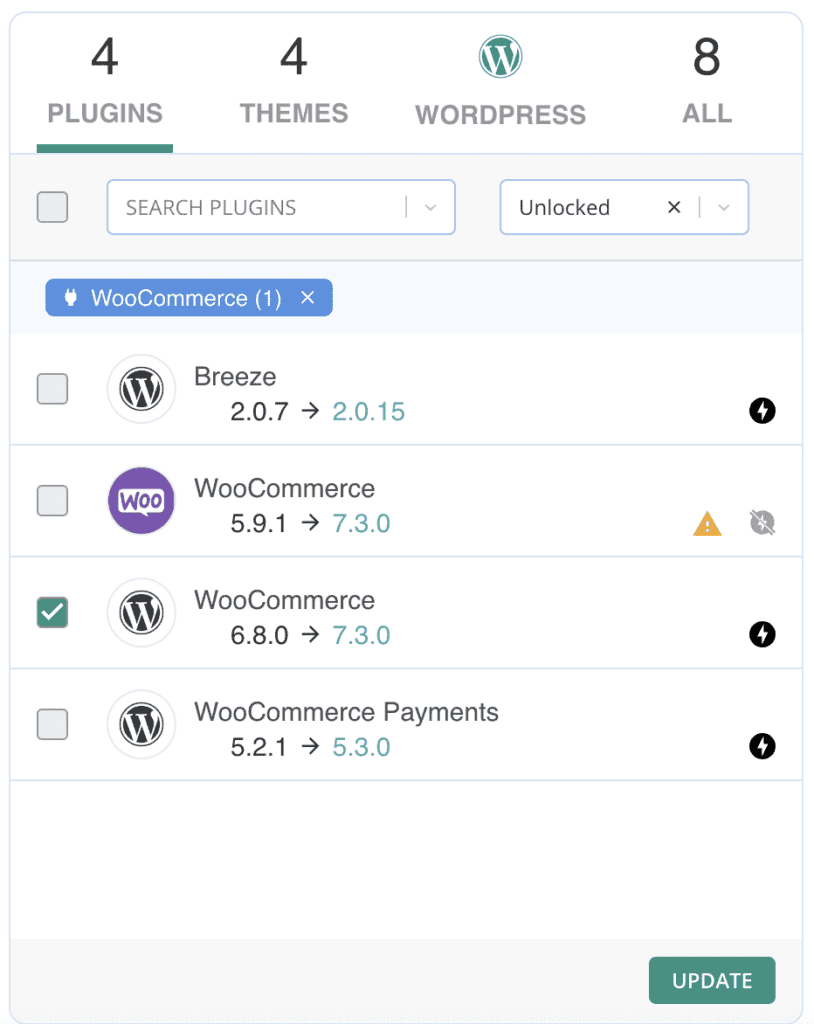
Regular updates: Consistently update WordPress, as well as your plugins and themes. This helps in fixing bugs and enhancing security.
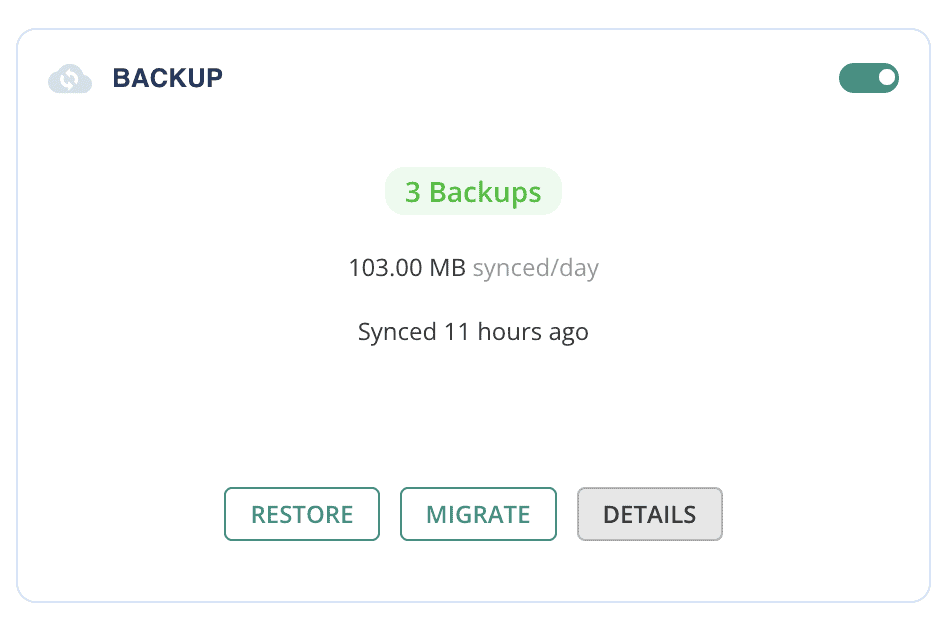
Frequent backups: Regularly back up your site to safeguard your data in case something goes wrong.
Strong passwords: Ensure your passwords are strong and difficult to guess, and keep them secure.
Limit active plugins: Keep the number of active plugins to a minimum to reduce the risk of conflicts.
Choose reliable themes and plugins: Opt for themes and plugins that have good reviews and a track record for reliability.
Hosting requirements: Make sure your hosting provider is compatible with WordPress requirements.
Security checks: Run regular security checks on your site and promptly address any issues.
Monitor site activity: Watch for any unusual activity on your site, such as errors or unexpected changes.

Organized file management: Keep your file uploads and media well-organized to facilitate easy management.
Parting thoughts
Encountering errors is a common experience when using WordPress, so try not to worry too much. Keeping your site healthy through regular maintenance, such as updates and backups, is key.
If you run into trouble, seek help from WordPress communities or support—they’re there to assist you.
FAQs
How to fix a WordPress error?
To fix a WordPress error, start by identifying the specific problem through error messages or logs. Common fixes include clearing your cache, disabling plugins, switching themes, or updating WordPress and its components.
Are you sure you want to do this error in WordPress?
The “Are You Sure You Want to Do This?” error typically occurs when WordPress can’t confirm a request. Resolve it by making sure you’re logged in, checking for expired sessions, and ensuring your plugins and themes are up to date.
How do I debug a WordPress error?
To debug a WordPress error, turn on debugging in your wp-config.php file by setting define(‘WP_DEBUG’, true);. This will display error messages that can help you identify the issue.
How do I check for malware on WordPress?
To check for malware on WordPress, use a security plugin like Wordfence or Sucuri. These tools will scan your site for malicious code and vulnerabilities.
How do I fix a WordPress server error?
To fix a WordPress server error, first examine your server logs for details. Common solutions include increasing PHP memory limits, checking file permissions, or reaching out to your hosting provider for help.

Shivani enjoys crafting guides that make every aspect of using WordPress simple and easy to follow. When she's not glued to her laptop, you can find her buried in a good book or occasionally, painting.


