Running into mod_security WordPress errors like “403 Forbidden” or “406 Not Acceptable” on your site can instantly trigger frustration and confusion. Whether it’s your checkout page, contact forms, admin dashboard, or critical plugin features that suddenly start malfunctioning, these unexpected blocks can feel alarming—especially when you’re unsure what’s causing the WordPress issue.
The good news is that these mod_security WordPress issues typically stem from your server’s mod_security settings. In this article we’ll go over what triggered the error and how to fix it.
To fix mod_security WordPress errors, identify the triggered rule in your server logs and work with your hosting provider to adjust or whitelist it. BlogVault can help by ensuring you have a WordPress backup of your site, letting you safely troubleshoot and restore your site if needed.
Understanding the “mod_security wordpress” error
A mod_security WordPress error occurs when a request to your website is blocked by mod_security, a server-level security module. Mod_security is there to protect your site from threats like SQL injections, cross-site scripting (XSS), and other common web attacks. However, sometimes it can block legitimate actions, mistaking them for suspicious activity.
Common signs of these errors include messages like “403 Forbidden” or “406 Not Acceptable,” often displayed directly on your website. In some cases, you may also see specific mod_security error messages in the server logs. These logs are useful as they provide information on the exact rule that was triggered. This data can help you identify what caused the block and determine the best course of action to resolve the issue.
The errors often result from normal website actions being flagged as harmful. For instance, submitting a form, saving a page, or running a plugin feature might be misinterpreted as a security threat. Typically, this happens because the input or behavior matches something in the mod_security ruleset designed to catch potentially harmful activity.
Fix the “mod_security wordpress” error
Fixing a mod_security WordPress error might seem overwhelming at first, but the process is straightforward once you know where to start. These errors occur because mod_security flags certain actions or inputs as potential threats. The goal is to resolve the issue without compromising your WordPress site’s security.
Step 1: Identify the error
Before you can fix a mod_security WordPress error, you need to figure out exactly what’s causing it. These errors usually show up as messages like:
- “403 Forbidden”
- “ModSecurity Alert”
- Access denied with code 403 (phase 2). Pattern match…
These error messages indicate that a specific mod_security rule has been triggered. To resolve the issue, you’ll need to identify which rule is blocking the action.
The best way to do this is by checking your WordPress error log. Look for entries marked as mod_security errors. These logs will often provide details about the exact rule or pattern match that triggered the block.
If you’re unable to access the logs or aren’t sure how to interpret them, don’t worry. You can contact your web hosting provider’s support team. They have access to detailed logs and can quickly help you pinpoint the rule causing the problem. Once you know what triggered the error, you’re ready to move to the next step: fixing it.
Step 2: Disable mod_security
Before you start, we recommend you setup a staging site. Blogvault can help you set one up in minutes and just to clear. This is to reduce the risk of causing more problems, while you start troubleshooting.
If you’ve identified that mod_security is causing the issue, you might need to temporarily disable it to test whether the rule is indeed the culprit. This is only for troubleshooting purposes and should never be a permanent solution.
One way to disable mod_security is by editing your .htaccess file. This file is located in your site’s root directory. Add the following code:
<IfModule mod_security.c>
SecFilterEngine Off
SecFilterScanPOST Off
</IfModule>
This tells the server to turn off mod_security for specific requests. If this fixes the error, then, reach out to your web host to find out what is triggering the error and how to fix it.
However, many hosting providers block this method. If they don’t allow overriding mod_security settings via .htaccess, you might encounter an Internal Server Error (500) after adding the code. In that case, move on to the other steps.
Step 3: Whitelist the rule
If you’ve identified the rule ID causing the issue (e.g., 981173) from your error logs, the best approach is to whitelist that specific rule. This ensures mod_security will continue to protect your site while preventing it from blocking legitimate actions. Whitelisting is a safer and more targeted solution compared to disabling mod_security entirely.
To do this, you’ll need to contact your hosting provider. Reach out through their support system and provide a clear request. Here’s an example of what you can say:
“Can you please whitelist ModSecurity rule 981173 for my domain example.com?”
Most hosts can handle this request quickly, as they have direct control over the mod_security configuration. Once the rule is whitelisted, the error should stop occurring, and your website’s functionality will return to normal.
This method helps you avoid any unnecessary risk to your site’s security while keeping the mod_security protection active for other threats. Always follow up to ensure the rule has been successfully whitelisted.
Step 4: Fix the plugin or content triggering it
Sometimes, the mod_security error isn’t the server’s fault—it could be triggered by specific plugins conflicts or problematic content on your site. Page builders like Elementor or form plugins like WPForms are common culprits. They may unintentionally send requests or input that mod_security flags as suspicious.
To troubleshoot, try deactivating the suspected plugin temporarily and test your site again to see if the error disappears. For example, if the error occurs when submitting a form, try deactivating the form plugin and see if the action goes through without any issues. If it does, this indicates the plugin configuration or content is triggering mod_security.
If you find the issue persists, check for plugin updates or reach out to the plugin developer for assistance—they might already be aware of the conflict and have a fix available.
Step 5: Switch to a default theme
If you’ve tried troubleshooting plugins and the mod_security error still persists, the issue might be related to your theme. Themes, especially those heavily customized or with built-in functionality, can sometimes trigger mod_security rules. It’s also possible to trigger this error because of a failed theme update.
To test if your theme is the problem, temporarily switch to a default WordPress theme like Twenty Twenty-Four. You can do this by navigating to the Appearance > Themes section in your WordPress dashboard. Activate a default theme and check whether the action that caused the error works now. If the error disappears, there might be something in your current theme—like a custom script or API request—that mod_security is flagging as suspicious.
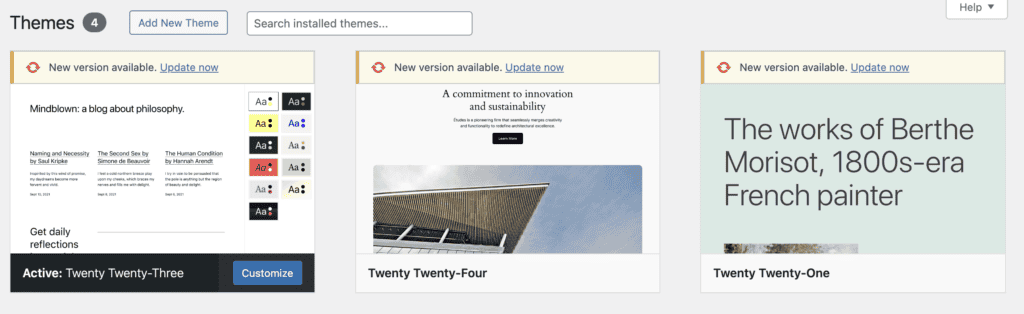
If the default theme resolves the issue, you can either reach out to your theme developer for assistance or review your theme’s customizations. Removing or adjusting certain elements might stop the conflict while allowing you to keep using your chosen theme.
Step 6: Use a web application firewall (WAF)
If mod_security keeps blocking legitimate actions and your hosting provider isn’t able to adjust or customize the rules for your site, it may be time to consider using a Web Application Firewall (WAF). A WAF adds an additional layer of protection, monitoring and filtering traffic before it even reaches your site, which reduces reliance on mod_security.

One excellent option is the BlogVault security firewall. This firewall intelligently filters harmful traffic while allowing legitimate requests to pass through, ensuring your website functions without interruptions. It’s designed specifically for WordPress, so it works seamlessly with your setup while giving you an extra security boost.
How to prevent the “mod_security WordPress” error?
Preventing mod_security WordPress errors is all about finding the right balance between strong security and smooth functionality. While mod_security plays a key role in protecting your site from malicious activity, overly strict or generic rules can lead to unnecessary disruptions. The good news is that with proper configuration and proactive measures, you can significantly reduce the chances of these errors happening.
Avoid known trigger patterns
Mod_security is designed to detect patterns that resemble security threats, and avoiding these can reduce errors. Code-like text such as DROP TABLE, SELECT *, or <script> should not be included in comments, forms, or URLs. Similarly, long query strings or custom parameters that appear suspicious may trigger mod_security. Special characters like <, >, –, or /* can also cause issues, especially when used in forms or hidden fields. Keeping inputs and URLs clean and straightforward helps prevent unnecessary mod_security blocks.
Use well-coded plugins and themes
Badly coded plugins or themes are common culprits behind mod_security errors. They can generate unusual AJAX or POST requests or include unsafe patterns like SQL keywords and JavaScript. To avoid these issues, always choose plugins and themes that are regularly updated, well-reviewed, and compatible with the latest WordPress version. Tools like drag-and-drop page builders, contact forms, backup plugins, and some SEO plugins are often linked to conflicts, so pick these carefully from reputable developers.
Test changes in staging first
Before making any updates to your live site, test all changes in a staging environment. This includes installing new plugins, switching themes, or significant WordPress updates. A staging site allows you to identify potential mod_security conflicts without directly impacting visitors on your live site. By catching errors early in a controlled space, you save time and prevent disruptions to your website.
Use a web application firewall (WAF)
A Web Application Firewall (WAF) offers additional WordPress security by filtering traffic before it even reaches your server. This reduces reliance on mod_security and minimizes false positives. BlogVault’s WAF is an excellent example, providing advanced security that blocks harmful traffic while allowing legitimate requests. This additional layer of protection ensures your site stays secure while running smoothly.
Whitelist safe rules (with host help)
If you’ve identified a specific mod_security rule that keeps blocking legitimate actions, whitelisting is a better solution than disabling mod_security entirely. For instance, if a rule ID like 981173 is causing problems, reach out to your hosting provider and ask them to disable that rule for your domain. This approach keeps the rest of the mod_security protections in place while solving the conflict.
Log errors automatically
Regularly reviewing mod_security errors can help you quickly identify recurring issues. Enable WordPress logging of errors within your hosting server, as these logs will detail the rule IDs and actions that were blocked. By monitoring logs, you’ll be able to spot patterns and address issues proactively, reducing downtime or disruptions caused by mod_security.
Use clean, minimal content in form inputs
Complex or overly styled input fields in forms are often flagged by mod_security. Simplify your form inputs by avoiding special characters, excessive custom scripts, or illegitimate data in hidden fields or text areas. Clean, minimal inputs are less likely to conflict with mod_security rules, ensuring smoother interactions for users submitting forms on your website.
Final thoughts
Dealing with mod_security WordPress errors can be frustrating, but with the right strategies, they can be easily managed or prevented. The key is to maintain a balance between strong security and smooth site functionality. Preventative measures, like using well-coded plugins, testing changes in a staging environment, and keeping input fields clean, can go a long way in avoiding these errors.
For a hassle-free approach, tools like BlogVault can make a significant difference. BlogVault’s firewall reduces harmful traffic and minimizes mod_security conflicts, while their staging feature allows you to safely test updates or changes without risking your live site. Additionally, BlogVault enables seamless, secure updates to plugins and themes, helping you avoid problems caused by outdated or incompatible tools.
By staying proactive and using the right tools, you can prevent mod_security errors and ensure your website stays secure and functional for all users.
FAQs
How to fix the mod_security error?
To fix a mod_security error, start by identifying the specific rule that triggered the block. Check your server’s error logs (accessible via your hosting panel) or contact your hosting provider for assistance. Once identified, you can ask your host to whitelist the rule causing the issue for your domain. For temporary troubleshooting, you can disable mod_security (if allowed) via .htaccess, but this should never be a permanent solution. Another effective option is using a Web Application Firewall (WAF), like BlogVault’s, to reduce false positives and enhance your site’s security.
What does mod_security do?
Mod_security acts as a server-level firewall that protects your WordPress site from malicious activity. It monitors and inspects requests made to your server, blocking anything that matches predefined security rules. These include common threats like SQL injections, cross-site scripting (XSS), and brute force attacks. While mod_security is a crucial security tool, it can sometimes misinterpret legitimate actions as threats, leading to false positives or error messages.
How to disable mod_security in .htaccess file?
To temporarily disable mod_security through your .htaccess file, you can add the following code:
<IfModule mod_security.c>
SecFilterEngine Off
SecFilterScanPOST Off
</IfModule>
This will turn off mod_security for specific requests. However, note that not all hosting providers allow disabling mod_security from .htaccess, and using this code might result in a 500 Internal Server Error. If that happens, you’ll need to contact your hosting provider for assistance.
Where is the mod_security config file?
The mod_security configuration file is typically located on the server itself and may vary depending on your hosting environment. For Apache servers, it’s commonly found in the /etc/httpd/conf.d/ directory or /usr/local/apache/conf/. However, accessing this file directly is usually restricted for shared hosting users. If you need changes to the mod_security configuration, you’ll likely need to contact your hosting provider, as they have the necessary access and permissions to modify these settings.

Shreya has been a writer for as long as she can remember. Now, she writes articles that help WordPress users manage the sites that they're proud of, with little to no coding