You’re probably here because you either need to build a website or are considering migrating your existing site from one platform to another. You have two options in front of you: Squarespace and WordPress. Both seem to have their pros and cons and choosing between them can feel overwhelming.
The last thing you want is to spend weeks building your site only to find you picked the wrong platform or one that limits or complicates your work.
The good news is that this decision becomes much easier when you know what to look for. We’ve tested both platforms extensively and know exactly where each one shines.
Choosing Squarespace or WordPress hinges on your preference for simplicity or flexibility. Squarespace requires manual backup management due to the lack of automatic options. WordPress offers automated protection with the help of reliable backup plugins.
Squarespace overview

Squarespace is perfect if you are looking for simplicity and convenience. Everything comes bundled together in one package, including hosting and design tools. With this, you don’t have to juggle different services or worry about compatibility. The platform is known for sleek, professional templates that make your site look polished right from the start.
This approach works particularly well for basic websites, landing pages, portfolios, and small online stores where visual appeal matters most.
Note that this convenience comes with trade-offs. You can’t access the underlying code in Squarespace, so customization is limited to what they offer. This might feel restrictive if your needs expand.
With built-in e-commerce and SEO tools, it’s great for creatives who value design over technical details. Plus, you can test everything with a 14-day free trial before committing.
WordPress overview

WordPress is an open-source platform that focuses on flexibility, requiring you to choose a good host, set it up and your domain separately. While it takes some effort, this setup gives you access to a vast library of themes and plugins for extensive customization.
It is a well known fact that WordPress is great for complex websites that need specific features. This includes customer management, membership sites, and advanced e-commerce options.
Additionally it is backed by a strong community with plenty of resources, tutorials, and forums to help you out.
With WordPress, costs can vary because many themes and plugins are free, potentially keeping expenses low. However, you’ll still need to pay for hosting, and premium options can add up. The platform allows full code access, so if you’re tech-savvy or can hire a developer, you can customize everything.
WordPress can handle sites of any size, from blogs to big business applications. However, its setup can be complex, which might be challenging for beginners who prefer straightforward solutions.
A) Setup and ease of use
Squarespace

Squarespace makes building a website easy without any coding or extra setup. You start by choosing the type of site you want, then select a template to customize with your content, colors, and fonts. Alternatively, you can answer a few questions and let the AI system build a template for you, which you can tweak later.

This approach is ideal for you if you lack technical skills, as it avoids the complex setup involved with choosing a host, purchasing a domain, and integrating them with your site.
WordPress

WordPress requires setting up hosting, a domain, and installation, which can be daunting for beginners. However, designing can be just as straightforward as with Squarespace. Although WordPress doesn’t have an AI to automatically create templates, its range of themes and page builders allows you to easily bring your vision to life and tailor each element to your preferences.

You’ll need to handle maintenance tasks manually but, many plugins can automate these processes for you.
If you encounter issues, numerous online resources and active communities are available to help. Though WordPress demands more initial effort, it offers complete control over your site.
B) Performance and flexibility
Squarespace
Squarespace offers reliable performance, with speed optimized for standard sites, ensuring fast loading times without adjustments. However, flexibility is limited as can only integrate a select number of third-party tools available under their Extensions section.

This setup is ideal for small to medium sites with straightforward needs. Updates and optimizations occur automatically, keeping your site current effortlessly. Built-in security measures and automated updates minimize user involvement, providing a hassle-free experience.
Note that the built-in security does not offer automatic backups or version history, so you’ll need to implement your own backup strategy by manually duplicating your site or exporting content sections.
WordPress
Your WordPress site’s performance varies depending on your hosting provider and how you configure your site. So, your choices can lead to either excellent speed or poor performance. Its main strength is high flexibility, allowing extensive customization with plugins and themes for any complexity.

WordPress can scale from simple blogs to complex e-commerce sites, offering full control with custom code and third-party integrations. You can install backup plugins like BlogVault to automatically protect your site’s data and ensure easy recovery if needed.
Security too requires active management, but can be enhanced with security plugins like MalCare, offering robust protection.
C) Integration capabilities
Squarespace
Squarespace offers built-in integrations for popular services that most website owners need, including Mailchimp for email marketing, Instagram for social media feeds, and Google Analytics for tracking your visitors.
These integrations work smoothly because they’re designed specifically for the platform, which means you most likely won’t run into compatibility issues or confusing setup processes.
Again, your options are limited to what Squarespace has already built into their system. If you need to connect with a service that isn’t on their list, you’re likely out of luck. This approach works well if you only need basic integrations with common services that most small businesses use.
WordPress
Like mentioned in the previous section, WordPress opens up thousands of integration possibilities. This is done through its massive plugin library, connecting your site with customer management systems, email marketing platforms, and payment processors of your choice.
Whether you want to sync with your existing business tools or add new functionality, there’s likely a plugin that handles the connection for you.
WordPress also allows developers to create custom connections between your website and any business software you use, even if no existing plugin exists for that service. This makes WordPress suitable for businesses that need comprehensive integration solutions tailored to their specific workflow.
D) E-commerce facility
Squarespace
Squarespace makes launching an online store simple with built-in e-commerce tools that handle the heavy lifting for you. You can sell physical products, digital downloads, and services all from the same platform without needing separate tools or complicated setups.

Basic Squarespace inclusions:
- Inventory management to track products and stock levels
- Secure checkout to protect customer payment information
- Discount codes and promotional tools
- Mobile-optimized store design
- Tax calculation and shipping options
- Customer account creation
- Order management system
- Basic SEO tools for product pages
Like other aspects of the platform, payment options are also limited to what Squarespace offers, supporting only Stripe, PayPal, and Apple Pay. These three options handle most customer preferences, though you might lose some sales if your audience prefers alternative payment methods.

Keep in mind that lower-tier plans include transaction fees that impact profits, while higher-tier plans eliminate these fees.
As you upgrade, you get added features like abandoned cart recovery, which sends reminders after 24 hours, helping recover sales and integrated analytics offer insights into sales trends and customer behavior.
WordPress
WordPress opens up unlimited e-commerce possibilities through various plugins, with WooCommerce being the most popular choice. Most people use WooCommerce to build online stores, because it powers the majority of WordPress e-commerce sites. Let’s focus on what it offers.

Basic WooCommerce inclusions:
- Add as many products as you want without limits
- Track your inventory and get alerts when items run low
- Accept payments through dozens of different services
- Calculate shipping costs and taxes automatically
- Allow customers to create accounts and track their orders
- See detailed reports about your sales and customers
- Help your store appear in Google search results
- Make your store look great on phones and tablets
- Create discount codes and run sales promotions
- Manage all your orders from one dashboard
WordPress supports nearly every payment method, from credit cards and PayPal to newer options like buy-now-pay-later services. You have the flexibility to customize your store’s appearance and functionality to perfectly align with your brand.
Additional add-ons allow you to manage complex business needs, including shipping to multiple locations, handling taxes across various states, and automating marketing emails to customers.
Unlike many platforms, WordPress doesn’t take a cut of your sales. You only pay standard fees from credit card companies and payment processors.
Squarespace vs WordPress: Pricing
Squarespace
Squarespace offers fixed pricing plans with no hidden fees, starting at $16 per month for basic sites and $28 per month for basic e-commerce stores. Your monthly fee includes hosting, templates, SEO tools, analytics, and customer support all in one package. You can test all features through their 14-day free trial before committing to a plan.

WordPress
WordPress software is free, but you’ll pay for hosting (starting around $5 per month), domain registration, and any premium themes or plugins you choose.
You can start with minimal costs using free themes and plugins, then upgrade as your site grows. The pay-for-what-you-use model gives you complete control over your budget and the ability to switch providers if you find better deals.


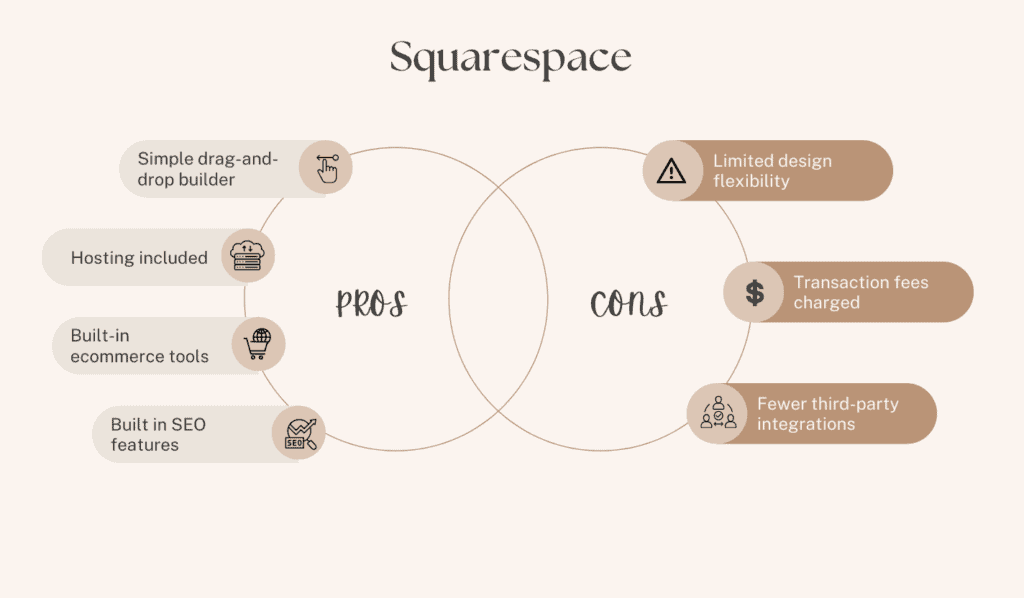
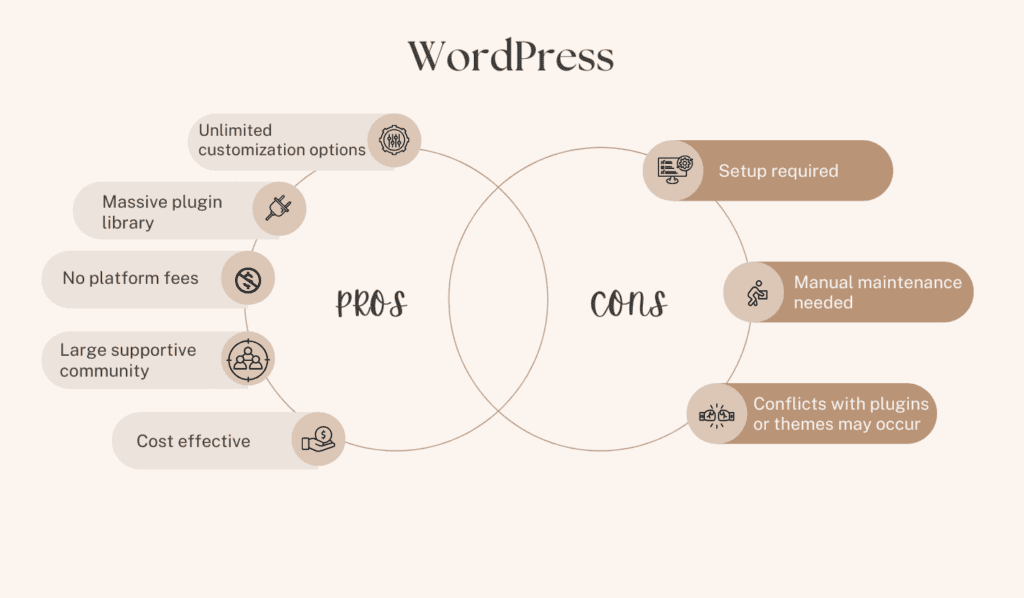
Squarespace vs WordPress: Pros and cons
Moving from Squarespace to WordPress
If your needs have outgrown what Squarespace has to offer and you’re looking for more flexibility, moving to WordPress involves some easy steps:
Start export from Squarespace: Navigate to the Import & Export Content and click on EXPORT


Download content: Download all your pages, posts, and images from your current site.

Set up WordPress hosting: Choose a hosting provider and install WordPress on your new account.

Import your content: Upload your exported Squarespace content into your new WordPress site.


Choose and customize a theme: Select a WordPress theme that matches your design preferences.
Install necessary plugins: Add the functionality you need through WordPress plugins.
Test your new site: Check everything works properly before going live.
Moving from WordPress to Squarespace
Sometimes you might want to simplify your website management by moving from WordPress to Squarespace. Here’s how to make this transition step by step:
Export your WordPress content: Go to your WordPress dashboard, click on Tools, then Export. Select All content to download everything including posts, pages, comments, and media files.

Sign up for Squarespace: Create your Squarespace account and choose the plan that fits your needs. You can start with their free trial to test the migration process.

Access the import feature: In your Squarespace dashboard, navigate to Settings, then click on Import & Export Content under the Website section.

Import your WordPress content: Upload the file you exported from WordPress. Squarespace will process your content and bring over your posts, pages, and images automatically.

Choose your template: Browse Squarespace’s template library and select one that matches your style and content type. You can always change this later if needed.
Test everything thoroughly: Check all your pages, blog posts, images, and links to ensure they transferred correctly. Pay special attention to any contact forms, galleries, or special formatting you had on WordPress.
Wrapping up
If you’re after simplicity and stunning design, Squarespace is your go-to. But if you need full control and advanced features, WordPress is the way to go. Consider what fits your skills and where you want your site to grow. Both platforms shine in different ways, so choose based on your needs and future goals.
FAQs
What are the downsides of using Squarespace?
One major downside of Squarespace is that it lacks extensive customization and third-party integrations. It may not suit complex sites needing advanced features. Transaction fees apply on lower-tier plans for e-commerce.
Should I switch from Squarespace to WordPress?
You should switch from Squarespace to WordPress if you need more control and advanced features. WordPress offers flexibility and a vast range of plugins. However, be prepared for a steeper learning curve with the setup and configuration.
How much does Squarespace charge?
Squarespace plans start at $16/month. This pricing includes hosting and templates. Advanced plans offer additional features for higher costs.
Which is cheaper, WordPress or Squarespace?
WordPress can be cheaper due to its free core software, but costs add up with hosting and plugins. Squarespace offers all-in-one pricing, starting at $16/month.
Should I use WordPress for e-commerce?
Yes, especially with plugins like WooCommerce for extensive features. WordPress offers flexibility and no platform transaction fees. However, setup and management require more effort.

Shivani enjoys crafting guides that make every aspect of using WordPress simple and easy to follow. When she's not glued to her laptop, you can find her buried in a good book or occasionally, painting.