

You’re crafting a new post on your WordPress site, ready to share your thoughts. You plan to enhance it with a striking image, a captivating video, or a stunning gallery. But suddenly, you hit a snag—your Add Media button is unresponsive.
The WordPress Add Media button not working issue can definitely ruin your productivity and increase stress. Imagine preparing for a product launch. You need great visuals to showcase your efforts. Yet, when the Add Media button isn’t working, it can mess up your plans. It’s especially challenging when you’re racing against time to capture your audience’s attention.
You’re not the only one dealing with this problem. Many WordPress users experience it too. The silver lining is that there are ways to fix it.
This guide will walk you through the process of fixing the WordPress Add Media button not working issue. Even if you’re not a tech expert, the steps are designed to be easy to follow and understand.
If the Add Media button in WordPress isn’t working, script conflicts with plugins or themes might be the cause. You can try adding a small piece of code to your wp-config.php file, checking your plugins and themes for conflicts, or updating your WordPress site. Clearing your caches and changing PHP settings can also be helpful. Before you make any changes, remember to backup your site to keep your data safe.
What causes the WordPress Add Button not working issue?
Understanding why your Add Media button isn’t working can save you a lot of hassle. This button belongs to the classic WordPress editor, not the newer Gutenberg editor. Often, the issue comes from conflicts in scripts or styles from your plugins or themes.

WordPress loads scripts and stylesheets together to improve speed in the admin area. But, if there’s a conflict, it can disrupt the JavaScript needed for your post editor. This disruption can disable the Add Media button, making it hard to upload files.
Before attempting fixes, it’s wise to back up your site. A backup ensures you can restore your site if needed. Using a staging site to test changes can also protect your live site from potential issues.
1. Add code to wp-config.php
If you need a quick fix for the WordPress Add Media button not working issue, adding code to your wp-config.php file might help. This simple method is a temporary solution.
Begin by editing the wp-config.php file in your WordPress site. Add this line of code:
define('CONCATENATE_SCRIPTS', false );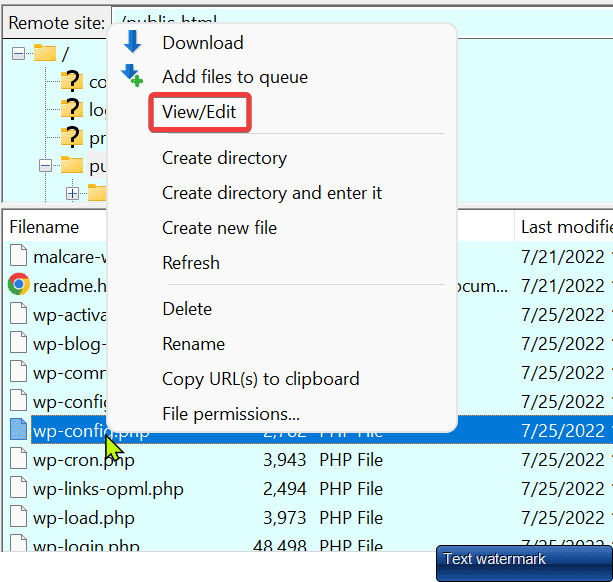
Insert it just before the line that says, That’s all, stop editing! Happy blogging.
This code tells WordPress to load scripts one by one. This can help avoid conflicts with problematic scripts. After making this change, try the Add Media button again to see if it works.
2. Troubleshoot your plugins and themes
Troubleshooting your themes and plugins is key to solving the WordPress Add Media button not working issue in the long term. Conflicts in scripts or styles are often the culprits. Fixing these can bring back the button’s functionality.
Begin by deactivating all plugins to see if the issue clears up. If the button works, reactivate the plugins one at a time. This helps find the problematic plugin that is causing the conflict.

Another potential fix is switching to a default theme like Twenty Twenty-Two to see if your theme is the cause.
For tech-savvy users, the Inspect tool on your browser can be useful. It shows errors when you click the Add Media button, helping you identify and fix the issue.
3. Update your site
Regularly updating your WordPress site is crucial. It can fix many issues, including problems with the Add Media button. Keeping everything current ensures your site functions smoothly.
This means updating the WordPress core, plugins, and themes. These updates often include bug fixes and new features. A bug fix might be what resolves your WordPress Add Media button not working issue.
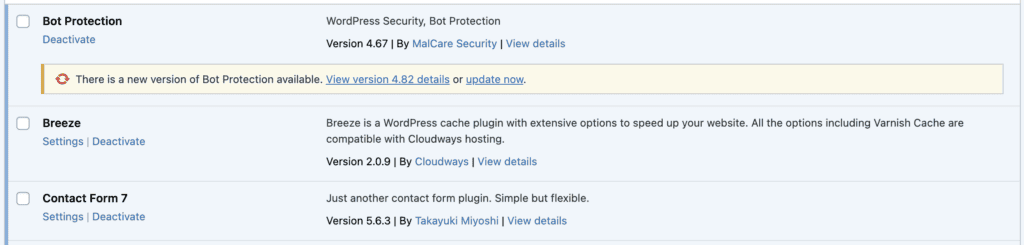
Remember to update any other software linked to your site. Doing so helps maintain security and functionality. This reduces the chance of similar problems later on.
4. Clear your caches
To fix the WordPress Add Media button not working issue, clear your caches. Caches can hold old information that affects your site.
First, clear your browser cache. Old data there can impact how your site works.

Next, clear other caches like server caches, caching plugins, or a CDN.
This refresh ensures you have the latest site version, which can fix the button problem and boost performance.
5. Check your file permissions
File permissions might cause issues with the Add Media button if they’re too strict. This can prevent you from adding media to your site.
Check your file and directory permissions. Directories should be set to 755, and files should be set to 644. These settings keep your site both functional and secure.
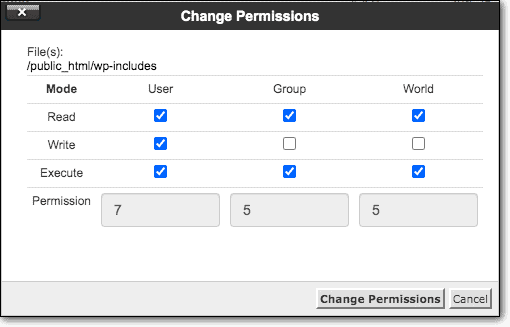
Adjusting permissions to these levels can often solve the WordPress Add Media button not working problem. Proper settings help your site run smoothly and securely.
6. Increase PHP memory limit
A low PHP memory limit can affect WordPress functions, including the Add Media button. WordPress needs enough memory to work well. If the limit is too low, issues can arise.
To fix this, increase your PHP memory limit. Edit your wp-config.php file and add this line:
define('WP_MEMORY_LIMIT', '256M');
Place it just before the line that says, That’s all, stop editing! Happy blogging.
Raising the PHP memory limit can solve problems like the WordPress Add Media button not working and improve your site’s performance.
7. Disable your firewall
Firewalls might block actions on your site, causing the Add Media button to stop working. Tools like ModSecurity can see some actions as threats, like adding external media to your site.

To see if this is causing the WordPress Add Media button not working problem, temporarily disable your firewall. If you can’t do this, ask your web host for help. Then check if the button works.
This is only a temporary solution. Firewalls protect your site from attacks, so remember to turn it back on. Testing without the firewall can help find out if it’s causing the issue with the button.
How to prevent the WordPress Add Media button not working issue?
Preventing the WordPress Add Media button not working issue is easier than fixing it later. Here are steps to help avoid this problem:
- Regular updates: Keep WordPress, themes, and plugins updated for compatibility and security.
- Use reliable plugins and themes: Choose them from trusted sources to reduce conflicts. Stick to the official WordPress repositories for plugins and themes.
- Backup regularly: Make sure to back up your site often to restore it quickly if needed.
- Track site health: Use the WordPress Site Health tool to spot issues and potential conflicts.
- Limit plugins: Install only necessary plugins to reduce conflict chances.
- Use a testing environment: Create a staging site to test new updates or plugins first to catch issues early.
- Adjust PHP settings: Increase PHP limits, like memory and execution time, as needed.
- Install security measures: Use security plugins and best practices to guard against threats.
- Server-side monitoring: Watch server logs and errors to identify problems that could affect WordPress functions.
Final thoughts
Fixing the WordPress Add Media button not working issue doesn’t have to be hard. By staying calm and using these steps, you can restore your site. These solutions work for both beginners and experienced users. The key is to find the root cause and fix it.
Always back up your site before changing settings. BlogVault is a great tool for this. It automatically backs up your site and stores it safely off-site. This ensures your data is secure without slowing down your site. BlogVault also offers an emergency connector to recover your site if it crashes. With BlogVault, your site stays well-protected.
FAQs
Why is the media button not working?
The WordPress Add Media button not working issue could be due to conflicts with scripts or styles in your site’s plugins or themes. WordPress loads scripts together to improve speed. If they clash, it can disrupt the JavaScript functions necessary for the button. This can stop it from working, leading to the WordPress Add Media button not working issue.
How do I add a media button in WordPress?
To restore the media button, you can use the Classic Editor plugin. Log in to your dashboard, go to Plugins, and click Add New. Search for Classic Editor, install it, and activate it. This will bring back the Add Media button in your post editor, allowing you to easily insert media.
Why can’t I load media in WordPress?
Loading media might be blocked by file permission issues, plugin or theme conflicts, or lack of storage space. Strict file permissions can prevent media uploads. Conflicts occur if plugins or themes interfere with site functions. Additionally, if your server’s storage is full, uploads may fail.

Anurag traded algorithms for adverbs when he switched from being a software engineer to being a writer. Editor by day, he chases F1 by night!


