

You’ve changed your domain, perhaps because you’ve rebranded your business or decided to switch to HTTPS for added security. The challenge now is ensuring that your WordPress database reflects this change.
Often, websites still attempt to load images, links, and content from the old domain, leading to broken images and dead links for visitors. Updating the database entries might seem daunting, and you might be worried about accidentally breaking your site.
That’s why we’ve simplified the process for you. Our guide will walk you through each step, ensuring a smooth transition without any headaches.
Change the siteurl and home fields in your wp_options table to update your domain. Ensure you back up your site using a reliable backup plugin before proceeding.
Why updating your domain in the database is essential
When you change your domain, just updating the web address isn’t enough. Your WordPress database still references the old domain, causing visitor issues.
They may see broken images, malfunctioning links, and inactive plugins, making your site appear unreliable.
These aren’t just aesthetic issues; search engines notice and may lower your SEO rankings due to broken links and missing content.
Updating your database fixes this. Images load correctly, links work, and plugins function as they should. Your site remains professional, offering visitors a seamless experience and presenting a stable website to search engines.
When should you change your domain name in database
You need to update your database if you have:
Rebranded your business
Your company has a new name or focus, requiring a domain that matches your updated brand identity.
Moved from a development to a live environment
You initially used a placeholder domain and now need to switch to your official web address.
Acquired a new domain
You’ve found a domain that better represents your brand or is more memorable for your audience.
Corrected Domain Typos
Your original domain contained spelling errors that needed correction to maintain professionalism.
Merged Websites
You’re consolidating multiple sites into a single domain to streamline your online presence.
Switched to HTTPS
You’re enhancing site security by moving from HTTP to HTTPS, which requires updating your domain reference.
How to change your domain in the database
Access phpMyAdmin: Log in to your hosting control panel and open phpMyAdmin via cPanel or hosting dashboard.

Find your WordPress database: Select your WordPress database from the list on the left side of phpMyAdmin. Then, locate and click on the wp_options table to open it.

Update basic domain settings: Find the rows labeled siteurl and home in the wp_options table. Click the Edit button next to each entry and replace your old domain with your new domain. Include the complete address with http:// or https://.

Install Better Search Replace plugin: Download and install the Better Search Replace plugin from your WordPress dashboard. This plugin will handle all remaining domain references throughout your database safely.
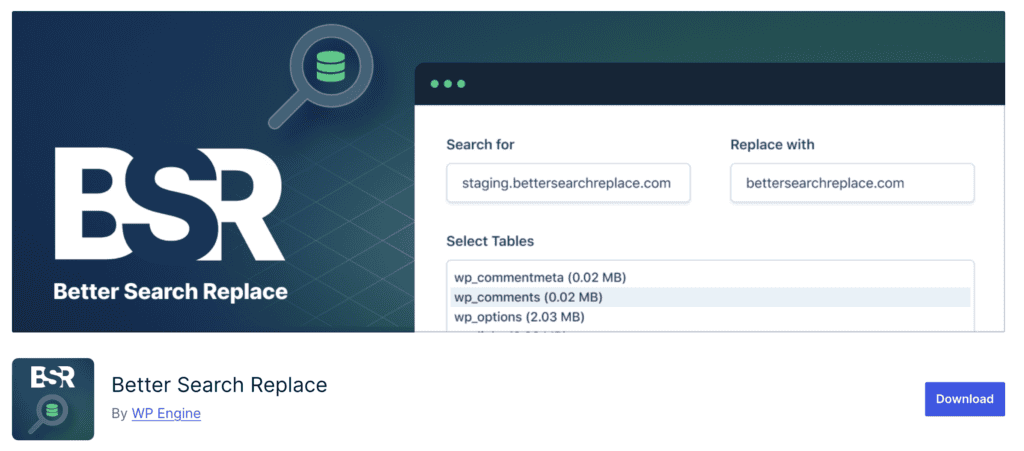
Run the search and replace: Open the Better Search Replace plugin and enter your old domain in the search field and your new domain in the replace field. Review the number of changes it will make, then run the replacement.

Test your website: Visit your website and check that images load correctly, internal links work, and pages display properly. Navigate through different sections to confirm the domain change was successful.
Alternative methods to change domain in your database
Sometimes you can’t access your database directly, or you need emergency access to your site after a domain change. WordPress offers several alternatives that don’t require working with phpMyAdmin or database tools:
WordPress admin method
The easiest way to change your domain is through your WordPress dashboard. Here’s how to go about it:
Access your WordPress dashboard: Log into your website’s admin area by going to yoursite.com/wp-admin. Enter your username and password to reach the main dashboard.
Navigate to general settings: Click on Settings in the left sidebar, then select General from the dropdown menu. This opens your site’s basic configuration page.
Update your domain addresses: Find the WordPress Address (URL) and Site Address (URL) fields. Replace your old domain with your new domain in both fields. Make sure to include http:// or https:// at the beginning.

Save your changes: Click the Save Changes button at the bottom of the page. WordPress will update your database automatically and redirect you to your new domain.
wp-config.php method (Not recommended)
This method works when you can’t access your WordPress dashboard but can edit files on your server.
Edit your wp-config.php file: Access your website files through FTP or your hosting file manager. Find the wp-config.php file in your main WordPress folder and open it for editing.

Add the domain definitions: Insert these two lines near the top of the file:
define('WP_HOME', 'https://yournewdomain.com');

define('WP_SITEURL', 'https://yournewdomain.com');
Replace yournewdomain.com with your new domain address.
Next steps after updating the domain in the database
Your domain change is complete, but you’re not quite finished yet. Several important steps remain to ensure your website works perfectly and maintains its search engine rankings:
Clear your cache
Your browser might still show content from your old domain. Clear your cache and cookies, then visit your site in a private browsing window to see the changes properly.
Check all internal links and media
Browse through your website and test your internal links. Look for any images that aren’t loading or links that still point to your old domain. Pay special attention to your navigation menu, footer links, and contact forms.
Set up SSL certificates for HTTPS
If your new domain uses HTTPS, contact your hosting provider to install an SSL certificate. This encrypts data between your website and visitors, which search engines favor and browsers require for secure sites.
Test your entire website
Navigate through different pages, submit contact forms, and test any interactive features. Check that your plugins work correctly and that all functionality operates as expected under your new domain.
Set up redirects from your old domain
Create 301 redirects from your old domain to your new one. Just edit your .htaccess file with the following code:
RewriteEngine On

RewriteCond %{HTTP_HOST} ^olddomain.com$ [NC]

RewriteRule ^(.*)$ http://newdomain.com/$1 [R=301,L]
This tells search engines that your site has permanently moved and helps transfer your search rankings to the new domain. Most hosting providers offer redirect tools in their control panels.
Monitor your analytics and rankings
Update your Google Analytics and Search Console accounts with your new domain. Watch your traffic patterns and search rankings over the following weeks to ensure the transition doesn’t negatively impact your site’s performance.
Wrapping up
Changing your domain in the WordPress database can be stress-free if you follow the right steps and backup your site first. Choose the method that suits your comfort level.
After updating, ensure all images, links, and features work correctly, and regularly test your site to maintain functionality with the new domain.
FAQs
How do I change the domain name in the WordPress database?
To change the domain name, access phpMyAdmin, find the wp_options table, and update the siteurl and home fields. Ensure you backup your site before making any changes. Verify links and media afterward in WordPress.
How do I find and replace a domain in WordPress?
Use a plugin like Better Search Replace to find and replace the old domain across the database. Install the plugin, specify old and new domains, and run the process. Backup your database beforehand to prevent data loss.
How do I change the name of my WordPress database?
To change your database name, access your hosting control panel and go to the database section. Rename the database and update wp-config.php with the new name. Be cautious, as this can affect your site’s connection.
How to change WordPress URL in the database?
Access phpMyAdmin and update the siteurl and home fields in the wp_options table with the new URL. This ensures proper functionality when accessing your site. Always back up your database first.
How do I edit a database in WordPress?
To edit the database, use phpMyAdmin in your hosting control panel to access and modify tables as needed. Make sure you understand the changes you’re making. Backing up your site before editing is crucial.

Shivani enjoys crafting guides that make every aspect of using WordPress simple and easy to follow. When she's not glued to her laptop, you can find her buried in a good book or occasionally, painting.


