Installing WordPress is your next step, but you want it done right. You want the real WordPress, not a version cluttered with your host’s extra themes and plugins you’ll never use.
This guide explains how to install WordPress in cPanel using the tools you already have, giving you the clean, professional installation you expected.
In just a few clicks, you’ll have complete control over your setup and can start building immediately.
Install WordPress in cPanel with either the auto-installer or the manual method. It’s wise to configure a site backup using a backup plugin to preserve the clean installation as a perfect baseline for any future restores.
What you need before starting
To ensure a smooth installation, you must have a few key items ready:
- A web hosting account with cPanel access.
- Your domain name pointed to your hosting account.
- Your cPanel login credentials, provided by your hosting provider.
- An active email address to use for the WordPress administrator account.
How to install WordPress in cPanel
You have two options to do this: an automated method and a manual one.
The automated installer is highly recommended for most users due to its speed and simplicity.
A manual installation, however, provides granular control over server settings and a deeper understanding of the WordPress database, making it useful for advanced users or on hosts without automated tools.
Method 1: Using cPanel’s WordPress installer
This method uses an application installer like Softaculous, which is a standard feature in most cPanel accounts. It automates the entire installation, eliminating the need to manually create and configure a MySQL database.
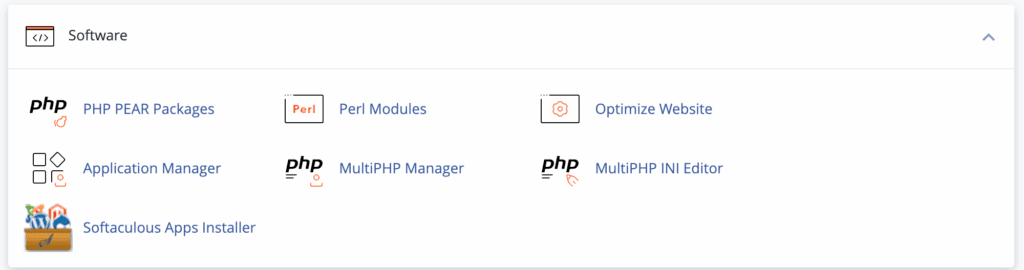
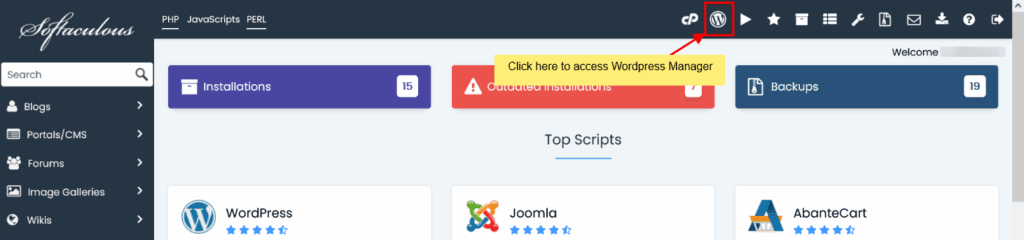
Begin the installation: Access your cPanel dashboard, navigate to the Softaculous Apps Installer, locate the WordPress icon, and click the Install Now button for WordPress to open the setup form.
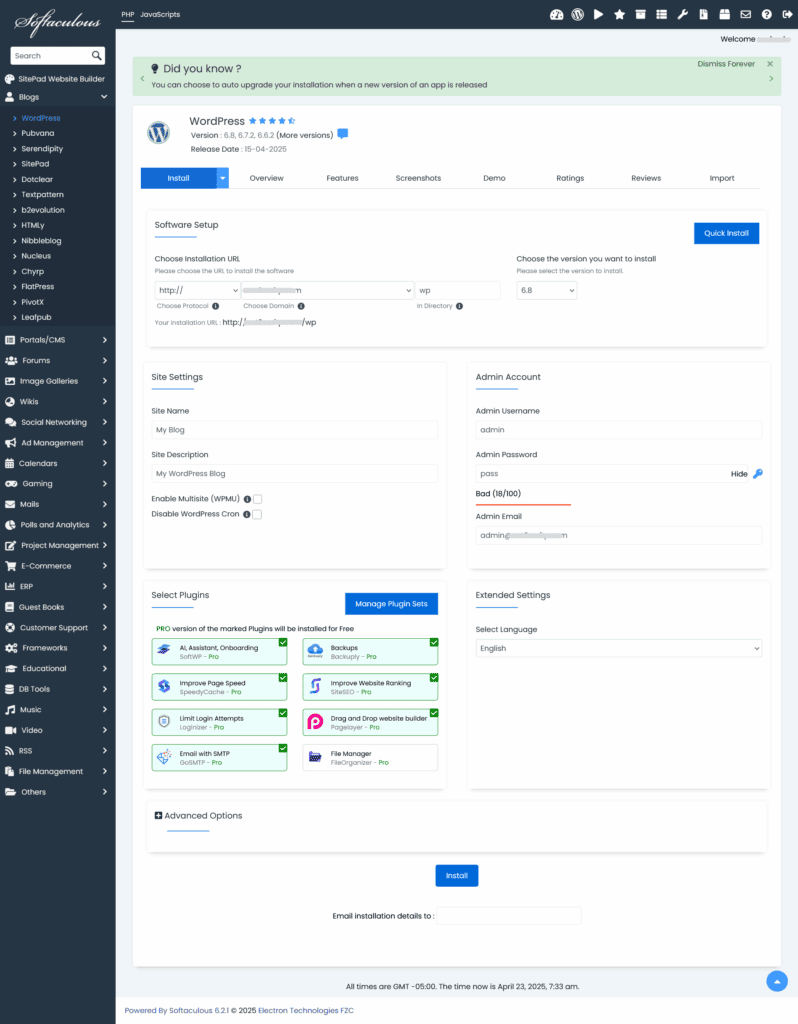
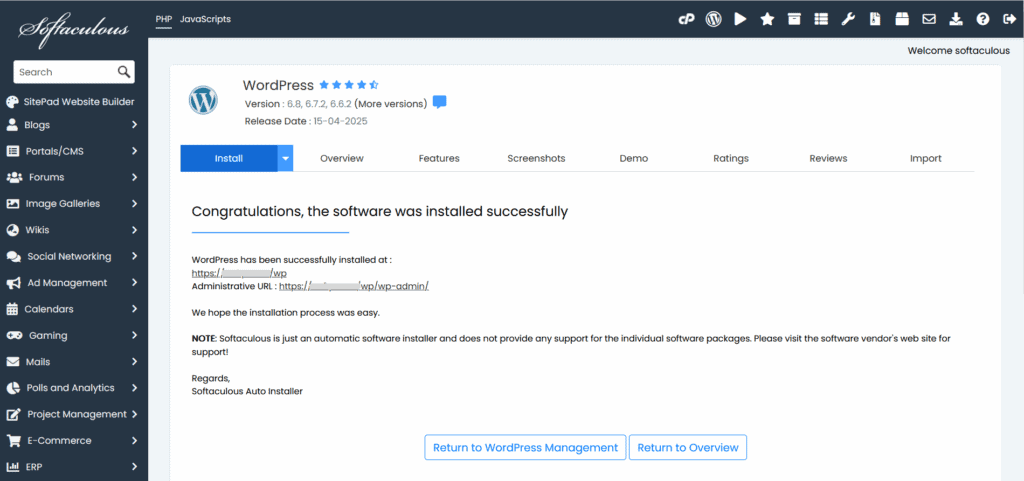
Configure and complete the installation: On the setup form, configure your site’s location by choosing HTTPS:// and your primary domain, ensuring you leave the “In Directory” field empty. Next, create your administrator account with a strong username and password and select any optional plugins. To finish, click the Install button and save the administrative URL that appears upon completion.
Method 2: manual installation (for advanced users)
This process requires you to handle the database creation and file management yourself. It is for users who need specific configurations or whose hosts do not offer auto-installers.
Part 1: Create the Database
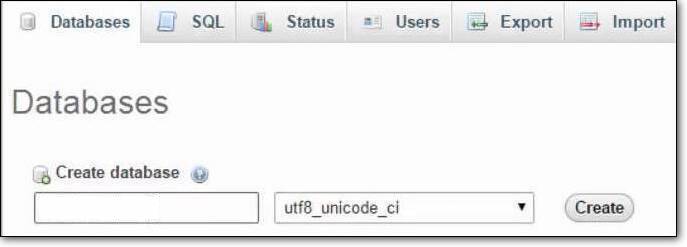
Use the MySQL Database Wizard: In cPanel, open the wizard and follow the prompts to create a new database, a new user with a strong password, and assign All Privileges to that user.
Store credentials safely: Carefully record the database name, the username, and the password. You will need these to establish a database connection.
Part 2: Upload and Configure WordPress Files
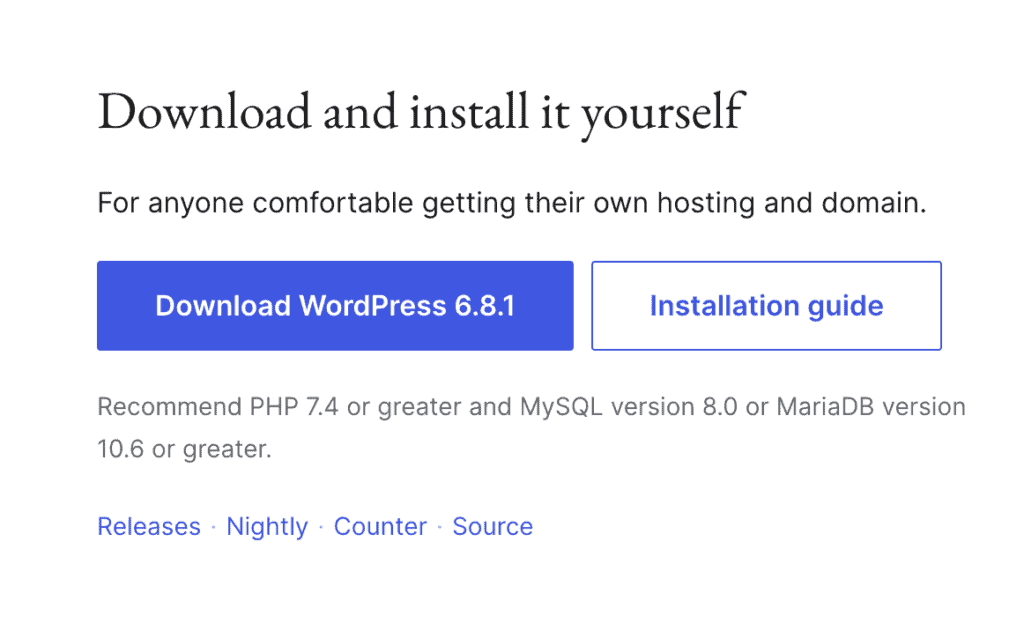
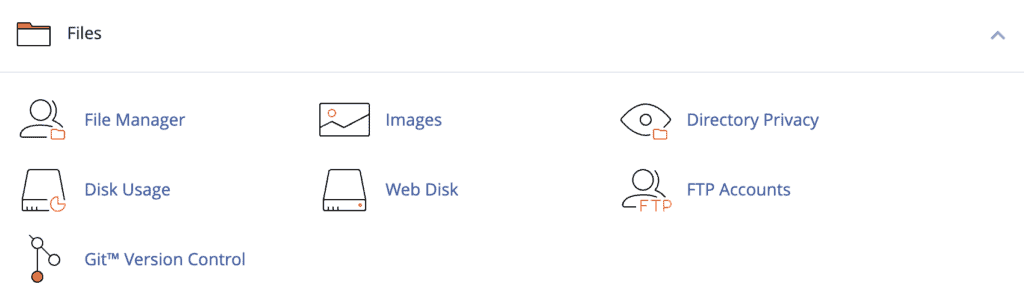
Download and upload WordPress: Get the latest .zip file from wordpress.org. In the cPanel File Manager, navigate to the public_html folder, upload the .zip file, and extract its contents.
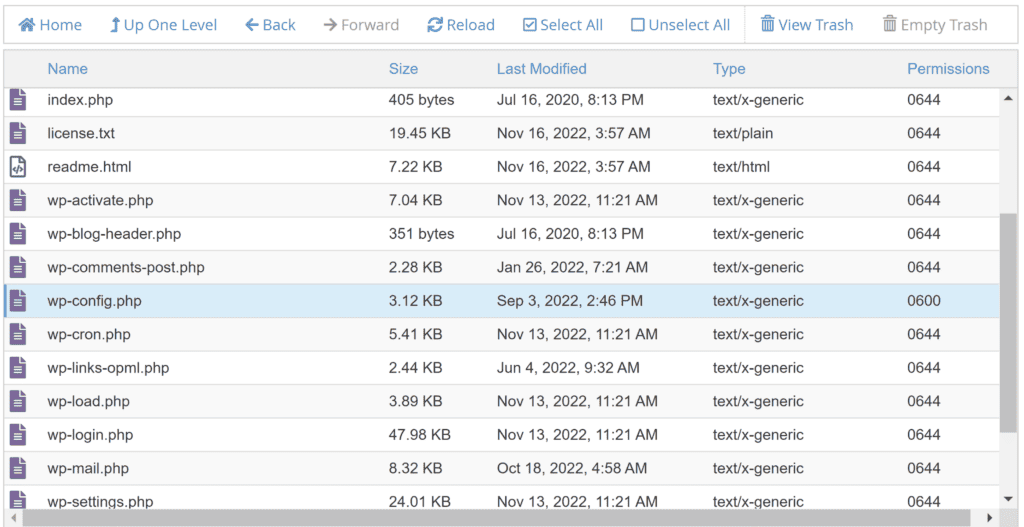
Configure the wp-config.php file: Find the wp-config-sample.php file, rename it to wp-config.php, and edit it to enter the database credentials you saved earlier.
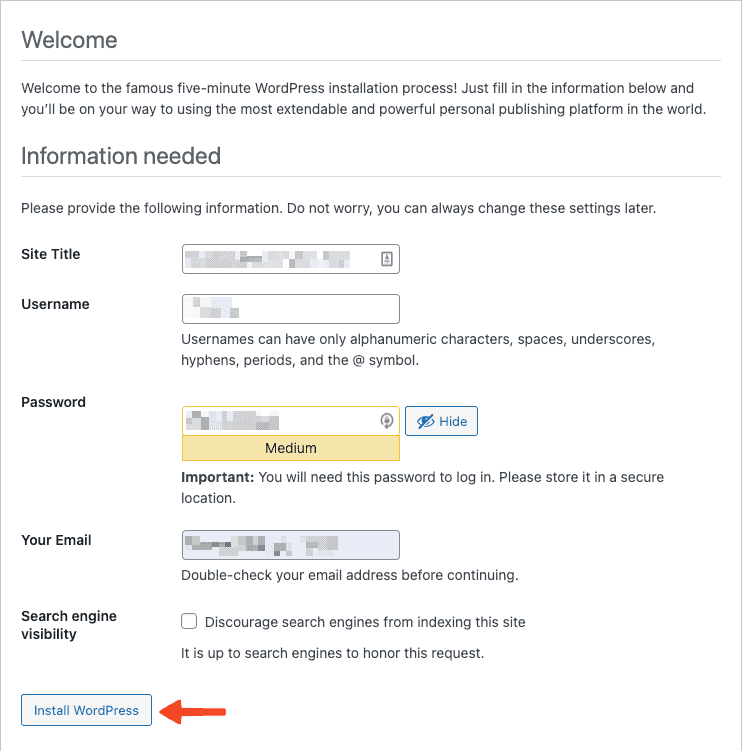
Run the WordPress installer: Visit your domain in a web browser. The installation script will run automatically. Follow the on-screen prompts to finish the site setup.
Best practices to follow post-installation
Adopting these best practices immediately will ensure your site is secure, fast, and easy to manage from day one.
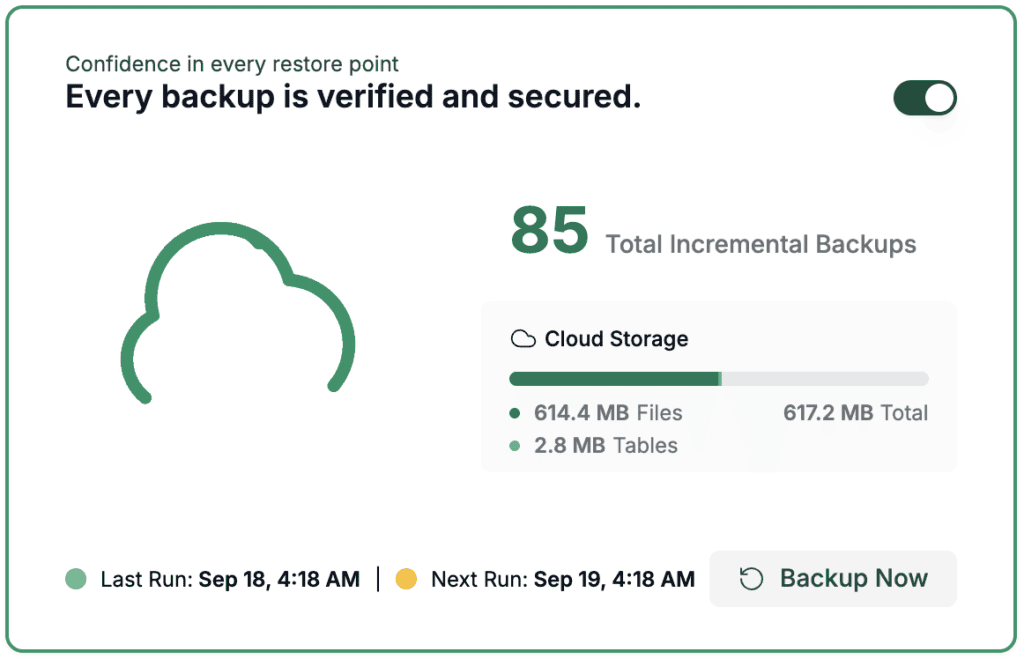
Establish a backup routine: Configure an automated, regular backup schedule using a trusted backup plugin. A reliable backup is your only safety net against data loss from errors or attacks.
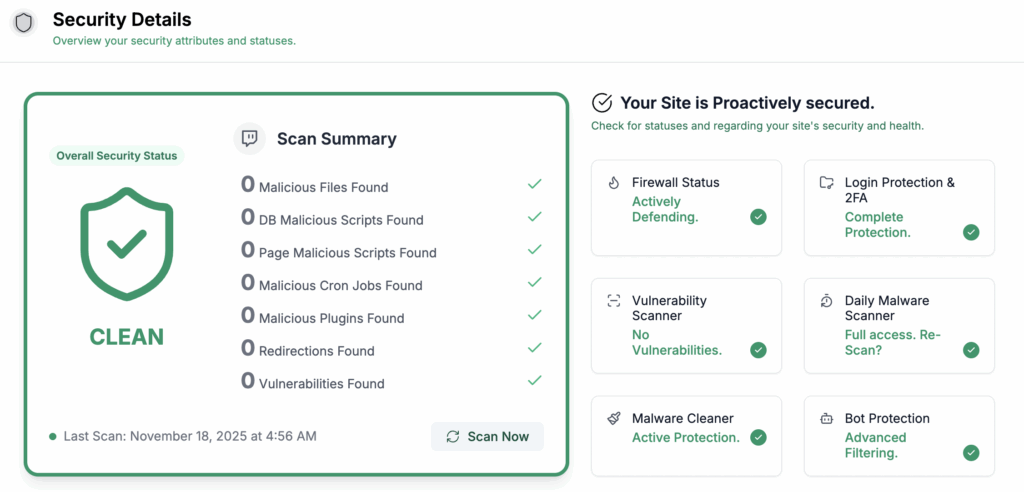
Secure your foundation: First, log in to your dashboard at yourdomain.com/wp-admin. Confirm your site loads over HTTPS, then install and activate a reputable security plugin. This is a non-negotiable step for any new website.

Set your WordPress permalinks: Go to Settings > Permalinks and select the “Post name” option. This creates clean, SEO-friendly URLs that are easy for both users and search engines to understand.
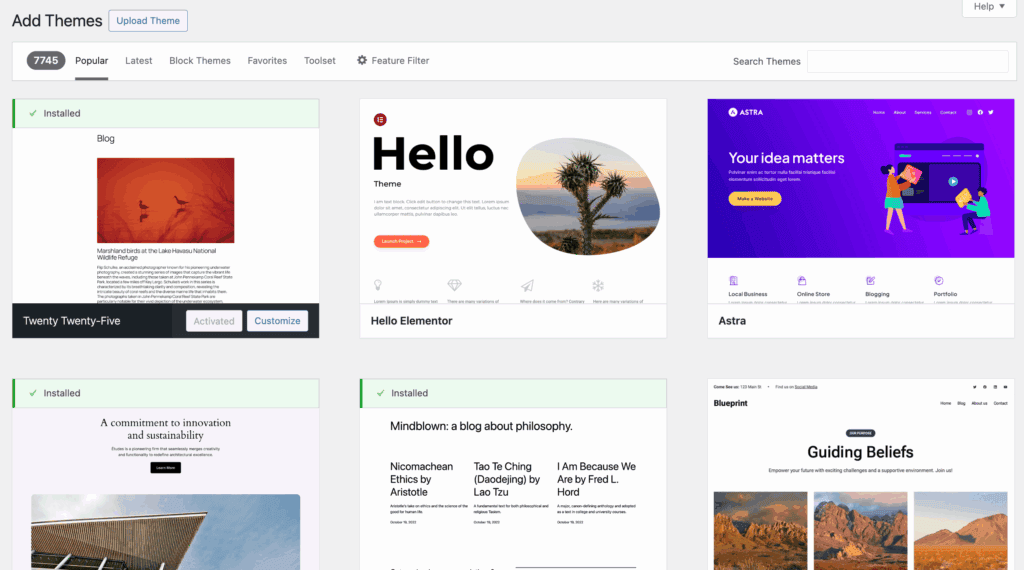
Maintain a clean environment: Choose and install your primary theme. Afterwards, delete any default themes and plugins that you are not using. A lean installation is faster and more secure.
Parting thoughts
With the installation complete, your focus should now turn to the long-term health and security of your website. Prioritizing regular backups, consistent updates to the WordPress core, themes, and plugins, and the use of strong passwords are all essential practices for ongoing site maintenance.
For future management, remember that cPanel remains a powerful tool, and using a staging site to test changes is a recommended professional standard.
FAQs
How do I upload WordPress to cPanel?
You can upload WordPress to cPanel using the File Manager tool. Navigate to the public_html directory, click the Upload button, and select the WordPress .zip file.
How to install WP on cPanel?
To install WP (WordPress) on cPanel, the recommended method is to use a one-click auto-installer. You can find this tool, often named Softaculous, within the Software section of your cPanel dashboard.
Does cPanel support WordPress?
Yes, cPanel fully supports WordPress and is one of the most common platforms for hosting it. It includes all the essential tools like File Manager and MySQL database management for a complete setup.
How to install WP manually?
To install WordPress manually, you first create a MySQL database and a user in cPanel. Then, you upload the WordPress files, edit the wp-config.php file with your database details, and run the installer.
How to create a cPanel for a WordPress website?
As a website owner, you don’t create a cPanel account directly. It is server management software that web hosting companies license and then provide to you as part of your hosting package.

Shivani enjoys crafting guides that make every aspect of using WordPress simple and easy to follow. When she's not glued to her laptop, you can find her buried in a good book or occasionally, painting.