Imagine this: you once decided to change your WordPress site’s login URL, hoping to make it more secure. But now, you can’t remember what you set it to, and that blank screen is driving you crazy!
While it’s a common move, many find out the hard way that altering the login URL doesn’t truly secure your site. It’s more like hiding something in plain sight rather than properly securing it.
If you find yourself locked out due to this common WordPress login issue, don’t worry. You’re not alone, and there’s no need to panic. There are straightforward ways to get back into your WordPress dashboard. Let’s look at these solutions and get you back on track easily.
If you can’t log in because you changed your WordPress login URL, deactivate the plugin you used for the change and try logging in again. If you did it manually, find the files you edited and change them back. Use a security plugin that blocks bots and adds a firewall to protect against attackers for enhanced security without complications.
Before proceeding, ensure you backup your site. This way, you have a fallback option if anything goes awry.
1. Disable the plugin you used to change the WordPress login URL
Did you use a plugin like WPS Hide Login or User Registration to change your WordPress login URL? If you’ve forgotten the new URL, don’t worry—it’s easy to fix.

First, you’ll need to access your website using FTP. This stands for File Transfer Protocol and helps you manage your website files. Use an FTP client, like Filezilla, to begin.
1. Open your FTP client and enter your website’s login details to connect. You’ll need your hostname, username, and password, which you can get from your web host.

2. Once connected, find the wp-content folder. Open it and look for the plugins folder.

3. Inside the plugins folder, you’ll see all your installed plugins. Look for the folder of the plugin you used to change the login URL.
4. Rename this folder to something like pluginname_disabled to turn off the plugin.

After disabling the plugin, go to your site’s login page again. Use the default login URL: yoursite.com/wp-admin. It should let you log in now. Once you have access, remember to turn back on any important plugins.
What if you’re still stuck?
If you still can’t log in, the plugin might have changed something in your database. You’ll need to use phpMyAdmin to fix this.
1. Log in to your hosting account and find the control panel, often called cPanel.
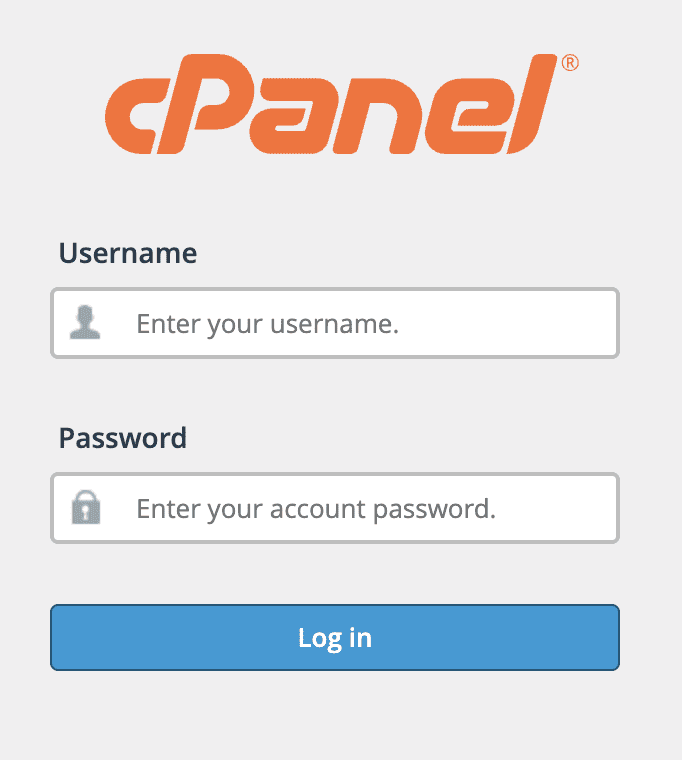
2. Look for and open phpMyAdmin.
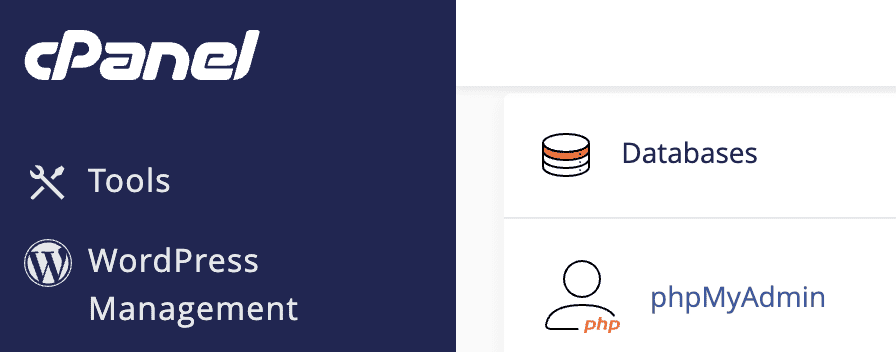
Some web hosts might use a different control panel instead of cPanel. If that’s the case, the steps remain largely the same. For simplicity, let’s use cPanel and phpMyAdmin in this guide.
3. In phpMyAdmin, pick your WordPress database from the list on the left.
4. Look for a table called wp_options. Tables have prefixes, so your table name might differ.

5. Search through the rows in this table for any entries related to your plugin. These may have names similar to the plugin, like pluginName_options.

6. If you find a field with the custom login URL, change it. Restore the default settings by changing or removing the custom URL.
By following these steps, you should fix the login issue. Pay attention to each step to avoid mistakes. With patience, you’ll be back in your WordPress dashboard soon.
2. Remove the edits you made to your WordPress site files
Manually changing your WordPress login URL might seem like a smart way to boost security. But if you or your developer did this, it means editing core files like .htaccess and wp-login.php.
To undo these changes and access your login page again, follow these steps:
First, use an FTP client like Filezilla to connect to your site. You’ll need your FTP login details, which you can typically find in your web hosting panel.
1. Log in to your FTP client using your credentials.
2. Once connected, navigate to your site’s root folder, often named public_html or www. This is where you’ll find files like wp-login.php and .htaccess. If manual changes were made, these files might have been renamed.

3. Find the renamed wp-login.php file and download it to your computer.
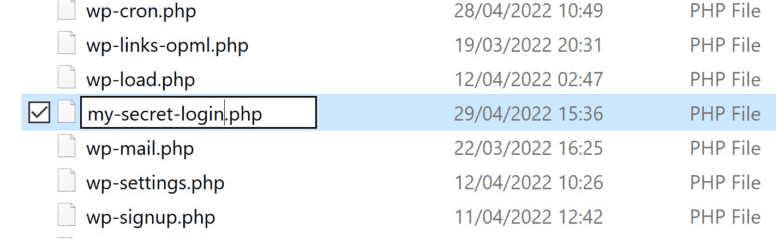
4. Open the file with a code editor like Visual Studio. Look for any changes that mention your custom login URL. Use the Find feature to make this easier.
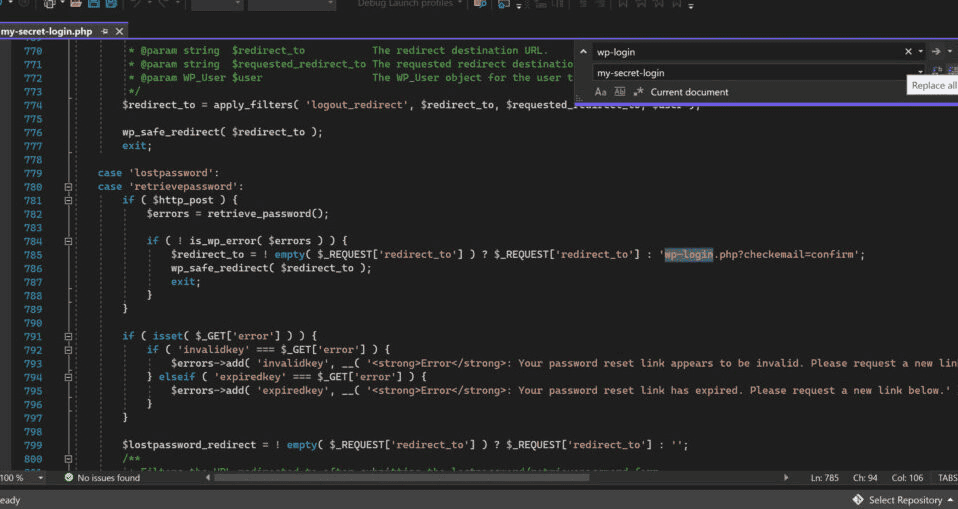
5. Change each modified part back to its original state. Remember, the original URL is yoursite.com/wp-admin. Be sure to only remove or change the custom lines you added.
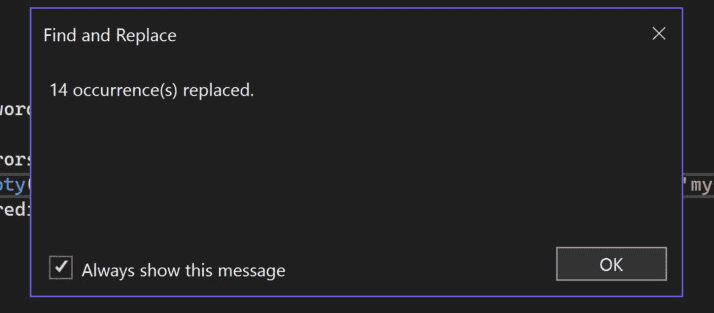
6. Repeat this process for the .htaccess file and any other files you modified. Note that the files might be in different folders within your site’s root directory.
7. Once you’ve fixed a file, save it and re-upload it to your site using FTP.
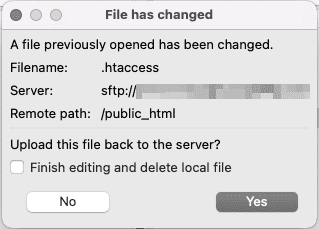
Now, try to log in using the default WordPress URL. If you’ve reversed all the changes correctly, you should be able to access your site again. Always back up your site before editing these files to prevent losing any important data.
Should you change the WordPress login URL?
Many guides online suggest changing your WordPress login URL. They might claim that it boosts security by hiding your login page from attackers. But if you’re reading this, you might have already run into problems. This is why we say: DO NOT change the WordPress login URL.
When you change the login URL, getting back access can be tough. You might not want to tinker with your site files and risk causing damage. Changing the URL is only trying to provide security through obscurity. And this method doesn’t fully protect your site.
Attackers may still find your hidden login page, either by accident or through targeted methods. They also often look for other weak spots, like XML-RPC, to get into your site.
So, what should you do instead?
Use a strong security plugin like MalCare. MalCare adds extra protection to your login page, keeping bots away. It also finds vulnerabilities and helps secure the whole site.
MalCare also offers features like a one-click malware scanner and removal tool. It includes a smart firewall that blocks attacks before they can do damage. This way, you can secure your WordPress site without needing to change the login URL.
Also remember to back up your site completely, including its files and database. This ensures you have a backup plan if something goes wrong.
For easy backups, we recommend BlogVault. It takes automatic backups and stores them securely in off-site locations without using your site’s resources. Plus, its one-click restore feature lets you easily undo any unwanted changes.
Final thoughts
It can be really annoying to get locked out of your WordPress site just because you changed the login URL. But don’t worry, fixing it can be simpler than it looks. Usually, you can regain access by disabling the plugin you used or by editing the URL in your site files. Remember, changing your login URL isn’t the best way to secure your site. Attackers might still find the login page, and these changes don’t offer complete protection.
For a stronger security approach, try using a plugin like MalCare. It protects your login page from bots and its smart firewall blocks attackers immediately. Plus, with its one-click malware scanning and removal, MalCare keeps your site secure without needing drastic changes.
And before making any changes, always back up your site completely using BlogVault. This way, you have a backup plan if something goes wrong with your site.
FAQs
How do I recover my WordPress login URL?
If you’ve changed your WordPress login URL and can’t remember it, you can get access back using FTP. Use an FTP client like Cyberduck to connect to your site. Navigate to the wp-content/plugins folder. Find the plugin you used to change the login URL and rename its folder to disable it. This should allow you to log in using the default URL: yoursite.com/wp-admin. If you directly edited files like wp-login.php, use FTP to download these files. Look for any changes you made to the login URL and undo them. Then, upload the corrected files back to your site. This should help you regain access to your login page.
How do I find my WordPress URL?
To find your WordPress URL, log into your WordPress dashboard. Click on Settings and then choose General. You will see the WordPress Address (URL) and Site Address (URL). These display your WordPress URL, where your main site files are located. If you can’t log in, check the email you used to set up WordPress. It might include your site URL. You can also check your hosting provider’s control panel or documents. They often include setup details.
How do I find my WordPress login username and password?
If you forget your WordPress username or password, go to yoursite.com/wp-admin. On the login page, click “Lost your password?” below the form. Enter your email or username, and you’ll receive an email to help reset your password. If you don’t remember your username, check past emails from WordPress. They might usually contain your username. If you still can’t find it, use phpMyAdmin through your hosting account. Check the wp_users table in the database, where you’ll see your username and email. You can reset your password in the database. But do this only if you’re comfortable editing database entries.
How do I find my custom login URL in WordPress?
If you can’t recall your custom WordPress login URL, start by checking the plugin you used to change it. Go to the plugin’s settings in your WordPress dashboard if you can still access it. If that doesn’t help, use an FTP client to connect to your site. Locate the wp-content/plugins folder and look for the plugin you used. Check its files for any mention of the custom URL. You can also use phpMyAdmin to search the wp_options table for entries related to the plugin. If you still can’t find it, try disabling the plugin by renaming its folder in FTP. This should allow you to log in using the default URL: yoursite.com/wp-admin.

Anurag traded algorithms for adverbs when he switched from being a software engineer to being a writer. Editor by day, he chases F1 by night!