

Imagine this: You’ve just launched your WordPress site after many hours of hard work. You’ve adjusted themes and added those must-have plugins. Everything seems perfect in your dashboard. But then, you open the site in your browser. Something is wrong. The layout is messy, text is out of place, and images do not look right. Your CSS is not loading, making you feel like your hard work is wasted.
WordPress CSS not loading is a common WordPress media error. We want our sites to look clean and professional. CSS helps with the visual feel of a site. But when it doesn’t load, it messes up the user experience. If this sounds familiar, know that you’re not alone. Many people face this issue with WordPress. It seems difficult at first, but there is hope. We will guide you on how to fix it. Let’s help you restore your site’s style.
If you are facing the WordPress CSS not loading issue, start by checking the URL of your stylesheet and its permissions. Try switching to another browser and clear the cache. See if any plugins or themes are causing the issue. Ensure your CSS is loading via HTTPS. Also, check your code for any mistakes. Remember to backup your site before changing anything. This way, you can restore it if something goes wrong.
1. Check stylesheet access
Start with the basics. Check the URL of your stylesheet first. Make sure it points to the right place. If the URL is wrong, the stylesheet won’t load. Double-check to confirm it matches the actual file location.

Also, look at your file permissions. Your stylesheet typically needs a permission of 644 to be accessible. This permission allows it to work properly on your site. Sometimes, fixing permissions is the simple solution to the WordPress CSS not loading issue.

2. Switch to a different browser
The browser you use can also cause problems in how your website is displayed. An outdated or incompatible browser might not show your website correctly. To see if the browser is the problem, try another one. Choose a newer, updated browser for the best results.
If your site looks fine on a different browser, you’ve likely found the problem. Switching browsers helps identify or rule out browser-related issues when fixing the WordPress CSS not loading issue.
3. Clear your WordPress caches
If your CSS still won’t load, clear your WordPress cache. Caches store temporary data for faster loading. When caches become outdated or corrupted, they can cause issues like WordPress CSS not loading.

Start by clearing your browser cache. Then, clear caches from any plugins you use. Don’t forget to clear your CDN and server caches as well. This allows your site to load fresh data, which might resolve the problem.
4. Check your plugins and themes for conflicts
Plugins or themes sometimes conflict with each other. Installing a new one or updating an old one can break your CSS.
To find out if a plugin is facing conflicts, deactivate all of them at once. If the CSS loads afterward, a plugin is the culprit.

Reactivate your plugins one by one, checking to see when the issue reappears. Pay special attention to caching plugins since they often affect CSS. If you find the problem plugin, consider deactivating it. If it’s important, contact the developers for help or look for an alternative.
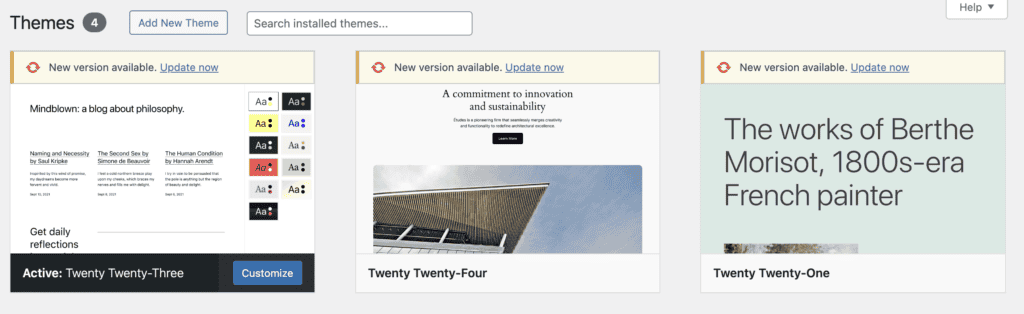
Also, try switching to a default theme like Twenty Twenty-Two. Sometimes, custom themes or updates cause stylesheet issues. If your CSS loads with a default theme, your current theme might be causing the WordPress CSS not loading issue.
5. Check for SSL issues
If you moved your site from HTTP to HTTPS or got a new SSL certificate, check for SSL issues.
SSL ensures a secure connection. But it needs all site links, like your stylesheet, to use HTTPS. Failing to do so could lead to the WordPress CSS not loading issue.

Start by checking your SSL certificate setup. A tool like Really Simple SSL can help manage this.

Then, ensure your stylesheet URL uses HTTPS. Use your browser’s Inspect tool to confirm. If your stylesheet isn’t using HTTPS, adjust its settings. Fixing SSL links can solve related loading issues.
6. Regenerate CSS
Using a page builder like Elementor? It may help to regenerate the CSS.
Page builders let you customize your site’s look but sometimes glitch. This can lead to errors like WordPress CSS not loading. To fix this, go to your page builder’s settings and find the regenerate CSS option. Doing so can refresh styles and remove glitches.

Also check if you use more than one page builder. Too many can cause conflicts. Stick to one to avoid issues that disrupt your site.
7. Check CDN settings
If you use a CDN, make sure your CSS files are managed properly. CDNs store site copies, including CSS, for faster loading.
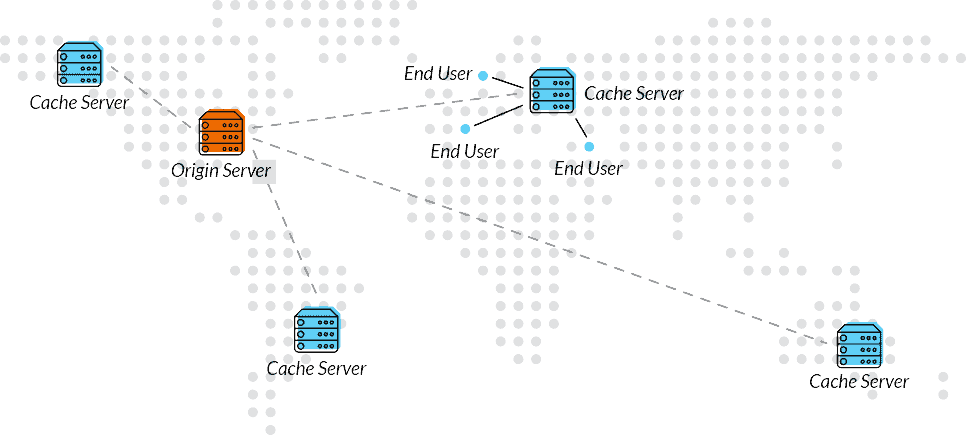
First, check if your CSS files are uploaded and synced with your CDN. Sync issues might cause problems like WordPress CSS not loading. If you’re unsure or can’t fix it, contact your CDN provider. They can help troubleshoot and ensure your CSS files load correctly. Good CDN settings keep your site looking its best.
8. Clean and repair your database
Your WordPress site’s database might have unwanted or broken data over time. This can cause issues like your WordPress CSS not loading.
Start by cleaning your database. There are plugins available to help with this task.

If cleaning doesn’t solve the problem, your database might be damaged. In that case, repairing your database is necessary. Fixing your database resolves many issues and helps your site run better. Regular cleaning keeps it smooth and fast.
9. Check error logs
To dig deeper into the WordPress CSS not loading issue, check your error logs. These logs show if an unexpected problem is occurring. Use your browser’s Inspect tool too. It can display errors as your site loads.

By examining both error logs and the Inspect tool, you can often pinpoint the issue. Error logs are like guides that show you what’s wrong. They help you fix issues faster. Regularly checking these logs prevents future problems.
10. Check CSS code
Feel comfortable with making code changes? Great.
But ensure that before you dive into your CSS code, backup your site.
If only part of your CSS isn’t working, move the code around. Sometimes, shifting code from the end of the stylesheet to the start can fix it. It might sound strange, but small changes can make a big difference.
If the whole stylesheet is an issue, check the format. CSS must be correct for browsers to read it. Use tools like W3C’s Markup Validation Service for checking. Ensure your CSS is correctly enqueued in your functions.php file using wp_enqueue_style().
Also, think about CSS specificity. Sometimes styles clash, and specific selectors win. If your CSS uses simple selectors, they might be overridden. Adjusting specificity can resolve style conflicts.
How to prevent the WordPress CSS not loading issue?
Choose themes and plugins that are well-coded and regularly updated. This reduces the chance of compatibility issues that could disrupt your website.
Ensure that your WordPress core, themes, and plugins are updated. Updates contains several key bug fixes as well as enhancements.
Within the functions.php file, put version numbers on stylesheets. This stops many individual browsers from caching several old styles. As a good example, try wp_enqueue_style('style-name', get_stylesheet_uri(), array(), '1.0.0');.
Avoid using plugins that have similar functions. Using a lot of similar plugins could create conflicts and issues.
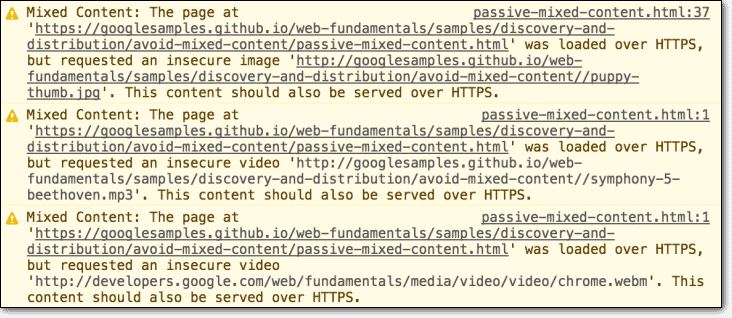
Ensure that all of your URLs, especially in stylesheets, use HTTPS to prevent mixed content issues.
You should always backup your site. This simplifies restoration in the event that updates cause issues. Consider using a tool like BlogVault for automatic, safe backups stored off-site.
Try out updates on a staging environment before putting them on your live site. BlogVault users have instantaneous access to staging sites directly from their dashboard.

Use a Content Delivery Network (CDN) to deliver static files rapidly. It can also reduce load times.
Keep only the essential plugins. This will reduce the potential for loading errors.
Final thoughts
Fixing the WordPress CSS not loading error can feel overwhelming at first. But, a clear approach helps you tackle it. Remember, each site is unique. What solves the issue for one site may not work for another. You must examine everything, such as clearing your cache, checking SSL settings, and looking at your plugins and themes. A thorough approach often helps you find the problem. Once identified, you can restore your site’s appearance.
To keep your site secure, use BlogVault. It offers automatic backups that are stored safely off-site. This protects your data without straining your site. It also has an emergency connector for recovering sites, even if they crash. BlogVault is a great choice for protecting and managing your WordPress site with ease.
FAQs
Why is my CSS not displaying?
Your CSS might not be displaying for several reasons. First, check if the URL for your stylesheet is correct and accessible. If your browser is outdated, it might not load CSS properly, so try a different one. Clear your cache, as old or corrupt files can cause issues. Plugins or themes might conflict with each other, so test by disabling them one at a time. Make sure your SSL is set up correctly if you’ve switched to HTTPS. Lastly, incorrect code in the CSS file might stop it from showing. Checking these areas should help you find what’s wrong.
How to load CSS in WordPress?
To load CSS in WordPress, you need to use the wp_enqueue_style() function. This function is used in the functions.php file of your theme. First, add this function to your file with the right parameters. For example, use something like wp_enqueue_style('my-style', get_stylesheet_uri());. The first part is the name you give to your style, and the second part is the URL of the stylesheet. Make sure you place this code inside a function, and then hook it with add_action('wp_enqueue_scripts', 'your_function_name');. This makes sure your CSS is loaded in your site the right way.
Why is my theme not loading in WordPress?
If your theme is not loading in WordPress, there could be a few reasons. First, check if the theme is activated in your dashboard under the Appearance tab. If not, activate it. Ensure your WordPress version is up-to-date, as some themes need the latest version to work. Also, check if there are conflicts with plugins by deactivating them one at a time. Lastly, there might be a mistake in your theme files, especially if you customized them. If the problem continues, consider reinstalling the theme. These steps should help solve the issue.

Anurag traded algorithms for adverbs when he switched from being a software engineer to being a writer. Editor by day, he chases F1 by night!


