
We’ve all been there: you’re updating a WordPress post, need to revert to an earlier version, and realize the WordPress revisions feature has completely ghosted you.
Without that tool, managing your content is a headache, leaving you unable to undo mistakes. It’s easy to start wondering, “Did I break something? Is my work gone for good?”
Take a deep breath. Many users face the ‘WordPress Revisions not showing’ issue, and the good news is, it’s almost always fixable. In this guide, we’ll walk you through the steps to get them back.
WordPress revisions usually disappear because of a plugin conflict or a simple setting in the wp-config.php file. While you can fix this by testing plugins or editing the file, please use a backup plugin before you make any changes.
Understanding WordPress revisions

Before we show you the fix, let’s explain what WordPress revisions are. As you work on your editor, WordPress’s autosave feature quietly saves a copy of your post in the background.
These automatically saved copies create a history of all your changes over time. This history lets you look back and restore any older version you might need. It’s the perfect way to undo a mistake or bring back something you deleted.
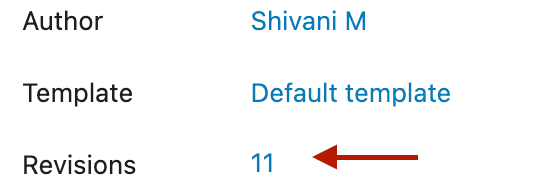
This is also very helpful when a team works on one post, as everyone can see who changed what. It lets you test new ideas without worry, since you can always go back to how things were before.
Troubleshooting WordPress revisions not showing
When revisions disappear, it’s usually due to a few common causes. We’ll start with the simplest fixes first, as they often solve the problem right away.
Initial fixes

Clear out all cache. Old, saved versions of your site can cause display issues. First, clear your website’s cache through your caching plugin. Look for a button in your admin bar that says Purge Cache or Clear Cache. After that, clear your browser’s cache and cookies in its settings menu. This ensures you are loading a completely fresh version of the page.

Check your revision plugin’s settings. If you use a plugin to manage or limit revisions, its settings might be the cause. For example, in a plugin like Companion Revisions Manager, you would look for an option that lets you disable revisions. Make sure that option is turned off.

Deeper troubleshooting
If those initial steps didn’t work, the issue might be a conflict on your site. Plugins and themes can sometimes interfere with core WordPress features, including revisions.
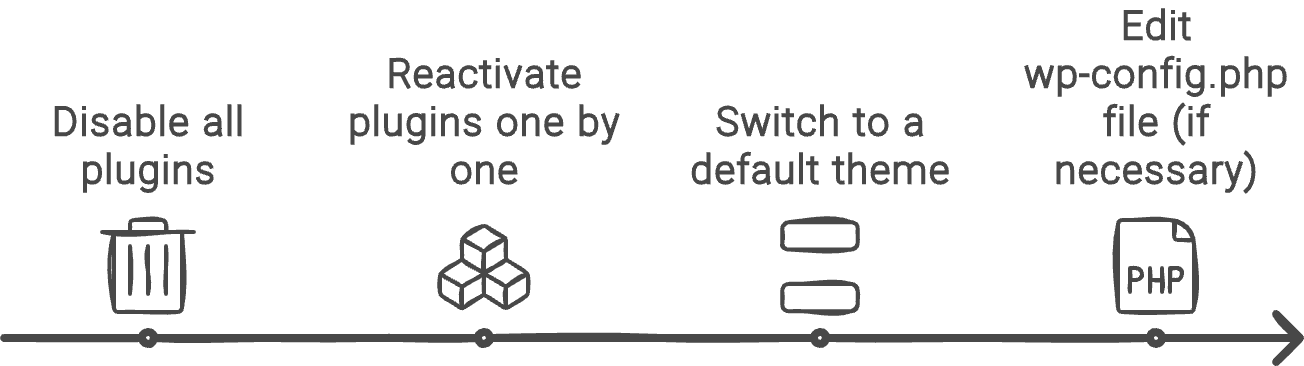
Temporarily disable all your plugins. This is the quickest way to check if a plugin is the source of the trouble. If revisions reappear after they are all off, you know a plugin is the culprit.

Reactivate your plugins one by one. Turn each plugin back on, and check for revisions after each one. When they disappear again, you’ve found the plugin causing the conflict.
Switch to a default WordPress theme. If the plugins aren’t the problem, your theme might be. To test this, activate a default theme like Twenty Twenty-Five. If revisions come back, you know the issue is with your current theme.

If none of those steps solved the problem, we need to look at a core WordPress file.
Adjusting settings in wp-config.php
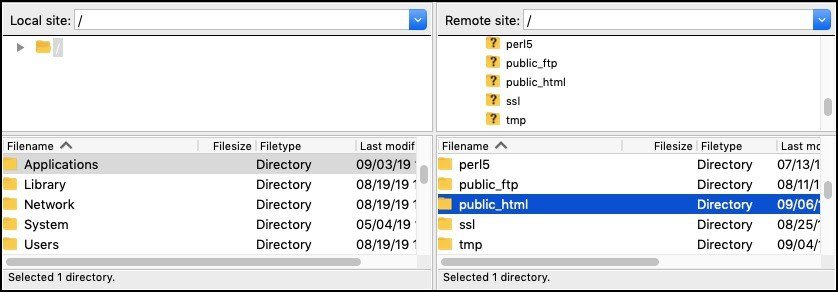
Connect to your website via FTP. You will need a program like Cyberduck or FileZilla to access your website’s files directly. Use the login details provided by your web host to connect.

Locate the wp-config.php file. Once you are connected, look inside the main folder of your website, often called public_html or www. You will find the wp-config.php file in there.
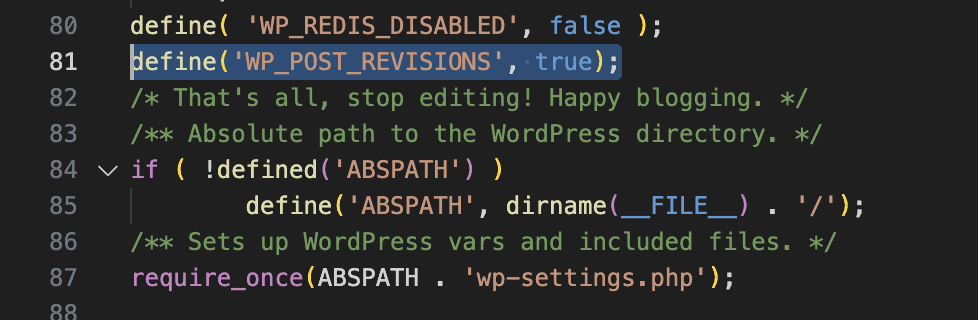
Edit the code using a text editor. You can open the file with a program on your computer, like Visual Studio Code. Alternatively, many hosting panels (like cPanel) offer a built-in file editor you can use directly in your browser. Once the file is open, look carefully for this line of code:define('WP_POST_REVISIONS', true);
If you find it and it says false, simply change it to true. If you can’t find that line at all, you’ll need to add it yourself. Just be sure to place it somewhere above the line that says, That’s all, stop editing! Happy publishing.
Save the file and upload it back to your server. If you edited the file on your computer, save it and use your FTP client to upload it back to the same folder. If you used a built-in editor, just click save. When asked if you want to overwrite the old file, click Yes.
Common reasons why WordPress revisions do not appear
Understanding why your revisions are missing can help you fix the problem much faster. It usually comes down to one of these common reasons.

- Your web host has turned them off. Some hosts, like WP Engine, disable revisions to save database space. If this is the case, you can’t re-enable them yourself. The only solution is to contact their support team and ask them to turn revisions back on.
- The post has never been manually saved. WordPress starts creating a revision history only after you first click “Save Draft” or “Update.” The autosave feature alone isn’t enough, so make sure you’ve saved your work at least once.
- Revisions were manually disabled in your settings. This is usually done by adding code to the
wp-config.phpfile or through a plugin designed to limit revisions. You can check both of these places to ensure the feature is enabled. - A plugin is causing a conflict. A recently installed or updated plugin can interfere with core WordPress functions. The best way to find the culprit is to disable your plugins one by one until revisions reappear.
- Your active theme is causing the issue. Less often, a theme can conflict with the revisions system. You can test this by temporarily switching to a default WordPress theme, like Twenty Twenty-Five. If revisions come back, you’ve found the problem and should contact the theme’s developer.
How to manage revisions effectively
Now that you have your revisions back, it’s a good idea to manage them. While helpful, saving too many revisions can make your website’s database larger, which can eventually slow down your site. Here are two simple ways to keep them under control.

Set a limit on how many revisions are saved. You can do this by adding a single line of code to your wp-config.php file. Just like before, make sure you have a backup first. Then, open the file and add the following line: define('WP_POST_REVISIONS', 5);You can change the number 5 to whatever limit you prefer. This tells WordPress to only keep the five most recent versions of any post or page.
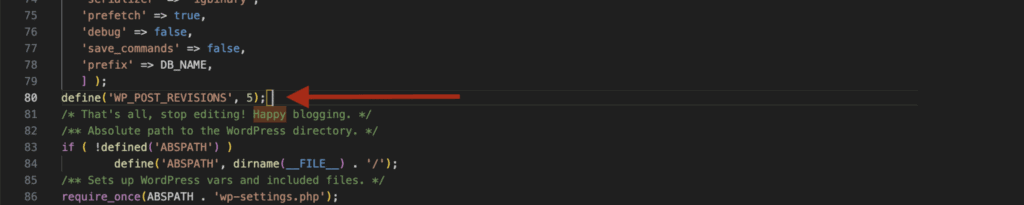
Clean up old revisions with a plugin. If you want to remove old revisions that are already saved, a plugin is the easiest way. A tool like Companion Revision Manager lets you delete old revisions you no longer need. You can find its settings by going to Tools > Revisions on your dashboard.

Parting thoughts
Ensuring the revisions feature is enabled helps you save changes and track your work, making content management much easier. It gives you a safety net for any editing mistakes.
When troubleshooting, always start with the simple fixes, like clearing your cache or checking for plugin conflicts. Before you move on to more technical solutions like editing the wp-config.php file, we can’t stress this enough: always take a full backup of your site. This simple step protects all your hard work and lets you solve problems without risking new ones.
FAQs
Why are my WordPress edits not showing?
Your WordPress edits might not be showing due to several reasons. There could be browser cache issues, plugin or theme conflicts, no manual saves, or even WordPress settings that disable revisions. Start by clearing your browser cache and checking for any recently installed plugins or themes that might be interfering.
How do I turn on revisions in WordPress?
To turn on revisions, you will first have to check your revisions managing plugin to see if your revisions feature has been disabled through it. If you don’t have one, you might need to first check your wp-config.php file. Open the file in a text editor and ensure the following line exists: define('WP_POST_REVISIONS', true);If it’s not there, add it. This will enable the revisions feature across your WordPress site.
Where are WordPress revisions stored?
WordPress revisions are stored in the same database as your posts and pages. Specifically, they reside in the wp_posts table. This allows WordPress to efficiently track and manage changes to your content.
How do I turn off revisions in WordPress?
To turn off revisions, open your wp-config.php file in a text editor and add the following line:define('WP_POST_REVISIONS', false);
This will disable the revisions feature, preventing WordPress from saving any new revisions of your posts and pages.
Can I set a limit for the number of revisions I have?
Yes, you can limit the number of revisions WordPress keeps for each post or page. You can do this with the help of a plugin like Companion Revisions Manager. If you don’t want to use a plugin and want to do it manually, you can do it by editing your wp-config.php file in a text editor and adding the following line: define('WP_POST_REVISIONS', 5);
Replace the number ‘5’ with the number of revisions you want to retain. This helps keep your database optimized while still providing a history of your changes. Make sure you are careful while editing this file as a tiny error can cause your entire site to crash.

Shivani enjoys crafting guides that make every aspect of using WordPress simple and easy to follow. When she's not glued to her laptop, you can find her buried in a good book or occasionally, painting.